
The Outlook Rules Quota Exceeded error appears when the rules stored in a mailbox take up more space than the server allows, so Outlook refuses to save a new or edited rule. The fix is almost always to shrink or remove rules until the total size drops under the limit. This guide walks through the exact steps, in order, from the quickest cleanup to the admin-level option.
Key Takeaways
- The quota applies to the total size of all rules in the mailbox, not to how many rules exist.
- Deleting old, duplicate, and oversized rules resolves the error for most people.
- Export rules first so nothing is lost if a deletion turns out to be a mistake.
- Microsoft 365 mailboxes have a 256 KB rules quota that cannot be raised, while Exchange Server admins can increase it up to 256 KB.
- The command outlook.exe /cleanrules is a last resort because it removes every rule.
How to Fix the Outlook Rules Quota Exceeded Error
Rules live in the mailbox on the server, not on the computer. Think of the quota like a small storage locker: it does not matter how neatly each rule is written, once the locker is full, nothing else fits. These steps empty it out.
Trim Your Rules in Outlook
- Step 1: Open the rules list. In Outlook for Windows, go to File, then Info, then Manage Rules & Alerts. In the new Outlook, open Settings, then Mail, then Rules.
- Step 2: Back up the current rules. In the Rules and Alerts window, select Options, then Export Rules, and save the .rwz file somewhere safe. This takes a few seconds and makes every later step reversible.
- Step 3: Delete rules that are no longer needed. Look for rules built for old projects, newsletters that stopped arriving, and rules that point to folders that no longer exist. Select a rule and click Delete.
- Step 4: Remove duplicates. Rules created over several years often overlap, for example two rules that both move mail from the same sender into the same folder. Keep one and delete the other.
- Step 5: Merge rules that do the same thing. If ten rules each move mail from a different sender to the same folder, one rule with several senders in its condition usually takes up less room than ten separate rules.
- Step 6: Simplify or remove heavy rules. Rules with long lists of words or addresses, or with actions such as replying with a template or showing a custom message, tend to be the largest. Shorten the lists or delete the rule if it is rarely used.
- Step 7: Click Apply, then OK. Outlook uploads the updated rules to the server, and the error should no longer appear when a rule is saved.
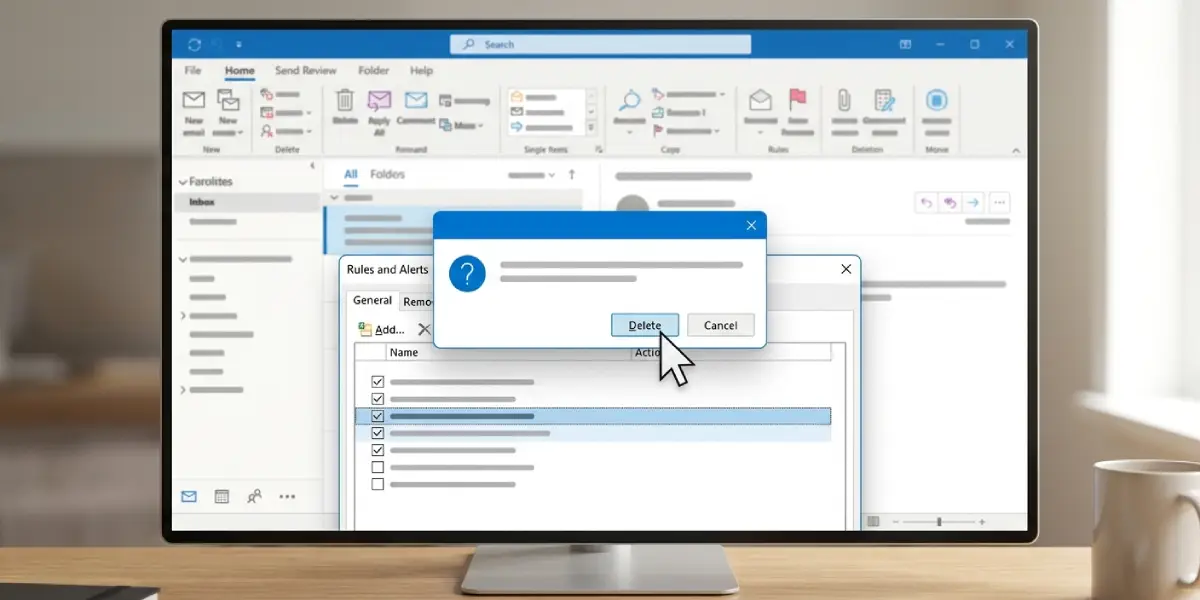
Tip: Start with the longest and most complicated rules rather than the simple ones. Removing one bloated rule often frees more space than deleting five short ones.
Raise the Rules Quota as an Exchange Server Admin
- Step 1: Open the Exchange Management Shell with admin rights on the on-premises Exchange Server.
- Step 2: Check the current limit by running Get-Mailbox -Identity user@domain.com | Format-List RulesQuota, replacing the address with the affected mailbox.
- Step 3: Raise the limit by running Set-Mailbox -Identity user@domain.com -RulesQuota 256KB. This is the highest value the setting accepts.
- Step 4: Ask the user to restart Outlook and save the rule again.
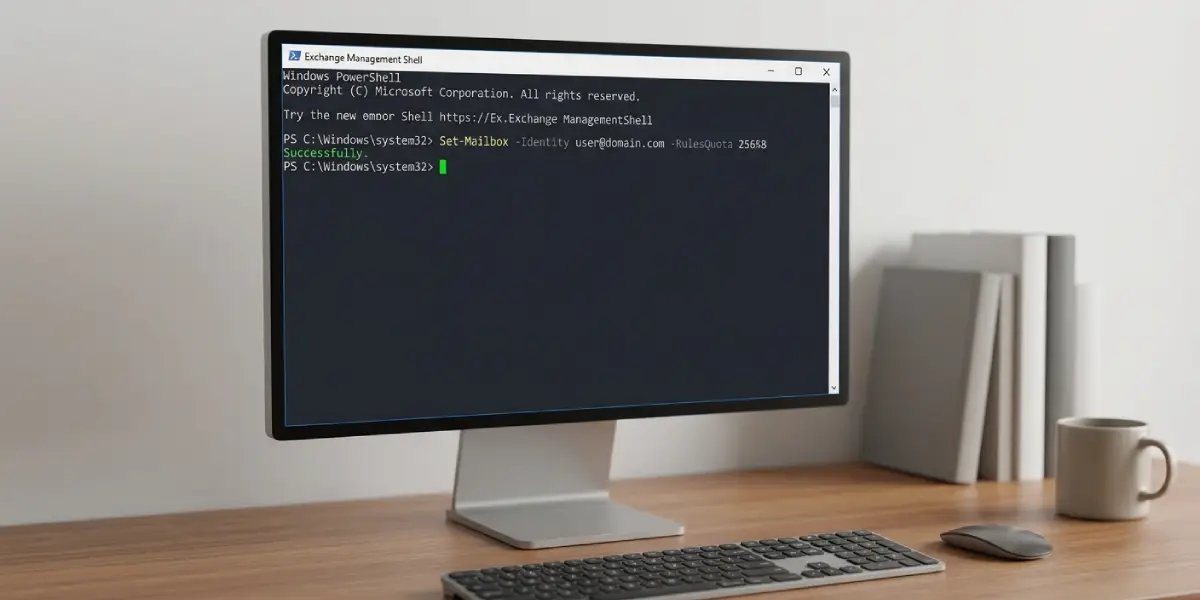
Tip: Microsoft 365 mailboxes already sit at the 256 KB maximum, so there is no admin setting to raise. In that case, trimming rules is the only fix.
Common Causes to Look For
Most people hit the limit gradually. Years of added rules, long sender lists, copied rules that were never cleaned up, and rules that embed message text or templates all add to the total size. A mailbox that was migrated from another account can also arrive with a large pile of old rules.
Common Problems and Fixes
The Error Continues After Deleting a Few Rules
The deleted rules may have been small. Remove the largest rules instead, especially those with long address or keyword lists, and then click Apply and OK so the changes sync to the server.
It Is Unclear Which Rules Are Taking Up the Most Space
Outlook does not show the size of each rule. A practical approach is to disable and delete rules with the longest conditions first, or those with custom reply or message actions, checking after each removal whether a new rule can be saved.
Rules Cannot Be Saved Even After a Large Cleanup
Close Outlook completely, reopen it, and try again. If the problem remains, export the rules for safekeeping and then run outlook.exe /cleanrules from the Run box (Windows key plus R). This command deletes all rules, so rules must be recreated afterward in a leaner form, or imported from the backup in small groups.
Importing a Backup Brings the Error Back
The .rwz file contains the same rules that caused the problem. Import it only after removing the unneeded rules from the file’s contents, or recreate only the rules that are truly needed.
The Quota Cannot Be Raised in Microsoft 365
This is expected. The rules quota for Microsoft 365 mailboxes is fixed at 256 KB, so the solution is to reduce the rules, not increase the limit.
Frequently Asked Questions
What does the Outlook rules quota exceeded error mean?
It means the combined size of the rules saved in the mailbox has reached the limit set on the server, so Outlook cannot store another rule or save changes to an existing one.
Does the quota depend on the number of rules?
No. The quota is based on total size. A few rules with long conditions or heavy actions can use more space than many short rules.
What is the default rules quota size?
Microsoft 365 mailboxes have a rules quota of 256 KB. On Exchange Server, the limit is set per mailbox and can be raised by an admin up to 256 KB.
Can the rules quota be increased in Microsoft 365?
No. The 256 KB limit is already the maximum, so the only way to resolve the error is to reduce the size of the existing rules.
How can the quota be increased on Exchange Server?
An admin can run Set-Mailbox -Identity user@domain.com -RulesQuota 256KB in the Exchange Management Shell, then have the user restart Outlook.
Should rules be backed up before deleting them?
Yes. In Manage Rules & Alerts, select Options, then Export Rules, and save the .rwz file. This allows rules to be restored later if a deletion was a mistake.
Does merging rules really save space?
Usually, yes. One rule that covers several senders or conditions generally takes up less space than the same logic split across many separate rules.
Is outlook.exe /cleanrules safe to use?
It works, but it removes all client and server rules from the profile. Export the rules first and use this command only when cleanup through the Rules and Alerts window has not solved the problem.
Will reinstalling Outlook fix the error?
No. Rules are stored in the mailbox on the server, so reinstalling Outlook or switching computers does not change the quota or the rules that are using it.
