
Knowing how to remove thermal paste from CPU and heatsink surfaces properly is the first half of any good cooling upgrade or repaste job. Old paste dries out, turns chalky, and traps heat instead of moving it. The good news is that the cleanup takes about ten minutes and needs only a few cheap supplies.
Key Takeaways
- Wipe off the bulk of the old paste with a dry lint-free cloth first, then finish with isopropyl alcohol (90 percent or higher).
- Apply the alcohol to the cloth, not directly onto the CPU or motherboard.
- Wipe in one direction and use a fresh section of cloth for each pass so paste is lifted away rather than smeared around.
- Let everything dry fully before applying new paste or powering the system on.
- Never use water, metal scrapers, or abrasive pads on a CPU or heatsink base.
Before You Start
A few minutes of preparation prevents most of the mistakes people make during this job. Shut the system down completely, unplug the power cable, and let the cooler and CPU cool down if the machine was running recently. On a laptop, disconnect or remove the battery where the design allows it. Touch a bare metal part of the case, or wear an anti-static strap, to discharge static before handling components.
Tools and Materials
- Isopropyl alcohol, 90 percent or higher
- Lint-free cloths, microfiber cloths, or coffee filters
- Cotton swabs with tight heads, for edges and corners
- A soft brush and compressed air, for dust around the socket
- A plastic pry tool or old plastic card, for stubborn dried paste on the heatsink
- Fresh thermal paste, ready for the reinstall
Opening a PC or laptop can affect the warranty on some devices, so check the terms first. If the CPU is soldered to a laptop board or the cooler is held by delicate spring screws and tiny ribbon cables, and the layout looks unfamiliar, stopping and handing the job to a professional is the safer call.
Step-by-Step: How to Remove Thermal Paste from CPU and Heatsink
- Step 1: Open the case or laptop back panel and locate the cooler. On a desktop, the CPU cooler may be a tower heatsink or a liquid cooler block. On a laptop, a heatsink plate with several screws sits over the CPU and often the GPU.
- Step 2: Loosen the cooler screws or retention clips gradually, working in a cross pattern rather than fully removing one screw at a time. If the cooler feels stuck, gently twist it a few degrees to break the paste seal. Pulling straight up with force can lift the CPU out of its socket on some desktop platforms.
- Step 3: Lift the cooler away and set it down with the base facing up, on a clean surface, so nothing touches the contact plate.
- Step 4: Wipe off the bulk of the old paste from the CPU with a dry lint-free cloth. Use a single light stroke in one direction, then fold the cloth to a clean section for the next pass. Most of the paste should come off at this stage without any liquid.
- Step 5: Dampen a clean section of cloth or a cotton swab with isopropyl alcohol. It should be damp, not dripping. Wipe the CPU surface (the metal heat spreader on desktop chips, or the exposed die area on many laptop chips) until no gray film or residue remains.
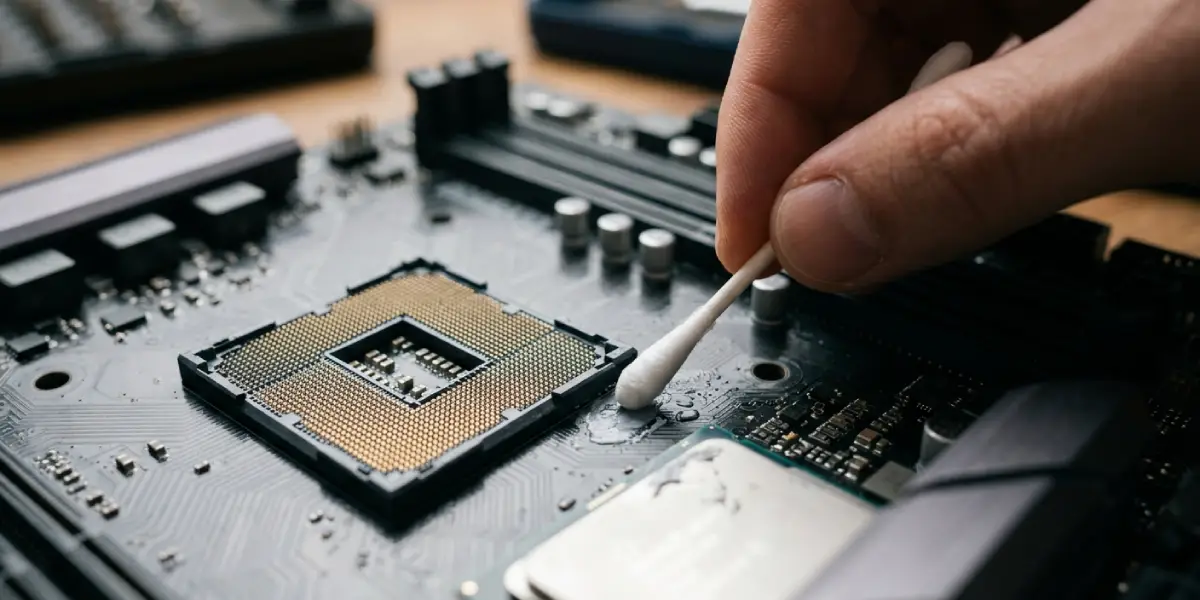
- Step 6: Clean the edges of the CPU with a damp cotton swab. Paste often creeps to the sides, and a swab reaches these spots without pushing residue into the socket.
- Step 7: Repeat the process on the heatsink or cooler base. Start with a dry wipe to remove the bulk, then use a cloth dampened with alcohol until the metal looks clean and uniform. For dried-on paste, a plastic pry tool or plastic card can lift the thick layers before the alcohol step.
- Step 8: Inspect both surfaces under good light. Tilt them slightly and look for a dull film, fingerprints, or small paste specks. Repeat the alcohol wipe wherever residue remains.
- Step 9: Give both surfaces a minute or two to air dry. Isopropyl alcohol at this strength evaporates quickly, but the surface should be completely dry before any new paste goes on.
- Step 10: Apply fresh thermal paste to the CPU, reinstall the cooler with even pressure using the same cross pattern, and reconnect the fan and power cables.
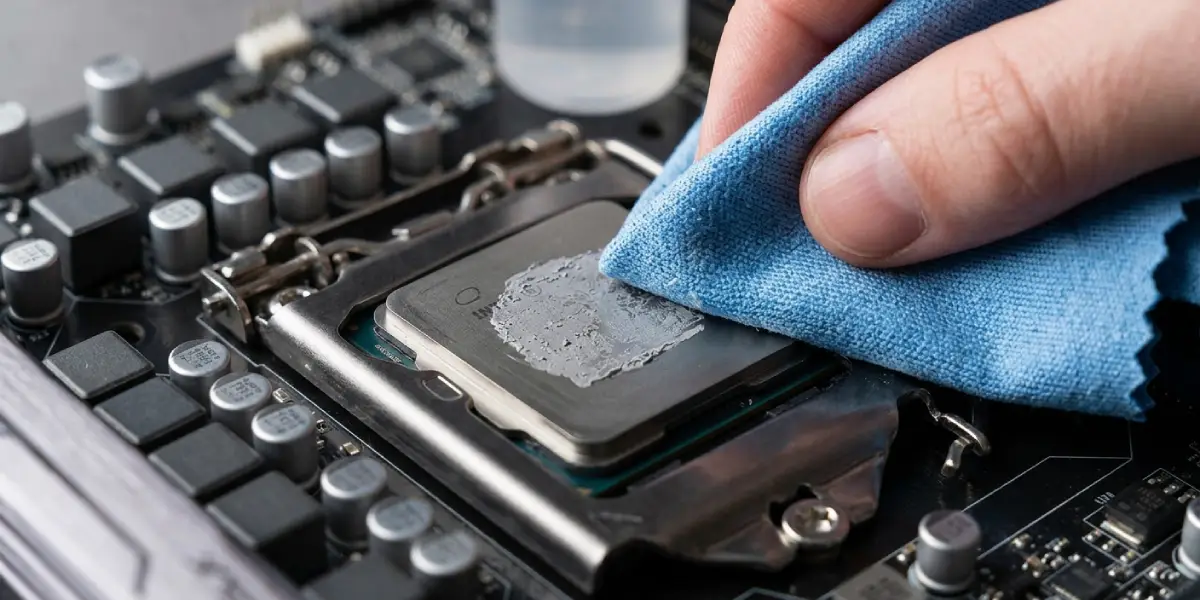
Tip: Avoid pressing hard on the CPU while wiping. Light, repeated passes lift paste more effectively than scrubbing, and they protect the chip and the socket from stress.
Cleaning Around the Socket
Paste that lands on the motherboard around the socket is usually non-conductive, but it should still be cleaned off. Use a soft brush or a dry cotton swab to lift it, then a barely damp swab for any leftover film. Keep the alcohol away from socket pins, and never touch the pins on an LGA socket or the pins on the underside of a PGA-style CPU.
If the Paste Is Liquid Metal
Liquid metal compounds are electrically conductive, so a stray droplet can short components. Wipe it gently with a dry cloth first, then a swab with alcohol, and keep all residue away from nearby capacitors and traces. Some metal compounds can stain or alloy with certain heatsink surfaces, so if the cooler base looks discolored and stubborn, professional help is the safer option than abrasive scrubbing.
Common Problems and Fixes
Paste Has Hardened and Will Not Wipe Off
Old paste that has baked on over years can resist a cloth. Soak a cloth with alcohol, rest it on the area for 20 to 30 seconds to soften the residue, then wipe again. Use a plastic tool for thick patches. Metal blades and scouring pads can scratch the surfaces and reduce contact quality.
A Hazy Film Remains After Cleaning
This usually means the cloth was already loaded with dissolved paste and spread it around. Switch to a fresh cloth, wipe once in one direction, and repeat with another clean section until the surface looks uniform.
Paste Got Into the Socket or Onto Pins
Stop and use a dry soft brush or compressed air first. If paste is lodged between pins, do not push at it with anything sharp. A small amount of alcohol on a swab tip can lift residue from nearby areas, but bent pins or a heavily contaminated socket should be handled by a technician.
The PC Does Not Boot After Cleaning and Reinstalling
Check that the cooler fan cable is connected to the correct header, the CPU is seated properly, and the RAM and power connectors were not knocked loose while working. Make sure the alcohol had time to dry before powering on.
Temperatures Are Still High After Repasting
Poor mounting pressure, too much or too little new paste, a loose cooler, or a stopped fan are the usual culprits. Reseat the cooler with even screw tension and confirm the fan spins at startup.
Frequently Asked Questions
What is the best way to remove thermal paste from a CPU?
Wipe the bulk off with a dry lint-free cloth, then clean the remaining film with a cloth or cotton swab dampened with isopropyl alcohol of 90 percent or higher. Use light strokes in one direction and fresh cloth sections.
Can water be used to clean thermal paste?
No. Water does not dissolve thermal paste well, and moisture near a CPU socket and motherboard creates a risk of damage. Isopropyl alcohol evaporates quickly and is the standard choice.
Is 70 percent isopropyl alcohol good enough?
It can work, but it contains more water and takes longer to dry. Alcohol at 90 percent or higher is the better choice because it evaporates faster and leaves less residue.
Should the old paste be removed while the CPU is in the socket?
Yes, in most cases. Cleaning the CPU while it stays seated reduces the chance of bending pins or damaging the socket. Just keep alcohol and paste residue away from the socket contacts.
Can a paper towel be used to remove thermal paste?
A paper towel can be used for the first dry wipe, but it may leave fibers behind. A lint-free cloth, microfiber cloth, or coffee filter is better for the final alcohol cleaning.
How do I remove thermal paste from a laptop CPU?
The method is the same, but laptop chips often have an exposed die, so use very gentle pressure and clean swabs. Disconnect the battery first and keep alcohol away from nearby components and connectors.
What should be done if thermal paste gets on the motherboard?
Lift it with a dry soft brush or cotton swab, then use a barely damp alcohol swab for leftover film. Let the area dry completely before reassembling the system.
How long should the surfaces dry before applying new paste?
Isopropyl alcohol at 90 percent or higher usually evaporates within a minute or two. Wait until the surfaces look completely dry and no liquid or smell remains.
Do both the CPU and the heatsink need to be cleaned?
Yes. Old paste on either surface can leave uneven contact. Cleaning both gives the new paste a flat, residue-free surface to work with.
