
UEFI vs Legacy BIOS explained simply: both are firmware that wakes up a PC and hands control to the operating system, but they go about it in very different ways. UEFI is the modern standard, while Legacy BIOS is the older method that now survives mostly as a compatibility mode. Knowing which one a PC is using matters before installing Windows, cloning a drive, or changing any boot setting.
Key Takeaways
- UEFI is the modern replacement for Legacy BIOS and is the right choice for almost every current PC.
- Legacy BIOS pairs with MBR disks, while UEFI pairs with GPT disks. The boot mode and the disk style must match.
- UEFI supports Secure Boot, large drives, and a cleaner setup screen. Legacy BIOS supports none of these.
- Windows 11 requires UEFI with Secure Boot capability, while Windows 10 can run in either mode.
- Switching modes without converting the disk first usually leaves Windows unable to boot.
The Short Answer: Which One Should You Use
For any modern PC or laptop, UEFI is the correct choice. It is faster to initialize, safer thanks to Secure Boot, and required by Windows 11. Legacy BIOS mode only makes sense for very old hardware, or for an older operating system or installer that cannot start in UEFI mode.
A good way to picture it: Legacy BIOS is like a receptionist who only ever looks at one fixed spot on the desk for instructions. UEFI is more like a building manager with a full directory, able to find and launch the right program from a dedicated location.
UEFI vs Legacy BIOS Explained: The Main Differences
How Each One Starts the Computer
Legacy BIOS runs a hardware check, then reads the very first sector of the boot drive, called the Master Boot Record, and runs the tiny bit of code stored there. That code then loads the rest of the operating system.
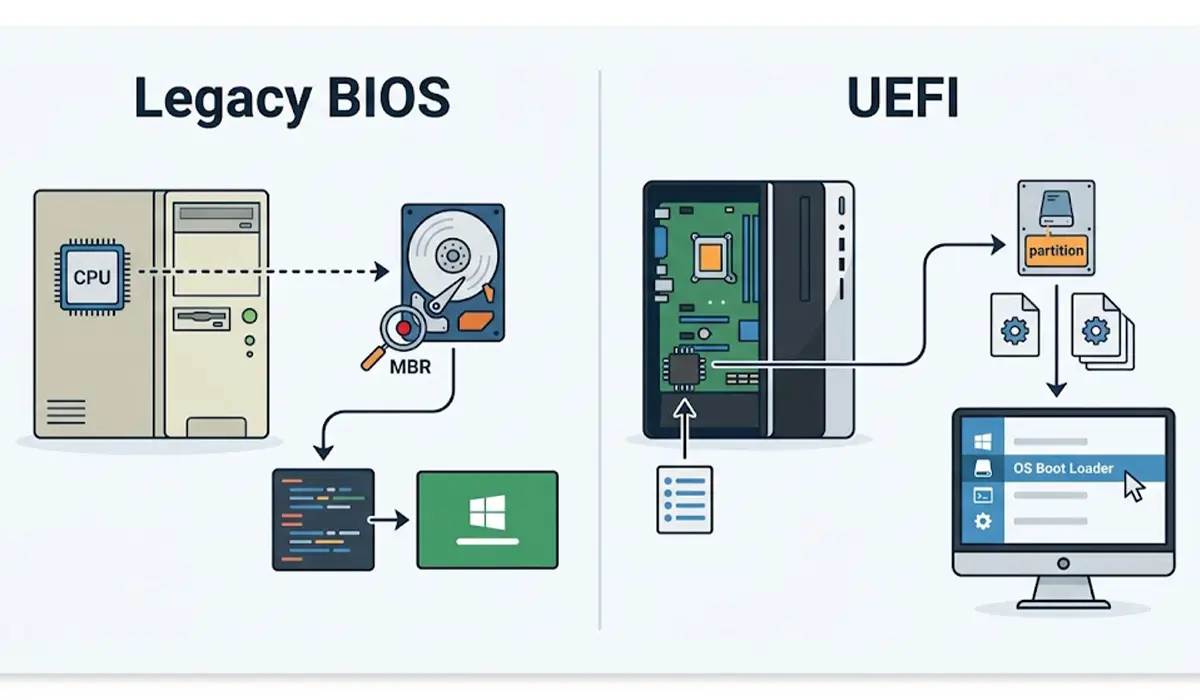
UEFI works differently. It reads boot files from a small dedicated partition called the EFI System Partition, usually formatted as FAT32, and keeps its list of boot entries in firmware storage. This is why a UEFI system can offer a proper boot menu with named entries instead of just a drive order.
Disk Style: MBR vs GPT
Legacy BIOS boots from MBR disks. MBR is limited to about 2 TB of usable space on a single disk and allows only four primary partitions. UEFI boots from GPT disks, which handle much larger drives and far more partitions.
This pairing is the single most important point for anyone changing boot mode. A Windows install made on an MBR disk expects Legacy BIOS, and a Windows install made on a GPT disk expects UEFI.
Security and Secure Boot
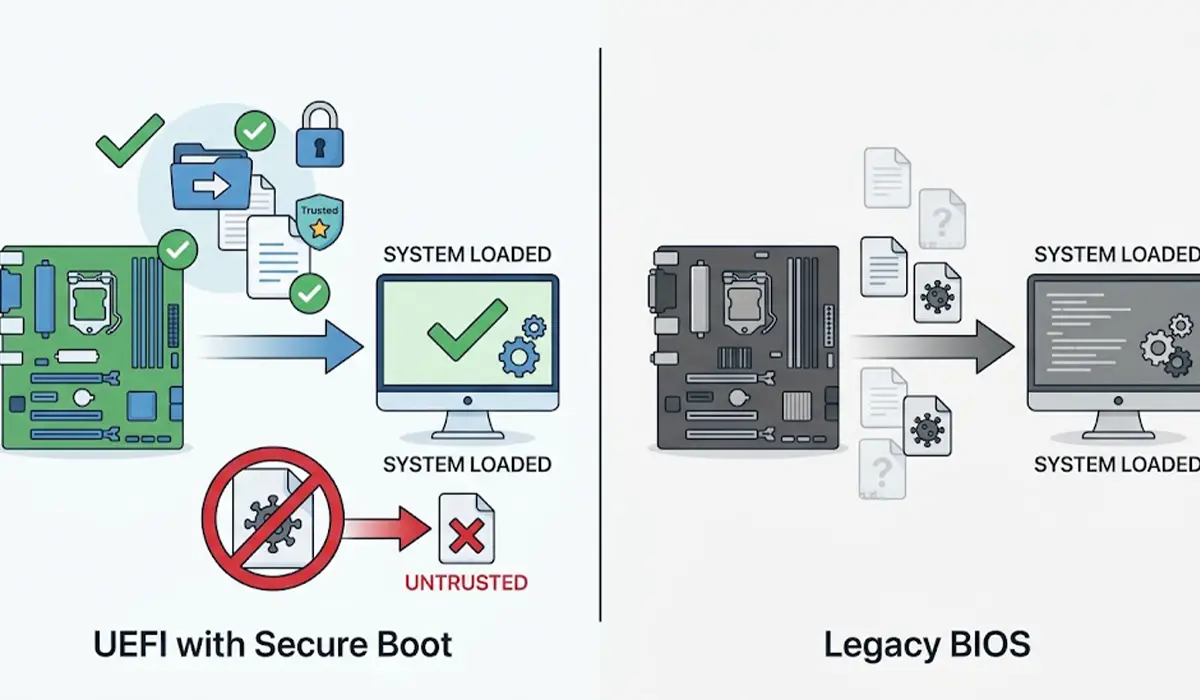
UEFI includes Secure Boot, a feature that checks digital signatures on boot files and blocks anything untrusted from loading during startup. It helps protect against boot-level malware. Legacy BIOS has no equivalent, so anything written to the boot sector gets run.
Interface and Startup Behavior
UEFI setup screens often support mouse input, higher resolution, and clearer menus. UEFI firmware also tends to hand off to the operating system more quickly, although the actual difference depends heavily on the specific machine. Many people still say BIOS when they mean the UEFI setup screen, which is why the two terms get mixed up so often.
Hardware and Operating System Support
Legacy BIOS dates back to a time of 16-bit firmware and is limited accordingly. UEFI runs as modern 64-bit firmware on current systems. Most UEFI motherboards also include a Compatibility Support Module, known as CSM, which lets the board imitate Legacy BIOS for older operating systems and installers. Windows 11 will not install on a system running in Legacy mode.
How to Check Whether a PC Uses UEFI or Legacy BIOS
Windows reports its current boot mode directly, and no restart is needed to find out.
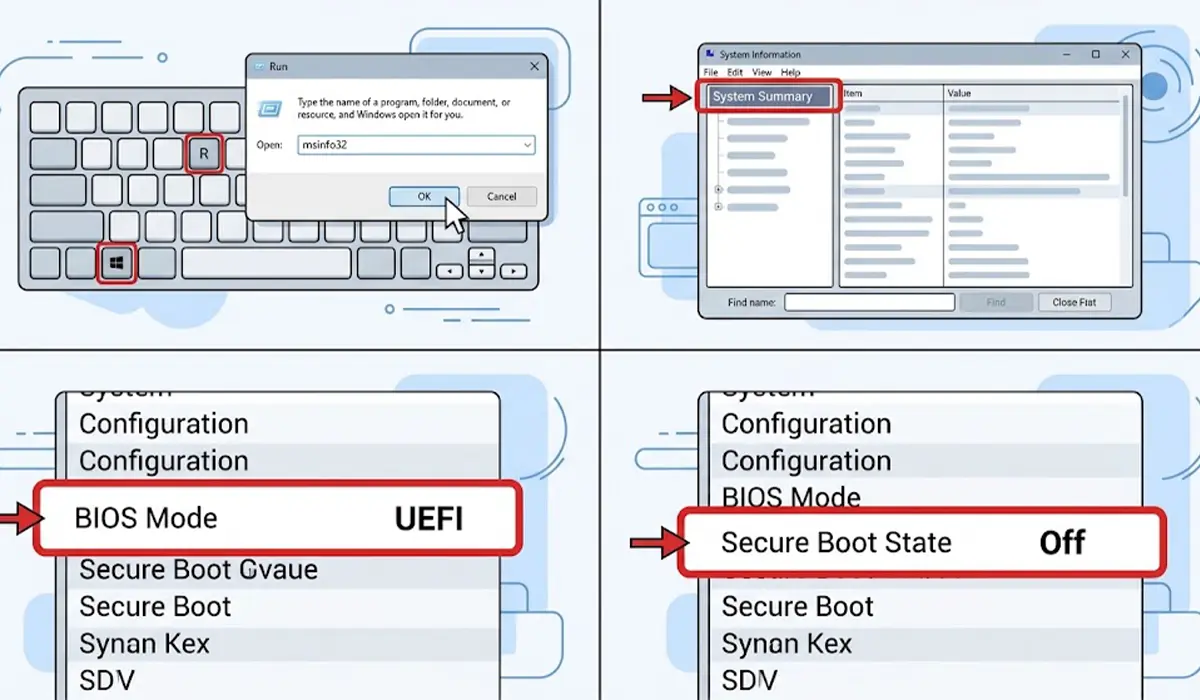
- Step 1: Press the Windows key and R together, type msinfo32, then press Enter.
- Step 2: In the System Information window, select System Summary in the left pane if it is not already highlighted.
- Step 3: Find the BIOS Mode line in the right pane. It reads either UEFI or Legacy.
- Step 4: Look just below it at Secure Boot State. It reads On, Off, or Unsupported. Unsupported usually points to Legacy mode or very old firmware.
Tip: To confirm the disk style as well, open Disk Management, right-click the system disk, choose Properties, then open the Volumes tab and read Partition style. GPT should line up with UEFI, and Master Boot Record should line up with Legacy.
Switching Between UEFI and Legacy Mode Safely
Changing the boot mode in firmware settings does not change the disk. If Windows was installed in one mode and the firmware is switched to the other, the PC will normally fail to boot until the setting is switched back. Nothing is lost, and reverting the setting restores normal startup.
To move an existing Windows install from Legacy to UEFI, the disk must first be converted from MBR to GPT. Windows 10 and Windows 11 include a built-in tool called MBR2GPT for this, and it has a validation option that checks whether a disk is eligible before anything is changed. After the conversion, the firmware is switched from Legacy or CSM to UEFI.
Tip: Back up important files before touching boot mode or disk style. Firmware menus differ between manufacturers, so check the motherboard or laptop manual for the exact wording of the boot mode and CSM options.
Changing these settings can leave a PC unable to start, so anyone unsure about the disk conversion step should have a qualified technician handle it. Note that firmware changes on some managed or business devices may also be restricted by the manufacturer or organization.
Common Problems and Fixes
Windows Will Not Boot After Changing Boot Mode
This almost always means the boot mode no longer matches the disk style. Enter the firmware setup, switch the boot mode back to the original setting, save, and restart. Windows should load normally again.
The Windows Installer Rejects the Disk
If the installer says Windows cannot be installed to a disk because of its partition style, the boot mode and disk style are mismatched. A GPT disk needs the installer started in UEFI mode, and an MBR disk needs Legacy mode. Restart the installer from the correct boot entry, or wipe and reformat the disk with the matching style if it holds nothing important.
The USB Drive Does Not Appear in the Boot Menu
A bootable USB drive prepared for one mode may not show up in the other. Recreate the USB installer using the partition scheme and target system option that match the boot mode in use, then check the boot menu for a separate UEFI entry for the drive.
Secure Boot Is Greyed Out or Unavailable
Secure Boot only works in UEFI mode, so it stays unavailable while CSM or Legacy mode is enabled. Disable CSM, make sure the disk is GPT, and the option should become selectable in the Boot or Security menu.
Windows 11 Says the PC Cannot Run It
When the cause is the boot mode, the PC is typically running in Legacy mode or has Secure Boot turned off. Confirm the status in System Information, convert the disk to GPT if needed, then enable UEFI and Secure Boot in firmware settings.
A Second Operating System Disappears from the Boot Menu
Dual-boot setups are tied to the boot mode they were installed under. After a mode change, the other system may not be listed. Switching back to the original mode usually brings it back, and a reinstall of that system’s boot files may be needed if the mode is changed permanently.
Frequently Asked Questions
Is UEFI the same as BIOS?
No. UEFI is the newer firmware standard that replaced the original BIOS design. Many manufacturers still call the setup screen the BIOS out of habit, even when the firmware underneath is UEFI.
Is UEFI better than Legacy BIOS?
For current hardware, yes. UEFI offers Secure Boot, support for GPT disks larger than 2 TB, a more capable setup interface, and compatibility with Windows 11.
How can the current boot mode be checked in Windows?
Open the Run box with the Windows key and R, type msinfo32, and press Enter. The BIOS Mode line in System Summary shows UEFI or Legacy.
Does Windows 11 work with Legacy BIOS?
No. Windows 11 requires a PC that boots in UEFI mode and is capable of Secure Boot. Windows 10 can run in either mode.
Can Legacy BIOS be switched to UEFI without reinstalling Windows?
Often yes. The system disk can be converted from MBR to GPT using the built-in MBR2GPT tool, after which the firmware is switched to UEFI. A full backup beforehand is strongly recommended.
What is CSM in the firmware settings?
CSM stands for Compatibility Support Module. It lets a UEFI motherboard behave like Legacy BIOS so older operating systems and boot media can still run. It needs to be disabled for Secure Boot and for a pure UEFI setup.
What happens if the boot mode is changed without converting the disk?
The PC will normally fail to find a bootable system, because the firmware is looking for boot files in a place the disk does not provide. Setting the mode back to the original value restores startup.
Does UEFI make a PC boot faster?
Often it does, since UEFI firmware initializes hardware and hands over to the operating system more efficiently. The actual improvement varies by machine, and drive speed plays a large part too.
Can UEFI boot from drives larger than 2 TB?
Yes. UEFI boots from GPT disks, which are not subject to the roughly 2 TB limit that applies to MBR disks.
