
Knowing how to fix no internet after Windows update saves a lot of frustration, because a connection that worked fine yesterday can vanish right after a restart. The cause is almost always a network driver, a setting, or a stack of network components that the update changed. The good news is that every fix below is safe, free, and can be done in a few minutes.
Key Takeaways
- A Windows update most often breaks the internet by replacing or corrupting the network adapter driver.
- Start with the quick checks, then move through driver fixes, TCP/IP resets, and the full network reset in order.
- Uninstalling the update itself is the last option, not the first.
- If the PC has no connection at all, a second device and a USB drive can supply the driver.
Common Causes of No Internet After a Windows Update
Most cases trace back to a small set of causes. Knowing which one is likely makes the fixes below much faster to pick from.
- A network adapter driver that was replaced with a generic or incompatible version during the update.
- A corrupted Winsock catalog or TCP/IP stack, which is the set of components Windows uses to talk to the network.
- A network adapter that was disabled or had its power settings changed.
- Stale DNS settings or a proxy setting that now points to nothing.
- A VPN client, virtual adapter, or third-party firewall that no longer works with the updated system.
- A router or modem that needs a fresh restart to renegotiate with the PC.
How to Fix No Internet After Windows Update Step by Step
Work through these in order. Test the connection after each step, and stop as soon as the internet returns.
- Step 1: Restart the PC, then power off the router and modem, wait about 30 seconds, and turn them back on. Check that Airplane mode is off and that the Wi-Fi switch or Ethernet cable is properly connected. This simple reset clears more problems than most people expect.
- Step 2: Run the built-in troubleshooter. On Windows 11, open Settings, go to System, then Troubleshoot, then Other troubleshooters, and run the Network and Internet troubleshooter. On Windows 10, open Settings, go to Update and Security, then Troubleshoot, then Additional troubleshooters, and run Internet Connections. Apply any fix it suggests.
- Step 3: Make sure the adapter is enabled. Press the Windows key plus R, type ncpa.cpl, and press Enter. If the Wi-Fi or Ethernet adapter looks grayed out, right-click it and choose Enable.
- Step 4: Roll back the network driver. Right-click the Start button, open Device Manager, and expand Network adapters. Right-click the active adapter, choose Properties, open the Driver tab, and select Roll Back Driver if the button is available. Restart the PC afterward.
- Step 5: If rolling back is not possible, reinstall the driver. In Device Manager, right-click the adapter and choose Uninstall device. Leave the option to delete the driver software unchecked, then restart. Windows detects the adapter on boot and installs a driver automatically.
- Step 6: Reset the network stack. Search for Command Prompt, right-click it, and choose Run as administrator. Enter these commands one at a time, pressing Enter after each: netsh winsock reset, then netsh int ip reset, then ipconfig /release, then ipconfig /renew, then ipconfig /flushdns. Restart the PC when finished.
- Step 7: Switch to a different DNS server. In ncpa.cpl, right-click the active connection, choose Properties, select Internet Protocol Version 4 (TCP/IPv4), and click Properties. Choose Use the following DNS server addresses and enter 8.8.8.8 and 8.8.4.4 (Google) or 1.1.1.1 and 1.0.0.1 (Cloudflare).
- Step 8: Check proxy and VPN settings. Open Settings, go to Network and internet, then Proxy, and make sure Use a proxy server is turned off unless the network requires one. Disconnect any VPN and temporarily turn off third-party security software to see whether it is blocking the connection.
- Step 9: Run a full network reset. On Windows 11, open Settings, go to Network and internet, then Advanced network settings, then Network reset. On Windows 10, open Settings, go to Network and Internet, then Status, then Network reset. Select Reset now and confirm.
- Step 10: As a last resort, uninstall the update. On Windows 11, open Settings, go to Windows Update, then Update history, then Uninstall updates, and remove the most recent update. On Windows 10, the same option is under Update and Security, then View update history. After the connection returns, pause updates for a short time until a newer driver or patch is available.
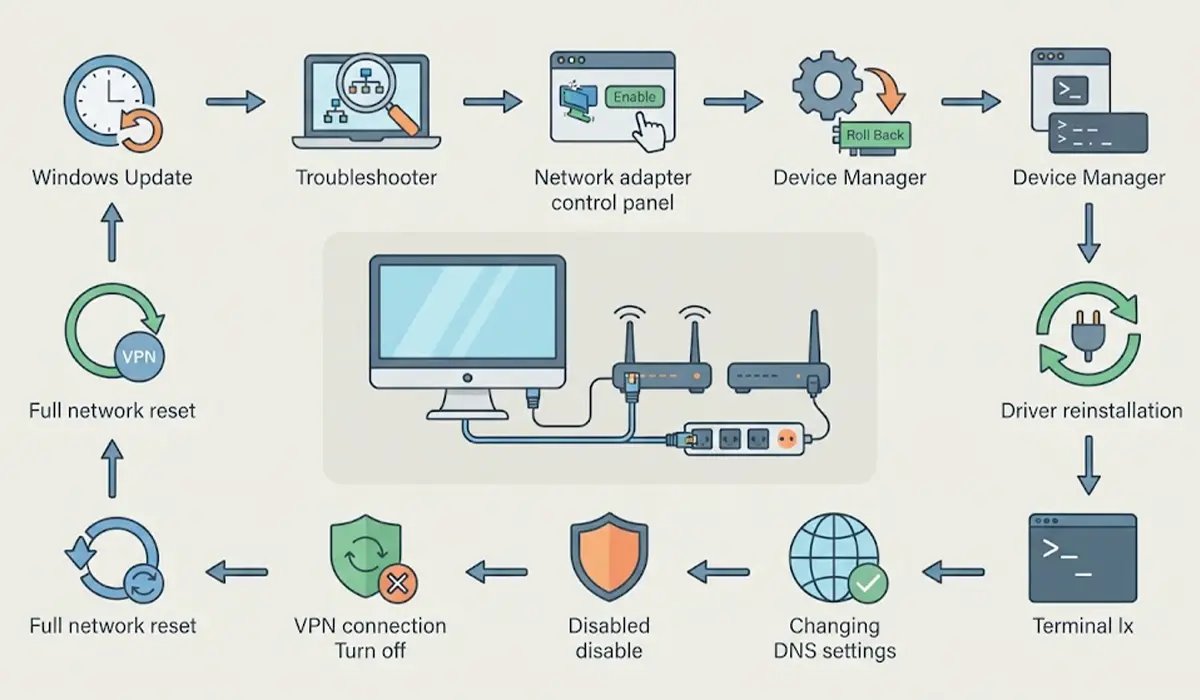
Tip: Always check the connection after each step. Skipping ahead to the network reset or update removal when a simple driver rollback would have worked means losing saved Wi-Fi passwords and settings for no reason.
What a Network Reset Removes
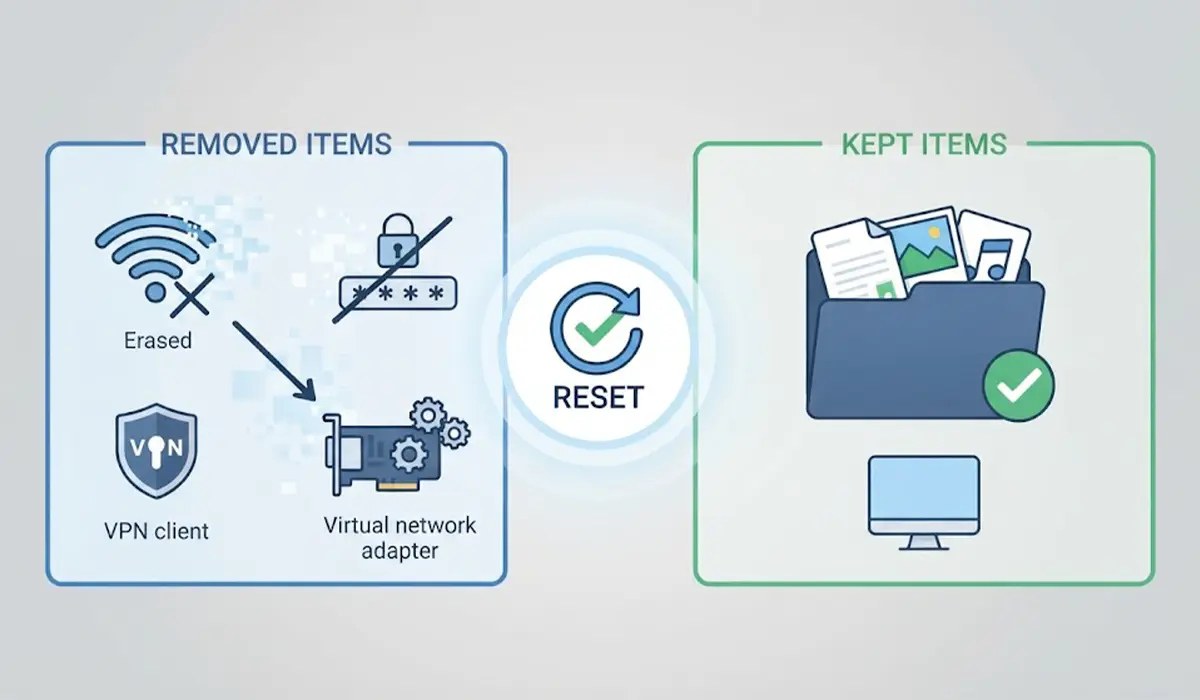
The network reset reinstalls all network adapters and returns networking components to their defaults. Saved Wi-Fi networks and passwords are removed, and VPN clients or virtual switches may need to be set up again. Personal files are not touched, so it is safe to use once the gentler fixes have failed.
Getting a Driver When There Is No Connection
When the PC has no internet at all, use a phone or another computer to download the latest network driver from the PC or motherboard manufacturer support page. Copy it to a USB drive, install it on the affected PC, and restart. Connecting the phone by USB cable and turning on USB tethering is another way to get the PC online long enough to download drivers.
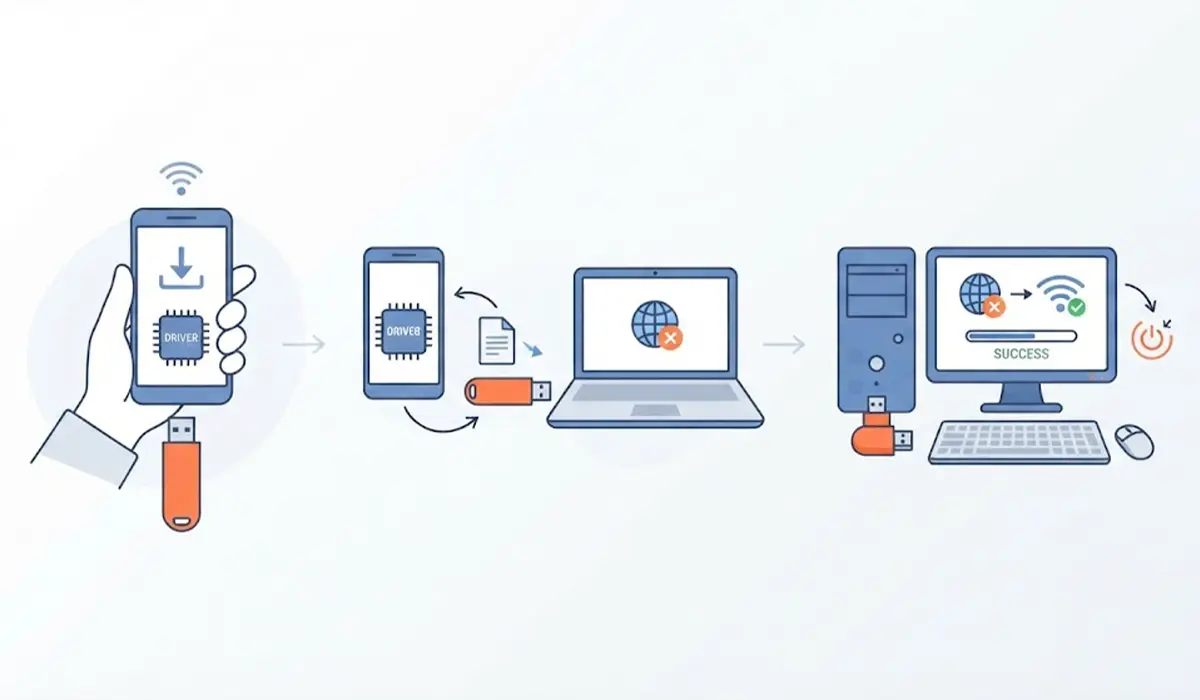
Tip: Download the driver that matches the exact model of the PC and the version of Windows. A driver meant for a different adapter will not fix the problem and can make it worse.
Common Problems and Fixes
Windows Says Connected, but There Is No Internet
This usually points to a DNS or IP address problem rather than a dead adapter. Run the commands in Step 6, then change the DNS servers as described in Step 7. Restarting the router often clears the remaining cases.
The Wi-Fi Option Has Disappeared Entirely
If the Wi-Fi toggle is missing from Settings, the adapter driver is most likely damaged or removed. Open Device Manager and look for the adapter under Network adapters or under Other devices with a warning icon. Reinstall the driver using Step 5 or the manual download method above.
The Connection Drops After a Few Minutes
Windows may be turning the adapter off to save power. In Device Manager, open the adapter Properties, go to the Power Management tab, and uncheck the option that lets the computer turn off the device to save power. Click OK and restart.
Ethernet Works on Another Device but Not on This PC
This confirms the router and cable are fine and narrows the problem to the PC. Focus on the driver, the network stack reset, and the VPN or security software steps.
The Problem Returns After Every Restart
A driver that keeps being replaced by Windows Update is the usual culprit. Install the manufacturer driver directly, then pause updates temporarily so the generic driver does not overwrite it.
Frequently Asked Questions
Why did the internet stop working after a Windows update?
The most common reason is that the update replaced or corrupted the network adapter driver. Changes to network settings, a damaged Winsock or TCP/IP stack, or a conflict with a VPN or security program can also cut the connection.
Can a Windows update break a network driver?
Yes. Updates sometimes install a generic driver that does not fully support the adapter, or they leave the existing driver in a broken state. Rolling back or reinstalling the driver usually fixes it.
Should the Windows update be uninstalled to get the internet back?
Only as a last resort. Driver rollbacks, the network stack reset, and a network reset solve most cases without removing the update, which keeps important security fixes in place.
Will a network reset delete personal files?
No. A network reset only removes saved Wi-Fi networks, passwords, and custom network settings. Documents, photos, and installed programs are not affected, although VPN clients may need to be configured again.
Why does Windows say connected, no internet?
The PC has joined the network but cannot reach the wider internet. This is often caused by a DNS problem, an invalid IP address, a proxy setting, or a router issue. Releasing and renewing the IP address, flushing DNS, and restarting the router are good first fixes.
How can a driver be installed if the PC has no internet?
Download the driver on another device from the PC or motherboard manufacturer website, copy it to a USB drive, and install it on the affected PC. USB tethering from a phone is another option for getting online temporarily.
Do the netsh and ipconfig commands work on both Windows 10 and Windows 11?
Yes. The netsh winsock reset, netsh int ip reset, and ipconfig commands work the same way on both versions when run from a Command Prompt opened as administrator.
Is it safe to change the DNS servers to Google or Cloudflare?
Yes. Both are widely used public DNS services and can be switched back to automatic at any time. Changing DNS only affects how website names are looked up and does not change files or programs on the PC.
