
Clearing the Outlook ‘Cannot send this item’ error usually takes only a few minutes once the real cause is found. In classic Outlook for Windows, the message is most often tied to a stuck Outbox item, a bad saved address, or a misbehaving add-in. The steps below start with the quickest fixes and move toward the deeper ones.
Key Takeaways
- Start by removing any message stuck in the Outbox while Outlook is working offline.
- Delete the saved Auto-Complete entry for the recipient and retype the address by hand.
- Test in Safe Mode to find out whether an add-in is blocking the send.
- Repair the email account, then create a new Outlook profile if the error remains.
Step-by-Step Guide to Clearing the Outlook Cannot Send This Item Error
Work through the steps in order and test a send after each one. Most people find that the problem disappears within the first three steps, so there is no need to rush ahead.
Clear the Stuck Message and the Bad Address
- Step 1: Close the message window that shows the error. If Outlook asks to save changes, choose Yes so the text is kept in Drafts.
- Step 2: Select the Send / Receive tab and choose Work Offline. This stops Outlook from retrying the send while the Outbox is being cleaned up.
- Step 3: Open the Outbox folder in the left pane. Select the stuck message, then drag it to the Drafts folder or press Delete. If it refuses to move, close Outlook, reopen it, and try again while still offline.
- Step 4: Select Work Offline again to switch it off, so Outlook is back online.
- Step 5: Open File, then Options, then Mail. Under Send messages, choose Empty Auto-Complete List and confirm. This removes cached addresses that sometimes point to an old or corrupted entry.
- Step 6: Create a fresh message and type the recipient address in full instead of picking a suggestion. Choose Send. If the message goes through, the cause was a bad saved address.
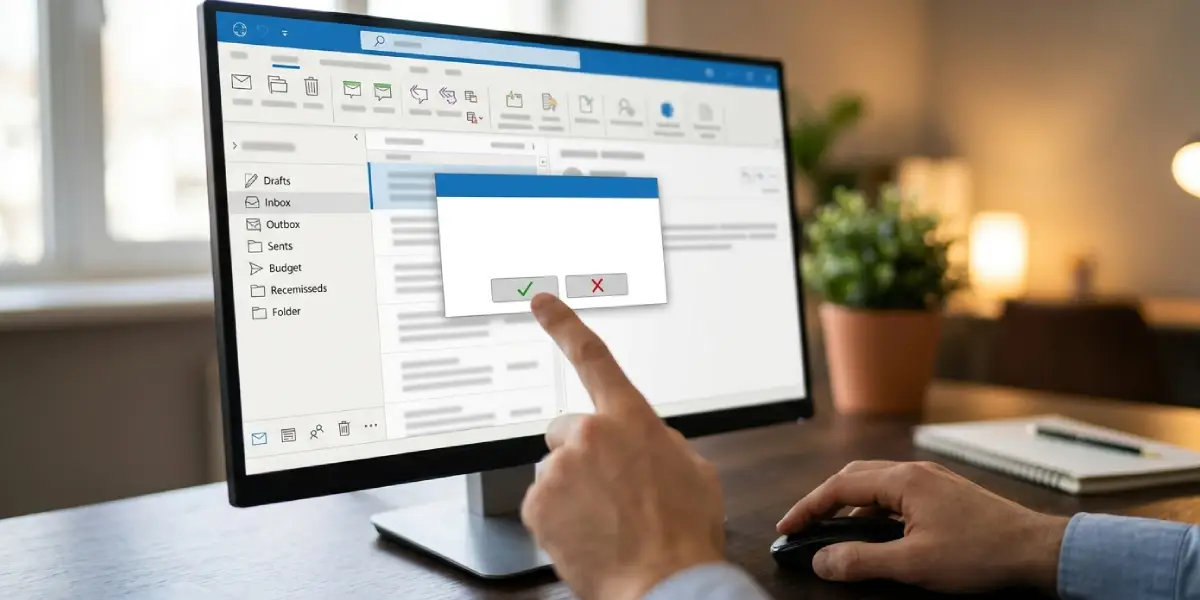
Tip: If emptying the whole Auto-Complete list feels too drastic, start a new message, type the first letters of the recipient, and press Delete on the unwanted suggestion. This clears just that one entry.
Rule Out Add-ins With Safe Mode
- Step 7: Close Outlook completely. Press the Windows key and R together, type outlook.exe /safe, and select OK.
- Step 8: Choose the correct profile if prompted, then compose a new message and send it. Safe Mode loads Outlook without add-ins, much like starting a car with only the essential systems running.
- Step 9: If the message sends in Safe Mode, close Outlook and reopen it normally. Go to File, then Options, then Add-ins. Next to Manage, choose COM Add-ins and select Go.
- Step 10: Clear the check box next to every add-in except the ones that are required, then select OK and restart Outlook. Turn add-ins back on one at a time, testing a send after each, until the culprit shows itself.
Repair the Account and Rebuild the Profile
- Step 11: Open File, then Account Settings, then Account Settings again. On the Email tab, select the affected account and choose Repair. Follow the prompts, then restart Outlook when it finishes.
- Step 12: If the error is still there, close Outlook and open Control Panel. Search for Mail (Microsoft Outlook), open it, and select Show Profiles.
- Step 13: Choose Add, give the new profile a name, and sign in with the same email account. Under ‘When starting Microsoft Outlook, use this profile’, select the new profile, then open Outlook and test a send.
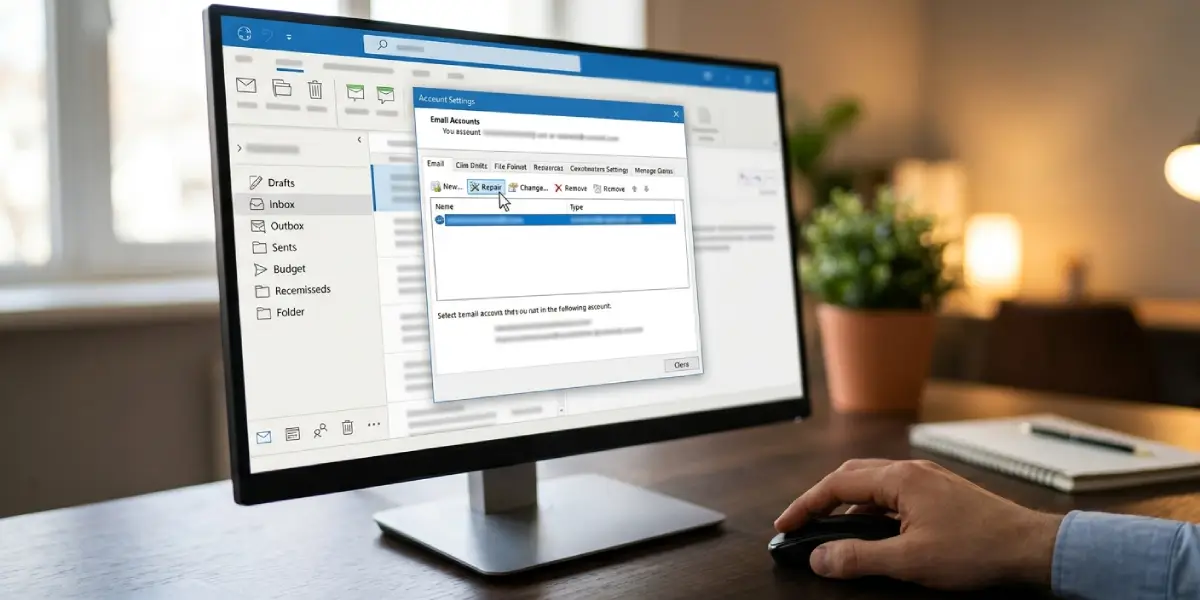
Tip: A new profile does not delete any mail stored on the server. For Microsoft 365, Exchange, and Outlook.com accounts, messages sync back down once the new profile connects.
Common Problems and Fixes
The Outbox Message Will Not Delete or Move
This usually means Outlook is still trying to send it. Switch to Work Offline first, then close Outlook, reopen it, and delete the item again. If it still sticks, restart the computer and repeat the offline step before touching the Outbox.
The Error Appears for One Recipient Only
That points to a bad contact or a damaged Auto-Complete entry. Delete the suggestion, remove the recipient from Contacts if a duplicate exists, and retype the address manually. Checking the address for typos or extra spaces also helps.
The Message Stays in Sending Status
Open the Outbox, move the message to Drafts, and reopen it from there. Before resending, confirm that the account shows as connected at the bottom of the Outlook window.
The Error Returns After Safe Mode Works
An add-in is almost certainly responsible. Turn add-ins off one at a time through COM Add-ins and test between each change. Leave the offending add-in disabled, or check whether an updated version is available.
A Large Attachment Triggers the Error
Remove the attachment and send the message without it as a test. If that works, shrink the file or share it through a cloud link instead of attaching it directly.
Frequently Asked Questions
What does the Outlook ‘Cannot send this item’ error mean?
It means Outlook could not hand the message off for delivery. The cause is typically a stuck Outbox item, a faulty saved address, an add-in conflict, or a damaged profile.
Will deleting the message from the Outbox lose my email text?
Not if it is moved to the Drafts folder first. Dragging the message there keeps the full text, so it can be reopened and sent once the issue is fixed.
Why should Outlook work offline before clearing the Outbox?
Working offline stops Outlook from repeatedly trying to send the item. That releases the message so it can be moved or deleted without being locked.
How do I remove a bad address from Auto-Complete?
Start a new message, type the first letters of the address, and press Delete on the unwanted suggestion. The whole list can also be cleared under File, Options, Mail, Send messages, Empty Auto-Complete List.
How do I start Outlook in Safe Mode?
Close Outlook, press the Windows key and R together, type outlook.exe /safe, and select OK. Outlook then opens without add-ins so a test send can show whether one is causing the error.
Is it safe to create a new Outlook profile?
Yes. A new profile does not remove mail stored on the server, and for most account types the messages sync back once the new profile connects.
Where is the Repair option for an email account?
Go to File, then Account Settings, then Account Settings again. On the Email tab, select the account and choose Repair.
