
The best tools and kits for PC hardware cleaning are not expensive or complicated. A short list of dust-control and anti-static basics will keep a desktop or laptop cool, quiet, and reliable. This guide covers what is worth buying, what to skip, and how to use each item without damaging components.
Key Takeaways
- A soft anti-static brush, compressed air or an electric air blower, and 90 percent or higher isopropyl alcohol handle most PC cleaning jobs.
- Microfiber cloths, lint-free wipes, and plastic pry tools are safer than paper towels, cotton balls, or metal screwdrivers on delicate parts.
- A household vacuum is a poor choice for PC internals because of static risk and uncontrolled suction.
- Pre-made kits are convenient, but a hand-picked set is usually better value and better quality.
- Always power down, unplug, and discharge static before touching internal parts.
Best Tools and Kits for PC Hardware Cleaning at a Glance
Think of PC cleaning like detailing a car interior. Different surfaces need different tools, and the wrong one can scratch, scuff, or leave residue. These are the categories that earn a place in a toolbox.
Compressed Air Cans or an Electric Air Blower
Dust packs into heatsink fins, fan blades, and filters, and moving air is the fastest way to lift it out. Canned compressed air is cheap and convenient for occasional use. An electric air blower sold for electronics is reusable, so there are no cans to keep buying, and it avoids the cold liquid propellant that cans can spit out when tilted. Either option works well as long as bursts are short and fans are held still while cleaning.
Tip: Hold the fan blades gently with a plastic tool or a finger before blowing air across them. A fan spun at high speed by a blast of air can overspin its bearing and wear out early.
Soft Anti-Static Brushes
A soft, ESD-safe brush loosens the stubborn, matted dust that air alone cannot move, especially on heatsink fins, vents, and fan frames. A clean paintbrush-style or purpose-made anti-static brush with soft bristles is ideal. Stiff bristles can snag small surface-mount components, so softness matters more than size.
Isopropyl Alcohol at 90 Percent or Higher
High-percentage isopropyl alcohol evaporates quickly and leaves very little residue, which makes it the standard choice for contacts, old thermal paste, and sticky grime. Lower percentages contain more water and take longer to dry, which is not what a motherboard needs. Apply it to a cloth or swab rather than pouring it onto parts, and let everything dry fully before powering on.
Microfiber Cloths and Lint-Free Wipes
These handle case panels, fan shrouds, GPU backplates, and keyboard decks without leaving fibers behind. Paper towels shed lint and can scratch glossy plastic, so they are best left in the kitchen.
Lint-Free Swabs
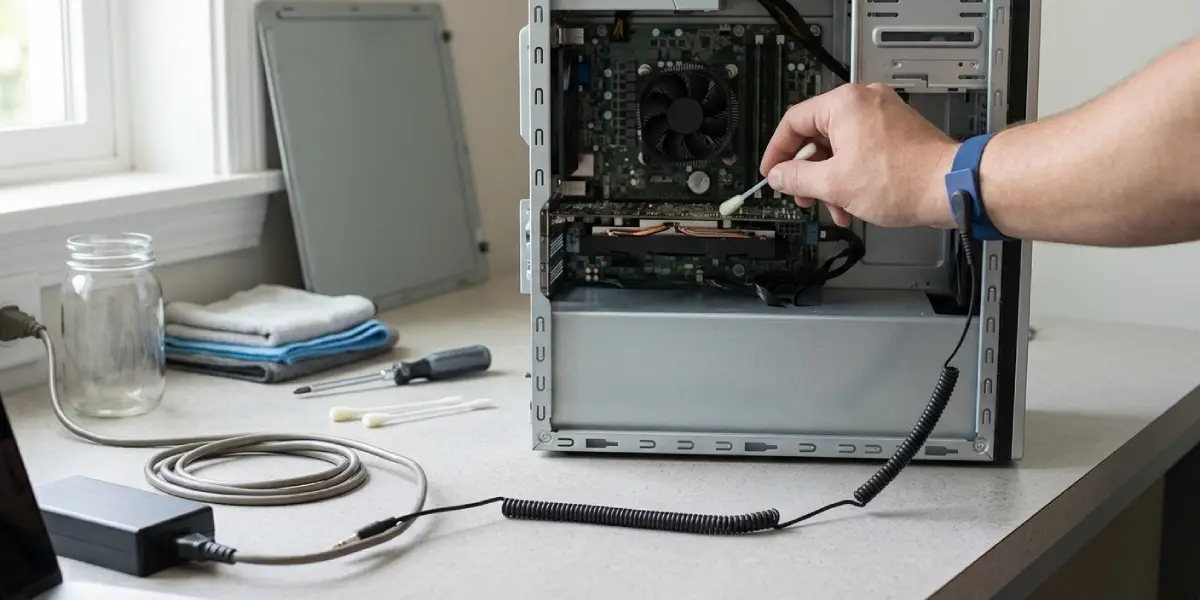
Foam or lint-free swabs reach tight spots such as RAM slots, fan hubs, and the edges of connectors. Standard cotton swabs can leave fuzz behind, which defeats the purpose of cleaning.
Precision Screwdriver Set with Magnetic Tips
Laptops and many PC parts use small Phillips screws, and the wrong bit can strip a head in seconds. A quality precision set with a range of Phillips bits covers most builds. A magnetic tip is useful, but keep it away from drives and storage media as a habit.
Plastic Pry Tools and Spudgers
Plastic opening tools release clips, lift connectors, and separate laptop shells without gouging the casing. Metal blades can short a board or slice a ribbon cable, so plastic is the safe default.
Anti-Static Wrist Strap
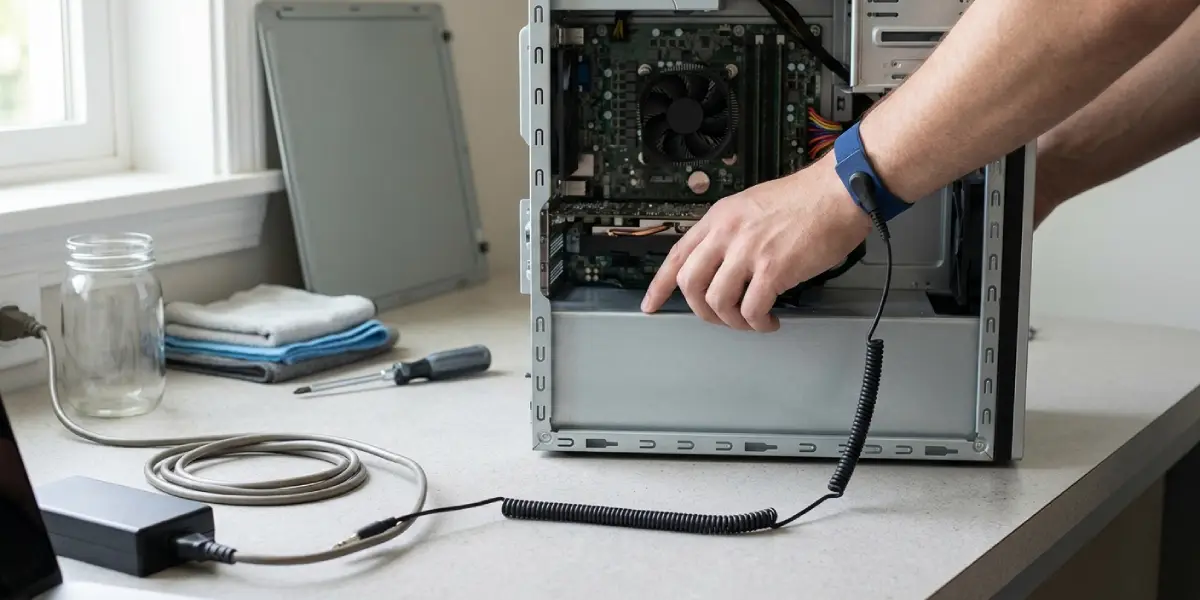
A wrist strap clipped to bare, unpainted metal on the case equalizes static between hands and hardware. For quick jobs, touching the bare metal of an unplugged case works as a backup, but a strap makes the habit automatic.
ESD-Safe Vacuum or Blower for Heavy Dust
Some electronics vacuums and blowers are built to be static-safe and handle heavy dust buildup. A standard household vacuum is a different story. Plastic nozzles can build up static, and strong suction can pull small parts or spin fans too fast. If a vacuum is used at all, it should be one designed for electronics, used near the dust and not touching components.
Small Flashlight and Screw Tray
A small flashlight shows hidden dust deep in a case, and a magnetic tray or small container keeps screws organized. These are low-cost items that prevent the most common frustration in any cleaning session, a missing screw.
Pre-Made Kits vs Building Your Own Set
Pre-made PC cleaning kits bundle brushes, cloths, and sometimes a small tool set into one box. They suit beginners who want a single purchase. The downside is that quality varies, and some kits include items that are rarely needed, such as stiff brushes or low-grade cloths.
Building a set piece by piece usually gives better results. A soft anti-static brush, a pack of microfiber cloths, lint-free swabs, a bottle of 90 percent or higher isopropyl alcohol, a precision screwdriver set, plastic pry tools, and an air source cover nearly every job. Most people find that this setup costs about the same as a mid-range kit and lasts much longer.
Tip: When judging any kit, check what each item is made from. Soft bristles, lint-free materials, and plastic tools are good signs. Metal tweezers, stiff bristles, or unlabeled cleaning liquids are warning signs.
Before You Start
A few safety habits protect both the hardware and the person cleaning it.
- Shut the system down fully, then unplug the power cable. For a laptop, disconnect the battery where the design allows it.
- Let hot components cool first, especially CPU coolers and GPU heatsinks.
- Touch bare metal on the case or use an anti-static wrist strap before touching components.
- Work on a clean, non-carpeted surface with good lighting.
- Never use water, household glass cleaner, or strong solvents on internal parts.
Opening a device may affect its warranty, so check the terms first. Sealed laptops, glued batteries, and anything with swollen battery cells are good reasons to stop and hand the job to a professional.
How to Use These Tools Safely
- Step 1: Move the PC to a ventilated area, ideally outdoors or near an open window, so loosened dust does not settle back inside.
- Step 2: Power off, unplug, and discharge static by touching bare case metal or clipping on a wrist strap.
- Step 3: Remove the side panel and any dust filters. Wash removable filters with water, then let them dry completely before refitting.
- Step 4: Hold each fan still, then use short bursts of compressed air or an electric blower to clear dust from fans and heatsink fins. Keep cans upright and hold the nozzle a few inches away.
- Step 5: Use a soft anti-static brush on packed dust that air cannot move, working gently along heatsink fins and around fan frames.
- Step 6: Wipe the case interior and fan shrouds with a dry or slightly dampened microfiber cloth. Use 90 percent or higher isopropyl alcohol on a cloth for sticky grime, never poured directly onto parts.
- Step 7: Clean tight spots such as RAM slots and connector edges with a lint-free swab, using only light pressure.
- Step 8: Check that no screws, swab fibers, or loose debris remain, refit the panels and filters, then reconnect power and boot the system.
Common Problems and Fixes
Dust Keeps Returning Quickly
Fine dust builds up fastest where intake filters are missing or clogged. Fit or clean intake filters, and position the PC off the floor and away from carpets or pet areas.
Fans Make a Rattling or Grinding Noise After Cleaning
A fan may have been spun too fast by compressed air, or a fan blade may be touching a stray cable. Check that cables are clear of blades. If the noise continues, replace the fan.
PC Will Not Boot After Cleaning
Check that the RAM, GPU, and power connectors are fully seated, since they can shift during cleaning. Confirm that no part is still wet from alcohol and that the front panel connectors are attached correctly.
Residue or Streaks on Components
Low-percentage isopropyl alcohol or contaminated cloths are the usual cause. Wipe again with a clean, lint-free cloth using 90 percent or higher alcohol, and allow full drying time.
Temperatures Stay High After Cleaning
If cleaning does not fix the issue, the cause may be dried thermal paste or a failing fan rather than dust. At that point, reapplying thermal paste or replacing the fan is the next logical step.
Frequently Asked Questions
What is the best way to clean the inside of a PC?
The safest method combines short bursts of compressed air or an electric blower with a soft anti-static brush for stubborn dust. Microfiber cloths and lint-free swabs finish the job on surfaces and tight spots. Always power off, unplug, and discharge static first.
Is compressed air safe for PC components?
Yes, when used correctly. Keep the can upright, use short bursts, hold the nozzle a few inches away, and keep fan blades from spinning freely. Tilting the can can release cold liquid propellant onto parts.
Can a regular vacuum cleaner be used to clean a PC?
A standard household vacuum is not recommended. It can build up static electricity and its suction can spin fans too fast or pull small parts loose. A vacuum designed for electronics, used carefully, is a safer option.
What isopropyl alcohol strength is best for cleaning PC hardware?
Isopropyl alcohol at 90 percent or higher is the best choice. It evaporates quickly and leaves little residue. Lower strengths contain more water and take longer to dry.
Are pre-made PC cleaning kits worth buying?
They can be convenient for beginners, but quality varies. A hand-picked set containing a soft anti-static brush, microfiber cloths, lint-free swabs, isopropyl alcohol, plastic pry tools, and a precision screwdriver set usually offers better value and quality.
How often should a PC be cleaned?
A quick dust check every few months suits most users. Homes with pets, carpets, or heavy dust may need cleaning more often, and desktop dust filters should be cleaned whenever they look clogged.
Do you need an anti-static wrist strap to clean a PC?
A wrist strap is strongly recommended, although touching bare metal on an unplugged case before handling parts also helps. The strap makes static control consistent and removes the guesswork.
What should never be used to clean PC hardware?
Water, household glass cleaners, paper towels, metal tools on delicate parts, and standard household vacuums should be avoided. These can cause corrosion, leave lint, scratch surfaces, short components, or create static damage.
Is an electric duster better than compressed air cans?
An electric air blower is reusable and avoids the liquid propellant that cans can release. Compressed air cans are fine for occasional jobs. Either option works well when fans are held still and bursts are kept short.
