
Want a cleaner Start menu? Learning how to hide the Recommended section in Start on Windows 11 takes under a minute and leaves more room for pinned apps. This works on Windows 11 versions 25H2 and 24H2 once the updated Start menu (delivered with the November 2025 update or later) is installed, and no administrator rights are needed. On older Start menu builds, the section can only be emptied, not removed.
Key Takeaways
- Open Settings > Personalization > Start to find every toggle that controls the Recommended section.
- There is no single ‘Hide Recommended’ switch on most builds. Turning off all the recommendation toggles hides the section automatically.
- Pinned apps and the All list stay exactly where they are.
- No restart is normally needed, and every change can be reversed by turning the toggles back on.
How to Hide the Recommended Section in Start on Windows 11
The Settings app is the only built-in route that works on all editions, so the whole process happens on one page. The key is to switch off every toggle in the Recommended group, because a single toggle left on keeps the section visible.
- Press Windows + I to open Settings.
- Click Personalization in the left sidebar.
- Click Start on the right side. The page is now at Settings > Personalization > Start.
- Find the Recommended group at the top of the page.
- Turn off Show recently added apps.
- Turn off the toggle for recent files, labeled Show recommended files in Start, recent files in File Explorer, and items in Jump Lists.
- Turn off Show websites from your browsing history if it appears on the page.
- Turn off Show recommendations for tips, shortcuts, new apps, and more if it appears on the page.
- Close Settings, then press the Windows key to open Start.
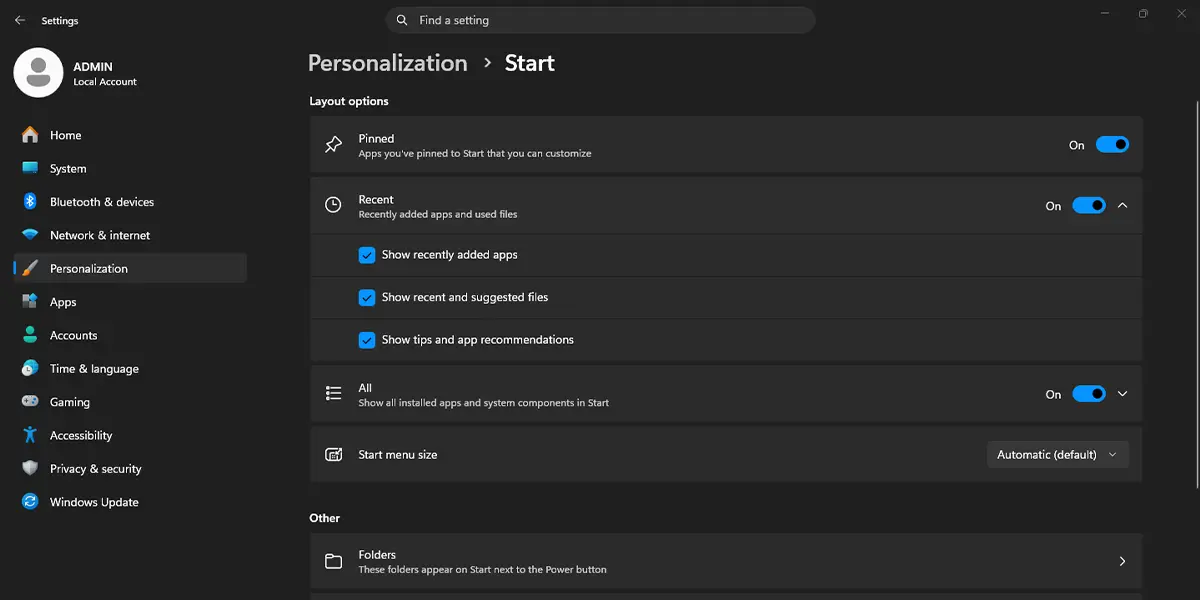
The Recommended block should now be gone. Start shows only the Pinned apps and the All list, with no recent files or app suggestions in between.
Tip: Exact toggle names shift slightly between builds. Some newer builds replace the group with a single Recent toggle, and turning that one off hides the section in one click.
How to Undo or Reverse This Change
Changed your mind, or need recent files back on a shared family computer? Go back to Settings > Personalization > Start and turn one or more of the toggles in the Recommended group back on. Reopen Start, and the section returns with its recent files and suggestions.
Common Problems and Fixes
The Recommended Section Is Still Showing
This usually means one toggle in the Recommended group is still on. Return to Settings > Personalization > Start, check every switch in that group, and turn off any that remain. Then reopen Start to see the result.
The Section Cannot Be Removed on an Older Start Menu
Builds without the updated Start menu keep the Recommended area visible even after every toggle is off. In that case, install the latest Windows updates from Settings > Windows Update. Until then, open Settings > Personalization > Start and pick More pins under Layout to shrink the space it takes up.
The Toggles Are Greyed Out or Missing
On a work or school laptop, an administrator may control these settings, which locks the toggles. Contact the IT department if that is the case. If the toggles are missing entirely, the PC is likely on an older build, so check for updates.
Frequently Asked Questions
Does hiding the Recommended section work on Windows 11 Home?
Yes. The Start page in Settings is available on Home and Pro, and the steps are the same. The PC only needs the updated Start menu from Windows 11 versions 25H2 or 24H2.
Do I need to restart the PC after hiding it?
No restart is normally needed. Closing Settings and reopening Start is enough to see the change.
Is there one toggle that hides the whole section?
On most builds, no. Microsoft hides the section automatically once every recommendation toggle is off. Some newer builds offer a single Recent toggle that does the same job in one step.
Will this delete my recent files?
No. The files stay where they are. The toggle only stops them from appearing in Start, and its label shows it also covers recent files in File Explorer and items in Jump Lists.
Will hiding it remove my pinned apps?
No. Pinned apps and the All list are separate parts of Start, so they stay exactly as they were.
Does hiding the Recommended section improve battery life or speed?
It is mainly a visual change. Expect a tidier Start menu rather than a noticeable gain in performance or battery time.
Why can I not find an option to remove the section on my PC?
The PC is probably running an older Start menu build, where the section can only be emptied. Install the latest updates from Settings > Windows Update, then repeat the steps.
Can Group Policy hide the Recommended section on Home or Pro?
The Group Policy setting named Remove Recommended section from Start Menu applies only to Windows 11 SE. It does not remove the section on Home or Pro, so the Settings toggles are the right method.
