
Knowing how to fix power button not responding on PC problems saves a lot of guesswork when a desktop or laptop suddenly refuses to start. In most cases the cause is something simple, like a loose cable, a stuck button, or leftover electrical charge, rather than a dead motherboard. This guide walks through the checks in the order that finds the fault fastest.
Key Takeaways
- Start with the basics: wall outlet, power cable, and the power supply switch on the back of a desktop.
- A power drain or CMOS reset clears many cases where the PC acts completely dead.
- A loose or misplaced front panel connector is one of the most common desktop causes.
- If the button works but Windows ignores it, the fix is usually in Power Options.
- Stop and get professional help if a burning smell, visible damage, or a failed power supply is involved.
Common Causes of a Power Button Not Responding
Power button trouble usually falls into a few categories. Narrowing down which one applies makes the fix much quicker.
- No power reaching the PC because of a dead outlet, a faulty cable, a tripped surge protector, or a power supply switched off.
- A front panel power switch cable that is unplugged, loose, or connected to the wrong motherboard pins.
- A worn or stuck case button, which is common on older cases and on buttons that get pressed hard.
- Residual charge or a corrupted BIOS state that leaves the system unresponsive until it is drained or reset.
- A failing power supply unit or a fault on the motherboard.
- Windows power button settings that tell the button to do nothing when the PC is already running.
Before You Start
Most of these checks are safe, but a few involve opening the case. Shut the PC down if possible, switch off the power supply using the rocker switch on the back, and unplug the power cable. Touch a bare metal part of the case before handling any internal parts, or wear an anti-static strap. On a laptop with a removable battery, take the battery out before opening anything.
The following tools and materials cover nearly every step:
- A Phillips screwdriver that fits the case screws.
- The motherboard manual, or its PDF, to find the front panel header layout.
- An anti-static strap.
- A flashlight for reading the tiny pin labels on the motherboard.
- A known-good power cable and, if available, a second wall outlet.
- A replacement coin cell battery, which is typically a CR2032, in case the CMOS battery needs swapping.
Opening a device may affect its warranty, so check the warranty terms first, especially on laptops and prebuilt desktops. If there is a burning smell, bulging components, or signs of liquid damage, stop and let a professional handle it.
How to Fix Power Button Not Responding on PC: Step-by-Step Fixes
Part 1: The PC Does Not Turn On at All
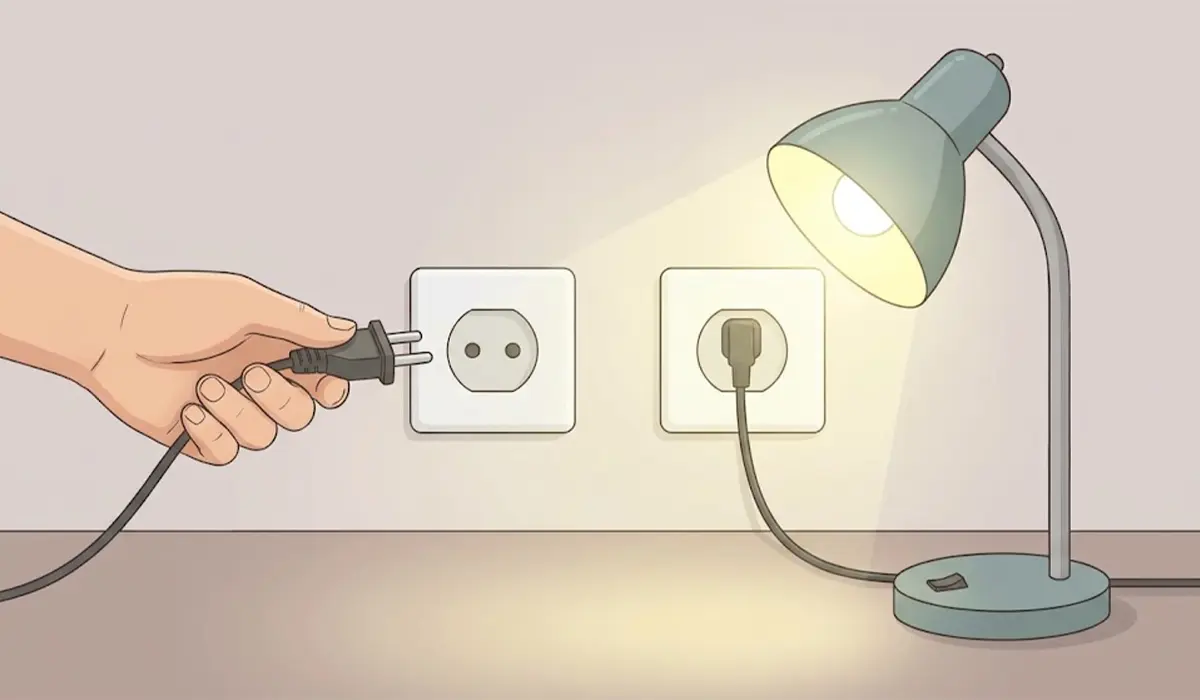
- Step 1: Check the power source. Plug a lamp or phone charger into the same outlet to confirm it works, then try a different outlet or a direct wall connection instead of a power strip. Swap in a known-good power cable. On a desktop, confirm the rocker switch on the back of the power supply is set to the on position, which is marked with a line rather than a circle. On a laptop, confirm the charger is firmly seated and the charging light behaves normally.
- Step 2: Disconnect everything that is not essential. Unplug USB drives, printers, external monitors, docks, and any other accessories. A faulty device can sometimes prevent a PC from starting, and this step rules that out quickly.
- Step 3: Drain the residual power. Unplug the power cable, and on a laptop remove the battery if it is removable. Then press and hold the power button for about 30 seconds to discharge leftover electricity. Reconnect the power and try the button again. Tip: This simple drain fixes a surprising number of PCs that seem completely dead, and it costs nothing to try first.
- Step 4: Look for a standby light. Many motherboards have a small LED that stays lit whenever power reaches the board. If that light is on, the power supply is delivering standby power and the problem is more likely the button, its cable, or the motherboard. If there is no light at all, the issue is probably upstream, such as the power supply, its cable, or the outlet.
- Step 5: Check the front panel connector. With the PC unplugged, open the side panel and trace the thin cable from the case power button to the motherboard. It ends in a small connector labeled something like POWER SW or PWR_SW that plugs onto the front panel header. Use the motherboard manual to confirm the exact pins, then reseat the connector firmly. A power switch has no polarity, so it works in either direction, but it must sit on the correct pair of pins. If the motherboard has its own onboard power button, pressing it is a clean way to tell whether the case button or the board is at fault.
- Step 6: Reseat the main power connections. Press the 24-pin motherboard power connector and the CPU power connector (the 4-pin or 8-pin one near the processor) firmly until they are fully seated. A connector that looks plugged in can still be slightly loose, especially after the PC has been moved or shipped.
- Step 7: Reset the CMOS. With the PC unplugged, locate the round coin cell battery on the motherboard. Remove it, wait a few minutes, then reinstall it with the correct side facing up. Some boards also have a CLR_CMOS jumper or button, and the manual explains how to use it. Note that this resets BIOS settings to default, so boot order and any custom settings will need to be set again.
Part 2: The Power Button Does Nothing in Windows
If the PC powers on normally but pressing the button while Windows is running does nothing, the hardware is probably fine. The button is most likely set to take no action.
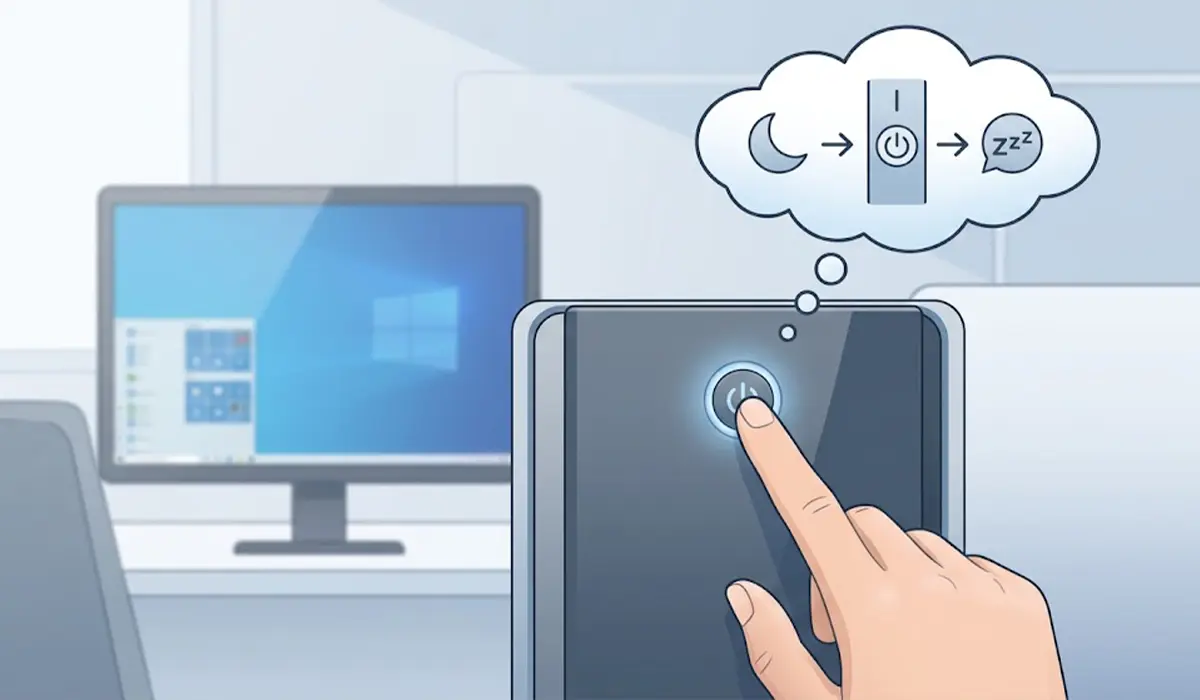
- Step 8: Open the power button settings. In Windows 11, go to Settings, then System, then Power and battery, and open the section for lid, power, and sleep button controls. In Windows 10 or on older setups, open Control Panel, then Power Options, then Choose what the power buttons do. Set the action for pressing the power button to Sleep, Shut down, or Hibernate, depending on what is wanted.
- Step 9: Turn off Fast Startup if shutdown behavior seems odd. In Control Panel, open Power Options, choose Choose what the power buttons do, select Change settings that are currently unavailable, and untick Turn on fast startup. This makes the PC do a full shutdown, which can clear up cases where the button seems to be ignored after shutting down.
- Step 10: Restart and test. Restart the PC, press the power button briefly, and confirm the chosen action happens. If the button works at the hardware level but does nothing in Windows after these changes, updating the chipset and power management drivers from the PC or motherboard manufacturer is the next sensible move.
Part 3: When the Power Supply May Be the Problem
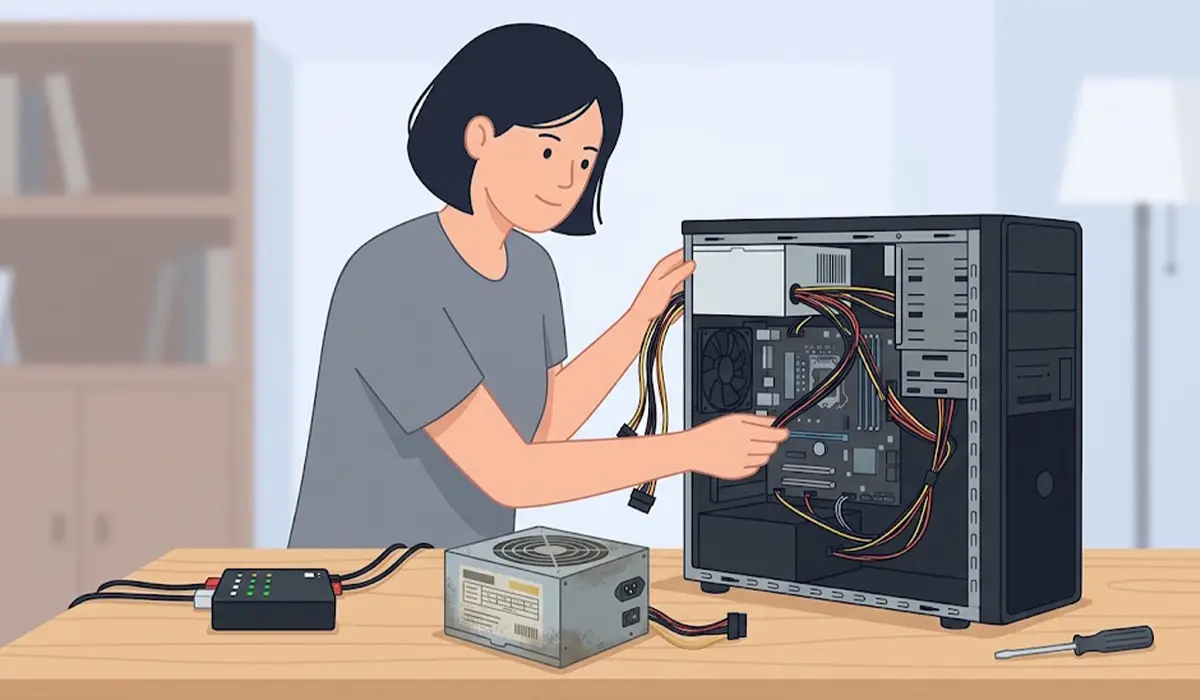
If the PC shows no standby light, no fan movement, and no response even after the steps above, the power supply is a prime suspect. The most reliable approach is to swap in a known-good power supply of suitable wattage or use a dedicated power supply tester. Avoid improvised shortcuts that bypass the motherboard, since they can damage components or cause injury. Tip: A power supply that is a few years old and has been through many power cuts or surges is more likely to fail quietly than a newer one.
Common Problems and Fixes
The Fans Spin for a Second and Then Stop
This points to the PC trying to start and then cutting out. Reseat the RAM and the CPU power connector, remove extra accessories, and reset the CMOS. If the pattern continues, a failing power supply or a motherboard fault is likely.
The PC Starts Only When Pressing the Motherboard Button
That means the motherboard and power supply are fine and the case button or its cable is the issue. Reseat the front panel connector first. If it still fails, the case button itself may be worn and the case may need a replacement button or a new case.
The Power Button Works Only After Holding It Down
A button that needs a long press is usually worn, dirty, or partially stuck. Press it several times to see if it frees up, check that nothing is jamming the button against the case, and reseat the connector. If the behavior continues, the switch is wearing out.
The PC Still Will Not Start After a CMOS Reset
Confirm the coin cell battery is seated with the correct side up and that the power supply is switched on. If the standby LED stays off, test with a different outlet and a different power cable, then consider the power supply.
A Laptop Does Not Respond Even When Plugged In
Remove the charger and battery if the battery is removable, hold the power button for about 30 seconds, reconnect only the charger, and try again. If there is no charging light or any sign of life, the charger, the charging port, or the motherboard may need professional attention.
Frequently Asked Questions
Why is my PC power button not responding?
The most common reasons are a loose or dead power cable, a power supply that is off or failing, a disconnected front panel connector, a worn button, or leftover charge that needs draining. If the button works but Windows does nothing, the power button action in Power Options may be set to do nothing.
How do I turn on my PC if the power button is broken?
If the motherboard has its own onboard power button, pressing it starts the PC without the case button. Some systems can also be set to power on after a power loss or by a keyboard key in the BIOS, though this depends on the motherboard. Replacing the case button or reconnecting the front panel cable is the permanent solution.
Can a dead CMOS battery stop the power button from working?
A dead CMOS battery usually causes lost date and time settings or BIOS errors rather than a fully dead power button. Still, a bad or stuck CMOS state can sometimes prevent normal startup, so removing the battery to reset the CMOS is a worthwhile check.
How do I reset my PC when the power button does not work?
Unplug the PC, remove the laptop battery if possible, and hold the power button for about 30 seconds to drain residual power. Then reconnect the power and try again. If that does not help, resetting the CMOS is the next step.
How do I know if the power supply or the power button is the problem?
Check for a standby light on the motherboard. If it is lit, the power supply is providing standby power, so the button, its cable, or the motherboard is more likely at fault. If there is no light at all, the outlet, cable, or power supply is the more likely cause.
Why does my PC power button light up but nothing happens?
A lit button usually means standby power is reaching the system, but the PC is failing to start. Reseat the RAM, the 24-pin and CPU power connectors, remove extra devices, and reset the CMOS. A failing power supply or a motherboard fault is possible if those checks do not help.
How do I fix the power button not working on a laptop?
Disconnect the charger, remove the battery if it is removable, and hold the power button for about 30 seconds before reconnecting only the charger. If the laptop still shows no signs of life, the charger, charging port, or internal power circuitry may need a professional repair.
Is it safe to open my PC to check the power button cable?
Yes, as long as the PC is shut down, the power supply is switched off, the power cable is unplugged, and static is discharged first. Opening a device can affect its warranty, so check the terms before opening a prebuilt desktop or a laptop.
When should I replace the power button or call a technician?
Replace the button or case if the cable is seated correctly and the motherboard button starts the PC while the case button does not. Call a technician if there is a burning smell, visible damage, liquid exposure, or if the PC stays dead after the power supply and cable checks.
