
Need to show more pins in the Start menu on Windows 11 so favorite apps are always one click away? The change takes under a minute, works on every Windows 11 edition running version 24H2 or 25H2, and does not need administrator rights. Menu labels differ slightly depending on whether the redesigned Start menu has reached the PC, so the steps below cover both cases.
Key Takeaways
- The main path is Settings > Personalization > Start, where the Show all pins by default toggle expands the Pinned area.
- The Show more button inside the Start menu expands pins instantly without opening Settings.
- On PCs with the latest update, Start menu size set to Large fits more pins on screen.
- Older Start menu builds use More pins under Layout on the same Settings page.
- Every change can be reversed in seconds.
Step-by-Step Guide to Show More Pins in the Start Menu on Windows 11
Method 1: Use the Settings App
- Press Windows + I to open Settings.
- Click Personalization in the left sidebar.
- Click Start.
- Turn on the Show all pins by default toggle.
- Press the Windows key to open the Start menu.
The Pinned area now lists every pinned app instead of stopping after two rows. Scroll down to reach the rest. Most people find that this is the best option on a laptop with a small screen, where an extra click each time gets old quickly.
A PC that still has the older two-page Start menu shows a Layout choice on the same page instead. Click More pins there to fit an extra row of pins and shrink the Recommended area.
Tip: Right-click an empty area inside the Start menu and select Start Settings to jump straight to the Settings > Personalization > Start page.
Method 2: Use the Show More Button in the Start Menu
- Press the Windows key to open the Start menu.
- Look at the top-right corner of the Pinned section.
- Click Show more.
- Scroll through the expanded grid to find the app.
- Click Show less in the same spot to collapse the grid again.
This is the quickest way to see extra pins once, such as on a shared family computer where only occasional access to a longer pin list is needed. Method 1 is better when the full list should be visible every time.
Method 3: Increase the Start Menu Size
This option appears only on PCs that have received the latest optional update for Windows 11 versions 24H2 and 25H2, and the rollout is gradual.
- Press Windows + I to open Settings.
- Click Personalization.
- Click Start.
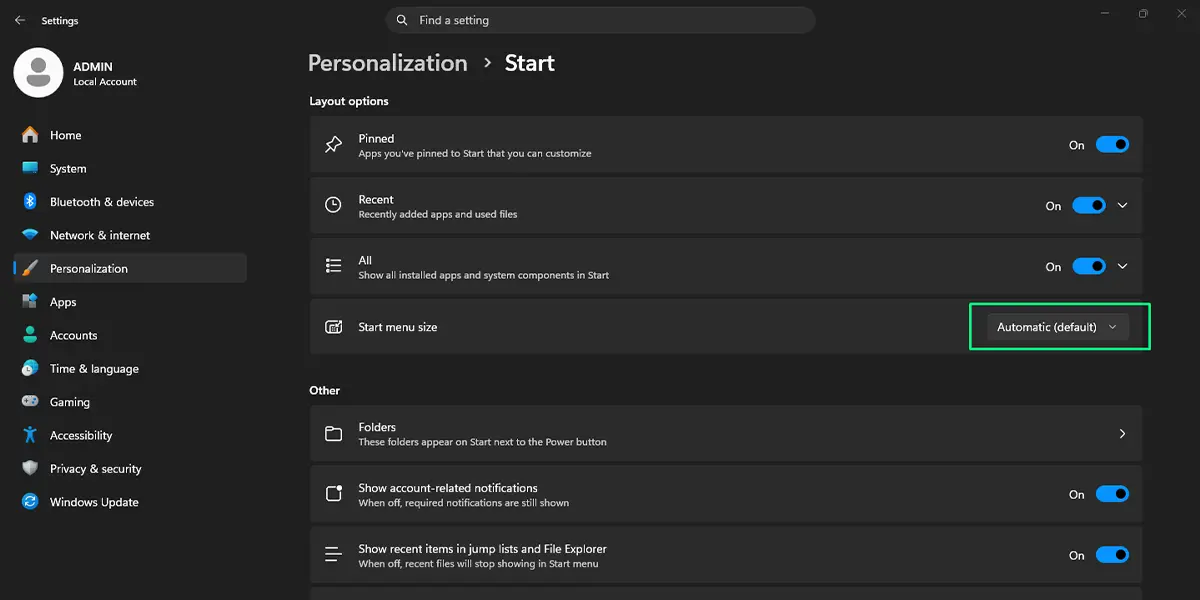
- Open the Start menu size drop-down.
- Select Large.
- Press the Windows key to open Start.
The Start menu opens larger and shows more pins without extra scrolling. On a big external monitor, this setting works especially well alongside Method 1.
Tip: Leave Start menu size on Automatic if the display switches between a laptop screen and an external monitor, because Windows then picks a layout that suits each screen.
How to Undo or Reverse This Change
Open Settings > Personalization > Start and turn off Show all pins by default to return to the standard two-row Pinned area. If the older Start menu is in use, set Layout back to Default. To undo the size change, set Start menu size back to Automatic.
Common Problems and Fixes
The Show All Pins by Default Toggle Is Missing
The redesigned Start menu has probably not reached the PC yet. Check for updates at Settings > Windows Update, install any available update, and restart. Until then, use the Layout option with More pins on the same Settings page.
The Start Menu Size Option Is Missing
The option arrives with a recent optional update and rolls out gradually, so some Windows 11 PCs do not have it yet. Install pending updates from Settings > Windows Update, or use Method 1 or Method 2 in the meantime.
The Settings Are Greyed Out or Keep Reverting
A work or school PC may be managed by an organization that controls Start menu settings. In that case, only the IT administrator can change them.
Only a Few Pins Appear Even After Changing the Setting
The Pinned area can only show apps that are actually pinned. Right-click an app in the Start menu and select Pin to Start to add more.
Frequently Asked Questions
Does this work on Windows 11 Home?
Yes. The Start menu pin settings are available in Windows 11 Home, Pro, and Enterprise on versions 24H2 and 25H2.
Do administrator rights or a restart apply here?
No. The change applies right away from a standard user account, and the next time the Start menu opens it shows the new layout.
Where is the setting for showing more pins located?
Open Settings > Personalization > Start. The Show all pins by default toggle sits on that page in the redesigned Start menu.
Is there a keyboard shortcut to open the right Settings page?
Press Windows + I to open Settings, then go to Personalization > Start. No single shortcut opens that exact page.
What happened to the More Pins layout option?
On PCs with the redesigned Start menu, the older Layout choices were replaced by the Show all pins by default toggle. PCs on the older Start menu still show More pins.
Does showing more pins slow down the PC or drain the battery?
No noticeable effect. Pins are just shortcuts, so a longer pin list does not affect performance or battery life on a laptop.
How many pins fit in each row?
On larger screens, the redesigned Start menu can fit up to eight pins in a row. Smaller screens fit fewer.
Why do some pinned apps still need scrolling?
The Start menu has limited space, so a long pin list continues below the visible area. Choosing a Large Start menu size or turning on Show all pins by default reduces how often scrolling is needed.
