
Learning how to add folders next to the power button in Start on Windows 11 takes less than a minute. Shortcuts for Settings, File Explorer, Downloads, and other common folders can sit right beside the Power icon, so they are always one click away. This works on every edition of Windows 11, including Home and Pro, and does not need administrator rights.
Key Takeaways
- The setting lives at Settings > Personalization > Start > Folders.
- Each folder has its own toggle, so only the ones needed have to be switched on.
- The folder icons appear beside the Power button at the bottom of the Start menu right away, with no restart.
- Nine built-in options are available, and custom folders cannot be added to this spot.
- Switching a toggle back to Off removes the icon again.
Steps to Add Folders Next to the Power Button in Start
The Settings app is the only built-in place for this change, so a single method covers it. Think of it like adding quick-dial buttons to a phone: the shortcuts do not move any files, they simply give faster access to folders that already exist.
- Open Settings. Press Windows + I on the keyboard. The Settings window opens straight away.
- Click Personalization in the left sidebar.
- Scroll down the right side of the page and click Start.
- Click Folders. A list of toggles appears with the options Settings, File Explorer, Documents, Downloads, Music, Pictures, Videos, Network, and Personal folder.
- Turn the toggle to On for each folder that should appear in Start. Most people start with File Explorer, Documents, and Downloads.
- Click the Start button on the taskbar or press the Windows key. The chosen folder icons now sit next to the Power button at the bottom of the Start menu.
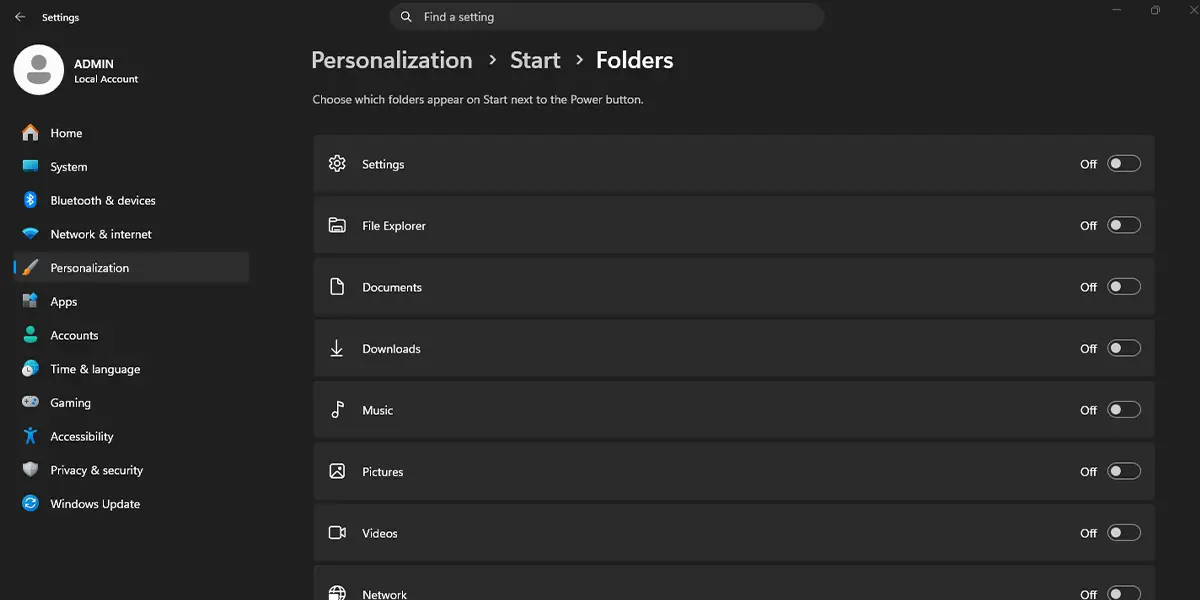
Tip: Pick only the folders that are opened every day. A short row of three or four icons is easier to scan than all nine, especially on a laptop with a smaller screen.
What Each Folder Option Opens
Settings opens the Settings app, and File Explorer opens a new File Explorer window. Documents, Downloads, Music, Pictures, and Videos open the matching folder in the signed-in account. Network shows other devices on the local network, and Personal folder opens the main folder named after the user account, which holds all of those other folders.
Tip: On a shared family computer, each Windows account can choose its own set of folders, so one person’s choices do not have to match anyone else’s.
How to Undo or Reverse This Change
- Press Windows + I to open Settings.
- Go to Settings > Personalization > Start > Folders.
- Switch the toggle to Off for any folder that should no longer appear.
The icon disappears from the Start menu as soon as the toggle is turned off. No files are deleted.
Common Problems and Fixes
The Folders Option Is Missing or Greyed Out
On a work or school PC, an organization may control the Start menu layout, which can hide the page or lock the toggles. In that case, the IT administrator has to allow the change. On a personal computer, installing pending Windows updates and reopening Settings usually brings the page back.
The Icons Do Not Show Up After Turning the Toggles On
Close the Start menu and open it again first. If the icons are still missing, press Ctrl + Shift + Esc to open Task Manager, right-click Windows Explorer under Processes, and choose Restart. The taskbar flickers for a moment and then returns with the updated Start menu.
A Specific Folder Is Not in the List
Windows 11 only offers the nine folders listed in the Folders page. A custom folder, such as a project folder on another drive, cannot be added to the spot beside the Power button.
Frequently Asked Questions
Does this work on Windows 11 Home?
Yes. The Folders setting is part of the Settings app and is available on Home, Pro, and the other Windows 11 editions.
Does the PC need a restart after adding folders to Start?
No. The icons appear the next time the Start menu opens, so a restart is not needed.
Which folders can be placed next to the Power button?
The available options are Settings, File Explorer, Documents, Downloads, Music, Pictures, Videos, Network, and Personal folder.
Can a custom folder be added next to the Power button?
No. Only the built-in folders on the Folders page can be shown in that spot.
Does adding folders to Start slow down the computer or drain the battery?
No. The icons are simple shortcuts, so they have no noticeable effect on performance or battery life.
Is there a keyboard shortcut to switch these folders on?
There is no direct shortcut for the toggles. Pressing Windows + I opens Settings quickly, and then the path Settings > Personalization > Start > Folders leads to them.
Why is the Folders option missing or greyed out?
The most common reason is that the PC is managed by work or school, which can lock Start menu settings. A pending Windows update can also be the cause on a personal computer.
How can the folders be removed from Start again?
Open Settings > Personalization > Start > Folders and switch off the toggle for each folder to remove. The icon disappears at once.
Do the folder choices apply to every user account on the PC?
The setting applies to the account that is currently signed in, so each person on a shared computer can choose their own folders.
