
To play background music across all PowerPoint slides, insert an audio file on the first slide and select Play in Background. The whole setup takes only a few clicks, and the track keeps going as the slide show moves forward.
Key Takeaways
- Place the music file on the first slide of the presentation.
- Select the audio icon, open the Playback tab, and choose Play in Background.
- On Windows, this one setting starts the music automatically, plays it across slides, loops it, and hides the icon during the show.
- Test the result by starting the slide show from the beginning.
Step-by-Step: Play Background Music Across All PowerPoint Slides
PowerPoint for Windows
- Step 1: Open the presentation and select the first slide in Normal view.
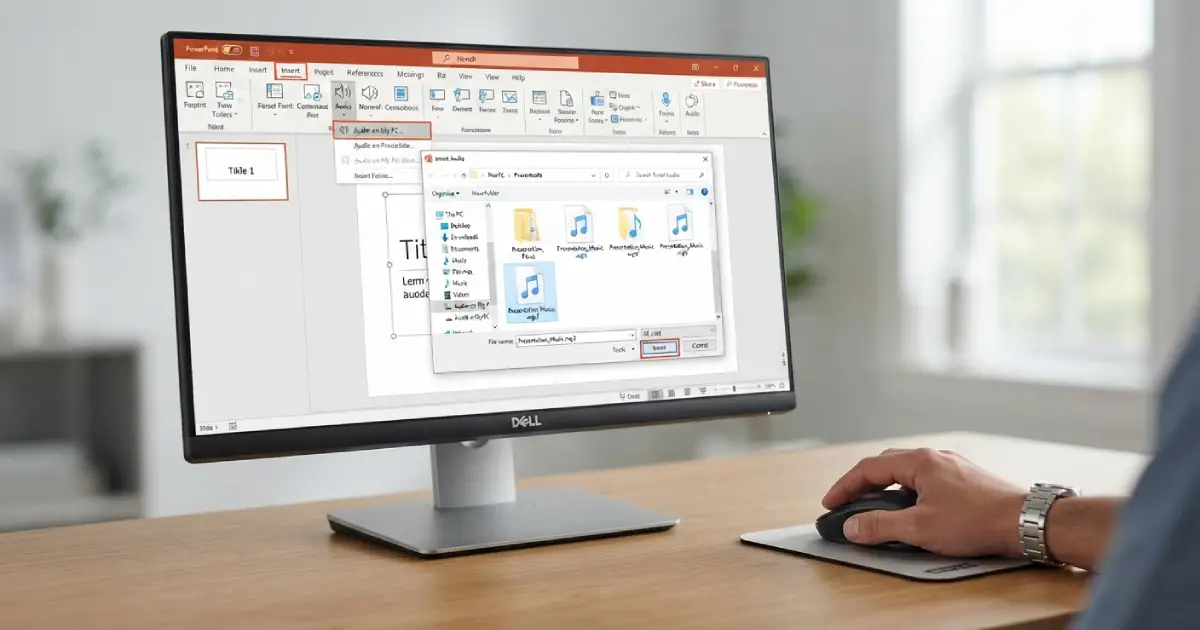
- Step 2: Go to the Insert tab, select Audio, and then choose Audio on My PC.
- Step 3: Find the music file, select it, and click Insert. A speaker icon appears on the slide.
- Step 4: With the speaker icon selected, open the Playback tab.
- Step 5: Select Play in Background.
- Step 6: Confirm that Start is set to Automatically and that Play Across Slides, Loop until Stopped, and Hide During Show are checked.
- Step 7: To soften the music, select Volume on the Playback tab and choose Low or Medium.
- Step 8: Press F5 to start the show from the first slide, then advance through several slides to check that the music continues.
- Step 9: Press Esc to end the show, then press Ctrl + S to save the presentation.
Tip: A track that sounds gentle on its own can easily drown out a speaker. If someone will be talking over the slides, start with Low and run a quick sound check on the speakers that will be used.
PowerPoint for Mac
- Step 1: Open the presentation and select the first slide.
- Step 2: On the Insert tab, select Audio, and then choose Audio from File.
- Step 3: Select the music file and click Insert.
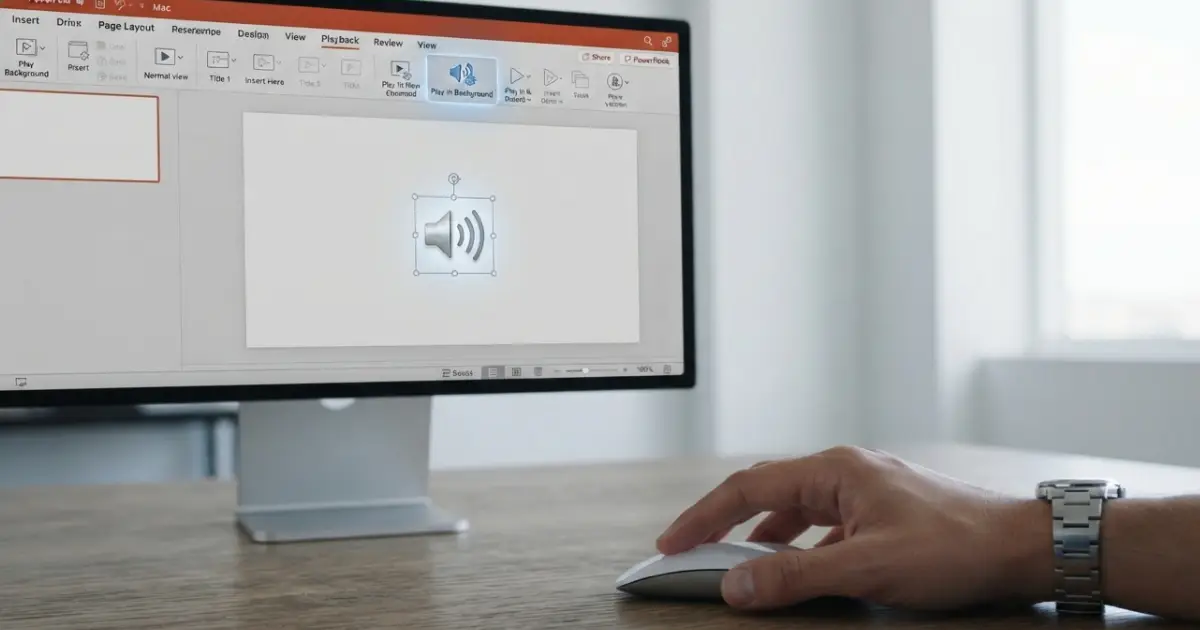
- Step 4: Select the speaker icon and open the Playback tab.
- Step 5: Select Play in Background.
- Step 6: Start the slide show from the first slide and move through the deck to test the music.
PowerPoint for the Web
- Step 1: Open the presentation in PowerPoint for the web and select the first slide.
- Step 2: On the Insert tab, select Audio.
- Step 3: Browse to an MP3, WAV, M4A, AAC, or OGA file and select Open.
- Step 4: Select the audio icon on the slide.
- Step 5: On the Audio tab or Playback tab, select Play in Background.
- Step 6: Start the slide show from the beginning and click through a few slides to confirm playback.
Common Problems and Fixes
The Music Stops After the First Slide
The audio is not set to carry over. Select the speaker icon, open the Playback tab, and check Play Across Slides. Selecting Play in Background also applies this setting.
The Music Waits for a Click
Set Start to Automatically on the Playback tab. If the first slide has other animations, the audio may be queued behind them. In PowerPoint for Windows, open the Animations tab, select Animation Pane, and move the audio item to the top of the list. Then set its Start option to After Previous.
Tip: The Animation Pane works like a waiting line. Anything placed above the music gets its turn first, so keeping the audio at the top lets it begin as soon as the slide appears.
The Music Ends Before the Presentation Does
Short songs run out quickly during a long talk. Check Loop until Stopped so the track repeats. In PowerPoint for Windows, also open the Animation Pane, double-click the audio item, and look under Stop playing on the Effects tab. If After is selected, increase the slide number so it covers the entire deck.
No Music Plays During a Test Run
Make sure the show starts on the slide that holds the audio. Starting from a later slide, such as slide 5, skips the music placed on slide 1. Next, confirm that Volume is not set to Mute and that the computer is sending sound to the correct speakers or headphones.
The Music Restarts or Overlaps
This can happen when the same song has been inserted on several slides. Keep one copy on the first slide, then delete the speaker icons for that song from all other slides.
PowerPoint Cannot Insert or Play the File
Convert the track to M4A with AAC audio, which is the format Microsoft recommends for PowerPoint on Windows. MP3 and WAV files are also supported. After converting, delete the old audio icon, insert the new file, and select Play in Background.
Frequently Asked Questions
How can one song play through the entire PowerPoint presentation?
Insert the song on the first slide, select the speaker icon, open the Playback tab, and choose Play in Background. The music then continues across the slides.
What is the difference between Play Across Slides and Play in Background?
Play Across Slides keeps the audio going when the slide changes. In PowerPoint for Windows, Play in Background also starts it automatically, loops it, and hides the speaker icon during the show.
Will the music repeat if it is shorter than the slide show?
Yes, as long as Loop until Stopped is checked. In PowerPoint for Windows, Play in Background turns this option on for you.
How can the speaker icon be hidden during the presentation?
Select the speaker icon, open the Playback tab, and check Hide During Show. In PowerPoint for Windows, Play in Background applies this setting automatically.
Can the background music start on a later slide?
Yes. Insert the audio on the slide where the music should begin, then select Play in Background. It plays from that slide onward.
How can the music be stopped after a certain slide?
In PowerPoint for Windows, open the Animation Pane and double-click the audio item. On the Effects tab, select After under Stop playing, enter the number of slides the music should cover, and click OK.
Can several songs play as background music across the slides?
A reliable method is to join the songs into one audio file with an audio editing tool, then insert that file on the first slide and select Play in Background.
Which audio format is best for PowerPoint background music?
M4A with AAC audio is the recommended choice on Windows. MP3 and WAV files also work in PowerPoint for Windows, Mac, and the web.
Will the music still play if the presentation is opened on another computer?
Audio inserted from a file is normally embedded in the presentation in current desktop versions, so it travels with the file. Avoid the Link to File option, and test the show on the other computer beforehand.
