
Knowing how to fix VGA monitor not displaying correctly saves a lot of frustration when the picture turns blurry, tinted, stretched, or flickery. VGA is an older analog connection, so it is more sensitive to cable quality, loose connectors, and mismatched settings than modern digital ports. The good news is that most problems trace back to a short list of causes that can be checked in a few minutes.
Key Takeaways
- Most VGA display problems come from a loose or damaged cable, a wrong resolution or refresh rate, or an analog signal that needs adjusting.
- Reseating the cable and tightening both thumbscrews fixes a surprising number of tinted, flickering, or ghosting screens.
- Setting the monitor to its native resolution and running its Auto Adjust function usually sharpens a blurry picture.
- Testing the monitor and cable on a second computer shows quickly whether the fault is in the monitor, the cable, or the PC.
- HDMI or DisplayPort to VGA adapters must be the active type, because VGA is analog and digital ports cannot be wired straight across.
Common Causes of a VGA Monitor Not Displaying Correctly
Different symptoms point to different causes, and matching the symptom to the cause saves time.
Cable and Connector Problems
A VGA cable carries separate red, green, and blue color signals plus sync signals. If one of the pins is bent, pushed in, or not making contact, the picture can show a strong color tint, such as everything looking pink, green, or blue. A loose plug often causes flickering, wavy lines, or a picture that comes and goes when the cable is touched.
Wrong Resolution or Refresh Rate
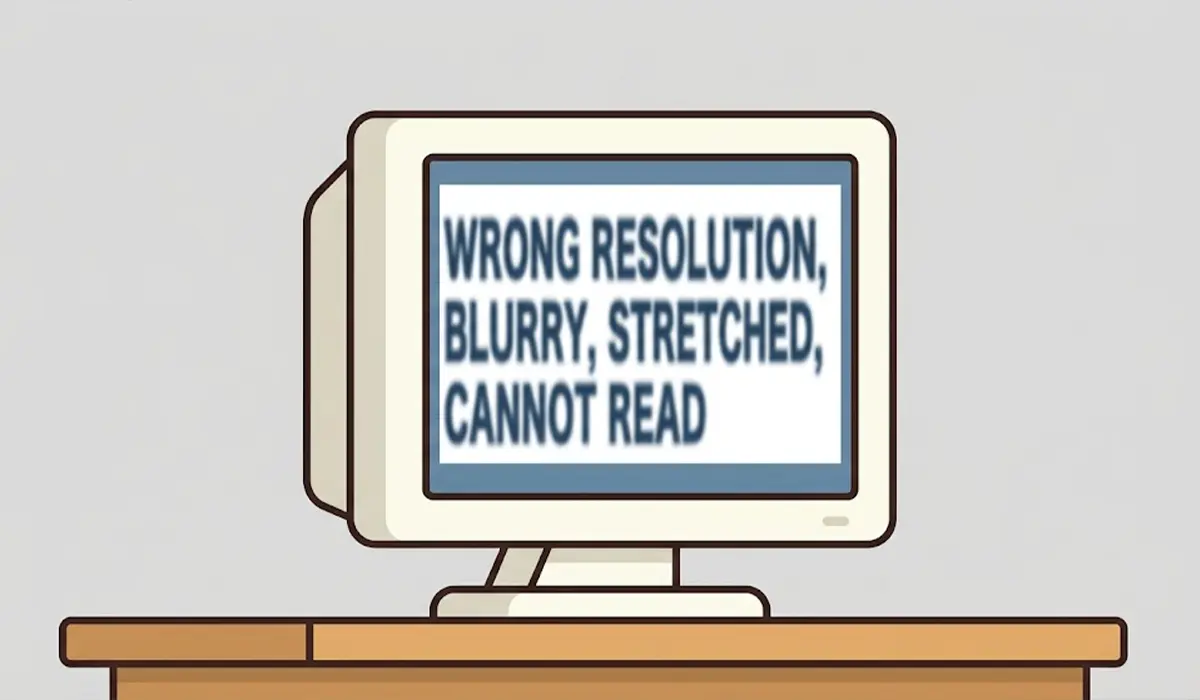
If Windows sends a resolution or refresh rate the monitor cannot handle, the screen may show text that looks stretched, fuzzy, or an ‘Input not supported’ or ‘Out of range’ message. Blurry text on an LCD monitor is most often a resolution that does not match the panel’s native resolution.
Analog Signal Drift
Because VGA is analog, the monitor has to line up the incoming signal with its pixels. When that alignment is off, the picture shows shimmering, fuzzy edges, or vertical bars. The monitor’s Auto Adjust function exists to correct exactly this.
Adapters, Extension Cables, and Long Runs
Cheap adapters, extension cables, and very long cables weaken the analog signal. The result is ghosting, which looks like a faint duplicate image beside text, along with soft or dim output.
Graphics Driver or Display Mode Issues
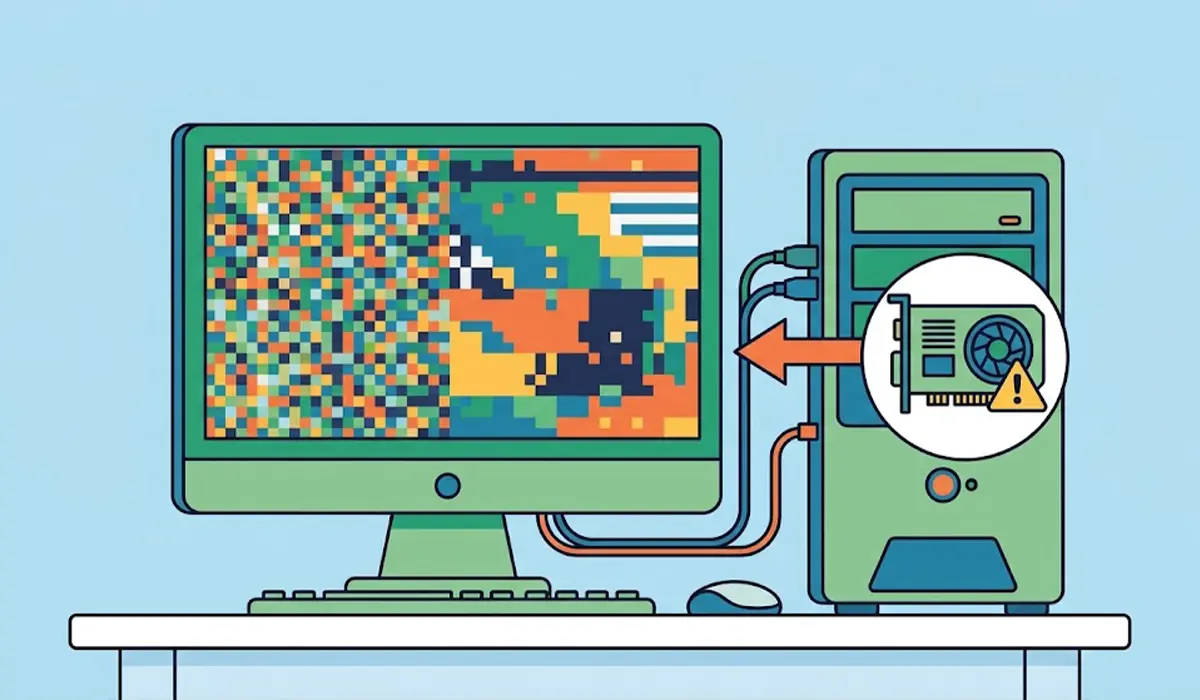
An outdated or corrupted graphics driver can send the wrong signal. A wrong display mode, such as a projector-style setting that duplicates or extends the screen, can also make the monitor appear to show the wrong thing.
Before You Start
These checks are low risk, but a few precautions keep the equipment safe.
- Shut down the computer and switch off the monitor before unplugging or plugging in the VGA cable.
- Touch a bare metal part of the case first to discharge static before handling ports.
- Have a known working VGA cable, a second monitor or PC for testing, and a soft dry cloth ready.
- Never force the connector. The plug is shaped so it only fits one way.
Step-by-Step Fixes for a VGA Monitor Not Displaying Correctly
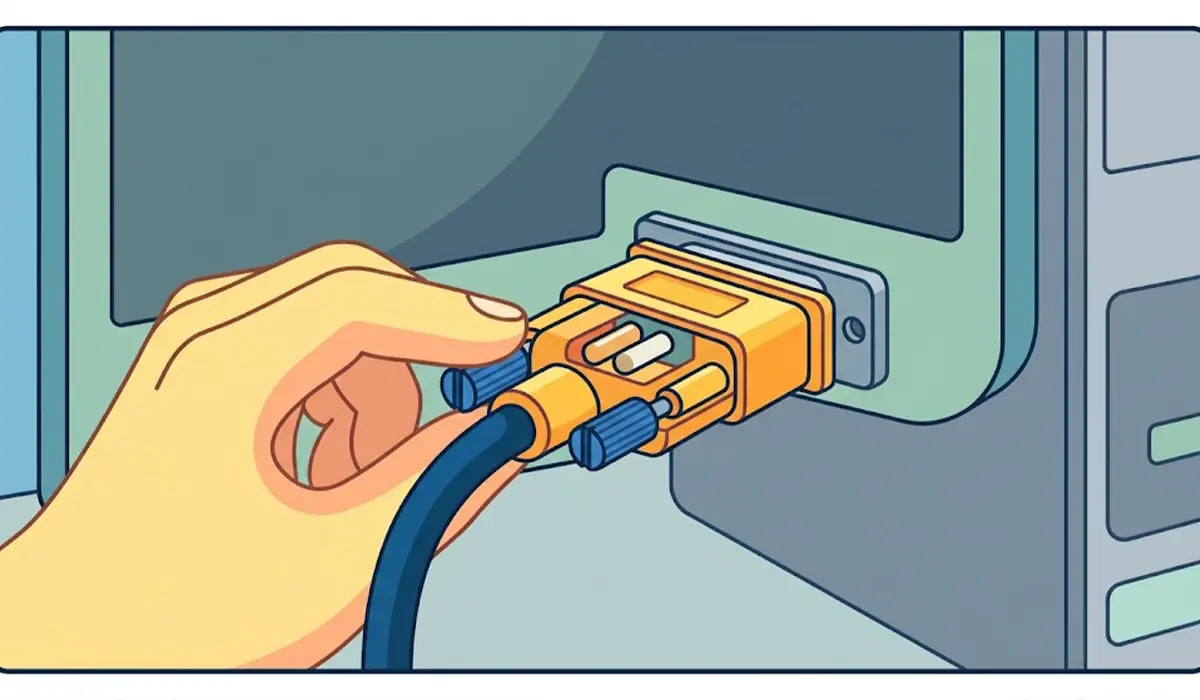
- Step 1: Check the physical connection. With both devices powered off, unplug the VGA cable from the monitor and the PC. Look at the plug for bent, flattened, or missing pins. Plug it back in gently and tighten the two thumbscrews on each end by hand so the connector sits fully seated.
- Step 2: Remove anything extra from the signal path. Take out adapters, switch boxes, and extension cables, then connect the monitor directly to the computer with a single, good-quality VGA cable. A cable with ferrite cores (the small cylinders near each end) helps reduce interference.
- Step 3: Swap the cable. Try a different VGA cable known to work. If the picture clears up, the original cable was the problem. A cable with bent pins should be replaced rather than repaired.
- Step 4: Check the monitor input. Open the monitor’s on-screen menu and make sure the input source is set to VGA or analog rather than HDMI, DVI, or another input. Some monitors fail to switch automatically.
- Step 5: Set the native resolution. In Windows, open Settings, go to System, then Display, and choose the resolution marked as Recommended. This is the native resolution of the panel, and anything else makes text look soft.
- Step 6: Lower the refresh rate if needed. In the Advanced display settings, choose a lower refresh rate that the monitor lists as supported. This clears up ‘Out of range’ messages and flicker.
- Step 7: Run the monitor’s Auto Adjust. Open the monitor menu and look for Auto, Auto Adjust, or Auto Config. With a full-screen window of text or a light-colored page showing, run it and let the monitor realign the analog signal. If the picture still shimmers, the Clock and Phase settings in the same menu can be adjusted by small amounts.
- Step 8: Check the display mode. Press the Windows key and P together, then choose the option that fits the setup, such as PC screen only, Duplicate, or Second screen only. A wrong mode can make the VGA monitor look blank or wrongly sized.
- Step 9: Update the graphics driver. Open Device Manager, expand Display adapters, right-click the graphics device, and choose Update driver. Restart afterward. If the problem began after a recent update, the Properties window of the same device offers a Roll Back Driver option on the Driver tab.
- Step 10: Test the monitor and port separately. Connect the monitor to another computer. If it displays correctly there, the fault is on the original PC side. If the same problem appears, the monitor itself is the likely cause. Trying a different video output on the original PC, if one is available, helps check the VGA port.
Tip: Change only one thing at a time and look at the screen after each change. This is the quickest way to find the fix and avoids creating a second problem while solving the first.
Using HDMI or DisplayPort to VGA Adapters Correctly
Many modern laptops no longer have a VGA port, so an adapter is often part of the setup. VGA is analog, while HDMI and DisplayPort are digital, so the adapter has to contain a converter chip. A plain passive cable that only changes the plug shape will not work for this. The adapter also has to match the direction of the signal: a converter that takes HDMI from a PC and outputs VGA is a different product from one that takes VGA in and outputs HDMI.
Tip: If a converter adapter is used, plug in any USB power connector it includes. Some converters need that extra power to produce a stable picture, and a missing connection can look like flicker or a dim image.
Common Problems and Fixes
Picture Has a Strong Color Tint
A single color dominating the screen usually means one color signal is not arriving. Reseat the cable, check for bent pins, and try another cable. A damaged cable is the most common reason.
Text Is Blurry Even at the Right Resolution
Run the monitor’s Auto Adjust again with a full-screen text window showing, then fine-tune the Clock and Phase settings. Also confirm that the scaling in Windows Display settings is not set to an unusual value.
Ghosting or Double Images Beside Text
This points to a weak or reflected signal. Remove extension cables and adapters, and shorten the cable run if possible. A better-shielded cable usually solves it.
Screen Flickers or Shows Wavy Lines
Check that both thumbscrews are tight, keep the cable away from power cables and speakers, and lower the refresh rate. Interference from nearby power adapters is a frequent hidden cause.
Monitor Shows ‘Input Not Supported’ or ‘Out of Range’
The PC is sending a resolution or refresh rate beyond what the monitor handles. Restart the PC and, if the screen stays unusable, boot into Safe Mode or use the Windows recovery options to reset the display settings, then pick a supported resolution.
Problem Remains After Every Step
If the monitor fails on a second computer with a known good cable, the monitor’s internal analog circuitry has probably failed. If the monitor works elsewhere but not on the original PC, the graphics output may be at fault. Repairs inside either device are best left to a qualified technician, and opening a device can affect its warranty.
Frequently Asked Questions
Why is my VGA monitor blurry?
The most common reason is a resolution that does not match the monitor’s native resolution. A weak signal from a long or low-quality cable, or an analog signal that needs the monitor’s Auto Adjust function, can also make the picture look soft.
Why does my VGA monitor have a pink, green, or blue tint?
A color tint usually means one of the color signals is not reaching the monitor. This happens when a pin on the VGA cable is bent or pushed in, or when the connector is not seated fully. Reseating or replacing the cable normally fixes it.
Why does the VGA screen flicker?
Flickering is typically caused by a loose connector, interference from nearby power cables, a damaged cable, or a refresh rate that the monitor does not handle well. Tightening the thumbscrews and lowering the refresh rate are good first checks.
How do I run Auto Adjust on a VGA monitor?
Open the monitor’s on-screen menu using its buttons and look for an option named Auto, Auto Adjust, or Auto Config. Running it while a full-screen image with text is displayed gives the monitor the best chance of aligning the signal correctly.
Can a bad VGA cable cause display problems?
Yes. A bent pin, a broken internal wire, or poor shielding can cause tinting, ghosting, flickering, or no picture at all. Swapping in a known working cable is the fastest way to confirm.
Does an HDMI to VGA adapter reduce picture quality?
A good active converter produces a clear picture, but VGA is analog, so the image can never be as sharp as a direct digital connection. A poor adapter can add softness, ghosting, or flicker.
What resolution should be used on a VGA monitor?
The native resolution of the monitor is the best choice. In Windows Display settings, it is the option labeled Recommended. Using any other resolution generally makes text and icons look blurry or stretched.
Why does my VGA monitor say Input Not Supported?
This message appears when the computer sends a resolution or refresh rate the monitor cannot display. Booting into Safe Mode or Windows recovery lets the display settings be reset to a supported level.
How can I tell whether the monitor or the PC is causing the problem?
Connect the monitor to another computer using a known good cable. If the problem follows the monitor, the monitor is at fault. If the monitor works normally on the second computer, the issue is with the original PC’s graphics output, driver, or settings.
