
A RAM slot not working is one of the more frustrating motherboard issues, since it often mimics a bad memory stick or a failed boot altogether. The good news is that most cases come down to a handful of common causes, and several of them can be fixed at home with basic tools and a careful hand.
Key Takeaways
- Most RAM slot problems trace back to dust, a poorly seated module, bent pins, or an outdated BIOS rather than a truly dead slot.
- Testing one RAM stick at a time in different slots is the fastest way to isolate whether the module or the slot is at fault.
- Bent pins can sometimes be straightened carefully, but this carries real risk and is not always reversible.
- A BIOS update and a CMOS reset solve more RAM detection issues than most people expect.
- If a slot is physically cracked or shows visible burn or corrosion damage, motherboard replacement is usually the safer long-term fix.
Common Causes of a RAM Slot Not Working
Before opening the case, it helps to understand what typically causes a DIMM slot to stop registering memory. Narrowing down the cause saves time and prevents unnecessary parts swapping.
Dust and Debris in the Slot
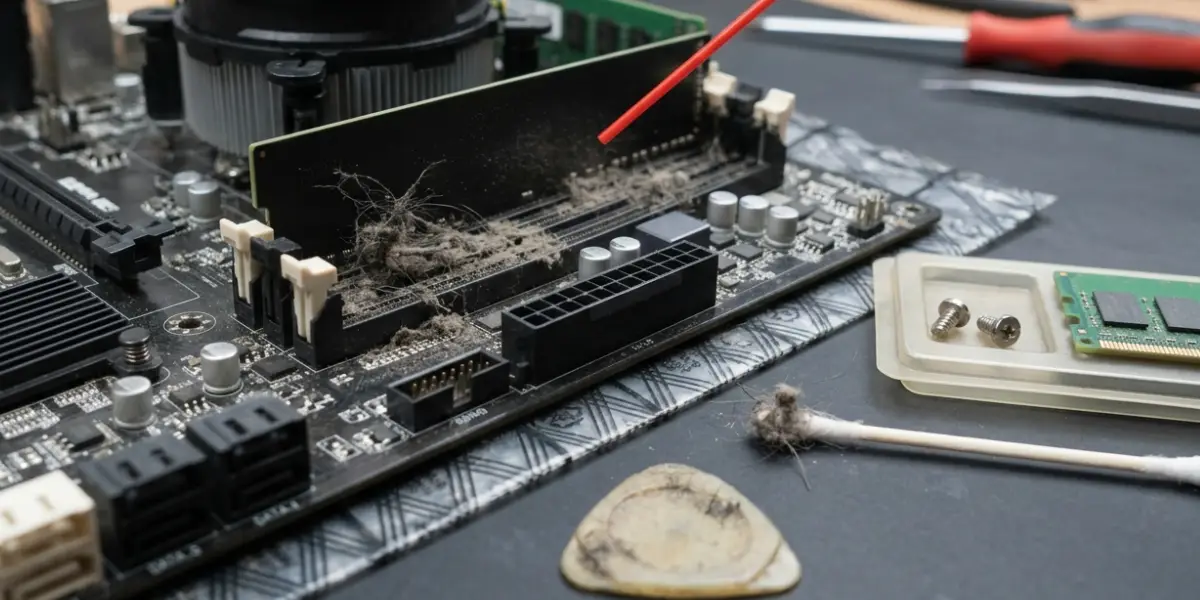
Dust buildup inside a DIMM slot can prevent the metal contacts from making a clean connection with the RAM stick. This is especially common in desktops that sit on the floor or in poorly ventilated cases.
Improperly Seated RAM
A stick that looks installed but is not fully clicked into place is one of the most frequent causes of a slot appearing dead. The retention clips on both ends need to snap fully upright for a secure connection.
Bent or Damaged Pins
Each DIMM slot has a row of thin metal contact pins. A pin that gets bent during installation, or pushed sideways by a stick inserted at an angle, can break the electrical connection entirely.
Outdated or Corrupted BIOS/UEFI
Motherboard firmware controls how memory is initialized at startup. An outdated BIOS version can fail to properly train or recognize a module in a specific slot, even when the hardware itself is fine.
Physical Slot Damage
Cracked plastic housing, a broken retention clip, or scorch marks from an electrical short are signs of physical damage. These issues generally cannot be repaired without replacing the motherboard.
Faulty RAM Module
Sometimes the slot is fine and the stick itself is the problem. This is why testing components individually matters more than assuming the slot is at fault right away.
Before You Start
Working inside a desktop or laptop case involves a small amount of risk to sensitive components, so a few precautions go a long way.
- Power off the system completely and unplug it from the wall outlet.
- On a laptop, disconnect the battery if it is removable, or hold the power button for several seconds after unplugging to drain residual power.
- Discharge static electricity by touching a bare metal part of the case, or wear an anti-static wrist strap.
- Let the system cool down for a few minutes if it was recently running.
- Have a well-lit, flat workspace and avoid carpet or fabric surfaces.
Tools and materials that help with this repair include compressed air, a soft anti-static brush, a flashlight, 90 percent or higher isopropyl alcohol with a lint-free cloth for contact cleaning, and a plastic pry tool or spudger for careful adjustments. Never use metal tools near the slot pins, and never use water or household cleaners on any motherboard component. If a slot shows cracking, burn marks, or corrosion, that is the point to stop and consult a professional repair technician, since forcing a damaged slot can make the motherboard unusable.
How to Fix a RAM Slot Not Working
Work through these steps in order. Each one rules out a possible cause before moving to a more involved fix.
- Step 1: Power down the system, unplug it, and open the case or laptop panel following the safety steps above.
- Step 2: Remove the RAM stick from the affected slot by pressing the retention clips outward, then lift the module straight up and out.
- Step 3: Inspect the slot with a flashlight. Look for bent pins, dust, discoloration, or any visible cracks in the plastic housing.
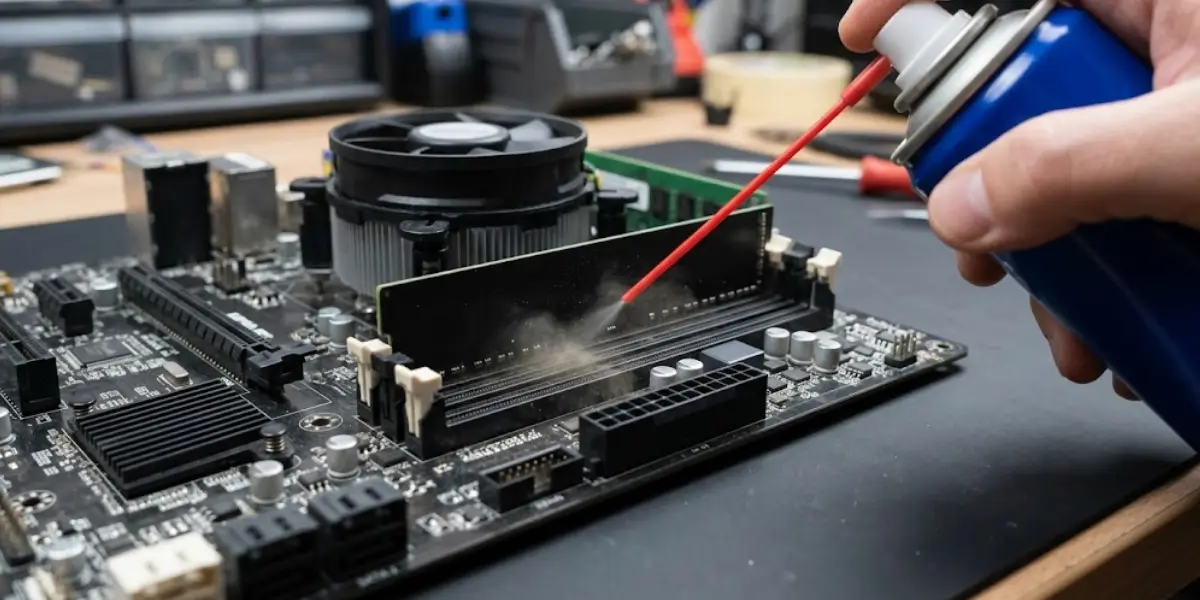
- Step 4: Use compressed air to clear out dust and debris from inside the slot, angling the nozzle along the length of the socket rather than straight down.
- Step 5: Clean the gold contacts on the RAM stick itself with a lint-free cloth lightly dampened with isopropyl alcohol, then let it dry fully before reinserting.
- Step 6: Reinsert the stick, lining up the notch on the module with the key in the slot, and press down firmly and evenly on both ends until the clips click into place.
- Step 7: Power on the system and check whether it boots and whether the memory is detected in BIOS or through the operating system.
- Step 8: If the slot still fails, test a single known-good RAM stick in that slot alone, then try that same stick in a different slot to compare results.
- Step 9: If pins appear bent, power the system off again and gently straighten them using a plastic pry tool or a fine, non-metal probe, working slowly and stopping if a pin feels like it may snap.
- Step 10: Update the motherboard BIOS or UEFI firmware to the latest version available from the manufacturer, since firmware updates frequently improve memory compatibility and slot detection.
- Step 11: Reset the CMOS by using the motherboard reset button, jumper, or by removing the CMOS battery for a minute, then reinstalling it and rebooting.
- Step 12: If the slot still shows no activity after all previous steps, treat it as a hardware failure and plan around using the remaining working slots, or consult a professional for motherboard repair or replacement.
Tip: Always test one RAM stick at a time when diagnosing a slot issue. Testing two sticks together makes it harder to tell whether the module or the slot is causing the problem.
Common Problems and Fixes
Slot Cleaned but System Still Will Not Boot
If cleaning and reseating do not resolve the issue, the module may have shifted during reinstallation. Remove it again and confirm both retention clips are fully locked upright against the sides of the stick.
RAM Detected but at Lower Capacity or Speed
This usually points to a partially working connection rather than a fully dead slot. Reseat the module once more, and check that XMP or EXPO profiles are enabled correctly in BIOS for the rated speed.
Bent Pin Straightened but Slot Still Not Registering
A pin that has been bent and straightened multiple times can weaken or fracture internally, even if it looks fine externally. If the connection still fails after careful straightening, the slot is likely no longer reliable.
System Beeps or Shows an Error Code on Boot
Motherboard beep codes or debug LED codes tied to memory usually confirm a detection failure rather than a random glitch. Check the motherboard manual for the exact code, since it often points directly to which slot or channel is affected.
Dual Channel Mode Not Working After the Fix
Dual channel requires RAM to be installed in the correct matched slot pairs, which are usually labeled or color coded on the board. If one slot in that pair is faulty, dual channel will not engage even though single stick operation works fine.
Frequently Asked Questions
How do I know if a RAM slot is bad?
A known-good RAM stick fails to get detected only in that specific slot, while working normally in other slots, that is a strong sign the slot itself is bad rather than the memory.
Can a bad RAM slot be fixed without replacing the motherboard?
Sometimes. Dust buildup, a poor seat, or a slightly bent pin can often be corrected. Physical cracks, burn damage, or internally fractured pins usually cannot be repaired and point toward motherboard replacement.
Why does my computer still boot with fewer sticks than installed?
Most modern motherboards will boot with at least one working RAM slot, simply reporting less total memory. This is normal behavior and does not indicate additional damage beyond the affected slot.
Is it safe to bend pins back in a DIMM slot?
It carries risk. A slightly bent pin can sometimes be carefully realigned with a plastic tool, but pins are thin and can snap if pushed too far or bent repeatedly.
Can dust cause a RAM slot to stop working?
Yes. Dust and debris inside the slot can block a full connection between the module and the contact pins, which often looks identical to a hardware failure until the slot is cleaned.
Does updating BIOS fix RAM slot issues?
It can. BIOS updates frequently improve memory training and compatibility, and some detection issues that look like slot failures are actually firmware related.
How much does it cost to repair a RAM slot professionally?
Costs vary widely depending on the technician and whether the fix involves reflowing a slot or replacing the motherboard entirely. For many systems, replacing the motherboard ends up being more practical than a slot-level repair.
Can a faulty RAM slot damage the RAM stick itself?
It is uncommon, but a slot with an electrical short can potentially harm a module over time. Testing the stick in a different, known-good slot afterward is a reasonable way to confirm it is still healthy.
What does a motherboard beep code mean for RAM errors?
Beep code patterns vary by motherboard brand, but a repeating short beep sequence commonly signals a memory detection failure. Checking the specific pattern against the motherboard manual identifies the exact issue.
Should RAM always be installed in matched dual channel slots?
For the best performance, yes. Installing sticks in the correct paired slots, as indicated in the motherboard manual, enables dual channel mode and noticeably better memory bandwidth compared to single channel operation.
