
A PC that stutters, fans that spin up during simple tasks, and a Task Manager showing 90 percent or higher for no obvious reason all point to the same problem. Learning how to reduce CPU usage on Windows starts with finding what is actually consuming those processor cycles, then working through a short list of fixes that address the real cause instead of just closing windows and hoping it helps.
Key Takeaways
- High CPU usage is almost always caused by background processes, startup programs, malware, driver issues, or outdated Windows updates piling up unnoticed.
- Task Manager and Resource Monitor are the fastest way to identify which process is actually responsible before changing any settings.
- Disabling unnecessary startup apps and background services usually delivers the biggest and fastest improvement.
- Persistent high usage after basic fixes often points to malware, a failing driver, or a Windows Update process stuck mid-cycle.
- Power settings and visual effects also factor in, especially on laptops running in high-performance mode unnecessarily.
Common Causes of High CPU Usage on Windows
Before jumping into fixes, it helps to understand what typically drives a processor into overdrive. Most cases trace back to one of the following.
Too Many Startup and Background Programs
Many applications quietly register themselves to launch at boot and keep running in the background. Cloud sync clients, chat apps, and update checkers are common offenders that add up over time.
Runaway or Stuck Processes
Occasionally a single process, often svchost.exe hosting a misbehaving Windows service, gets stuck in a loop and consumes far more processing power than it should.
Malware or Unwanted Software
Cryptomining malware and adware are notorious for maxing out a CPU silently, especially when the usage spikes even with no applications open.
Outdated Drivers or Windows Updates
A driver that has not been updated in years, or an update installation that failed partway through, can leave a background process consuming resources indefinitely.

Search Indexing and Maintenance Tasks
Windows Search indexing, disk defragmentation, and scheduled antivirus scans are legitimate processes, but they can spike usage at inconvenient moments if they run during active work.

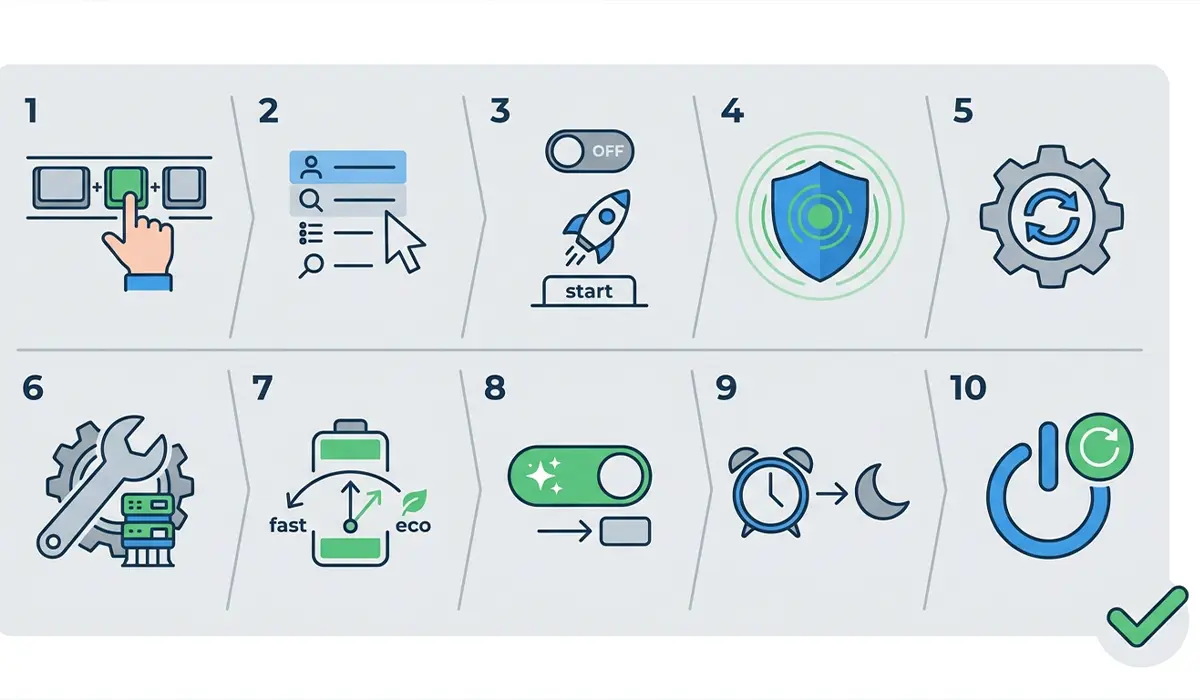
How to Reduce CPU Usage on Windows: Step-by-Step Fixes
Work through these in order. Most people find that the first two or three steps resolve the issue entirely.
- Step 1: Open Task Manager with Ctrl, Shift, and Esc, click the CPU column header to sort by usage, and note which process sits at the top consistently rather than just during a brief spike.
- Step 2: Right-click any unfamiliar or resource-heavy process and choose Search Online to confirm what it belongs to before deciding whether to end it. Ending a legitimate system process can cause instability, so this step matters.
- Step 3: Open the Startup tab in Task Manager and disable programs that do not need to launch automatically. Focus on anything marked High impact first.
- Step 4: Run Windows Security’s full scan, or a reputable on-demand malware scanner, to rule out cryptomining scripts or adware processes disguised as system files.
- Step 5: Check for pending Windows Updates in Settings and install any that are outstanding. A stalled update can leave background installer processes running indefinitely.
- Step 6: Update graphics, chipset, and network drivers through Device Manager or the manufacturer’s own utility, since outdated drivers are a frequent source of background CPU load.
- Step 7: Adjust Power Options to Balanced instead of High Performance if the device does not need maximum performance constantly, particularly on laptops.
- Step 8: Disable unnecessary visual effects through System Properties, Advanced, Performance Settings, and select Adjust for best performance if animations are not a priority.
- Step 9: Reschedule or pause Windows Search indexing and antivirus scans to run overnight instead of during active work hours through their respective settings menus.
- Step 10: Restart the PC after making these changes. Some services only fully release resources after a fresh boot rather than immediately after being disabled.
Tip: Let Resource Monitor run in the background for a few minutes rather than judging usage from a single glance at Task Manager. Some processes spike briefly and settle on their own, and reacting to a one-second snapshot leads to unnecessary changes.
Common Problems and Fixes
CPU Usage Still High After Disabling Startup Apps
This usually means a scheduled task, rather than a startup program, is the culprit. Open Task Scheduler and review the Task Scheduler Library for third-party entries running on triggers unrelated to login.
System Idle Process Shows High Usage
This is not actually a problem. The System Idle Process represents unused CPU capacity, so a high number here means the processor has plenty of headroom, not that something is wrong.
Antimalware Service Executable Consuming Too Much CPU
Windows Defender’s scanning engine can spike usage during a scheduled or real-time scan. Adding trusted, frequently accessed folders to the exclusions list in Windows Security can reduce this without disabling protection entirely.
Usage Drops Then Spikes Again Repeatedly
A cycling pattern like this often points to a service restarting after a crash. Checking Event Viewer’s Application log around the timestamps of each spike usually reveals which service is failing and restarting on a loop.
Laptop Fans Ramp Up Even at Idle
Tip: If usage looks normal in Task Manager but fans still ramp up, the issue may be thermal paste or dust buildup rather than software. A high CPU usage fix will not help if the real cause is a cooling problem, so it is worth checking temperatures with a monitoring utility before assuming software is to blame.
Frequently Asked Questions
What is considered normal CPU usage on Windows?
Idle usage in the single digits to low teens is typical for most modern systems. Usage naturally climbs during active tasks like gaming, video editing, or large file transfers, and dropping back down afterward is expected behavior.
Why does CPU usage spike even when no programs are open?
Background services, scheduled maintenance tasks, driver processes, or malware can all cause spikes with no visible application running. Task Manager’s process list, not the open window count, shows the true source.
Is 100 percent CPU usage always a problem?
Brief spikes to 100 percent during heavy tasks are normal. Sustained 100 percent usage over several minutes with no demanding task running is what signals an actual issue worth investigating.
Can too many browser tabs cause high CPU usage?
Yes. Modern browsers run each tab as a semi-independent process, and tabs with auto-playing video, ads, or scripts can collectively consume significant processing power. Closing unused tabs or using a tab-suspension extension helps.
Does reinstalling Windows fix high CPU usage?
A clean install can resolve deeply rooted software conflicts, but it is a last resort. Most high CPU usage cases are solved through the steps above without needing to reinstall the operating system.
Will upgrading RAM reduce CPU usage?
Not directly. RAM and CPU usage are separate resources. However, low RAM can cause the system to rely more heavily on the CPU and disk for memory management, so more RAM sometimes reduces CPU strain as a side effect.
How can background processes be identified quickly?
Task Manager’s Processes tab, sorted by CPU, shows real-time usage per process. Resource Monitor offers a more detailed breakdown, including which processes are generating disk and network activity alongside CPU load.
Should third-party CPU optimizer tools be used?
Built-in Windows tools like Task Manager, Task Scheduler, and Windows Security cover most needs without added risk. Some third-party optimizers make aggressive registry changes that cause more instability than they solve, so caution is warranted.
Why does CPU usage increase after a Windows Update?
Post-update indexing, driver reinstallation, and background optimization tasks commonly run for a period after major updates. Usage typically normalizes within a day as these one-time processes finish.
