
Knowing how to monitor fan speeds in Windows is one of the fastest ways to catch a cooling problem before it turns into overheating or throttling. Windows does not track this data on its own, so getting an accurate reading means turning to the right combination of software and BIOS checks. This guide walks through exactly how to do it, step by step, using tools that are safe, free, and widely trusted.
Key Takeaways
- Windows has no native fan speed monitor built into Task Manager or Settings.
- Free tools like HWiNFO and HWMonitor are the most reliable way to read fan RPM in real time.
- BIOS or UEFI firmware often shows a baseline fan reading without installing anything.
- Many laptops hide fan speed data from third-party software and only show it in the manufacturer’s own app.
- Comparing readings over time is more useful than a single snapshot, since it reveals whether a fan is ramping up correctly under load.
Before You Start
This is a software task, not a disassembly job, so there is no need to power down or open the case. A few small things still make the process smoother and safer.
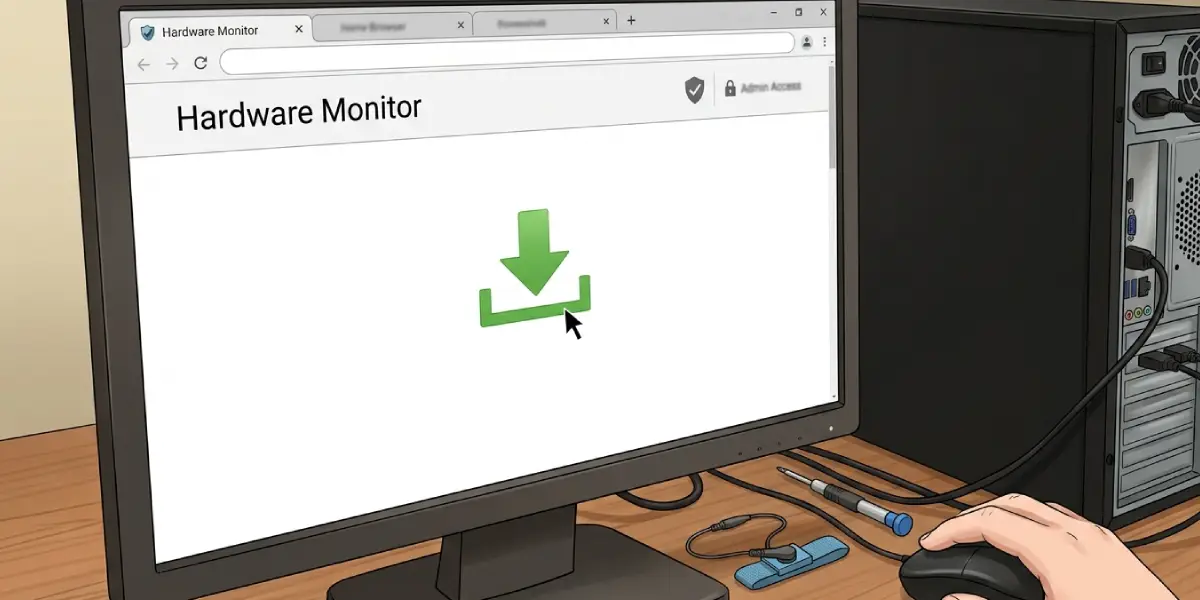
- Only download monitoring software from the official developer website, never from a third-party download bundler.
- Log in with an administrator account, since most hardware monitoring tools need elevated permissions to read sensor data.
- Close unnecessary background programs before testing, so fan behavior reflects actual system load rather than random spikes.
- If a fan is making unusual noise or the system feels unusually hot to the touch, let it cool down before running a stress test.
Tip: Avoid any tool that also promises to ‘optimize’ or ‘clean’ the registry as a side feature. Those bundles are usually the ones packed with unwanted extras.
Steps to Monitor Fan Speeds in Windows
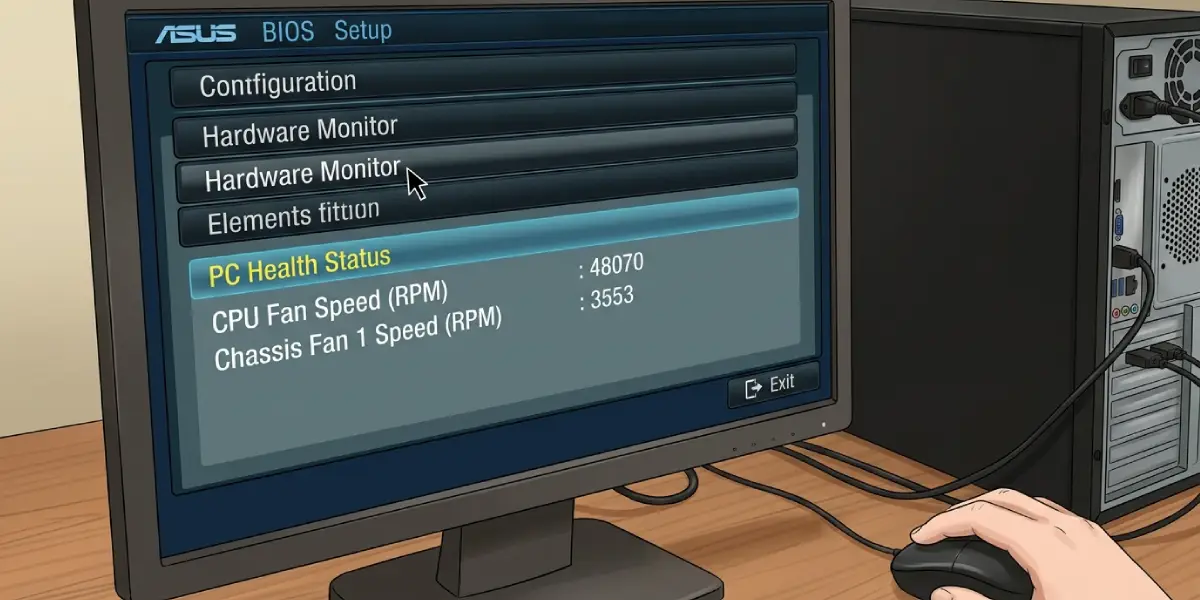
- Step 1: Check the BIOS or UEFI first. Restart the computer, enter the BIOS setup (commonly Delete, F2, or F10 depending on the motherboard brand), and look for a section labeled Hardware Monitor, PC Health Status, or Fan Control. This gives a quick, software-independent baseline reading of CPU and case fan RPM.
- Step 2: Download a trusted hardware monitoring tool. HWiNFO and HWMonitor are both well established, free, and widely used by technicians for exactly this purpose. Install the desktop version rather than any browser add-on.
- Step 3: Open the tool and locate the sensor list. In HWiNFO, this appears under the ‘Sensors’ window; fan entries are usually labeled things like CPU Fan, SYS Fan, or Chassis Fan, each showing a live RPM value.
- Step 4: Cross-check with the motherboard or laptop manufacturer’s own software, such as an ASUS, MSI, Gigabyte, Dell, or Lenovo control center app. These often read fan headers more accurately than generic tools because they use the vendor’s own embedded controller access.
- Step 5: Watch the readings under load. Open a demanding application or run a short benchmark, then observe whether fan speed increases in response to rising CPU or GPU temperature. A healthy fan curve should ramp up smoothly rather than staying flat or jumping erratically.
- Step 6: Set up an on-screen overlay if ongoing monitoring is useful, using a tool such as MSI Afterburner with RivaTuner Statistics Server. This keeps fan RPM visible in the corner of the screen during gaming or other sustained workloads.
Tip: Note down idle and full-load RPM numbers once everything looks normal. Having that baseline on hand makes it much easier to spot a fan that is slowing down months later.
Common Problems and Fixes
- Fan speed shows 0 RPM or blank. This usually means the fan is connected to a header the motherboard does not report to software, or it is plugged into a case fan hub instead of a monitored header. Try moving the connector to a labeled CPU or system fan header directly on the motherboard.
- Different tools show different numbers. Small discrepancies between HWiNFO, HWMonitor, and vendor software are normal, since each pulls data slightly differently. What matters most is that the trend moves in the right direction as load changes.
- Laptop shows no fan reading at all. Many laptop manufacturers restrict direct sensor access, so third-party tools cannot see the fan. In that case, the manufacturer’s own utility, such as a dedicated cooling or performance app, is usually the only place fan speed will appear.
- Fan speed reading never changes. If the number stays identical under both idle and load conditions, the sensor may be reporting a cached value. Restarting the monitoring software, or rebooting the system, often resolves this.
- Reading looks too low or too high to be real. Occasionally a motherboard misreports RPM due to a firmware quirk. Updating to the latest BIOS version from the manufacturer’s support page can correct inaccurate sensor scaling.
Frequently Asked Questions
Does Windows have a built-in fan speed monitor?
No. Windows does not include a native feature for reading fan RPM, which is why third-party software or a BIOS check is needed.
Why doesn’t Task Manager show fan speed?
Task Manager only reports CPU, memory, disk, and network usage. It was never designed to read hardware sensors like fan RPM or temperature.
What’s the most reliable free fan monitoring software?
HWiNFO and HWMonitor are both widely trusted for accurate, real-time fan speed reporting on desktop systems.
Can the BIOS show fan speed?
Yes, most desktop motherboards display live fan RPM under a Hardware Monitor or PC Health Status section in the BIOS or UEFI setup screen.
Why do laptops often not show fan RPM in monitoring apps?
Laptop manufacturers frequently lock down direct access to embedded controllers, so only their own official software can read fan data.
Is SpeedFan still safe to use?
SpeedFan is older and no longer actively updated, and it can struggle to recognize newer motherboard sensors correctly. HWiNFO or HWMonitor are generally better choices on current hardware.
What is a normal fan speed range?
Normal ranges vary by fan size and model, but most case and CPU fans idle in the low hundreds of RPM and climb well into the thousands under full load.
Can fan monitoring software also control fan speed?
Some tools, such as Fan Control or a motherboard’s own utility, allow custom fan curves in addition to monitoring. Basic tools like HWiNFO are read-only by design.
Why does a fan speed reading show 0 RPM even though the fan is spinning?
This typically points to a wiring or header issue rather than a software bug, often because the fan is connected somewhere the sensor cannot reach.
How can GPU fan speed specifically be monitored?
GPU fan RPM shows up in the same tools used for system fans, such as HWiNFO, or in GPU-specific software like the graphics card manufacturer’s control panel.
