
Adding a shared mailbox in classic Outlook is one of those small tasks that saves a lot of hassle once it’s set up correctly. This guide walks through the exact steps needed to get a shared mailbox showing up in the folder pane, ready to send and receive on behalf of a team or department.
Key Takeaways
- A shared mailbox must already be assigned by an admin before it can be added to classic Outlook.
- The most reliable method is through Account Settings, not the ‘Open another mailbox’ shortcut alone.
- Permissions issues are the most common reason a shared mailbox fails to appear.
- Closing and reopening Outlook is often required for the mailbox to load properly.
- Sending as the shared mailbox needs a separate permission from simply viewing it.
Step-by-Step Guide to Add a Shared Mailbox in Classic Outlook
These steps apply to classic Outlook connected to a Microsoft 365 or Exchange account. Before starting, confirm that an administrator has already granted access to the shared mailbox, since Outlook cannot add a mailbox without that permission in place.
Adding the Mailbox Through Account Settings
- Step 1: Open classic Outlook and select the ‘File’ tab in the top left corner.
- Step 2: Click ‘Account Settings’, then choose ‘Account Settings’ again from the dropdown menu.
- Step 3: On the Email tab, double-click the primary Microsoft 365 or Exchange account that already has access to the shared mailbox.
- Step 4: In the window that opens, click ‘More Settings’.
- Step 5: Select the ‘Advanced’ tab, then click ‘Add’.
- Step 6: Type the name or email address of the shared mailbox exactly as it was shared, then click ‘OK’.
- Step 7: Click ‘OK’ again to close the Microsoft Exchange window, then click ‘Next’ and ‘Finish’ to close Account Settings.
- Step 8: Close Outlook completely and reopen it. The shared mailbox should now appear in the folder pane on the left, below the primary inbox.
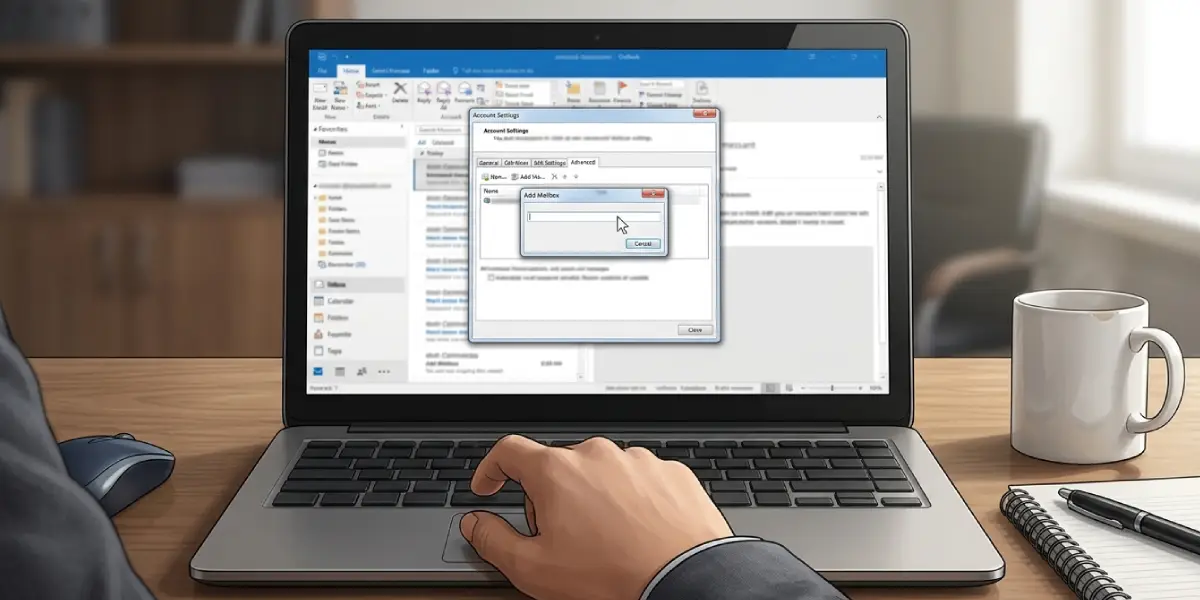
Tip: If the mailbox does not appear right away, give Outlook a few minutes to sync in the background before assuming something went wrong.
Sending Email From the Shared Mailbox
- Step 1: Start a new email and click the ‘From’ field. If it is not visible, go to the ‘Options’ tab and select ‘From’.
- Step 2: Click ‘From’, choose ‘Other E-mail Address’, and type the shared mailbox address.
- Step 3: Compose the message as usual and send it. The recipient will see the shared mailbox as the sender.
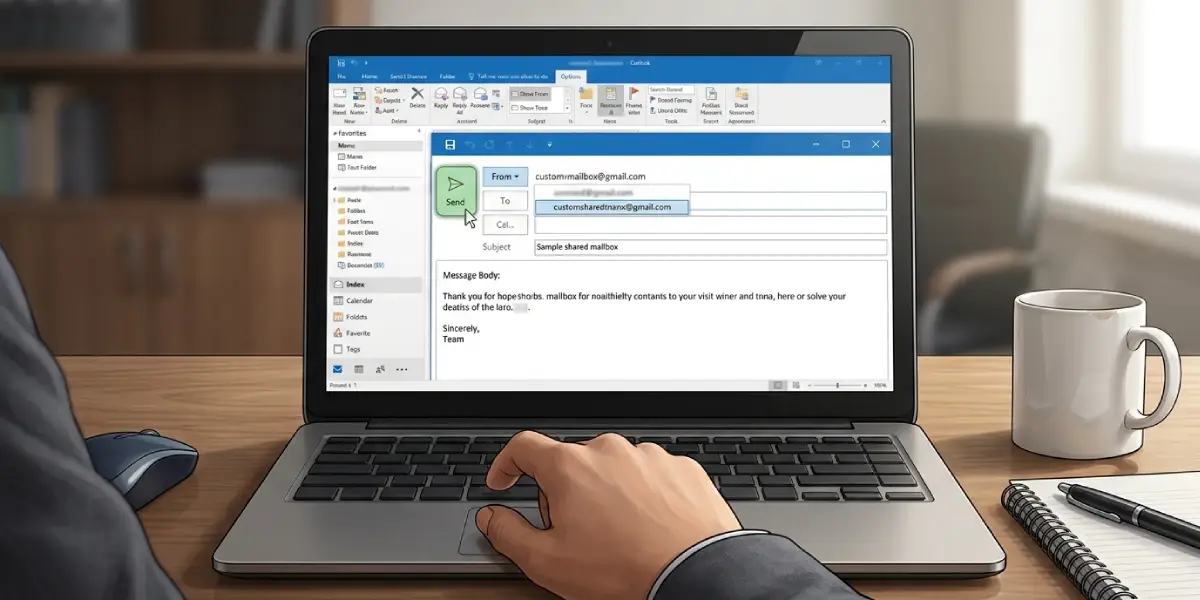
Tip: Save the shared mailbox address once inside the ‘From’ dropdown so it does not need to be retyped for future emails.
Common Problems and Fixes
The Shared Mailbox Does Not Appear After Adding It
This usually means permissions have not been fully applied on the server side. Wait about 30 to 60 minutes, then restart Outlook. If it still does not show up, confirm with an administrator that Full Access permission was granted, not just Send As.
Emails Sent From the Shared Mailbox Bounce Back
This typically happens when Send As or Send on Behalf permission has not been added, even if Full Access was granted. These are separate permissions and both need to be set by an administrator for sending to work correctly.
Outlook Prompts for a Password When Opening the Shared Mailbox
This can occur when cached credentials are out of date. Sign out of Outlook entirely, clear cached credentials through Windows Credential Manager, and sign back in with the primary account.
Duplicate or Missing Folders Inside the Shared Mailbox
This is often a temporary sync issue. Right-click the shared mailbox name in the folder pane and select ‘Close’ to remove it, then repeat the Account Settings steps above to add it again.
Frequently Asked Questions
Does a shared mailbox need its own license?
No. A shared mailbox does not require a separate license as long as it stays under the storage limit set by Microsoft, and it is accessed through an existing licensed account.
Can a shared mailbox be added without admin permission?
No. An administrator must grant access to the mailbox first. Attempting to add it beforehand will result in an access denied message.
Why does the shared mailbox show up but stay empty?
This is usually a temporary sync delay. Give Outlook time to download the mailbox content, and check the connection status in the bottom right corner of the Outlook window.
Is it possible to add more than one shared mailbox at a time?
Yes. The same steps under Account Settings can be repeated for each additional shared mailbox that has been granted access.
How can a shared mailbox be removed from classic Outlook?
Right-click the shared mailbox name in the folder pane and select ‘Close’ or ‘Remove’. This only removes it from view and does not delete the mailbox itself.
Why does the shared mailbox not sync on a mobile device?
Classic Outlook desktop settings do not automatically carry over to mobile. The shared mailbox needs to be added separately within the Outlook mobile app using the same permission requirements.
What is the difference between Full Access and Send As permission?
Full Access allows viewing and managing the mailbox contents, while Send As allows sending email that appears to come directly from the shared mailbox address. Both are typically needed for full functionality.
Why does adding the shared mailbox trigger a certificate warning?
This can happen if the account profile has outdated server settings. Running Outlook’s built-in repair tool through Control Panel’s Mail settings often resolves this.
Can a shared mailbox be pinned to the top of the folder pane?
Shared mailboxes cannot be reordered above the primary account, but folders inside it can be right-clicked and added to Favorites for quicker access.
