
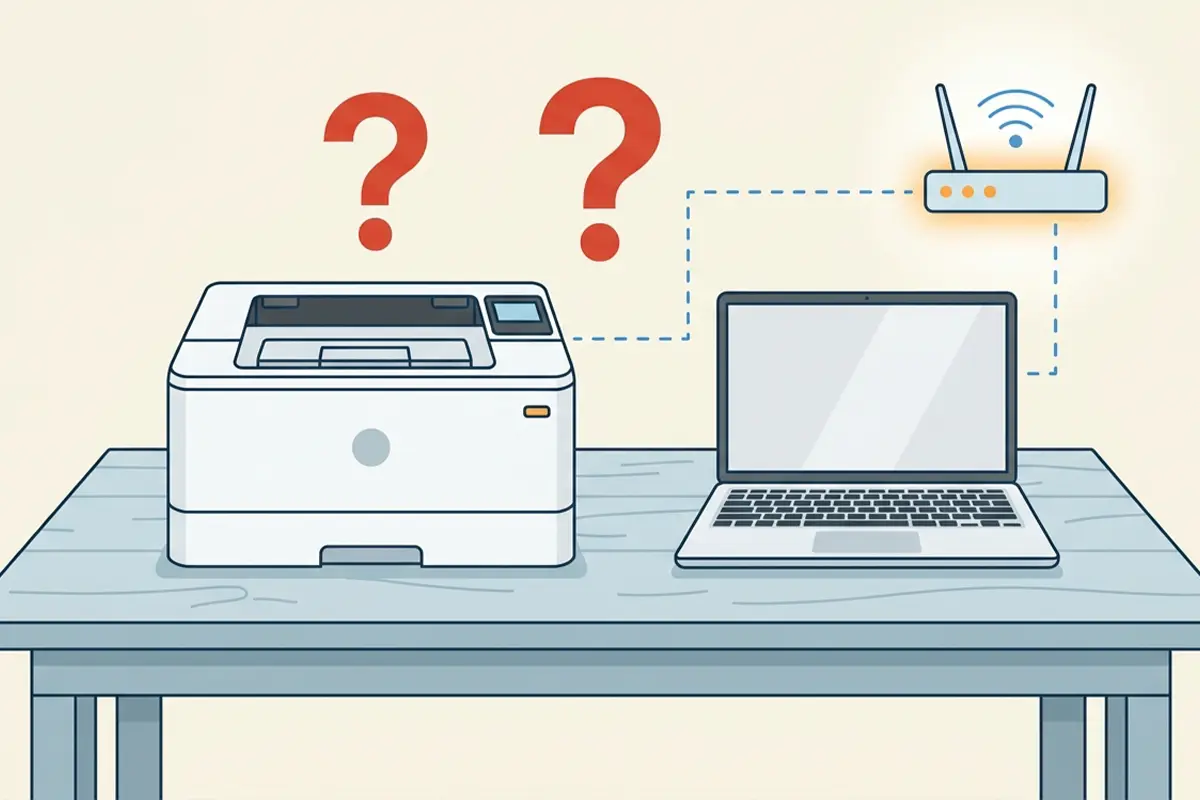
A printer not found on network usually means Windows and the printer are no longer talking to each other, even though both devices are technically powered on and connected to Wi-Fi. This happens more often than most people expect, and it is almost never a sign that the printer is broken. The fixes below walk through the exact causes and the order to check them in.
Key Takeaways
- Most ‘printer not found’ errors come from an IP address change, a sleeping printer, or Network Discovery being turned off.
- Restarting the printer, router, and PC in the correct order resolves a large share of these cases.
- Assigning the printer a static IP address prevents the problem from returning after every router restart.
- Reinstalling the printer driver clears out corrupted network profiles that Windows sometimes fails to update on its own.
- Adding the printer manually by IP address works as a reliable fallback when automatic discovery keeps failing.
Common Causes of a Printer Not Being Found on the Network
A handful of situations account for nearly every case of this error, and narrowing down which one applies makes the fix much faster.
- The printer has gone into sleep mode or lost its Wi-Fi connection.
- The printer and the computer are connected to different networks, such as a 5GHz band the printer does not support or a guest network.
- The router assigned the printer a new IP address after a restart, so Windows is still pointing at the old one.
- Network Discovery or File and Printer Sharing is switched off in Windows network settings.
- The Print Spooler service has stalled or failed to start.
- The printer driver is outdated, corrupted, or was installed for a different connection type.
- A firewall or antivirus program is blocking the printer’s network traffic.
- A VPN connection is rerouting traffic away from the local network entirely.
How to Fix a Printer Not Found on the Network
Work through these steps in order. Most people find the issue resolved within the first four or five steps, but each one narrows the problem down if the earlier ones do not help.
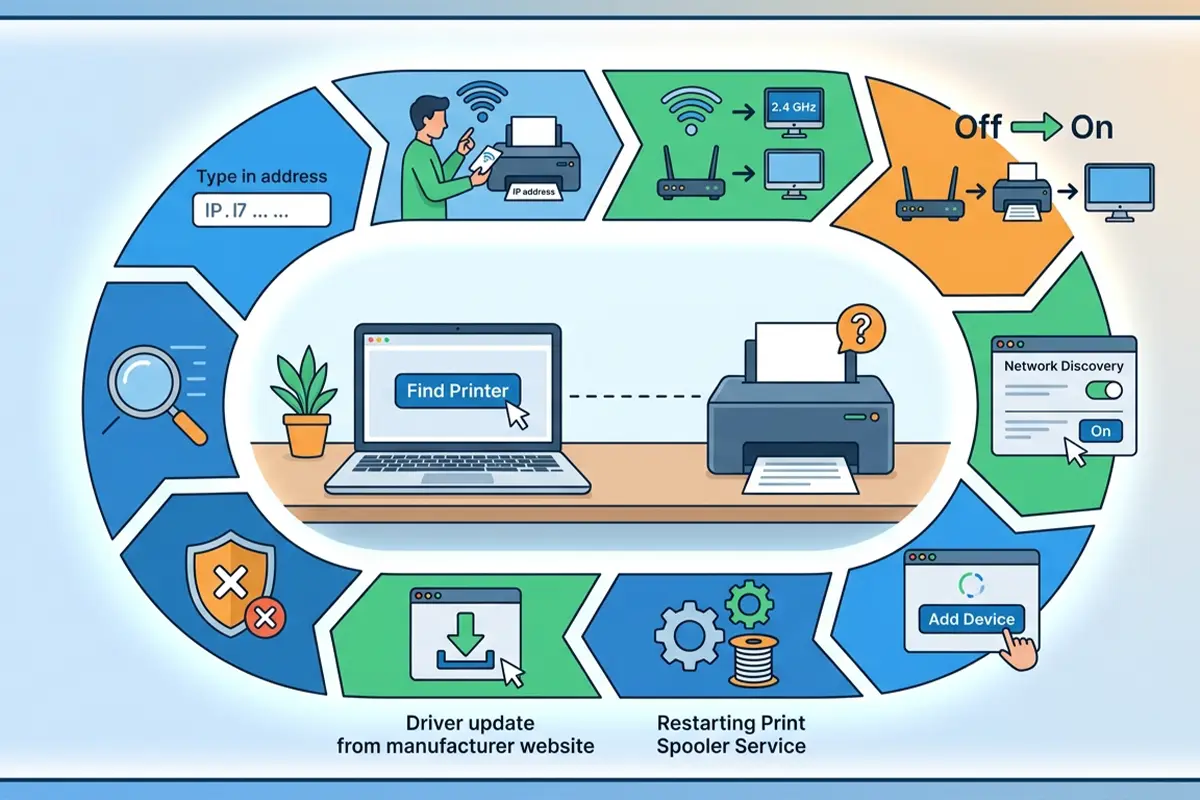
- Step 1: Check the printer’s control panel or display screen to confirm it shows a connected Wi-Fi icon and an IP address. If the display shows no network connection, the printer needs to be reconnected to Wi-Fi before anything else will work.
- Step 2: Confirm the printer and the computer are joined to the exact same network. This matters most on routers that broadcast separate 2.4GHz and 5GHz networks, since many printers only support the 2.4GHz band. Compare the network name on the printer’s settings menu to the one the PC is connected to.
- Step 3: Restart the devices in this order: turn off the printer, then unplug the router for about 30 seconds, then restart the computer. Turn the router back on first, let it fully reconnect, then power the printer back on. This order lets each device get a clean, current IP address from the router.
- Step 4: Open Windows Settings, go to Network & Internet, then Advanced network settings, and turn on Network Discovery along with File and Printer Sharing for the active network profile. These need to be enabled for Windows to detect any network printer.
- Step 5: Open Settings, then Bluetooth & devices, then Printers & scanners, and remove the printer entry entirely. Click ‘Add device’ and let Windows search the network again from scratch. This clears out a stale connection profile that often causes the printer to vanish after a router restart.
- Step 6: Restart the Print Spooler service. Open the Run dialog, type services.msc, find Print Spooler in the list, right-click it, and select Restart. A stalled spooler service is one of the most common reasons a printer that worked yesterday suddenly cannot be found today.
- Step 7: Download the latest driver directly from the printer manufacturer’s support page rather than relying on Windows Update, since manufacturer drivers usually include the network connection utility as well. Uninstall the old driver first through Device Manager, restart the PC, then install the fresh download.
- Step 8: Temporarily disable third-party antivirus or firewall software and try detecting the printer again. If the printer appears once the firewall is off, add an exception for the printer’s IP address and the printing ports rather than leaving protection disabled.
- Step 9: Run the built-in Windows printer troubleshooter through Settings, then System, then Troubleshoot, then Other troubleshooters. It automatically checks several of the settings above and can fix minor configuration issues without manual digging.
- Step 10: Add the printer manually using its IP address. Choose ‘The printer that I want isn’t listed’ during setup, select ‘Add a printer using a TCP/IP address or hostname,’ and enter the IP address shown on the printer’s own network settings screen.
Tip: Print a network configuration page directly from the printer’s control panel before starting. It lists the current IP address, signal strength, and connection status, which saves time compared to guessing at each step.
Setting a Static IP to Prevent Repeat Issues
If the printer keeps disappearing after every router restart, the router is likely reassigning a new IP address through DHCP each time. Logging into the router’s admin page and reserving a fixed IP address for the printer’s MAC address stops this from happening again. Most router interfaces list this option under DHCP reservation or address reservation in the LAN settings.
Common Problems and Fixes
Printer shows up but displays as ‘offline’
This usually means Windows found the printer once but the connection has since dropped. Right-click the printer in Printers & scanners, make sure ‘Use Printer Offline’ is unchecked, and confirm the printer is not set to a manual offline state on its own display panel.
Printer disappears every time the router restarts
This points to a changing IP address. Setting a DHCP reservation for the printer, as described above, keeps its address fixed regardless of how many times the router reboots.
Printer is found on one computer but not others on the same network
Check Network Discovery and File and Printer Sharing on the computer that cannot find it, since these settings are configured per device, not network-wide. A driver that was never properly installed on that specific machine is the next most likely cause.
Printer works over USB but never appears over Wi-Fi
This suggests the printer itself is not actually joined to the wireless network, even if it appears powered on. Running the printer’s built-in Wi-Fi setup wizard again, using the exact network name and password, usually resolves this.
Frequently Asked Questions
Why does Windows say it cannot find my printer on the network?
This message appears when Windows cannot reach the printer’s IP address, which is most often caused by the printer being on a different network, asleep, or assigned a new IP address after a router restart.
Does restarting the router actually help fix this?
Yes. Restarting the router forces every device to request a fresh IP address, which clears out mismatches between the address Windows expects and the one the printer is currently using.
Why did the printer work yesterday but not today?
The most common reason is that the router assigned the printer a different IP address, often after a power outage or scheduled router restart, and Windows has not updated to match it.
Should the printer be on the 2.4GHz or 5GHz network?
Most home and office printers only support 2.4GHz, so if the router broadcasts separate 2.4GHz and 5GHz networks, the printer needs to be connected to the 2.4GHz one specifically.
Will a VPN block a network printer?
Yes, in most cases. A VPN often routes all traffic away from the local network, which cuts off communication with devices on that network, including printers. Disconnecting the VPN while printing usually solves this.
How can a static IP address be set for a printer?
A static IP is typically set through the router’s admin panel using a DHCP reservation tied to the printer’s MAC address, which can be found in the printer’s network settings menu or on a printed network configuration page.
Why does removing and re-adding the printer sometimes fix the issue?
Windows stores a connection profile for each printer, and that profile can become outdated when the printer’s IP address or network status changes. Removing and re-adding the printer forces Windows to build a fresh, current connection profile.
Is it necessary to reinstall the printer driver every time this happens?
Not every time. Driver reinstallation is worth trying when restarting devices, checking network settings, and adjusting the IP address have not resolved the issue, since a corrupted driver can prevent detection even when the network connection itself is fine.
Can antivirus software really block a printer from being found?
Yes. Some firewall and antivirus programs treat network printer traffic as suspicious by default, particularly on newly added devices, and block the connection until an exception is added.
