
Knowing how to add a shared mailbox in Outlook the right way keeps your team’s inbox working smoothly, with no password prompts, missing folders, or messages sent from the wrong address. The process takes only a few minutes once the permissions are in place. This guide covers classic Outlook for Windows, the new Outlook, and Outlook on the web.
Key Takeaways
- A shared mailbox is added through your own account, never as a separate email account with its own password.
- Full Access permission must be granted by an admin before the mailbox can be opened.
- Send As or Send on Behalf permission is needed to send messages from the shared address.
- Auto-mapping usually adds the mailbox on its own, and the manual method covers the cases where it does not.
How to Add a Shared Mailbox in Outlook the Right Way: Step-by-Step
Before You Start: Confirm Permissions
Nothing below works unless the Microsoft 365 or Exchange admin has given your account Full Access to the shared mailbox. Think of it like a key to an office: the address on the door is useless without the key. Sending as the shared address needs a second permission, either Send As or Send on Behalf.
Tip: When a new teammate joins, ask the admin for both Full Access and Send As in a single request. That avoids a second round of waiting later.
Option 1: Let Auto-Mapping Add It
- Step 1: Ask the admin to grant your account Full Access to the shared mailbox with auto-mapping turned on.
- Step 2: Close Outlook completely, then reopen it.
- Step 3: Look at the folder pane on the left. The shared mailbox should appear below your own mailbox.
- Step 4: Expand the shared mailbox to confirm the Inbox and other folders load.
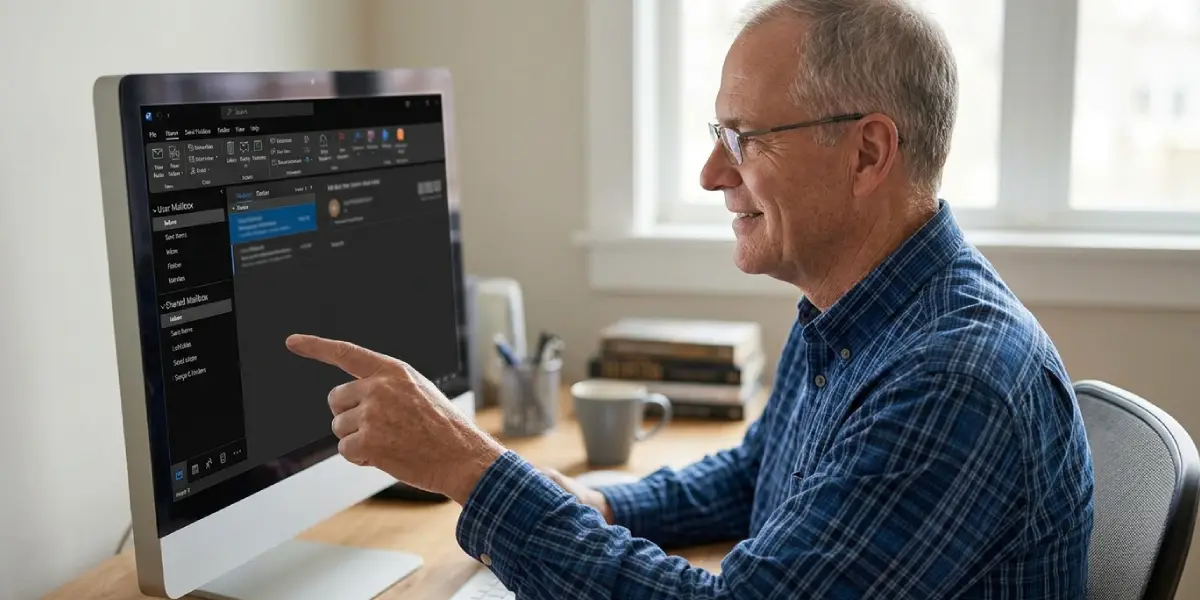
Auto-mapping can take up to an hour to show up after the permission is granted, so a mailbox that is not there right away is not a sign of failure.
Option 2: Add It Manually in Classic Outlook for Windows
- Step 1: Open Outlook and select File.
- Step 2: Select Account Settings, then select Account Settings again from the drop-down list.
- Step 3: On the Email tab, select your own email account and choose Change.
- Step 4: Select More Settings.
- Step 5: Open the Advanced tab and choose Add under ‘Open these additional mailboxes’.
- Step 6: Type the name or email address of the shared mailbox, then select OK.
- Step 7: Select OK again, then choose Next and Finish.
- Step 8: Restart Outlook and look for the shared mailbox in the folder pane.
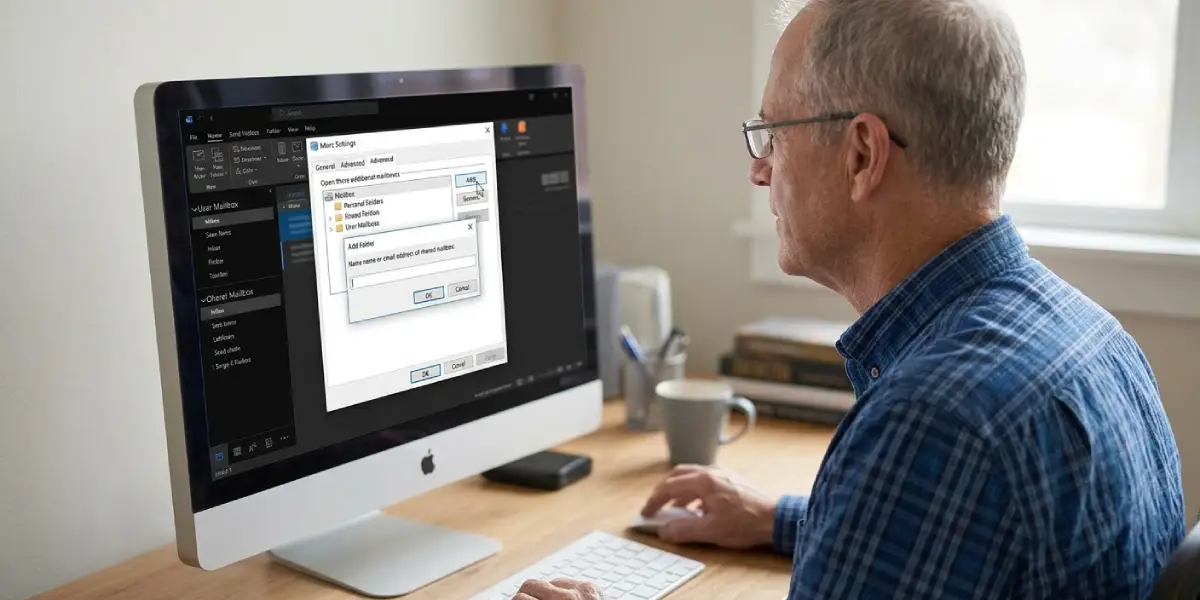
Tip: Do not use ‘Add Account’ for a shared mailbox. That creates a standalone account that asks for a password the shared mailbox does not have.
Option 3: Add It in the New Outlook for Windows
- Step 1: In the folder pane, right-click your account name.
- Step 2: Select ‘Add shared folder or mailbox’.
- Step 3: Type the shared mailbox name or email address, then select it from the suggestions.
- Step 4: Select Add. The mailbox appears in the folder pane.
Option 4: Add It in Outlook on the Web
- Step 1: Sign in to Outlook on the web with your own account.
- Step 2: In the folder pane, right-click Folders.
- Step 3: Select ‘Add shared folder or mailbox’.
- Step 4: Enter the shared mailbox address and select Add.
Send Email From the Shared Mailbox Address
- Step 1: Select New Email while the shared mailbox is open, or start a new message from your own mailbox.
- Step 2: If the From line is hidden, open the Options tab and select From.
- Step 3: Select From, then choose the shared mailbox address.
- Step 4: Write the message and send it. Recipients will see the shared address as the sender.
Common Problems and Fixes
The Shared Mailbox Does Not Appear
Auto-mapping can lag behind the permission change. Wait up to an hour, restart Outlook, and if it is still missing, use the manual method above. Admins can also turn off auto-mapping, in which case manual setup is the only route.
Outlook Keeps Asking for a Password
This usually means the shared mailbox was added as a separate account. Remove that account from Account Settings and add the mailbox again through More Settings and the Advanced tab, or through ‘Add shared folder or mailbox’.
The From Option Does Not List the Shared Address
Full Access lets a user read the mailbox but does not allow sending as it. The admin needs to grant Send As or Send on Behalf. After that, restart Outlook and try again.
The Mailbox Is Empty or Folders Load Slowly
Give Outlook a few minutes to sync a large mailbox. In classic Outlook, the Advanced tab under More Settings includes a ‘Download shared folders’ option under Cached Exchange Mode Settings, which can be turned off to load the mailbox directly from the server.
Frequently Asked Questions
Do I need a password to add a shared mailbox in Outlook?
No. A shared mailbox has no password of its own. Access comes through the permissions on your account, so sign in with your regular credentials.
What permission is required to open a shared mailbox?
Full Access permission is required to open and read a shared mailbox. An admin in Microsoft 365 or Exchange must grant it.
How long does a shared mailbox take to appear in Outlook?
With auto-mapping, it can take up to an hour after the permission is granted. Restarting Outlook often helps it show sooner.
Can I add a shared mailbox without admin help?
Not unless Full Access has already been granted to your account. Without that permission, Outlook cannot open the mailbox, and only an admin can assign it.
How do I send an email from a shared mailbox?
Start a new message, select From, and choose the shared mailbox address. If the From line is hidden, enable it from the Options tab. Send As or Send on Behalf permission is required.
Why is the From option missing for the shared mailbox?
The account likely has Full Access but not Send As or Send on Behalf. Ask the admin to add the sending permission, then restart Outlook.
Should I add the shared mailbox as a new account?
No. Adding it as a separate account leads to password prompts and sync problems. Use the Advanced tab under More Settings in classic Outlook, or the ‘Add shared folder or mailbox’ option in the new Outlook and Outlook on the web.
Where do I find the shared mailbox in Outlook after adding it?
It appears in the folder pane on the left, listed below your own mailbox. Expand it to see the Inbox, Sent Items, and other folders.
