
If text on your screen looks soft, fuzzy, or slightly off, you can adjust ClearType text for sharper fonts in Windows 11 using the built-in ClearType Text Tuner. It takes about two minutes, works on every edition, and does not need administrator rights.
Key Takeaways
- Open Settings, type ClearType into the search box, and select Adjust ClearType text.
- Keep Turn on ClearType checked, then pick the clearest text sample on each of the five screens.
- Click Finish to apply the new text rendering.
- Each monitor can be tuned separately, which helps on dual-screen setups.
Step-by-Step Guide to Adjust ClearType Text for Sharper Fonts in Windows 11
The ClearType Text Tuner can be opened in three built-in ways. All three lead to the same wizard, so pick whichever feels quickest.
Method 1: Use the Settings App
- Press Windows + I to open Settings.
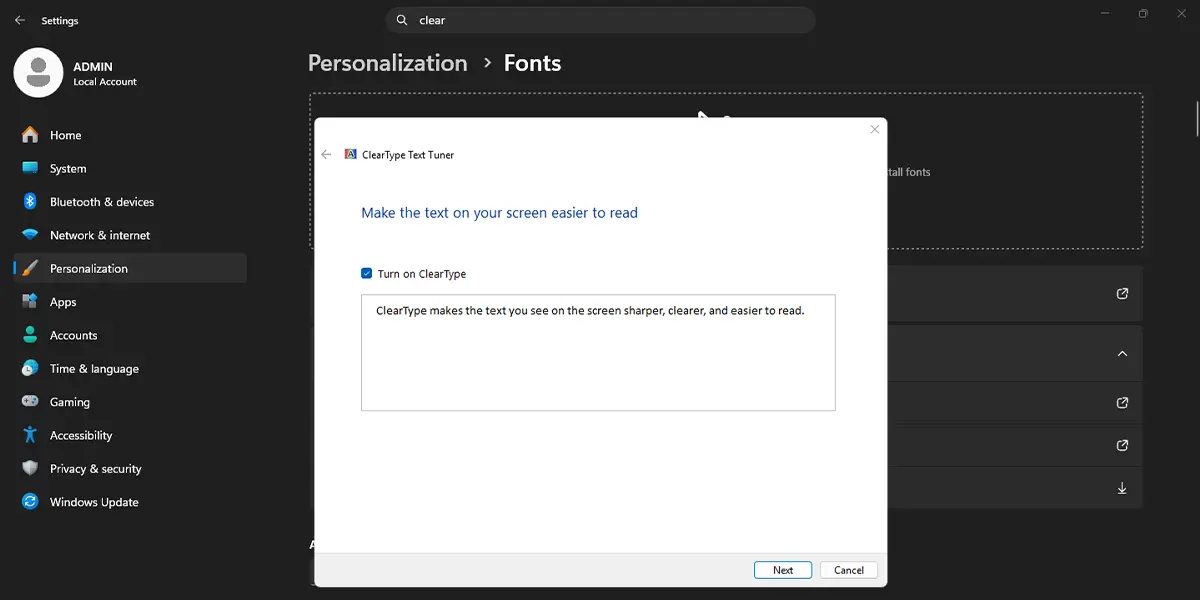
- Click the search box at the top of the Settings window and type ClearType.
- Select Adjust ClearType text from the results. The ClearType Text Tuner window opens.
- Make sure the Turn on ClearType box is checked, then click Next.
- If more than one monitor is connected, choose whether to tune all monitors or just the current one, then click Next.
- When Windows confirms that the monitor is set to its native resolution, click Next.
- On each of the five sample screens, click the block of text that looks clearest, then click Next.
- When the final screen says the tuning is complete, click Finish.
Text across Windows and most desktop apps should look slightly crisper right away. Some open apps may need to be closed and reopened before they show the change.
Tip: Take a moment to compare the samples on each screen. Most people find that sitting at their normal distance from the monitor gives the most accurate choice.
Method 2: Use the Run Command
- Press Windows + R to open the Run dialog.
- Type the following command and press Enter:
cttune
- Follow the same wizard screens described in Method 1, then click Finish.
This command runs in a normal window and does not need to be elevated.
Method 3: Use Control Panel
- Click Start, type Control Panel, and press Enter.
- Go to Control Panel > Appearance and Personalization > Display.
- Click Adjust ClearType text in the left pane.
- Complete the wizard and click Finish.
Tune Each Monitor Separately on a Multi-Monitor Setup
A laptop connected to an external display is a common case where one screen looks sharp and the other does not. Different panels render text differently, so the best sample on a laptop screen is often not the best one on a desktop monitor.
When the wizard asks about multiple monitors, choose the option to tune one monitor at a time. Run the tuner once for each screen and judge the samples while looking at that screen.
Tip: Set each display to its recommended resolution before tuning. A screen running below its native resolution will look soft no matter which sample is chosen.
How to Undo or Reverse This Change
To go back to the previous look, open the ClearType Text Tuner again using any method above and run through the wizard, choosing the samples that looked best before. To switch ClearType off entirely, uncheck Turn on ClearType on the first screen and click Next until the wizard finishes. Turning it off usually makes text look rougher on LCD screens, so keeping it on is the better choice for most people.
Common Problems and Fixes
The Adjust ClearType Text Option Does Not Appear in Settings Search
Try typing the full phrase Adjust ClearType text into the search box, or use the Run command cttune instead. Both open the same tuner window.
Text Still Looks Blurry After Finishing the Wizard
Close and reopen the app, or sign out and back in, so the new text settings are picked up. Then confirm the display is using its recommended resolution under Settings > System > Display, in the Display resolution list.
One Monitor Looks Sharp and the Other Does Not
The tuner may have been applied to only one screen. Run the wizard again and select the monitor that still looks soft, then pick the samples while viewing that screen.
The Wizard Closes Early or Will Not Finish
Restart the PC and run the tuner again. If the screen flickers or the wizard stalls, installing the latest display driver through Windows Update often resolves it.
Frequently Asked Questions
Does ClearType work on Windows 11 Home?
Yes. The ClearType Text Tuner is included in every edition of Windows 11, including Home and Pro.
Do I need administrator rights to adjust ClearType text?
No. A standard user account can run the tuner and change how text looks for that account.
Does adjusting ClearType need a restart?
A restart is not required. Some apps that were already open may need to be closed and reopened before the sharper text appears.
Will ClearType affect battery life or performance?
No noticeable effect. ClearType only changes how text is drawn on screen, so a laptop on battery or an older PC will not run any differently.
What is the fastest way to open the ClearType Text Tuner?
Press Windows + R, type cttune, and press Enter. The tuner opens immediately without any menu browsing.
Can I tune ClearType separately for each monitor?
Yes. When more than one display is connected, the wizard lets you tune a single monitor at a time, which suits setups with different screen types.
Why does text still look blurry after tuning ClearType?
The most common cause is a display running at a resolution other than its native one. Set the recommended resolution under Settings > System > Display, then run the tuner again.
Is it safe to turn ClearType off?
It is safe, and it can be reversed at any time by running the tuner and checking Turn on ClearType again. Most LCD screens look sharper with it enabled.
