
Juggling separate inboxes for work, personal, and side projects gets old fast, and the quickest way to add multiple email accounts to Outlook is through the Add Account option in the settings. Once connected, every inbox shows up in one place, with its own folders and its own sending address. The steps below cover the new Outlook for Windows, classic Outlook for Windows, and Outlook for Mac.
Key Takeaways
- Each extra account is added through Settings > Accounts > Email accounts > Add account in new Outlook, or File > Add Account in classic Outlook.
- Gmail, Yahoo, iCloud, and other providers usually need an app password instead of the regular sign-in password when two-step verification is on.
- Every added account gets its own folder tree in the left pane, so mail never gets mixed up.
- The From line in a new message lets the sender address be switched to any connected account.
Step-by-Step Guide to Add Multiple Email Accounts to Outlook
New Outlook for Windows
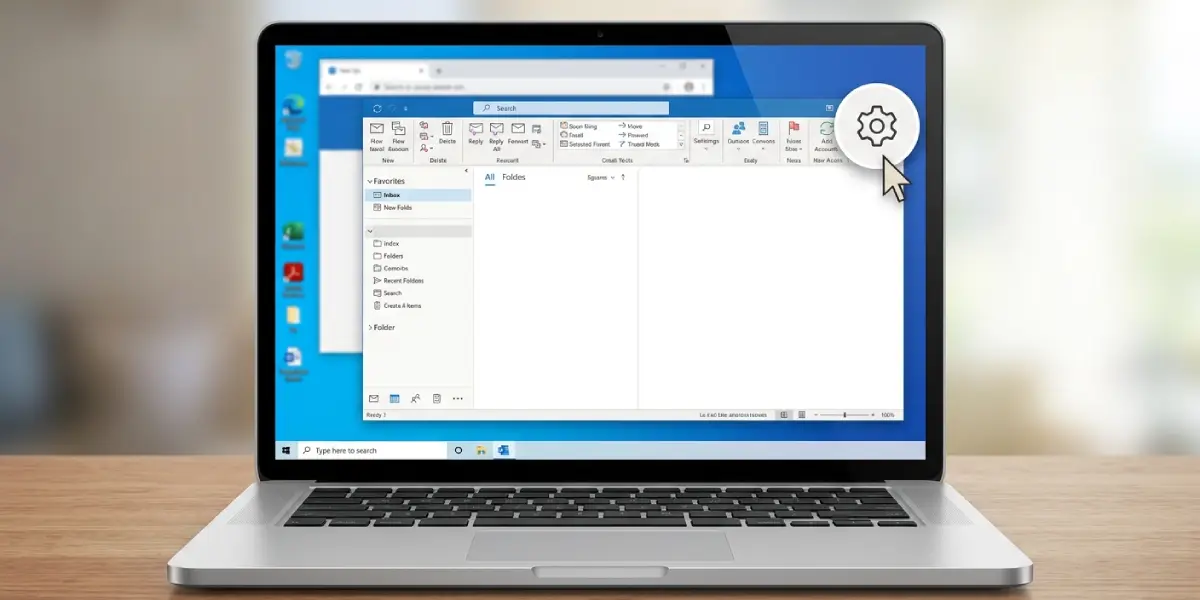
- Step 1: Open Outlook and select the Settings gear icon in the top-right corner of the window.
- Step 2: Choose Accounts, then select Email accounts.
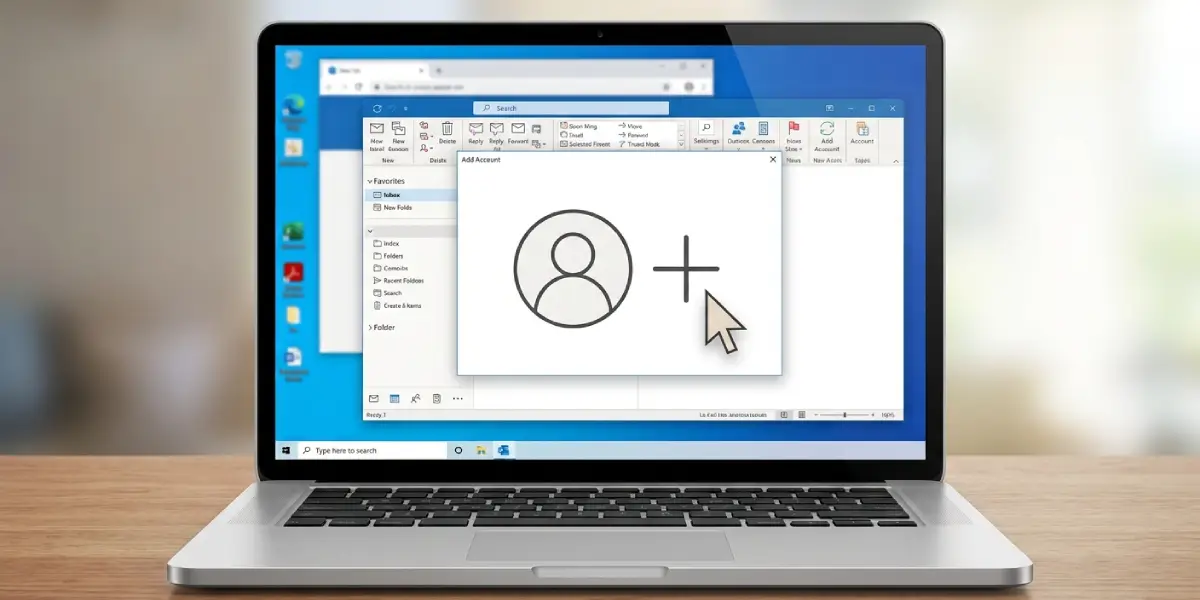
- Step 3: Select Add account.
- Step 4: Type the full email address of the account to be added, then select Continue.
- Step 5: Enter the password when prompted. For Gmail, Yahoo, and iCloud, sign in through the provider’s own window, or paste an app password if the provider asks for one.
- Step 6: Approve any permission prompts, then select Done. The new account appears in the folder pane on the left within a few moments.
- Step 7: Repeat Steps 3 through 6 for each additional email address.
Tip: Before starting, keep the password handy for each account. Providers with two-step verification often block the regular password, so generating an app password in advance saves a lot of back and forth.
Classic Outlook for Windows
- Step 1: Open Outlook and select File in the top-left corner.
- Step 2: On the Info tab, select Add Account.
- Step 3: Type the email address, then select Connect.
- Step 4: Enter the password (or app password) when the sign-in window appears, then select Connect or Sign in.
- Step 5: When the message saying the account was added successfully appears, select Done. To add another address right away, type it into the same window before closing it.
- Step 6: Repeat Steps 1 through 5 for each remaining account.
Outlook for Mac
- Step 1: Open Outlook and select Outlook in the menu bar at the top of the screen, then choose Settings.
- Step 2: Select Accounts.
- Step 3: Select the plus (+) button at the bottom of the account list, then choose New Account.
- Step 4: Enter the email address and select Continue.
- Step 5: Choose the account type if asked, enter the password or complete the provider’s sign-in, then select Add Account.
- Step 6: Close the window. Repeat for each additional address.
Choose Which Account Sends a New Email
With several accounts connected, the sender matters. Picture replying to a client from a personal address by accident – it happens more often than most people admit. The From line prevents that.
- Step 1: Select New email (or New Mail in classic Outlook).
- Step 2: Select the From button at the top of the message window. In new Outlook, the From line may need to be turned on first through the Options tab, under Show From.
- Step 3: Pick the account that should send the message.
Tip: A reply is normally sent from the account that received the original message, so the correct address is usually chosen automatically. A quick glance at the From line before pressing Send is still a good habit.
Common Problems and Fixes
The password is rejected even though it is correct
This usually happens with Gmail, Yahoo, or iCloud accounts that have two-step verification turned on. The fix is to generate an app password in the provider’s security settings and paste that into Outlook instead of the regular password.
Outlook says the account cannot be found or set up automatically
Check the email address for typos first. If the spelling is right, choose the manual or advanced setup option, select IMAP or POP as the account type, and enter the incoming and outgoing server details listed on the provider’s help page.
The add account option is missing or greyed out
Accounts managed by a workplace or school may have this option restricted by an administrator. In that case, the IT administrator needs to allow additional accounts, or the account has to be added by another approved method.
The new account shows no messages
Give the account a minute or two to finish its first sync, especially when the mailbox is large. If folders stay empty, select Send/Receive in classic Outlook, or refresh the folder pane in new Outlook, and confirm there is a working internet connection.
Outlook keeps asking for the password again
This usually means the saved credentials are out of date, such as after a password change at the provider. Remove the account from the Accounts settings, then add it again with the current password or a fresh app password.
Frequently Asked Questions
How many email accounts can be added to Outlook?
Outlook does not publish a small fixed limit for the number of accounts in everyday use, so most people can add all the personal and work inboxes they need. Performance may slow down if a very large number of heavy mailboxes are connected at once.
Can Gmail and Yahoo accounts be added to the same Outlook?
Yes. Outlook supports accounts from Gmail, Yahoo, iCloud, Outlook.com, Microsoft 365, and many other providers side by side, each with its own folder list.
Do added accounts need an app password?
Only when the provider requires one. Accounts with two-step verification turned on, especially Gmail, Yahoo, and iCloud, often need an app password instead of the normal sign-in password.
Where do the added accounts appear in Outlook?
Each account appears as its own entry in the folder pane on the left side of the window, with its own Inbox, Sent Items, and other folders underneath.
How do I switch which account sends an email?
Open a new message, select the From button, and choose the account to send from. Replies normally go out from the account that received the original message.
Can accounts be added from the Outlook mobile app too?
Yes. In the Outlook mobile app, open the menu or profile icon, select the settings gear, choose Add Account, then Add Email Account, and follow the sign-in prompts.
Will adding another account change my existing mail?
No. A new account is added alongside the current ones, and existing messages, folders, and settings stay exactly as they were.
How can an added email account be removed later?
In new Outlook, open Settings, go to Accounts, then Email accounts, and choose Remove next to the account. In classic Outlook, open File, then Account Settings, select the account, and choose Remove.
