
If several email accounts are stacked in the wrong order, you can reorder mailboxes in the Outlook folder pane with a simple drag and drop. The whole job takes about a minute. It works best when the most-used account sits at the top, so it is always the first thing visible when Outlook opens.
Key Takeaways
- Collapse every mailbox first so only the account names show in the folder pane.
- Click and hold an account name, then drag it up or down to its new position.
- Close and reopen Outlook to confirm the new order is saved.
- This method applies to classic Outlook for Windows (Outlook 2010 through 2019 and Outlook for Microsoft 365).
Step-by-Step Guide to Reorder Mailboxes in the Outlook Folder Pane
- Step 1: Open Outlook and switch to Mail view so the folder pane is visible on the left side of the window.
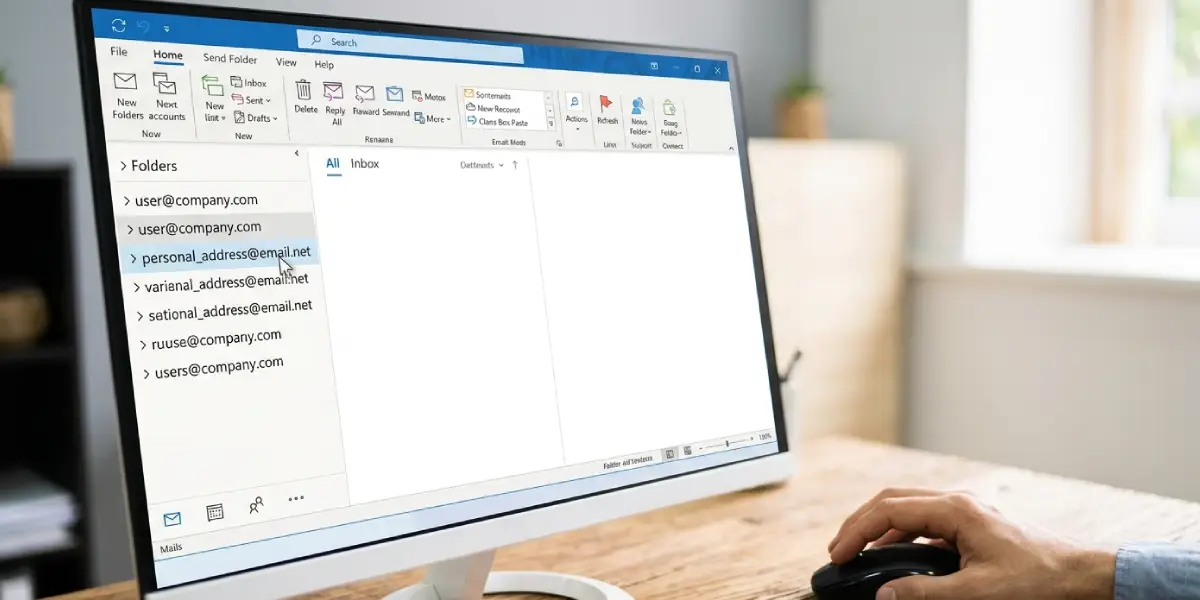
- Step 2: Collapse every account by clicking the small arrow next to each account name. Only the account names (for example, the email addresses) should remain on screen. Think of it like squaring up a stack of folders on a desk – it is far easier to move whole folders when the contents are not spilling out.
- Step 3: Click and hold the account name you want to move.
- Step 4: Drag the account up or down the list, then release the mouse button when it sits in the position you want.
- Step 5: Repeat the drag for any other account that needs a new spot. A typical scenario is moving a work mailbox above a personal one so that business mail is checked first.
- Step 6: Close Outlook completely and reopen it. The accounts should now appear in the order you set.
Tip: Work from the top down. Place the account that should be first, then the second, and so on. That way each drag only has to be done once.
Which Outlook Versions Support This Method
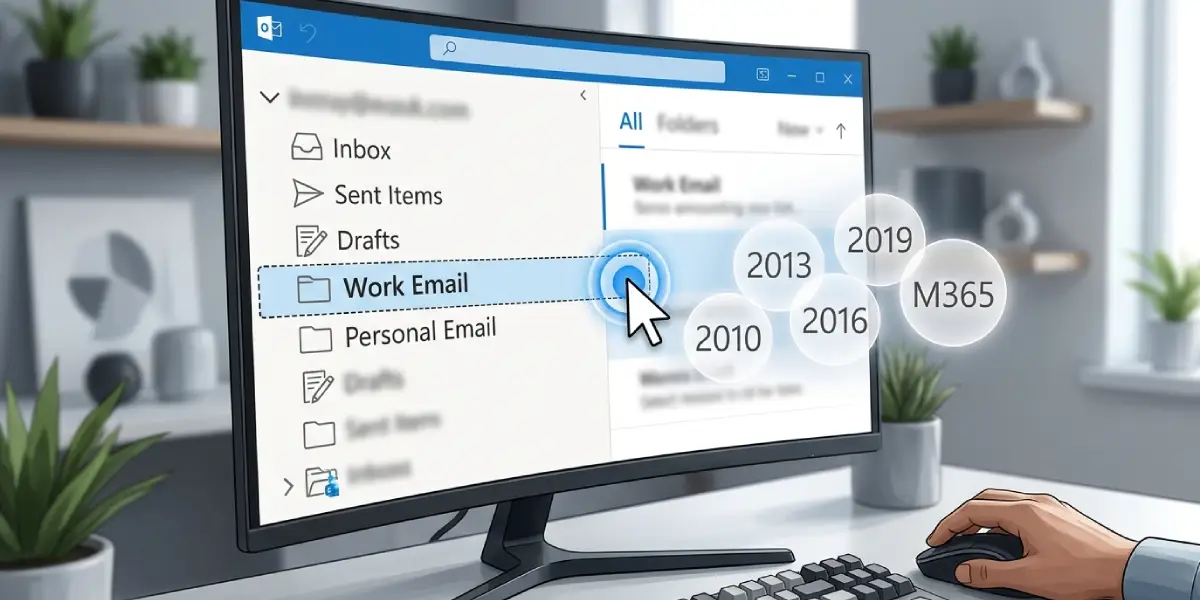
Dragging accounts in the folder pane works in classic Outlook for Windows, including Outlook 2010, 2013, 2016, 2019, and the Outlook desktop app that comes with Microsoft 365. Most people find that the whole process feels the same across these versions because the folder pane behaves the same way.
Common Problems and Fixes
The Account Will Not Drag
This usually happens when the accounts are still expanded and the click lands on a subfolder instead of the account name. Collapse every account first, then click directly on the account name and hold before dragging.
The Order Looks Wrong After Restarting Outlook
If the list reverted, repeat the drag with all accounts collapsed, then close Outlook fully before reopening it. Make sure Outlook is not still running in the background, such as in the system tray, when checking the result.
There Is No Way to Drag Accounts in New Outlook for Windows
New Outlook for Windows does not currently offer a way to manually reorder the top-level accounts in the left pane. The drag method in this guide is meant for classic Outlook. In new Outlook, adding the folders used most often to Favorites at the top of the folder pane is the practical workaround.
Tip: If the Outlook window shows a toggle in the top corner for new Outlook, switching it off returns the classic layout, where accounts can be dragged.
Frequently Asked Questions
Can I change the order of mailboxes in the Outlook folder pane?
Yes. In classic Outlook for Windows, collapse the accounts and drag each account name up or down to the position you want.
Do I need to collapse the accounts before moving them?
Collapsing is strongly recommended. With only the account names visible, it is much easier to grab and drop the right item without accidentally selecting a subfolder.
Will reordering mailboxes delete or move any emails?
No. Changing the order only changes how the accounts are listed in the folder pane. No messages or folders are deleted or moved.
Why does the new order not show right away?
Close Outlook completely and reopen it. After the restart, the accounts are sorted in the order that was set.
Which versions of Outlook support dragging accounts to reorder them?
The method works in classic Outlook for Windows, including Outlook 2010, 2013, 2016, 2019, and Outlook for Microsoft 365.
Can I reorder accounts in new Outlook for Windows?
New Outlook for Windows does not currently provide an option to manually reorder top-level accounts. Adding frequently used folders to Favorites at the top of the folder pane keeps them within quick reach.
Does the order of mailboxes affect which account sends email?
No. The position of an account in the folder pane is a display preference. It does not change the account chosen when a new message is created.
How often do I need to repeat this?
Only when accounts are added or the preferred order changes. Once set, the order stays in place between sessions.
