
The easy way to create a distribution list in Outlook takes about two minutes and saves hours of retyping the same email addresses. Outlook now calls these lists ‘contact groups’ or ‘contact lists’, but the result is the same: type one name in the To box and every member receives the message.
Key Takeaways
- A distribution list is built from the People (Contacts) area, not from the email window.
- Classic Outlook uses New Contact Group, while new Outlook and Outlook on the web use New contact list.
- Members can be added from existing contacts or typed in as email addresses.
- Once saved, the list name works in the To, Cc, or Bcc box like any single contact.
The Easy Way to Create a Distribution List in Outlook Step by Step
Outlook comes in a few versions, and the buttons differ slightly between them. Pick the set of steps that matches the version in use. The classic desktop app has a File menu in the top left corner, while new Outlook and Outlook on the web do not.
New Outlook and Outlook on the Web
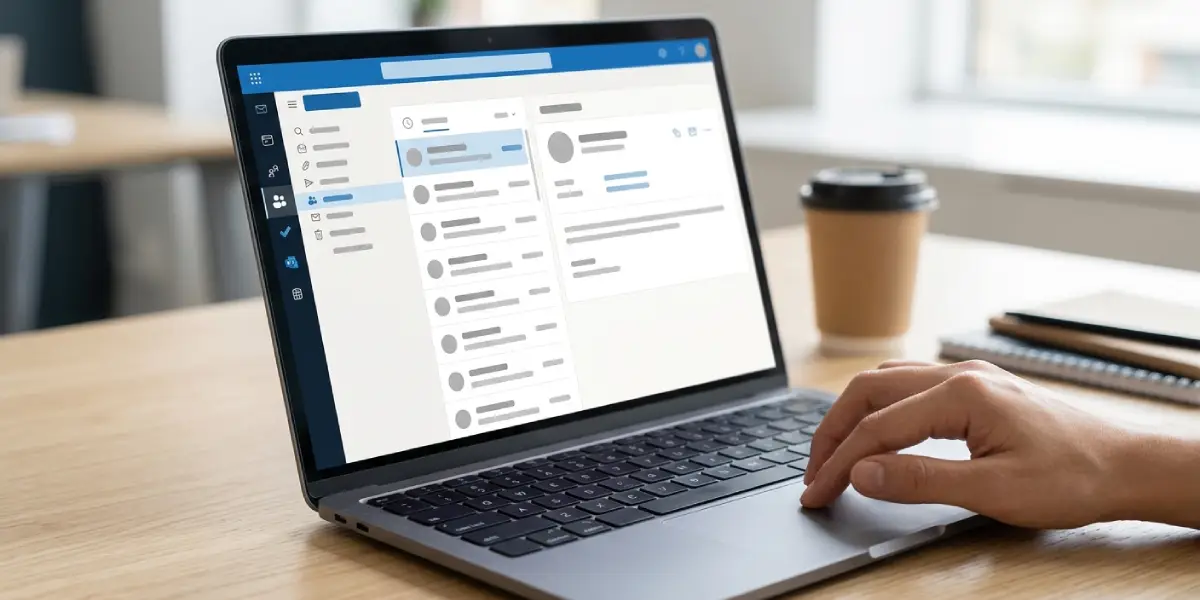
- Step 1: Select the People icon in the left sidebar.
- Step 2: Select the small arrow next to New contact, then choose New contact list.
- Step 3: Type a clear name for the list in the name box, such as Project Team or Weekly Report Recipients.
- Step 4: Click in the members box and start typing a name or email address. Pick each person from the suggestions, or type a full address and press Enter.
- Step 5: Repeat until everyone is added, then select Create.
Tip: Choose a name that describes the group rather than the people in it. A label like Finance Approvers stays accurate even when members change.
Classic Outlook for Windows
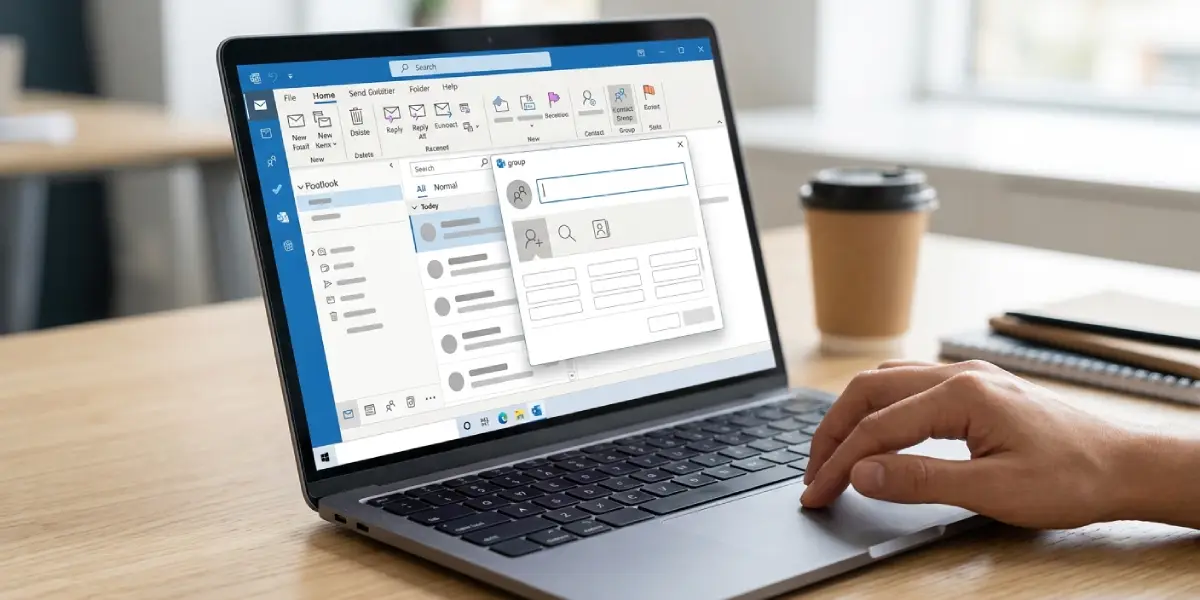
- Step 1: Select People at the bottom of the navigation bar, or press Ctrl+3.
- Step 2: On the Home tab, select New Contact Group.
- Step 3: Type the list name in the Name box.
- Step 4: On the Contact Group tab, select Add Members, then choose From Outlook Contacts. Choose From Address Book to pull from a company directory instead, or New E-mail Contact to type an address that is not saved yet.
- Step 5: Select the people to include, click Members at the bottom of the window, and then select OK.
- Step 6: Select Save and Close.
Tip: Hold down Ctrl while clicking names to pick several people at once instead of adding them one at a time.
Send an Email to the New Distribution List
- Step 1: Select New Email or New mail.
- Step 2: Type the list name in the To box and select it from the suggestions.
- Step 3: Write the subject and message, then select Send.
Common Problems and Fixes
The List Name Does Not Appear in the To Box
This usually means the list was never saved. In classic Outlook, reopen it from People and select Save and Close. If it was saved, type the full name slowly or select the To button to browse the Contacts folder and pick the list from there.
A Person Cannot Be Found When Adding Members
Only people already saved as contacts or listed in the address book appear in the search. In classic Outlook, choose New E-mail Contact and type the display name and email address. In new Outlook, simply type the full email address into the members box.
Everyone Can See Each Other’s Addresses
Addresses in a contact group are visible to recipients when the list is placed in the To or Cc box. Moving the list name to the Bcc box keeps the member addresses hidden.
The Add Members Button Is Missing
The Contact Group tab only appears while the group window is open. Double-click the list in People to reopen it, and the Add Members button returns on the ribbon.
Frequently Asked Questions
Is a distribution list the same as a contact group in Outlook?
Yes. Contact group is the current name in classic Outlook, and new Outlook and Outlook on the web call it a contact list. All of them describe a saved set of email addresses that can be used as a single recipient.
Where is the distribution list saved?
It is saved in the Contacts folder, which is the People area of Outlook. It sits alongside regular contacts and can be found by searching for its name.
Can people outside the organization be added?
Yes. Any valid email address can be added, including personal addresses from services such as Gmail or Yahoo. The address does not need to be in the company directory.
How can members be added or removed later?
Open People and double-click the list. In classic Outlook, use Add Members or select a name and choose Remove Member, then select Save and Close. In new Outlook, open the list, select Edit, make the changes, and select Save.
How can the list be deleted?
Open People, select the list, and choose Delete. Removing the list does not delete the individual contacts inside it.
Can the list be used in a meeting invitation?
Yes. Type the list name into the Required or Optional attendees box in a new meeting request, and Outlook adds every member as an attendee.
Can a distribution list be shared with a coworker?
In classic Outlook, open the list, select Forward Group on the Contact Group tab, and choose As Outlook Contact. The coworker receives it as an attachment and can save it to their own contacts.
Why does the list name turn into a plus sign when typing it in the To box?
In classic Outlook, a contact group in the To box appears with a small plus sign next to it. Selecting the plus sign expands the group to show every individual address, which is a quick way to confirm who will receive the message.
