
If you are wondering what triggers Outlook The Messaging Interface Has Returned An Unknown Error, the cause is almost always a broken link between Outlook and the Windows mail layer. A faulty add-in, a damaged profile, a corrupt data file, or a half-installed update can all break that link. The steps below work through each trigger in the order that clears most cases fastest.
Key Takeaways
- The error usually points to a problem with an add-in, the Outlook profile, a data file, or the Office installation.
- Starting Outlook in Safe Mode quickly shows whether an add-in is the trigger.
- A new Outlook profile fixes most profile-related causes.
- Repairing Office is the last step when nothing else removes the error.
Step-by-Step Guide to Find and Fix What Triggers Outlook The Messaging Interface Has Returned An Unknown Error
Rule Out Simple Causes First
- Step 1: Close Outlook completely. Press Ctrl + Shift + Esc to open Task Manager, find OUTLOOK.EXE on the Processes tab, select it, and click End task. A stuck background process often keeps the error alive after a normal restart. Reopen Outlook and test again.
- Step 2: Press Windows + R, type outlook /safe, and press Enter. Choose your profile if prompted. If the error disappears in Safe Mode, an add-in or customization is the trigger, and Step 3 finds the culprit.
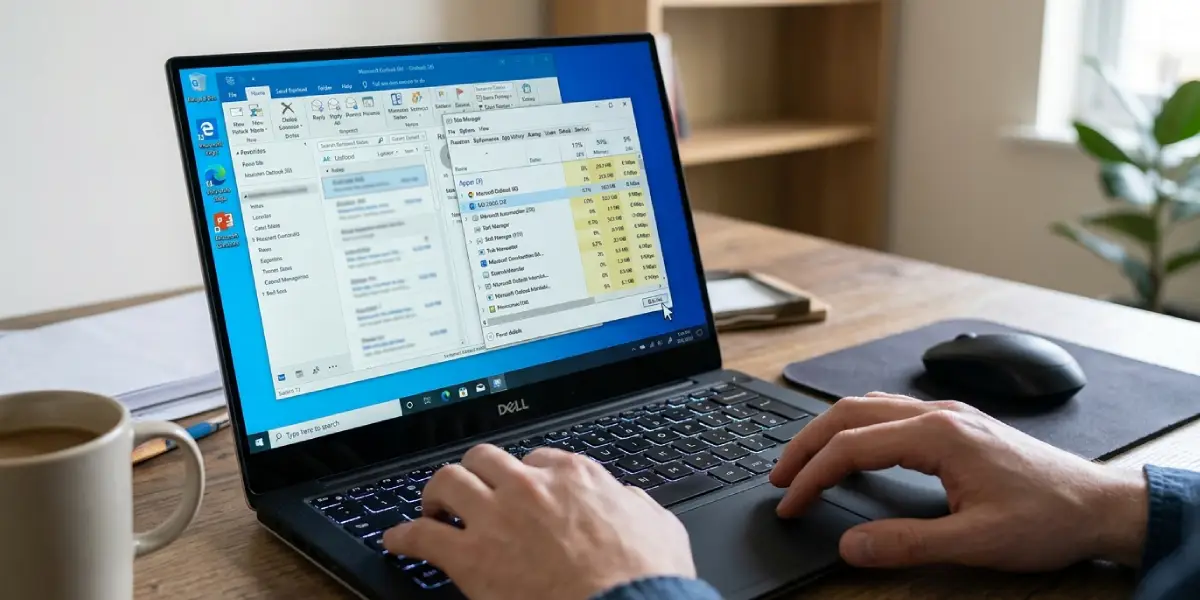
Tip: Think of Safe Mode as a clean test bench. It loads Outlook without extras, so a problem that vanishes there points straight at something that was added later.
Remove Add-ins as a Trigger
- Step 3: Open Outlook normally, then go to File, Options, and Add-ins. At the bottom, set Manage to COM Add-ins and click Go. Clear the check box next to every add-in, click OK, and restart Outlook. If the error is gone, return to the same window and re-enable the add-ins one at a time until the error comes back. The last one enabled is the trigger, so leave it off or update it.
Update Office and Check the Default Mail App
- Step 4: In Outlook, go to File, Office Account, Update Options, and select Update Now. Restart Outlook once the update finishes. Outdated builds are a common trigger, especially when the error started right after a Windows update.
- Step 5: Open Windows Settings, go to Apps, then Default apps. Find Outlook in the list and make sure it is set as the default for email links and the mailto protocol. The error often appears when another program tries to start an email and Windows cannot hand the request to Outlook.
Repair the Data File and Profile
- Step 6: Close Outlook and run the Inbox Repair Tool. Search the Start menu for SCANPST.EXE, or look in the Office folder, which is commonly C:\Program Files\Microsoft Office\root\Office16. Click Browse, select your PST or OST file, and click Start. If errors are found, click Repair. To locate the file, go to File, Account Settings, Account Settings, then the Data Files tab, and click Open File Location.
- Step 7: Create a fresh profile. Open Control Panel, choose Mail (Microsoft Outlook), and click Show Profiles. Click Add, name the new profile, and sign in with the email account. Back in the Profiles window, select Always use this profile and pick the new one. Start Outlook and test.
- Step 8: If the error remains, repair Office itself. Open Windows Settings, go to Apps, then Installed apps. Find Microsoft 365 or Microsoft Office, open the three-dot menu, and select Modify. Run Quick Repair first. If that does not help, run Online Repair, which takes longer but replaces damaged files more thoroughly.
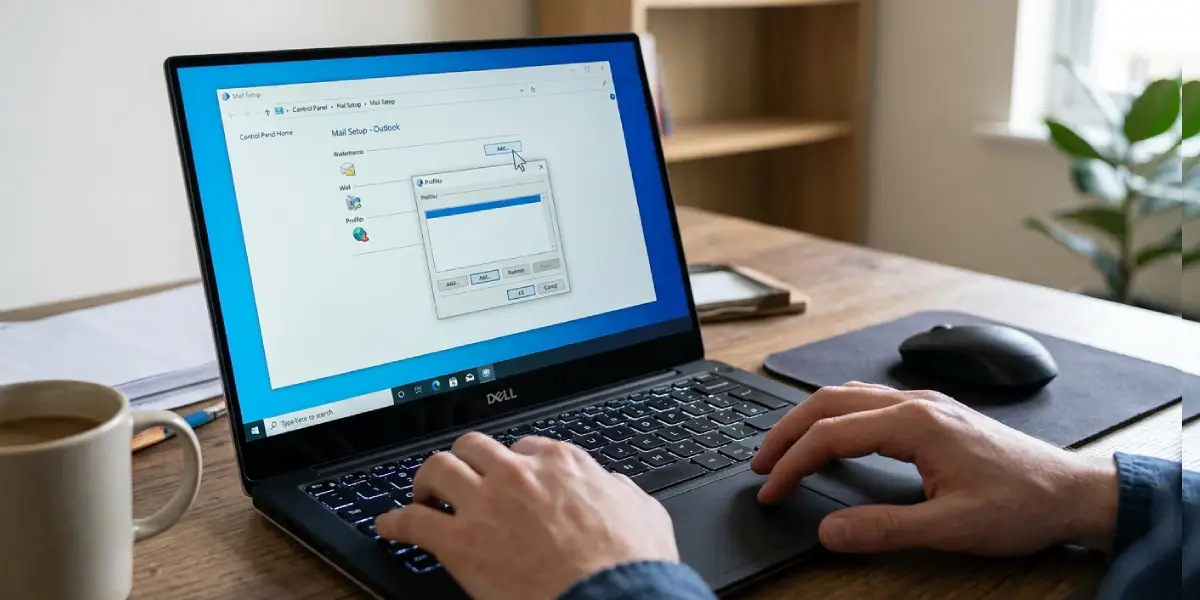
Tip: A new profile does not delete the old one. If the new profile does not help, the old one is still available in the same Profiles window.
Common Problems and Fixes
The Error Returns After Creating a New Profile
This points away from the profile and toward the Office installation or a conflicting program. Run Online Repair from Step 8, then check whether security software is blocking Outlook and add Outlook as an allowed app.
Outlook Will Not Open in Safe Mode Either
When Safe Mode fails too, add-ins are not the trigger. Move on to the data file repair in Step 6 and the Office repair in Step 8.
The Error Appears Only When Clicking Email Links or Send To
This is the classic sign of a default mail app problem. Recheck the default app settings in Step 5, then restart the computer so Windows registers the change.
The Add-ins Window Is Greyed Out or Add-ins Keep Re-enabling
Some add-ins are managed by an organization. Contact the IT administrator, since changes made locally may be overwritten by policy.
Scanpst Reports Errors but the Problem Persists
Run the repair again until it reports no further errors. If the file is an OST, removing it and letting Outlook rebuild it from the mail server is a safe option, because the mailbox itself is stored online.
Frequently Asked Questions
What does The Messaging Interface Has Returned an Unknown Error mean?
It means Outlook could not complete a request through the Windows messaging layer, and no more specific error was available to display.
What triggers this error most often?
Faulty add-ins, a damaged Outlook profile, a corrupt PST or OST file, an outdated Office build, and a wrong default mail app setting are the most common triggers.
Will fixing this error delete my emails?
No. Safe Mode, disabling add-ins, updating Office, and creating a new profile do not remove mail. Mail kept in a local PST file should be backed up before running a repair.
How do I know if an add-in is causing the error?
Start Outlook with outlook /safe. If the error does not appear, an add-in is the likely cause, and disabling them one at a time identifies which one.
Does the error appear on Outlook for Mac or the web?
No. This message belongs to Outlook on Windows, where it relies on the Windows messaging layer.
Should Quick Repair or Online Repair be used first?
Quick Repair is faster and does not need an internet connection, so try it first. Online Repair reinstalls Office files and is the better choice when Quick Repair does not work.
Can a Windows update trigger the error?
Yes. An update can leave Office files or default app settings out of sync. Updating Office, checking the default mail app, and restarting usually resolves it.
Is it safe to delete the old Outlook profile?
It is safe once the new profile works and the mail has synced. Keep the old profile until then, so nothing is lost if the new one needs adjusting.
