
Learning how to fix battery health dropping fast starts with understanding that a laptop battery wears out through heat, charge habits, and heavy use, and most of those factors can be controlled. Damage that has already happened cannot be reversed, but the rate of further wear can be slowed dramatically. The steps below show how to find the cause, change the habits that matter, and decide when a replacement is the smarter move.
Key Takeaways
- Heat and long periods at 100 percent charge are the two biggest causes of fast battery wear.
- A battery report confirms whether the battery is truly degrading or the percentage reading is simply inaccurate.
- A charge limit of 80 percent, built into many laptops, slows wear for anyone who is often plugged in.
- Worn cells cannot be restored, so a replacement is the real fix once health falls too low.
- A swollen or bulging battery is a safety issue and needs professional handling right away.
Common Causes of Fast Battery Health Loss
A lithium-ion battery loses capacity a little with every charge cycle, but some conditions make that loss far quicker. Knowing which one applies saves a lot of guesswork.
Constant Heat
Heat is the number one enemy of battery chemistry. Gaming, video editing, a clogged fan, or a laptop sitting on a bed or couch all push internal temperatures up, and the battery sits right next to the hottest parts. Think of it like leaving a carton of milk on a sunny windowsill – it spoils far faster than it would in the fridge.
Sitting at 100 Percent
Keeping a battery full while plugged in for days puts the cells under constant high voltage stress. This is the most common cause in laptops that act as desktop replacements.
Very Deep Discharges
Regularly running the battery down to near zero adds wear as well. Occasional deep drains are harmless, but making them a habit shortens battery life.
Heavy Loads on Battery Power
Running demanding apps unplugged pulls high current from the cells, which generates extra heat and strain.
Age and Cycle Count
Every battery has a limited number of full charge cycles. After a couple of years of daily use, a noticeable drop is normal rather than a defect.
Inaccurate Readings
Sometimes the battery is fine and the reported health figure is wrong. Software can lose track of the true capacity, which makes health look like it is falling faster than it really is.
Before You Start
Most fixes below are software settings and habits, but a couple involve cleaning vents or opening the device. For those physical steps, shut the laptop down fully, unplug the charger, and let hot parts cool first. Touch a bare metal surface to discharge static before handling anything inside. Useful items include a soft brush, compressed air, a microfiber cloth, and plastic pry tools if a replacement is planned.
If the battery looks swollen, the trackpad is lifting, or the case is bulging, stop using the laptop and take it to a professional. Opening a device may also affect its warranty, so check the terms first.
How to Fix Battery Health Dropping Fast: Step-by-Step Fixes
- Step 1: Check the real battery health. On Windows, open Command Prompt as administrator, type powercfg /batteryreport, and open the HTML file it creates. Compare the design capacity with the full charge capacity. On a Mac, open System Settings, go to Battery, and check the Battery Health information, or hold Option and click the battery icon in the menu bar. Many laptops also show a health reading in the maker’s own app.
- Step 2: Check the cycle count. A high count explains normal wear. On a Mac, it appears in System Information under Power. On Windows, the battery report lists it for many laptops. A low count with poor health points to heat, bad habits, or a faulty cell.
- Step 3: Reduce heat. Use the laptop on a hard, flat surface, never on bedding or a lap blanket. Close background apps that keep the processor busy, and consider a cooling stand for long sessions.
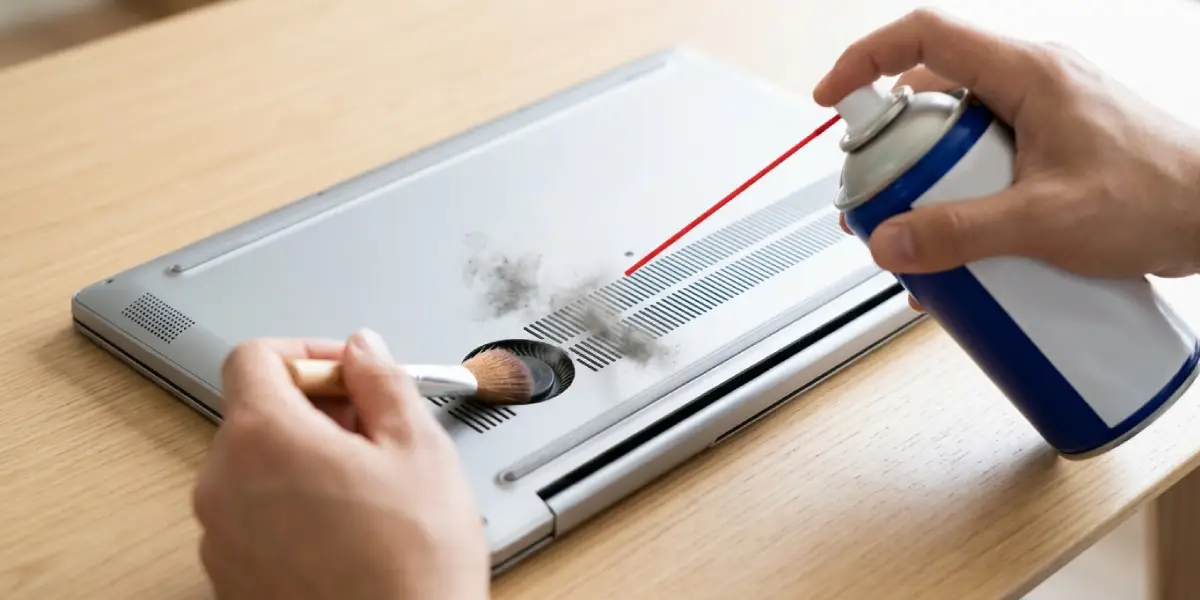
- Step 4: Clean the vents. Power off, unplug, and let the laptop cool. Use short bursts of compressed air at the intake and exhaust vents while holding the fan blades still with a soft brush. Dust buildup traps heat and quietly cooks the battery.
- Step 5: Turn on a battery charge limit. Many laptops include a feature such as conservation mode, battery care, or a battery health manager inside the manufacturer’s utility, which caps charging at around 80 percent. Apple laptops offer Optimized Battery Charging, which reduces time spent at full charge. These features are the single most effective habit fix for a laptop that stays plugged in.
- Step 6: Avoid constant full drains. Plug in around 20 percent rather than waiting for the laptop to shut itself off.
- Step 7: Use the right power mode. Balanced or battery saver modes lower heat and current draw, and they are better choices than maximum performance for everyday tasks.
- Step 8: Update the BIOS and the manufacturer’s power and battery drivers. Updates sometimes fix charging bugs and incorrect health reporting.
- Step 9: Calibrate if the percentage jumps or the health reading looks wrong. Charge to full, then let the battery drain until the laptop shuts down or the manufacturer’s calibration tool finishes, and charge to full again. This corrects the reading but does not restore lost capacity, so use it sparingly.
- Step 10: Replace the battery if health is low. Roughly 80 percent or below is the point where many users notice shorter runtime and start considering a replacement. Choose a genuine or reputable compatible battery made for the exact laptop model, and have a technician fit it if the battery is glued in or the design is difficult to open.
Tip: A laptop that spends most of its life on a desk should use the 80 percent charge limit permanently. Switching it off only before a long trip keeps the benefit while still giving full runtime when it is truly needed.
Smart Charging Habits That Keep Health Higher
The key is to avoid extremes. Staying between roughly 20 and 80 percent is easiest on the cells, though no one needs to follow it strictly. Unplugging the charger every so often is fine, and so is a full charge before a flight or a meeting day.
For a laptop that will sit unused for weeks, store it with the battery partly charged, around the middle of the range, in a cool and dry place. A fully charged or fully empty battery left in storage ages faster.
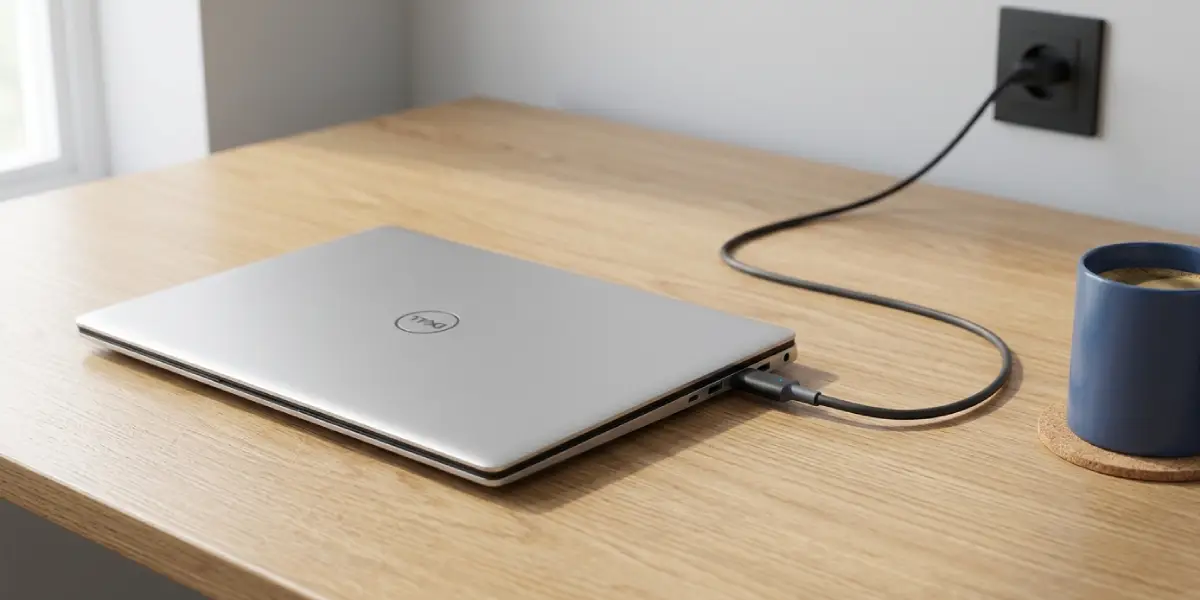
Tip: Use the charger supplied with the laptop or a quality replacement of the same rating. Cheap chargers can deliver unstable power, which stresses both the battery and the charging circuit.
Common Problems and Fixes
Battery Health Keeps Dropping After Changing Habits
If wear continues quickly even with cool temperatures and a charge limit, the cells may be defective or simply near the end of their life. Check the cycle count, and consider a replacement.
Battery Report Will Not Generate on Windows
Make sure Command Prompt is opened as administrator and the command is typed exactly as powercfg /batteryreport. If the report is blank, a driver or BIOS update from the manufacturer often fixes it.
Battery Percentage Jumps or Drops Suddenly
This usually points to a calibration problem rather than real damage. Run a full charge and discharge cycle, update the battery firmware or BIOS, and recheck the reading.
Charge Limit Setting Is Missing
Not every laptop offers one. Check the manufacturer’s utility and the BIOS or UEFI settings. If neither has the option, unplugging the charger at a reasonable level is the manual alternative.
Laptop Runs Hot Even After Cleaning
Old thermal paste or a failing fan may be the cause. Replacing paste or a fan is a more advanced job, so a technician is the safer choice if there is any doubt.
Battery Looks Swollen
Stop using and charging the laptop immediately. A swollen battery can leak or catch fire, and it must be replaced by a professional.
Frequently Asked Questions
Why is my laptop battery health dropping so fast?
The most common reasons are constant heat, staying plugged in at 100 percent charge, frequent deep discharges, and a high number of charge cycles. Inaccurate software readings can also make health appear worse than it is.
Can battery health be restored once it has dropped?
No. Lost capacity is caused by chemical wear and cannot be restored. Good habits slow further loss, and a replacement battery is the only way to regain original capacity.
Is it bad to leave a laptop plugged in all the time?
It can speed up wear if the battery stays at 100 percent and the laptop runs hot. A charge limit of around 80 percent greatly reduces the effect.
What battery health percentage means it is time to replace the battery?
Many users consider a replacement once health reaches roughly 80 percent, especially if runtime has become inconvenient. A laptop that stays plugged in most of the time can go lower without much trouble.
Does fast charging damage battery health?
Fast charging produces more heat, and heat speeds up wear. Occasional use is fine, but standard charging is gentler for daily use.
Does calibrating a battery improve its health?
Calibration only corrects the percentage reading. It does not add capacity back to worn cells.
How can I check my laptop battery health?
On Windows, run powercfg /batteryreport in an administrator Command Prompt and compare design capacity with full charge capacity. On a Mac, open Battery in System Settings to see the health information.
Does heat really affect battery life that much?
Yes. Heat is one of the biggest causes of battery wear. Clean vents, a hard flat surface, and sensible power modes all help keep the battery cooler.
Is a swollen laptop battery dangerous?
Yes. A swollen battery can leak or ignite. Stop using it, avoid charging it, and have a professional replace it.
