
Knowing how to fix RAM not running in dual channel mode can bring back a noticeable chunk of memory bandwidth, which helps most in gaming, video editing, and integrated graphics workloads. The problem almost always comes down to slot placement, mismatched modules, or a poorly seated stick. This guide walks through each cause and fix in a clear order, from a quick software check to a full hardware test.
Key Takeaways
- Dual channel needs at least two memory modules installed in the correct paired slots, which are not always the two slots sitting side by side.
- Matching capacity, speed, and memory type across both sticks gives the most reliable result. A single two-stick kit is the safest choice.
- A free tool such as CPU-Z confirms the real channel mode in seconds, so there is no need to guess.
- Most cases are solved by moving the sticks to the slots listed in the motherboard manual and reseating them firmly.
Common Causes of RAM Not Running in Dual Channel
Before touching any hardware, it helps to know what usually goes wrong. Most people find that one of the following is behind the issue.
- Only one memory module is installed, so there is nothing to pair.
- Two sticks are installed, but in slots that belong to the same channel instead of different channels.
- The sticks differ in capacity, speed, or type, which can push part or all of the memory into single channel operation.
- One stick is not fully seated, so the system detects only one module.
- A faulty slot or module is being ignored by the system.
- Odd BIOS settings or an outdated BIOS version are interfering with memory detection.
- On laptops, the machine has only one SODIMM slot, or part of the memory is soldered to the board.
Before You Start
Memory work is simple, but a few precautions keep the parts safe. Shut the computer down completely and unplug the power cable. On a desktop, press the power button once after unplugging to drain leftover charge. On a laptop, disconnect the battery if it is removable, or follow the service manual for the safe way to open the device. Touch a bare metal part of the case or wear an anti-static strap before handling the sticks, and hold memory only by the edges.
Tools and materials needed:
- The motherboard or laptop manual, which shows the correct slot pairing.
- A small Phillips screwdriver for the case or laptop service panel.
- A flashlight to inspect the slots.
- CPU-Z or a similar free utility to read the channel mode.
- Compressed air to clear dust from the slots, if needed.
If a slot or CPU socket pin looks bent or damaged, stop there and let a qualified technician handle it. Opening a device can also affect its warranty, so check the terms first on a new machine.
How to Fix RAM Not Running in Dual Channel Mode Step by Step
- Step 1: Confirm the current mode. Install and open CPU-Z, then click the Memory tab. The Channels field shows Single or Dual. Task Manager (Performance tab, Memory) also shows how many slots are in use, which quickly reveals whether both sticks are detected. On DDR5 systems, each module has two internal subchannels, so the channel field may be reported in a different format such as 2 x 32-bit. In that case, confirm that two modules are detected in the correct slots.
- Step 2: Check the module count and labels. Note the capacity, speed rating, and memory type printed on each stick. Both sticks should be the same type, such as DDR4 or DDR5, and ideally the same capacity and speed.
- Step 3: Power down, unplug the system, discharge static, and open the case or the laptop memory panel.
- Step 4: Move the sticks to the correct paired slots. On most desktop boards with four slots, the two sticks go in alternating slots, commonly the second and fourth slot counting from the CPU. Slot names such as A2 and B2 are often printed on the board. The manual is the final authority, because layouts vary by model.
- Step 5: Reseat each stick firmly. Open the retaining clips, align the notch in the module with the key in the slot, and press down evenly until the clips snap shut on their own. A stick that sits slightly crooked is a very common reason for a missing module.
- Step 6: Test each stick and slot on its own if dual channel is still missing. Boot with one stick in one slot, then swap sticks and slots one at a time. A stick or slot that fails to boot alone points directly to the faulty part.
- Step 7: Match the modules if they differ. Replace the odd stick with one that matches the other, or buy a single matched two-stick kit. Mismatched capacity can leave part of the memory running in single channel, and mismatched speeds make the system run both at the slower rating.
- Step 8: Reset the BIOS settings. Enter the BIOS setup and load the default settings, then check whether a newer BIOS version is available from the motherboard maker for improved memory compatibility. Follow the maker’s update instructions carefully and never power off during a BIOS update.
- Step 9: Verify the result. Boot into Windows, open CPU-Z, and confirm the Channels field now reads Dual, or the expected DDR5 equivalent.
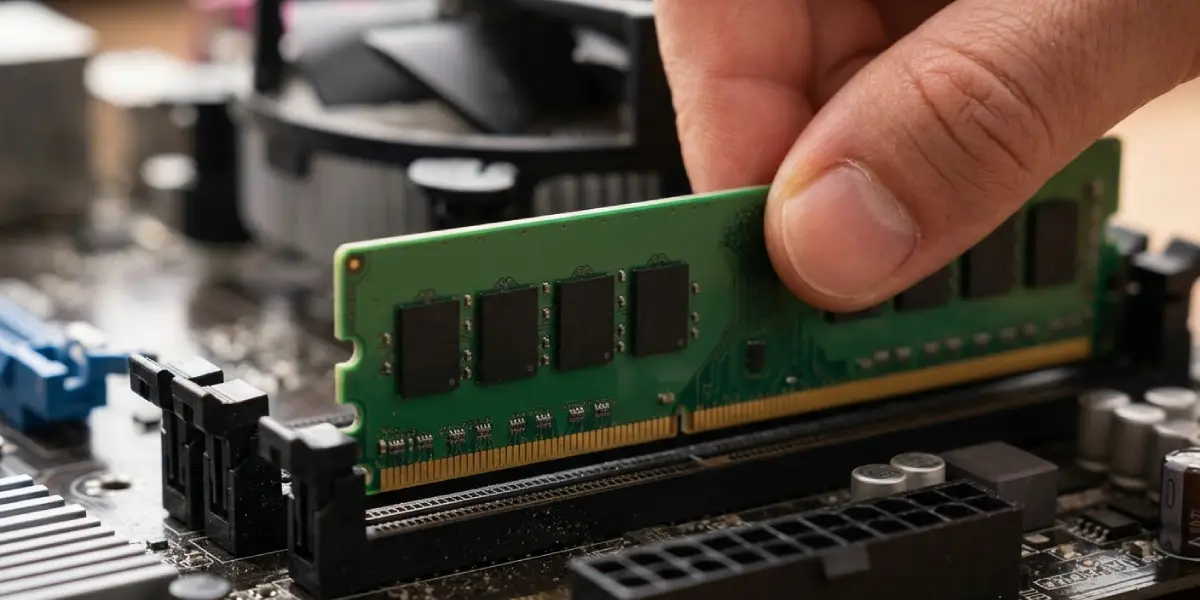
Tip: Place the sticks in the paired slots the manual recommends for two modules, even if the board has four slots. Putting both sticks side by side in the same channel is the single most common cause of this problem.
Laptop-Specific Checks
Many laptops have two SODIMM slots, and dual channel works when both are filled with matching modules. Some thin models have no slots at all because the memory is soldered, and others combine soldered memory with a single slot. In those designs, the available upgrade options and the resulting channel behavior depend on the model, so the service manual or the manufacturer’s specifications page is the right place to check before buying anything. For a laptop with two empty-capable slots, install two matching SODIMMs of the correct type and see the same verification step in CPU-Z.
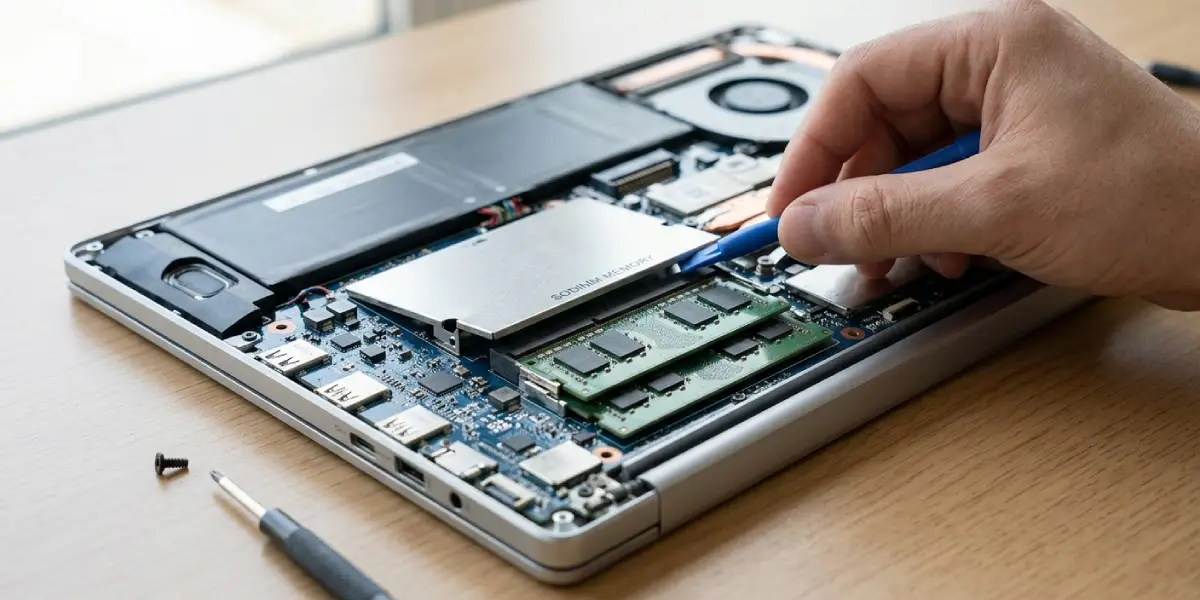
Tip: Before buying new memory, confirm the memory type and maximum supported capacity in the laptop or motherboard specifications, so the new sticks are compatible.
Common Problems and Fixes
Still showing single channel after moving the sticks
Recheck the slot pairing in the manual, since some boards use a pairing that is not obvious from the slot colors. Then confirm that both modules appear in Task Manager under slots used. If only one module is detected, reseat both and test each one separately.
The PC will not boot after changing slots
Power down, unplug the system, and reseat both sticks fully until the clips lock. If it still fails, boot with a single stick in the primary slot recommended by the manual. Add the second stick afterward to find the one that causes the failure. Some boards also need a CMOS reset after memory changes, done with the jumper or button described in the manual.
Windows reports less RAM than installed
This usually means one stick is not seated properly or one slot is failing. Reseat the modules, clean dust from the slots with compressed air, and test sticks individually. Never blow into the slot by mouth, since moisture can damage contacts.
Only part of the memory runs in dual channel
This happens when the two sticks have different capacities. The matched portion can work in dual channel while the extra capacity runs in single channel. Using two identical sticks removes the issue completely.
Memory speed drops after installing a second stick
When sticks have different speed ratings, the system runs them at the slower rating. Matching the modules, or using a single kit, restores the expected speed.
Dual channel works on a laptop only after the memory is replaced
If a laptop had a single stick, adding a second one with matching type and speed is the standard fix. If the model uses soldered memory, the available upgrade path is limited by the design, so the service manual should be consulted first.
Frequently Asked Questions
How do I know if my RAM is running in dual channel?
Open CPU-Z and click the Memory tab. The Channels field shows Dual when both modules are working together. Task Manager can confirm that two memory slots are in use, but it does not show the channel mode directly.
Which slots should RAM go in for dual channel?
On most desktop motherboards with four slots, two sticks go in alternating slots, often the second and fourth from the CPU. The exact slots vary by model, so the motherboard manual is the reliable reference.
Can I run dual channel with two different RAM sticks?
It is often possible, but results vary. Different capacities can leave part of the memory in single channel, and different speeds make both sticks run at the slower rating. Two identical sticks, or one matched kit, is the most dependable option.
Does a single RAM stick run in dual channel?
A single traditional module cannot run in dual channel, because the mode needs two separate modules. DDR5 modules have two internal subchannels, but that is not the same as a dual channel setup across two sticks.
Is dual channel worth it for gaming?
Yes, in many cases. It increases memory bandwidth, and the benefit is usually most visible with integrated graphics and in some CPU-heavy games. The size of the gain depends on the game and the hardware.
Why does CPU-Z show single channel with two sticks installed?
The most common reasons are sticks placed in the wrong slots, one stick not fully seated, or one module not detected. Reseating both and checking the manual for the paired slots usually solves it.
Do I need to change BIOS settings to enable dual channel?
Usually not, because dual channel turns on automatically when the hardware is arranged correctly. Loading default BIOS settings and updating the BIOS can help when the memory is installed correctly but detection still fails.
Can I enable dual channel on a laptop with one RAM slot?
Not by adding a second stick, because there is no second slot to fill. Some models with soldered memory plus one slot have behavior that depends on the design, so the service manual or manufacturer specifications should be checked.
Can dusty or damaged slots stop dual channel?
Yes. Dust or a faulty slot can stop a module from being detected, which leaves the system in single channel. Clean gently with compressed air and test each stick in each slot. A damaged slot is a job for a professional.
