
Random blue screens, corrupted files, and freezes with no clear cause often point to faulty memory, and the most reliable way to check is to stress test RAM with MemTest86. The tool boots on its own from a USB drive, so Windows can’t interfere with the results. This guide walks through the whole process, from building the boot drive to reading the final report.
Key Takeaways
- MemTest86 runs outside Windows from a bootable USB drive, which makes its results far more trustworthy than software tests run inside the operating system.
- A full run of several passes is the minimum. Intermittent faults can need extra passes or an overnight run.
- Any error reported by MemTest86 means something in the memory path is unstable, whether that is a module, a slot, or a memory setting.
- Testing one stick at a time and with the XMP or EXPO profile switched off is the fastest way to pinpoint the cause of errors.
Before You Start
Stress testing RAM is a software task, so there is no need to open the case unless errors show up and modules have to be reseated or swapped. A few basics keep the process smooth.
- A spare USB flash drive. Creating the boot drive erases everything on it, so use one with nothing important stored.
- A working computer with internet access to download MemTest86 and create the drive. This can be the same PC being tested if it still boots.
- Open files saved and work closed on the PC being tested, since it will restart into the test environment.
- If modules need to be removed later, power off, unplug the PC, and touch bare metal on the case or use an anti-static strap before handling the memory. Opening the case may affect the warranty on some prebuilt systems, so check the terms first.
How to Stress Test RAM with MemTest86 Step by Step
MemTest86 is made by PassMark Software, and a free edition is available from the official MemTest86 website. The steps below use the free edition on a Windows PC to create the drive.
- Step 1: Download MemTest86 from the official PassMark website and extract the downloaded zip file to a folder. Downloading only from the official site avoids tampered copies.
- Step 2: Plug in the spare USB drive. Right-click the imageUSB tool inside the extracted folder and choose Run as administrator.
- Step 3: In imageUSB, select the correct USB drive, double-check that no other drive is ticked, and click the button to write the image. Wait for the process to finish, which usually takes a few minutes.
- Step 4: Leave the USB drive plugged into the PC to be tested and restart it. Press the boot menu key as the PC starts. The key depends on the manufacturer, and common choices include F12, F11, F8, and Esc. The startup screen or the motherboard manual lists the right one.
- Step 5: Choose the USB drive from the boot menu. MemTest86 loads on its own, so there is no need to log in to Windows or install anything.
- Step 6: Start the test with the default settings. The default configuration runs several passes of different test patterns across the installed memory, which suits most users.
- Step 7: Leave the PC alone until the run finishes. Avoid pressing keys, closing the lid on a laptop, or letting the PC sleep, because interruptions can end the test early.
- Step 8: Check the result. A clean finish with no errors means the memory passed. Any error count above zero means a fault was found. MemTest86 also saves a report to the USB drive that can be opened later on another computer.
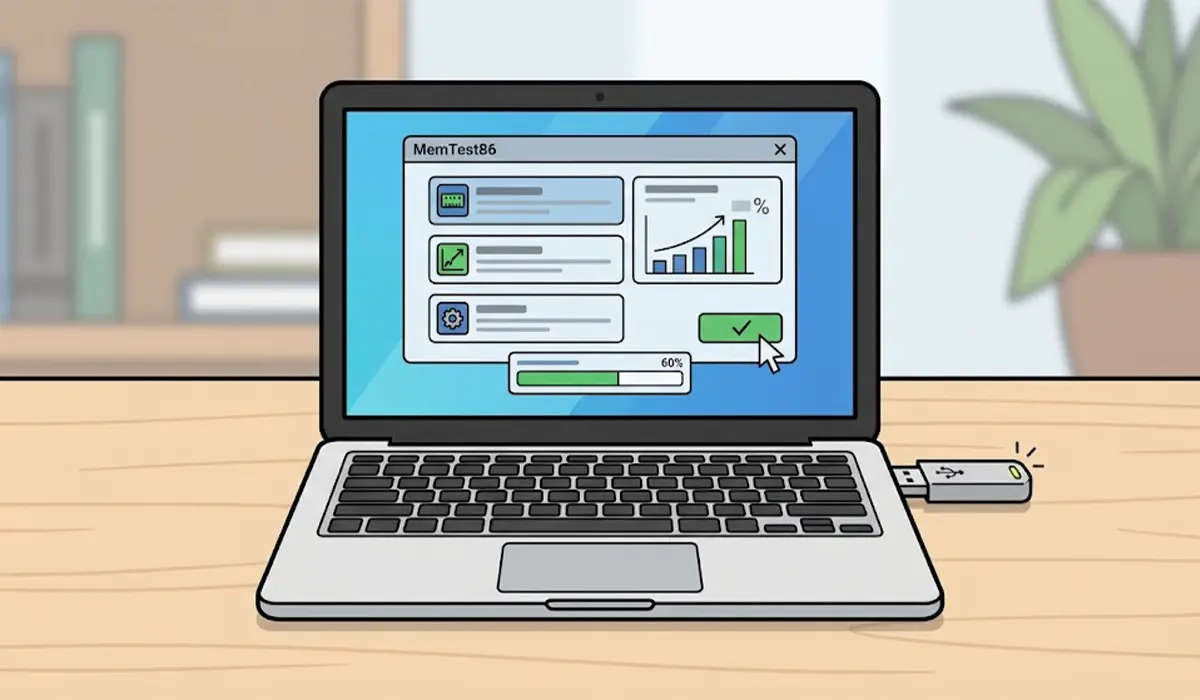
Tip: Think of the test like a stress test for a bridge. A single quick pass can miss a weakness that only appears under repeated load, so extra passes or an overnight run give a far more honest answer.
Which Memory Settings to Test With
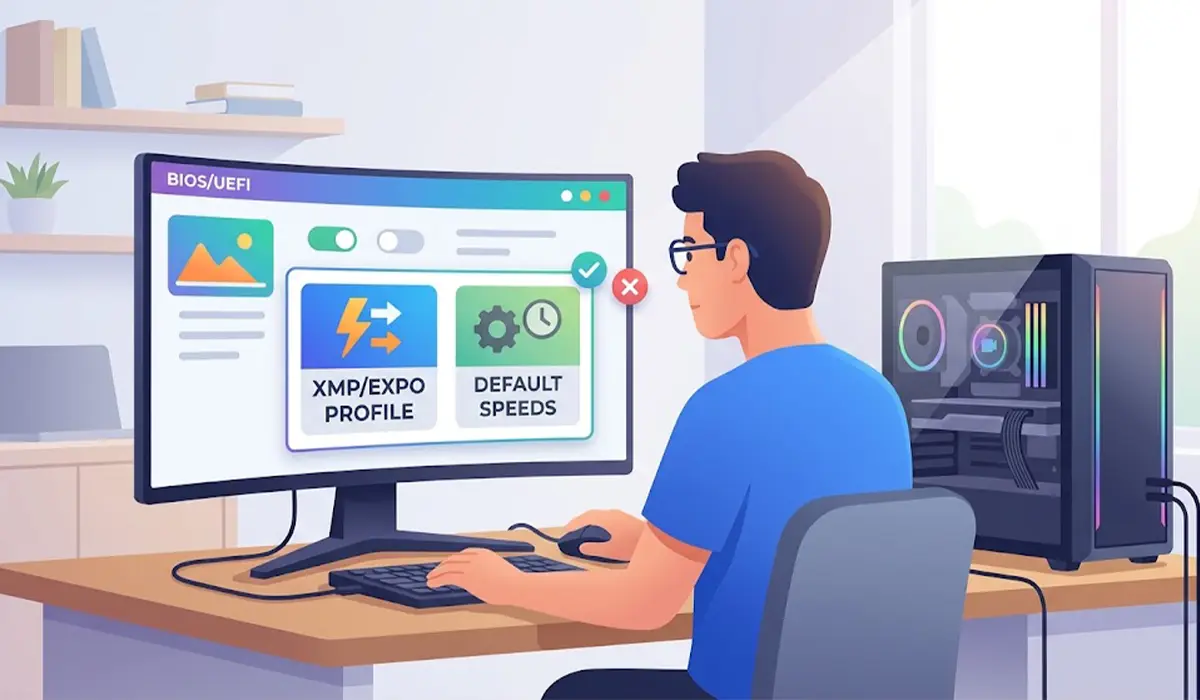
Start with the PC set up exactly as it is used every day, including any XMP or EXPO profile enabled in the UEFI settings. If errors appear, run the test again with that profile turned off. Errors that vanish at default speeds usually point to an unstable memory overclock rather than a bad module.
How to Read the Results
MemTest86 reports a pass or fail summary and lists any errors it found, along with the test that caught them. Most people find that a single error is enough to treat the memory as unreliable, because even one flipped bit can corrupt data or crash the system at a bad moment.
Narrowing Down the Faulty Part After Errors
Errors do not always mean a dead module. The slot, the memory settings, or the way a stick is seated can all cause them. The key is to change one thing at a time and test again.
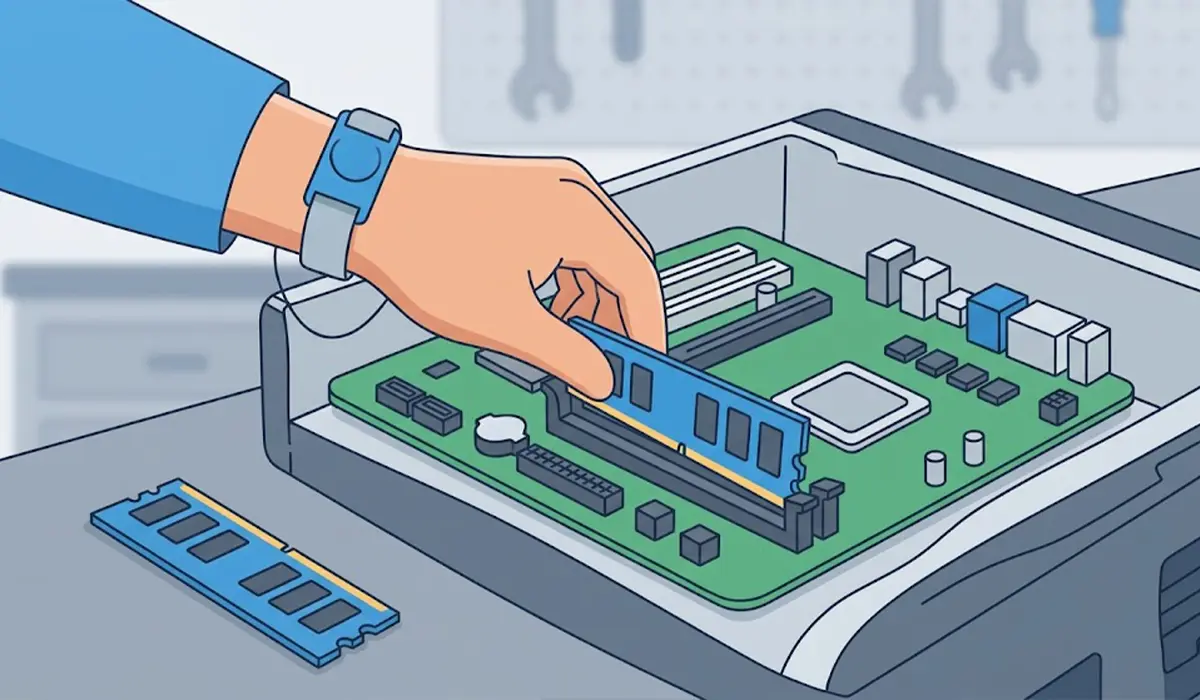
- Step 1: Power off, unplug the PC, discharge static, and reseat every memory module firmly until the clips click into place.
- Step 2: Run MemTest86 again. If errors disappear, a loose module was the likely cause.
- Step 3: If errors continue, remove all but one stick and test it alone. Repeat with each stick in turn.
- Step 4: Test a suspect stick in a different slot. Errors that follow the stick indicate a bad module, while errors that stay with the slot point to the motherboard.
- Step 5: Replace any module that fails on its own in a known good slot. If a repeat failure persists across every module, have a professional look at the motherboard and processor.
Tip: Label each stick with a small sticky note while testing so the results can be matched to the right module without guessing.
Common Problems and Fixes
The USB Drive Does Not Appear in the Boot Menu
Confirm that USB boot is enabled in the UEFI or BIOS settings and that the drive was written successfully. Recreating the drive with imageUSB, or trying a different USB port or drive, fixes most cases. Rear motherboard ports are often more dependable than front panel ports on a desktop.
imageUSB Fails to Write the Drive
Run the tool as administrator, close any program that might be using the drive, and try a different USB flash drive. A drive with a damaged controller can fail halfway through writing.
MemTest86 Freezes or the PC Restarts During the Test
A freeze or sudden restart while testing can itself be a sign of unstable memory, an unstable overclock, or overheating. Turn off the XMP or EXPO profile, make sure the case fans and CPU cooler are working, and run the test again.
Errors Appear Only with XMP or EXPO Enabled
The memory is likely being asked to run faster than the rest of the system can handle reliably. Leave the profile off, or lower the memory speed in the UEFI settings, and test again until the run finishes cleanly.
The Test Passes but the PC Still Crashes
A clean result makes memory a much less likely cause, but not an impossible one, since some faults only appear after long runs. Run additional passes overnight, and then look at other causes such as drivers, storage health, or the power supply.
Frequently Asked Questions
What is MemTest86 and how does it work?
MemTest86 is a memory testing tool that boots from a USB drive and runs without Windows. It writes test patterns to the RAM and reads them back, and any mismatch is reported as an error.
How many passes of MemTest86 are enough?
A complete run using the default settings is a solid starting point. If the PC still shows symptoms of bad memory after a clean result, extra passes or an overnight run can catch intermittent faults.
How long does MemTest86 take to finish?
The time depends on how much RAM is installed, how fast it is, and how many passes are set. Larger memory sizes take longer, and a full run can last several hours.
Is MemTest86 free to use?
A free edition is available from the official MemTest86 website and covers the basic testing needed by most home users. A Pro edition adds extra features for professional use.
Is MemTest86 better than Windows Memory Diagnostic?
Windows Memory Diagnostic is quick and built into Windows, which makes it handy for a first check. MemTest86 offers more test options and detailed reports, so it suits deeper troubleshooting.
What does it mean if MemTest86 finds errors?
Any error means the memory is not working reliably in its current setup. The cause can be a bad module, a faulty slot, a loose module, or unstable memory settings, so testing one stick at a time helps find the culprit.
Can MemTest86 damage my RAM?
No. The test reads and writes data in a similar way to normal use, so it does not harm healthy memory running at its normal settings.
Should XMP or EXPO be on or off when testing?
Test with the settings used day to day first. If errors appear, turn the profile off and test again to see whether the memory speed setting is the cause.
Why won’t my PC boot from the MemTest86 USB drive?
The most common causes are a boot order that skips USB, a drive that was not written correctly, or a faulty USB port. Recreating the drive and choosing it from the boot menu directly usually solves the problem.
