
Learning how to fix bad sectors on a hard drive starts with one important fact: some bad sectors are software errors that can be repaired, while others are physical damage that can only be worked around. Telling the two apart saves data and money. This guide walks through backing up, checking drive health, running the right repair tool, and deciding when it is time to replace the drive.
Key Takeaways
- Back up the data first. Every repair scan puts extra stress on a drive that may already be failing.
- Logical (soft) bad sectors can often be repaired with CHKDSK, Disk Utility First Aid, or e2fsck. Physical (hard) bad sectors cannot be repaired, only remapped or marked as unusable.
- SMART values for Reallocated Sector Count and Current Pending Sector Count show whether the problem is stable or getting worse.
- A drive whose bad sector count keeps growing should be replaced, not repaired again.
Before You Start
Most of this work happens in software, so the main risk is data loss rather than hardware damage. A few preparations keep things safe.
- Stop saving new files to the drive. Every write to a failing drive is a gamble.
- Make sure a second drive or external disk with enough free space is ready to hold a full backup.
- Connect a laptop to its charger, or put a desktop on stable power, so a scan is not interrupted by a shutdown.
- Tools needed: a SMART viewer such as CrystalDiskInfo on Windows or smartctl from smartmontools on Linux and macOS, the built-in repair tool for the operating system (CHKDSK, Disk Utility, or e2fsck), and optionally GNU ddrescue for cloning a drive that is struggling to read.
If the drive makes repeated clicking or grinding sounds, vanishes from the system, or freezes the computer as soon as it is read, stop running scans and contact a professional data recovery service. Opening a sealed hard drive case yourself destroys the clean-room seal and will void any warranty.
How to Fix Bad Sectors on a Hard Drive Step by Step
Think of a bad sector like a cracked tile in a floor. A logical bad sector is a tile with a wrong label on it, so relabeling fixes it. A physical bad sector is a tile that is actually broken, so the best that can be done is to stop walking on it. The steps below handle both cases in the right order.
- Step 1: Back up everything important. Copy files to a separate drive before running any repair. If the drive is throwing read errors during the copy, a tool such as GNU ddrescue can clone it to a healthy disk while skipping unreadable areas and returning to them later. This is far gentler than repeated manual copy attempts.
- Step 2: Check SMART health. Open CrystalDiskInfo on Windows, or run smartctl -a on the drive in Linux or macOS. Look at three attributes: Reallocated Sector Count, Current Pending Sector Count, and Offline Uncorrectable Sector Count. A drive marked Caution or Bad, or one showing rising values in these attributes, is physically degrading. Write the current numbers down so they can be compared after the repair.
- Step 3: Run the built-in repair tool on Windows. Open Command Prompt as administrator and type chkdsk D: /f /r, replacing D: with the correct drive letter. The /f switch fixes file system errors, and /r locates bad sectors and recovers readable data from them. If the drive is the system drive, Windows asks to schedule the scan for the next restart. Type Y and reboot. On a large drive the scan can take several hours, so it works best when started before leaving the computer for the evening.
- Step 4: Use the equivalent tool on macOS or Linux. On a Mac, open Disk Utility, select the drive, and run First Aid. On Linux, unmount the partition first, then run sudo e2fsck -fcv /dev/sdXN, replacing the device name with the correct partition. The -c option makes e2fsck run a read-only bad block check and record any bad blocks it finds. Double-check the device name before pressing Enter, because pointing a repair tool at the wrong partition causes real trouble.
- Step 5: Force stubborn sectors to be remapped. If SMART still shows Current Pending Sector Count above zero after the scan, writing to those sectors gives the drive firmware a chance to either confirm they are fine or swap them for spare sectors. The simplest way is a full format, not a Quick Format, because a full format on modern Windows writes over the entire partition. This erases everything on the partition, so it is only safe after the Step 1 backup is confirmed.
- Step 6: Check SMART again. Compare the new Reallocated Sector Count and Current Pending Sector Count with the numbers written down earlier. If pending sectors dropped to zero and the reallocated count stayed the same or rose by a small amount, the problem was likely minor. If the numbers keep climbing, the platters or heads are wearing out.
- Step 7: Decide whether the drive stays in service. A drive with stable numbers can be kept for non-critical storage, with a regular backup. A drive whose counts rise from one scan to the next should be replaced. Restore the backup to the new drive and retire the old one.

Tip: Run the SMART check again a week after the repair. A drive that looks fine on day one but shows new reallocated sectors seven days later is telling the truth about its condition.
Understanding Logical and Physical Bad Sectors
Logical Bad Sectors
These come from software-level problems such as an unexpected power loss during a write, a crash, or a corrupted file system entry. The magnetic surface is fine, but the data in the sector does not match its error-checking information. CHKDSK, First Aid, or e2fsck can usually clear these, and a full overwrite resolves them completely.
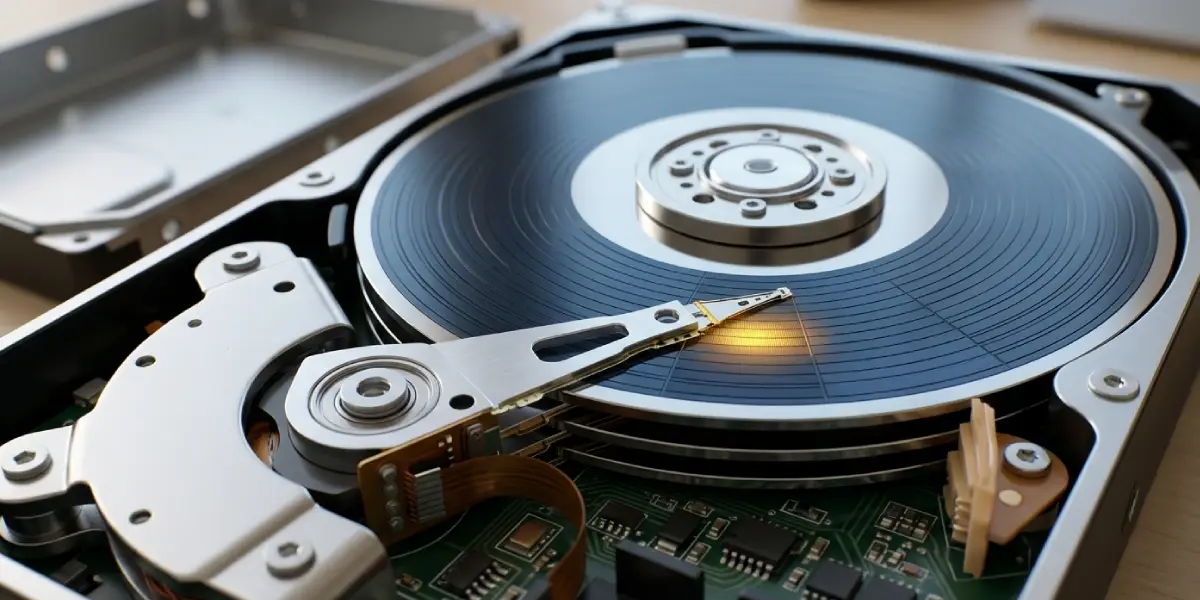
Physical Bad Sectors
These come from real damage such as surface wear, a head touching the platter after a drop, or aging magnetic material. No software can restore a damaged surface. The drive firmware hides the damage by remapping affected sectors to a reserve pool, and that pool is limited. Once it runs low, the drive starts reporting errors to the operating system.
Tip: Bad sectors that appear shortly after a drop or impact tend to spread. Back up immediately and plan for replacement rather than hoping the damage stays put.
Common Problems and Fixes
CHKDSK Gets Stuck or Runs for Many Hours
A scan with the /r switch reads every sector, so a large or damaged drive can take a very long time, and the progress percentage may appear frozen for a while. Let it run as long as the drive light shows activity. If the scan stays at the same percentage with no activity for several hours, shut down, confirm the backup, and clone the drive with ddrescue before trying again.
Bad Sectors Return After Repair
If the same errors come back, the cause is almost certainly physical wear or a failing component. Check the SMART numbers. A rising Reallocated Sector Count confirms that the drive is degrading, and replacement is the fix.
CHKDSK Reports That It Cannot Continue in Read-Only Mode
This message means the volume is in use or locked. Schedule the scan for the next restart when prompted, or run it from Windows recovery options so the drive is not mounted while it is checked.
The Drive Shows Healthy in SMART but Files Still Fail to Open
SMART is a good indicator, but not a perfect one. File system corruption or a failing cable or port can cause read errors even when SMART looks clean. Try a different SATA or USB cable and port, then run the file system repair again.
Windows Says the Drive Needs to Be Formatted
Do not format it yet. This message often points to a damaged file system or partition table. Clone the drive first with ddrescue, then attempt repair on the clone rather than the original.
Frequently Asked Questions
Can bad sectors on a hard drive be repaired?
Logical bad sectors can be repaired with tools such as CHKDSK, First Aid, or e2fsck, or by overwriting the drive. Physical bad sectors cannot be repaired. The drive can only remap them to spare sectors or the file system can mark them as unusable.
What is the difference between logical and physical bad sectors?
A logical bad sector is a software-level error where the data and its error-checking information no longer match, usually after a crash or power loss. A physical bad sector is actual damage to the magnetic surface, which cannot be undone.
Is it safe to keep using a drive with bad sectors?
A drive with a few stable bad sectors can be used for non-critical files with regular backups. A drive whose bad sector count keeps rising should be retired, because failure becomes more likely over time.
Does CHKDSK /r fix bad sectors?
CHKDSK /r finds bad sectors, marks them so they are not used again, and tries to recover readable data from them. It cannot repair physical damage, but it does handle logical errors and keeps the file system away from damaged areas.
How long does CHKDSK take on a hard drive?
A scan with the /r switch reads the whole drive, so it can take anywhere from under an hour to several hours depending on drive size, speed, and how many errors it finds. Plan to leave the computer alone until it finishes.
Which SMART attributes show bad sectors?
The three most useful are Reallocated Sector Count, Current Pending Sector Count, and Offline Uncorrectable Sector Count. Rising values in any of them point to a drive that is degrading.
Will a full format remove bad sectors?
A full format erases the partition and, on modern Windows, writes over every sector. That can clear logical errors and give the firmware a chance to remap weak sectors, but it cannot fix physical damage and it erases all data, so back up first.
Should an SSD be scanned for bad sectors the same way?
Not with heavy surface scans. SSDs handle worn memory cells internally, and repeated full-surface scans add unnecessary wear. For an SSD, check SMART health data and use the manufacturer’s diagnostic tool instead.
When should a hard drive with bad sectors be replaced?
Replace the drive when SMART counts keep increasing between checks, when errors return soon after a repair, or when the drive makes unusual noises. Waiting for complete failure puts the data at much greater risk.
