
Learning how to create Quick Steps to automate Outlook tasks can turn a five-click routine into a single click. A Quick Step bundles several actions, such as moving a message, marking it as read, and flagging it, into one button on the Home tab. This guide walks through building one from scratch in classic Outlook for Windows.
Key Takeaways
- Quick Steps live in the Quick Steps group on the Home tab and run multiple actions with one click.
- Select Create New, name the step, add actions, and click Finish to build a custom one.
- Assigning a shortcut key (Ctrl+Shift+1 through Ctrl+Shift+9) lets a step run straight from the keyboard.
- Existing steps can be edited, duplicated, or deleted from the Manage Quick Steps window.
How to Create Quick Steps to Automate Outlook Tasks: Step-by-Step
The example below builds a Quick Step named Archive and Mark Read. It moves the selected message to a folder and marks it as read in one action. The same flow works for any combination of actions.
- Step 1: Open classic Outlook for Windows and go to the Mail view. Click the Home tab on the ribbon.
- Step 2: Find the Quick Steps group in the middle of the ribbon. Click Create New in the gallery (if the gallery is collapsed, click the More arrow to see it).
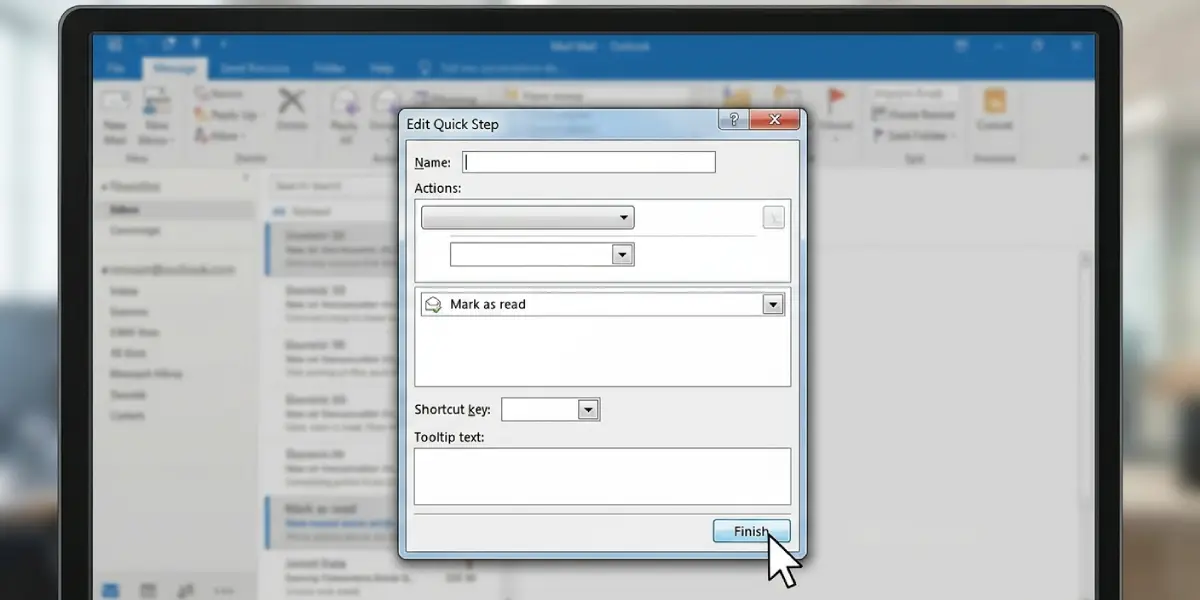
- Step 3: In the Edit Quick Step window, type a clear name in the Name box, such as Archive and Mark Read. Short, specific names are easier to recognize later.
- Step 4: Under Actions, open the Choose an Action drop-down and pick the first action, for example Move to folder. Then choose the target folder from the folder drop-down that appears. Select Other Folder if the folder is not listed.
- Step 5: Click Add Action to add a second action. Choose Mark as read from the list. Repeat Add Action for any further actions the routine needs.
- Step 6: Open the Shortcut key drop-down and pick a combination from Ctrl+Shift+1 to Ctrl+Shift+9. This step is optional but saves time for tasks done dozens of times a day.
- Step 7: Type a short description in the Tooltip text box. This text appears when the pointer hovers over the Quick Step button.
- Step 8: Click Finish. The new Quick Step now appears in the Quick Steps group.
- Step 9: Select a message in the inbox and click the new Quick Step button (or press the assigned shortcut) to run every action at once.
Tip: Think of a Quick Step as a recorded checklist. Any routine done the same way every time, like filing a newsletter or forwarding a report, is a good candidate.
Start From a Built-In Quick Step
Outlook ships with a few ready-made steps, including Move to, Reply and Delete, Done, and To Manager. Clicking one for the first time often opens a short setup window asking for a folder or a recipient. Filling it in and clicking Save creates a working step without building anything manually.
Edit, Duplicate, or Delete a Quick Step
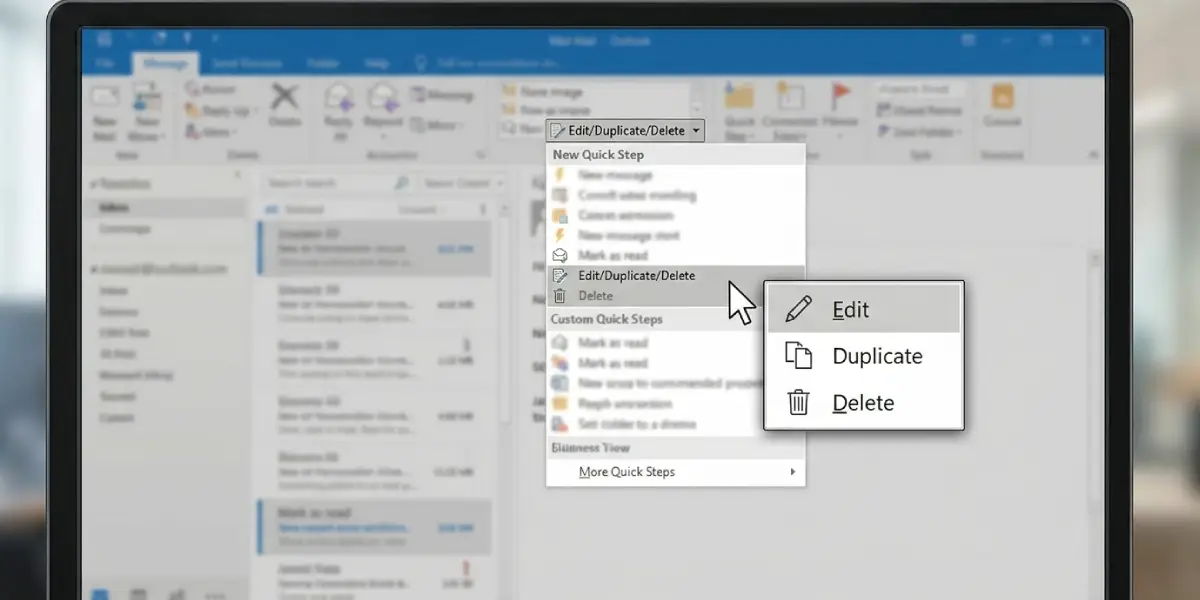
- Step 1: On the Home tab, right-click the Quick Step in the gallery.
- Step 2: Choose Edit, Duplicate, or Delete from the menu. Edit reopens the same window used during creation.
- Step 3: To manage everything at once, click Manage Quick Steps from the gallery menu. This window lists every step and allows reordering, editing, duplicating, deleting, or resetting to defaults.
Tip: Duplicating an existing Quick Step and tweaking one action is faster than building a near-identical one from the beginning.
Common Problems and Fixes
The Quick Steps Group Is Missing From the Home Tab
The group may be hidden when the Outlook window is narrow or when the ribbon is collapsed. Maximize the window, or expand the ribbon by double-clicking the Home tab. Also confirm the app is classic Outlook for Windows, since the steps above rely on that ribbon layout.
The Target Folder Is Not in the List
The drop-down shows only a handful of recent folders. Choose Other Folder at the bottom of the list and pick the folder from the full folder tree.
The Shortcut Key Does Nothing
Make sure a message is selected in the message list first, because most Quick Steps act on the selected item. Next, reopen the step with Edit and confirm a shortcut was actually assigned in the Shortcut key drop-down. Each combination can be tied to only one step, so pick a different one if it is already in use.
The Quick Step Runs but One Action Seems Skipped
Open the step with Edit and review the action order. Actions run from top to bottom, so a Move to folder action placed before Mark as read means the message is already in another folder when the second action runs. Reorder or recreate the step so the actions make sense in sequence.
Frequently Asked Questions
What is the quickest way to create a Quick Step in Outlook?
Go to the Home tab, click Create New in the Quick Steps group, name the step, choose an action, and click Finish. A single-action Quick Step takes under a minute to build.
How many actions can one Quick Step include?
A Quick Step can hold several actions, and each extra one is added by clicking Add Action in the Edit Quick Step window. Actions run in the order they are listed.
Can a keyboard shortcut be assigned to a Quick Step?
Yes. In the Shortcut key drop-down, choose a combination from Ctrl+Shift+1 through Ctrl+Shift+9. Each combination can be used by only one Quick Step.
How can an existing Quick Step be changed?
Right-click the step in the Quick Steps group on the Home tab and choose Edit. The same window used to create the step opens, where the name, actions, shortcut, and tooltip can be updated.
How is a Quick Step deleted?
Right-click the Quick Step on the Home tab and choose Delete, or open Manage Quick Steps, select the step, and click Delete. The step disappears from the gallery right away.
Can a Quick Step move emails to a specific folder?
Yes. Choose the Move to folder action, then pick the destination from the drop-down or select Other Folder to browse the full folder list.
Can a Quick Step run on several selected emails at once?
Yes. Select multiple messages in the message list, then click the Quick Step. The actions are applied to the selected messages.
How can the original Quick Steps be restored?
Open Manage Quick Steps from the Quick Steps gallery and click Reset to Defaults. This restores the built-in steps and removes custom ones, so it is worth noting any custom steps before resetting.
