
Few things are more frustrating than sending an email and getting a message saying Outlook must be online or connected to complete the action. This guide shows how to fix the Outlook connection to Exchange is unavailable error using a short, ordered set of checks, starting with the quickest ones. Most people get their mailbox working again within the first few steps.
Key Takeaways
- The error usually comes from Work Offline mode, a damaged add-in, a stale cache, or a corrupted profile.
- Start with the simple checks (offline mode, restart, Safe Mode) before touching profiles or repairs.
- Turning off Cached Exchange Mode, clearing saved credentials, and repairing the account fix most stubborn cases.
- A fresh Outlook profile is the final fix when everything else fails.
Step-by-Step Guide to Fix Outlook Connection To Exchange Is Unavailable Error
Work through the steps in order and test Outlook after each one. Stop as soon as the status bar at the bottom of the window shows Connected to Microsoft Exchange.
Quick Checks
- Step 1: Confirm the device is online, then open Outlook and select the Send/Receive tab. If the Work Offline button looks highlighted, click it once to switch Outlook back to online mode. This single toggle is the culprit more often than most people expect, especially after a laptop wakes from sleep on weak Wi-Fi.
- Step 2: Close Outlook completely. Press Ctrl + Shift + Esc to open Task Manager, select OUTLOOK.EXE, click End task, and then reopen Outlook. A background process that never fully closed can keep an old, broken connection alive.
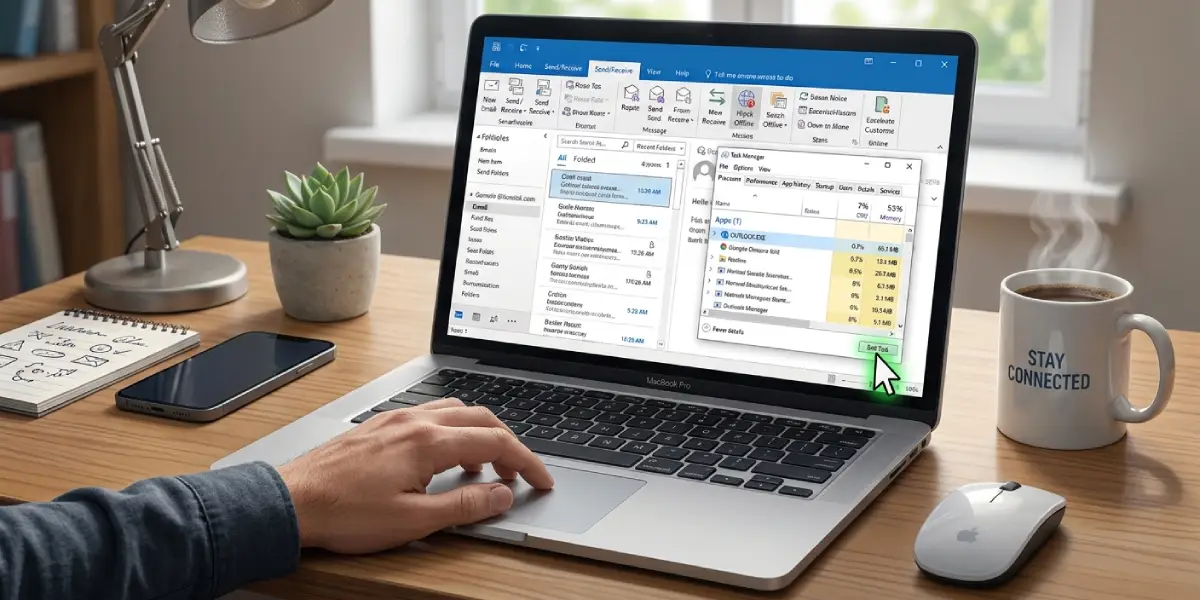
Tip: Look at the bottom edge of the Outlook window. Messages such as Disconnected, Working Offline, or Trying to connect tell exactly which state Outlook is in, so there is no need to guess.
Rule Out Add-ins
- Step 3: Press Windows key + R, type outlook.exe /safe, and press Enter. Choose the profile and sign in if asked. If the connection works in Safe Mode, an add-in is blocking it. Go to File, then Options, then Add-ins. Next to Manage, select COM Add-ins and click Go. Clear the check boxes for the add-ins listed, click OK, and restart Outlook normally. Re-enable the add-ins one at a time to find the one that causes the problem.
Refresh the Connection Settings
- Step 4: Turn off Cached Exchange Mode. Go to File, then Account Settings, then Account Settings again. On the Email tab, select the Exchange account and click Change. Clear the Use Cached Exchange Mode check box, click Next, then Finish, and restart Outlook. This forces Outlook to talk directly to the server instead of relying on a local cache that may be out of sync. Once the connection works, the setting can be turned back on.
- Step 5: Clear saved credentials. Close Outlook, open Control Panel, choose Credential Manager, and select Windows Credentials. Remove the entries that start with MicrosoftOffice16_Data or that mention outlook.office365.com or the mail server name. Reopen Outlook and sign in again when prompted. Think of it like clearing an outdated key from a keychain so the right one gets used.
- Step 6: Repair the account. Go to File, then Account Settings, then Account Settings. Select the Exchange account on the Email tab, click Repair, and follow the on-screen prompts. Restart Outlook when the process finishes.
Tip: Save any unsent draft text before restarting Outlook at these steps, since a draft that was open during the error may not survive the restart.
Repair Office and the Profile
- Step 7: Repair Microsoft Office. Open Windows Settings, go to Apps, then Installed apps, and find Microsoft 365 or Microsoft Office. Open its menu, choose Modify, and select Quick Repair, then click Repair. If the error continues, repeat the process and choose Online Repair, which takes longer but replaces damaged program files.
- Step 8: Create a new Outlook profile. Close Outlook, open Control Panel, and select Mail (Microsoft Outlook). Click Show Profiles, then Add, give the profile a name, and enter the work or school email address and password. When setup finishes, select the new profile under Always use this profile and click OK. Open Outlook and confirm the connection. The mailbox data lives on the server, so mail, calendar, and contacts reload automatically.
Common Problems and Fixes
Outlook Keeps Asking for a Password
Repeated prompts usually point to outdated saved credentials. Repeat Step 5 and remove every related entry in Credential Manager before signing in again.
Outlook Works in Safe Mode but Not Normally
An add-in is the cause. Disable all COM add-ins as shown in Step 3, then turn them back on one by one until the error returns. The last one enabled is the problem.
The Status Bar Stays on Trying to Connect
Check whether a VPN or proxy is active and disconnect it briefly to test. Also confirm that other online services load, since a network that blocks the mail server produces the same symptom.
Outlook Cannot Set Up the New Profile
Double-check the email address and password, and make sure the device has a stable internet connection. If the sign-in still fails, verify that the account can open mail in a web browser. If it cannot, the account itself needs attention from the organization’s IT administrator.
The Error Returns After Turning Cached Exchange Mode Back On
A damaged local data file is the likely reason. Create a new profile as described in Step 8, which builds a clean cache.
Frequently Asked Questions
What does the Connection to Exchange is unavailable error mean?
It means Outlook cannot reach the Exchange server that holds the mailbox. Outlook is either in offline mode, blocked by a damaged component, or unable to authenticate, so actions that need the server fail.
Is the error caused by a problem with the Exchange server?
Not usually. In most cases the cause sits on the device, such as Work Offline mode, a faulty add-in, saved credentials, or a damaged profile. The steps above address those local causes first.
Will I lose emails when I create a new Outlook profile?
No. Mail, calendar entries, and contacts for an Exchange account are stored on the server, so they reload once the new profile connects. Only locally saved items, such as local PST files, need to be added back separately.
How do I know if Outlook is working offline?
The status bar at the bottom of the window shows Working Offline or Disconnected, and the Work Offline button on the Send/Receive tab appears highlighted. Clicking the button once returns Outlook to online mode.
What does starting Outlook in Safe Mode do?
Safe Mode launches Outlook without add-ins and custom toolbar settings. If the error disappears there, the cause is an add-in rather than the account or the server.
Should Cached Exchange Mode stay turned off?
Cached Exchange Mode can be turned back on once the connection is stable. It keeps a local copy of the mailbox and generally makes Outlook faster, so there is no need to leave it off permanently.
Which should be tried first, Quick Repair or Online Repair?
Quick Repair should come first because it runs fast and does not need an internet connection. Online Repair is the more thorough option and fits cases where Quick Repair does not clear the error.
Does a VPN cause the Outlook connection to Exchange is unavailable error?
It can. A VPN or proxy that blocks or slows traffic to the mail server may leave Outlook stuck on Trying to connect. Disconnecting the VPN temporarily shows whether it is involved.
