
Learning how to fix ‘you need to format the disk’ error starts with one rule: do not click Format yet. The message usually means Windows cannot read the drive’s file system, not that the files are gone. This guide covers the causes, how to protect the data, and the repair steps in the right order.
Key Takeaways
- The error almost always points to a damaged or unreadable file system, and the files are often still on the drive.
- Clicking Format erases the file index, so recover important files before formatting anything.
- Try another USB port, cable, or computer first, since a bad connection can cause the same message.
- CHKDSK and TestDisk repair many drives, while a drive with failing hardware needs a backup first.
- Format only as a last step, once the data is safe.
Common Causes of the Format the Disk Error
Windows shows the prompt ‘You need to format the disk in drive before you can use it’ when it opens a drive and cannot understand what is on it. Think of a library whose catalog has been scrambled. The books are still on the shelves, but nobody can find them. These are the usual reasons the catalog breaks:
- Unsafe removal of a USB drive, SD card, or external hard drive while data was still being written.
- A corrupted file system or damaged partition table, which makes the drive appear as RAW in Disk Management.
- Bad sectors or a drive that is starting to fail.
- A loose, worn, or faulty cable, port, or adapter.
- A power cut or crash during a write operation.
- Malware that damages file system structures.
- An outdated or glitching storage driver.
Before You Start
This is a software repair, so nothing needs to be opened. A few precautions still protect the data:
- Do not format the drive, and avoid copying new files onto it. New writes can overwrite recoverable data.
- Plug an external drive straight into the computer, not through a hub or a loose extension cable.
- Have a second drive with enough free space ready to receive recovered files. Never recover files onto the same drive.
- Tools that help: a working second PC, a different USB cable, CrystalDiskInfo for health checks, and a file recovery tool such as TestDisk with PhotoRec (free and open source) or Recuva.
If the drive clicks, grinds, or disappears and reappears repeatedly, stop and power it off. Continued use can turn a recoverable problem into a permanent one, so a professional data recovery service is the safer choice at that point.
How to Fix the ‘You Need to Format the Disk’ Error Step by Step
- Step 1: Click Cancel on the prompt. Close the message without formatting and leave the drive connected.
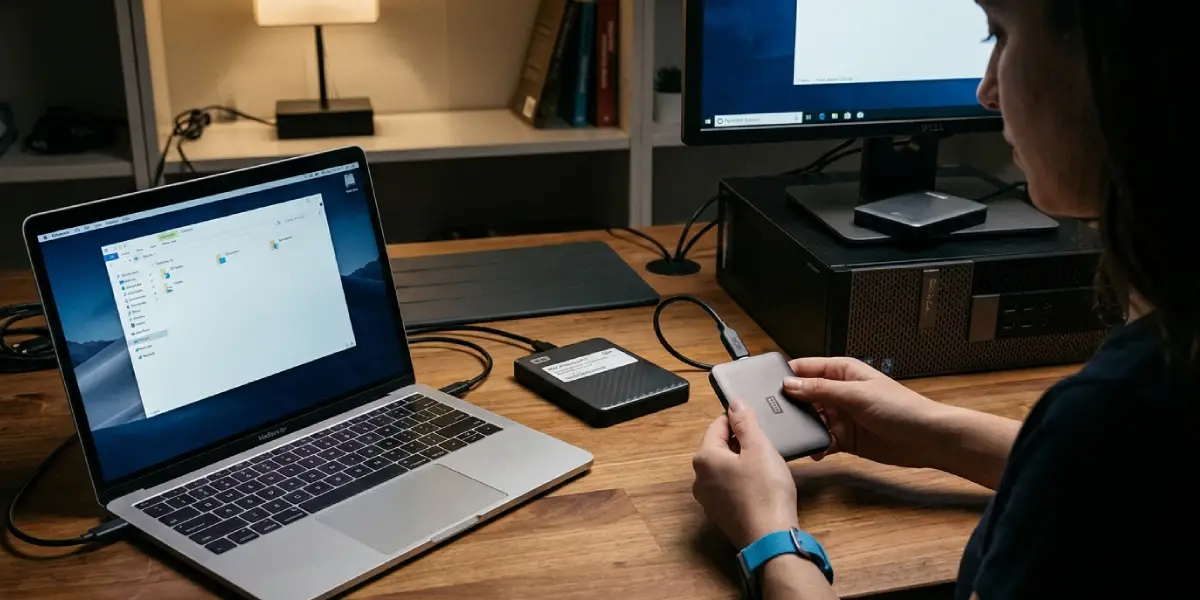
- Step 2: Rule out the connection. Safely remove the drive, then reconnect it using a different USB port, preferably one on the back of a desktop. Swap the cable if the drive uses one. Try the drive on another computer as well. If it opens normally there, the original port, cable, or driver is the cause and the drive itself is fine.
- Step 3: Check how Windows sees the drive. Right-click the Start button, open Disk Management, and look at the drive. A file system listed as RAW confirms file system damage. A drive showing as Unallocated points to a lost partition, and a drive showing no media suggests a hardware or connection fault.
- Step 4: Check the drive’s health. Open CrystalDiskInfo and review the health status. A status of Caution or Bad means the hardware is failing, so skip repair attempts and go straight to data recovery in Step 5.
- Step 5: Recover the important files first. Run a recovery tool such as TestDisk with PhotoRec or Recuva, scan the problem drive, and save everything found to a different drive. Only move on after the files that matter are safe.
- Step 6: Run CHKDSK. Open the Start menu, search for Command Prompt, and choose Run as administrator. Type chkdsk X: /f (replace X with the drive letter) and press Enter. This repairs file system errors. Adding /r also scans for bad sectors, which takes much longer on large drives. If Windows reports that CHKDSK is not available for RAW drives, continue to Step 7.
- Step 7: Repair a damaged partition with TestDisk. Launch TestDisk, select the problem drive, choose the partition table type it suggests (usually Intel or GPT), and run Analyse followed by Quick Search. If it finds the lost partition, use Write to save it, then restart the computer. TestDisk can restore a damaged partition table or boot sector without erasing the files.
- Step 8: Reinstall the driver. Open Device Manager, expand Disk drives, right-click the affected drive, and choose Uninstall device. Unplug the drive, restart Windows, and reconnect it so the driver reloads cleanly.
- Step 9: Assign a drive letter if one is missing. In Disk Management, right-click the volume, choose Change Drive Letter and Paths, and add a letter. A missing letter can sometimes trigger the same prompt.
- Step 10: Format as the last step. Once the data is safely backed up and the repairs did not work, right-click the drive in Disk Management, choose Format, select NTFS for a Windows internal drive or exFAT for an external drive shared between Windows and macOS, and run a Quick Format. If the problem returns soon after, the drive is likely failing and should be replaced.

Tip: Recovery tools work best on a drive that has not been written to since the error appeared. Every new file saved to the drive reduces the chance of getting the old ones back.
How to Tell Which Fix Is Most Likely
A drive that works on another computer but not on the first one usually needs a different port, a new cable, or a driver reinstall. A drive that shows as RAW on every computer has a file system problem, so CHKDSK and TestDisk are the right tools. A drive that shows poor health in CrystalDiskInfo needs a backup and replacement rather than repeated repair attempts.
Common Problems and Fixes
CHKDSK says it is not available for RAW drives
CHKDSK cannot repair a drive with no recognizable file system. Recover the files with a tool such as TestDisk or PhotoRec, then try TestDisk’s partition repair or format the drive.
The drive shows as Unallocated in Disk Management
The partition table has been lost or damaged. Run TestDisk to search for the lost partition and write it back before creating a new volume.
The error returns after formatting
A repeating error after a clean format suggests failing hardware or a bad cable. Check the drive with CrystalDiskInfo, test it on another computer, and replace it if the problem follows the drive.
CHKDSK freezes or takes hours
A scan with the /r option on a large or damaged drive can run for a very long time. Let it finish if the drive is healthy. If the activity light stays off for hours or the drive is audibly struggling, stop and back up what can be recovered.
Recovered files will not open
Files recovered by PhotoRec lose their original names and folders, and some may be partly overwritten. Sort them by file type and open them to check which ones survived.
The drive is not detected at all
Try another port, another cable, and another computer. If it never appears in Disk Management or Device Manager anywhere, the controller or the drive itself has failed and needs a professional.
Frequently Asked Questions
What does the ‘you need to format the disk’ error mean?
It means Windows detects the drive but cannot read its file system. The structure that tells Windows where files are stored is damaged or missing, so the drive looks blank or unformatted even though the data may still be physically present.
Will formatting the disk fix the error?
Formatting creates a fresh file system and usually makes the drive usable again, but it removes the index that points to the old files. Recover important data first, because recovery is much harder after a format.
Can data be recovered from a drive that asks to be formatted?
Often yes, as long as nothing has been written over the old data. Tools such as TestDisk, PhotoRec, and Recuva can find files on a drive with a damaged file system. Always save recovered files to a different drive.
Why does this error appear on a USB flash drive or SD card?
Removing the device while it is still writing data is the most common reason. The file system is left half-updated, and Windows cannot read it the next time the device is connected. Using Safely Remove Hardware helps prevent this.
Does the error mean the drive is dying?
Not always. Many cases come from unsafe removal or a bad cable. A drive that keeps producing the error, shows bad sectors, or reports a Caution or Bad health status in a tool such as CrystalDiskInfo is likely failing and should be backed up and replaced.
Does CHKDSK delete files?
CHKDSK with the /f option repairs file system errors and can discard damaged entries it cannot fix. It is generally safe, but recovering important files first is the careful approach when the data matters.
Why does the drive show as RAW in Disk Management?
RAW means Windows cannot identify a valid file system on the volume. Causes include file system corruption, a damaged partition table, bad sectors, or an interrupted write.
Which file system should be chosen when formatting?
NTFS is the standard choice for Windows internal drives. exFAT suits external drives and flash drives shared between Windows and macOS. FAT32 works for small drives that need the widest device compatibility but cannot store single files larger than 4 GB.
Can trying the drive on another computer help?
Yes. If the drive opens normally on another computer, the cause is the original port, cable, or driver. If it shows the same error everywhere, the drive itself has a file system or hardware problem.
