
Knowing how to create your first PivotTable in Excel turns a long, messy list of rows into a clean summary in under a minute. Picture a sales sheet with thousands of lines, and a boss who only wants totals per region. A PivotTable builds that answer with a few drags of the mouse, and no formulas are needed.
Key Takeaways
- Clean source data with one header per column and no blank rows is the foundation of a working PivotTable.
- The PivotTable command lives on the Insert tab, and a new worksheet is the safest place to put the result.
- Fields are dragged into the Rows, Columns, Values, and Filters areas of the PivotTable Fields pane.
- Numeric fields in the Values area are summed by default, and the calculation can be changed at any time.
- A PivotTable does not update on its own, so Refresh is needed after the source data changes.
Step-by-Step Guide to Create Your First PivotTable in Excel
Prepare the Source Data
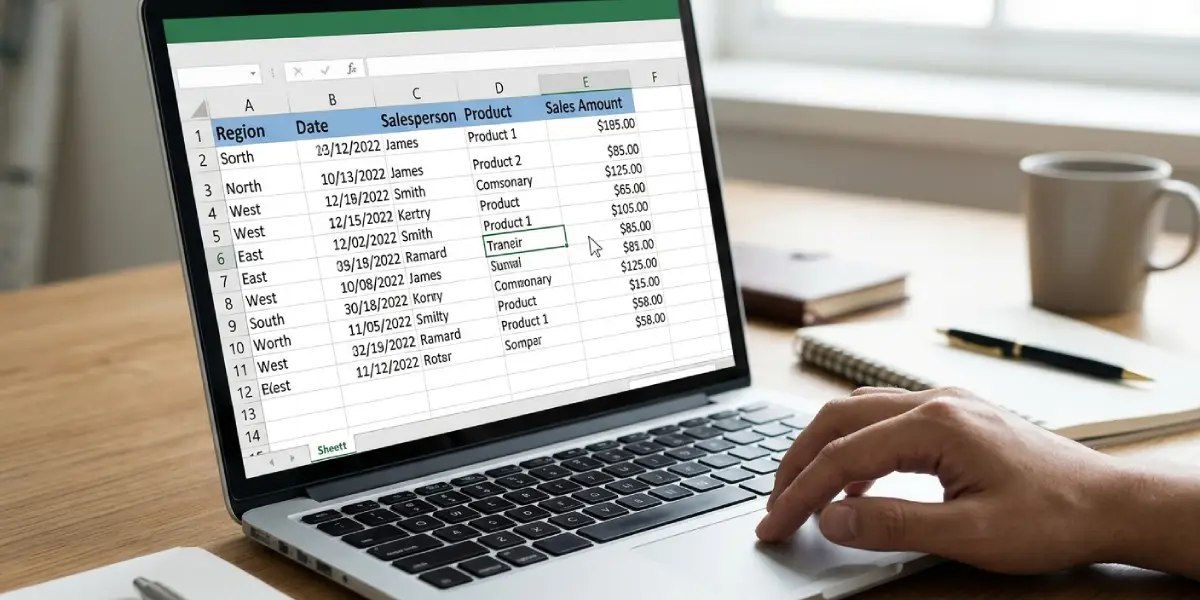
- Step 1: Check that the data sits in a simple grid. Every column needs a unique header in the first row, and there should be no completely blank rows or columns inside the data. Most PivotTable errors trace back to a missing header or a gap in the list, so a quick scan here saves time later.
- Step 2: Click any single cell inside the data. There is no need to select the whole range, because Excel detects the surrounding block of data automatically.
Tip: Pressing Ctrl+T first converts the list into an Excel Table. A PivotTable built from a table picks up newly added rows more easily, which is handy when the data keeps growing.
Insert the PivotTable
- Step 3: Go to the Insert tab on the ribbon and select PivotTable in the Tables group. In some versions, a dropdown appears with options such as From Table/Range. Choose that option if the dropdown shows up.
- Step 4: In the PivotTable from table or range dialog box, confirm that the Table/Range box shows the correct cells. Under Choose where you want the PivotTable to be placed, select New Worksheet, then click OK.
Excel opens a blank PivotTable on a new sheet, with the PivotTable Fields pane on the right. The field list at the top of that pane contains every column header from the source data.
Build the Layout
- Step 5: Drag a text field, such as Region or Product, into the Rows area. Each unique item now appears on its own row in the PivotTable.
- Step 6: Drag a numeric field, such as Sales or Quantity, into the Values area. Excel adds the numbers up and shows a total for each row item. A header such as Sum of Sales appears above the results.
- Step 7: Drag a second text field, such as Month or Category, into the Columns area to split the totals across the top. This step is optional, but it turns a simple list into a proper cross-tab.
- Step 8: Drag any field into the Filters area when the report needs a quick way to narrow the results, for example to a single salesperson. A filter dropdown appears above the PivotTable.
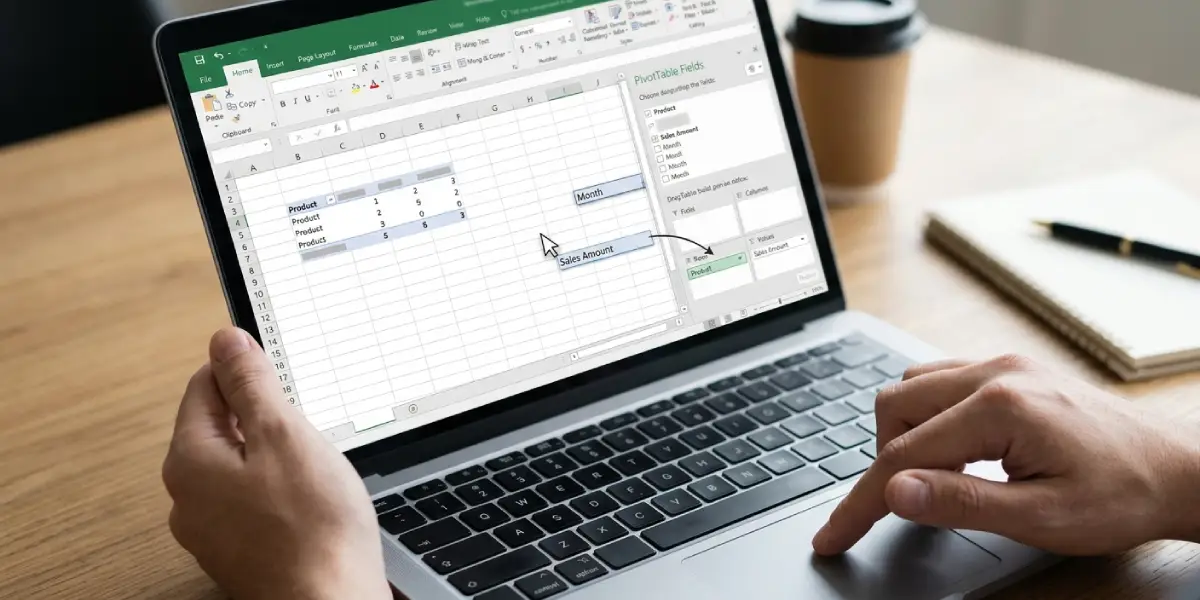
Tip: Ticking the checkbox next to a field name also works. Excel places text fields in Rows and numeric fields in Values automatically, which is a quick way to get a first draft on screen.
Adjust the Calculation and Number Format
- Step 9: To change Sum to something else, such as Average or Count, click the field name in the Values area and choose Value Field Settings. Pick the calculation under Summarize value field by, then click OK.
- Step 10: To show currency or thousands separators, open Value Field Settings again, click Number Format, choose a category such as Currency or Number, and click OK twice.
Common Problems and Fixes
The PivotTable Fields Pane Is Missing
The pane only appears when a cell inside the PivotTable is selected. Click any cell in the PivotTable and the pane returns. If it still stays hidden, open the PivotTable Analyze tab and select Field List.
Excel Shows ‘The PivotTable Field Name Is Not Valid’
This message means at least one column in the source data has an empty header. Add a name to every header cell, then create the PivotTable again.
The Values Area Shows Count Instead of Sum
Excel counts a field when the column contains text or blank cells instead of true numbers. Numbers stored as text often display with a small green triangle in the corner of the cell. Convert them to real numbers in the source data, refresh the PivotTable, and the field sums correctly. As a quick workaround, Value Field Settings lets the calculation be switched back to Sum.
New Data Does Not Appear in the PivotTable
A PivotTable does not refresh itself automatically. Right-click any cell in the PivotTable and select Refresh, or use Refresh on the PivotTable Analyze tab. If the new rows were added below the original range and the data is not an Excel Table, use Change Data Source on the PivotTable Analyze tab to extend the range.
A (blank) Item Shows Up in the Rows
Empty cells in the source column are grouped under the label (blank). Fill in the missing entries in the source data and refresh the PivotTable, or use the row label filter to uncheck (blank).
Frequently Asked Questions
Do I need to format data as a table before creating a PivotTable?
No. A plain range with clear headers works fine. Formatting the data as an Excel Table is optional, but it makes the PivotTable easier to keep current when rows are added later.
Where is the PivotTable button in Excel?
The PivotTable button is on the Insert tab, in the Tables group at the left end of the ribbon.
Can a PivotTable be created from data with blank rows?
It can, but Excel may stop reading the data at the first blank row and miss everything below it. Removing the blank rows, or selecting the full range manually in the dialog box, avoids the problem.
Should the first PivotTable go on a new worksheet or an existing one?
A new worksheet is the safer choice for a first attempt. It keeps the PivotTable separate from the source data, so nothing gets overwritten as the report grows.
Does creating a PivotTable change the original data?
No. The PivotTable only reads the source data and displays a summary of it. The original rows stay exactly as they were.
Does a PivotTable update automatically when the source data changes?
No. Right-click the PivotTable and select Refresh, or use Refresh on the PivotTable Analyze tab, to bring in the latest values.
Why does the PivotTable show Count instead of Sum?
The numeric column most likely contains text-formatted numbers or blank cells. Convert the entries to real numbers in the source data and refresh, or switch the calculation to Sum in Value Field Settings.
How do I remove a field from a PivotTable?
Untick the field’s checkbox in the PivotTable Fields pane, or drag the field out of its area back onto the field list. The PivotTable updates immediately.
