
Knowing how to fix monitor color profile resetting saves a lot of frustration when a carefully calibrated display suddenly looks washed out or too warm again after a reboot, a sleep cycle, or a driver update. The cause is almost always software fighting over the display’s color settings, not a faulty monitor. This guide walks through the common triggers and the fixes in the order that solves most cases fastest.
Key Takeaways
- A color profile usually resets because Windows, the graphics driver, or a calibration tool overwrites the correct settings.
- Setting the ICC profile as the default for the correct monitor in Color Management is the first fix to try.
- Only one tool should load the calibration curves at startup, so duplicate loaders need to be turned off.
- Night Light, HDR, Auto Color Management, and graphics driver color overrides are the most common conflicts.
- A clean driver install and a recreated profile solve most stubborn cases.
Common Causes of a Monitor Color Profile Resetting
Before changing anything, it helps to know what is typically behind the problem. Think of the profile as a note taped to the monitor. Any program that rewrites the note takes the correct colors away with it.
- Windows calibration loading: Windows applies the calibration curves at sign-in and after certain events. Waking from sleep, locking the screen, or a UAC prompt can clear them.
- Graphics driver overrides: NVIDIA, AMD, and Intel control panels have their own color settings that can replace the profile’s adjustments after a driver update.
- Competing tools: A calibration package’s own profile loader, Night Light, and apps that tint the screen can all write to the same color table at the same time.
- HDR and automatic color management: Turning on HDR or Windows automatic color handling changes how color is processed and can make an SDR profile appear to vanish.
- Wrong monitor or missing association: On multi-monitor setups, the profile may be attached to the wrong display, or the ‘Use my settings for this device’ option may be unchecked.
- Monitor on-screen menu changes: Some monitors switch picture presets automatically when the input changes or the display wakes.
Before You Start
No hardware needs to be opened for this fix. What helps is having an administrator account, the original .icc or .icm profile file, and a note of the current monitor preset so it can be restored if needed. Calibrated profiles made with a colorimeter are tied to the monitor’s settings at the time of measurement. If brightness, contrast, or RGB values on the monitor menu were changed afterward, the profile may need to be recreated.
How to Fix Monitor Color Profile Resetting Step by Step
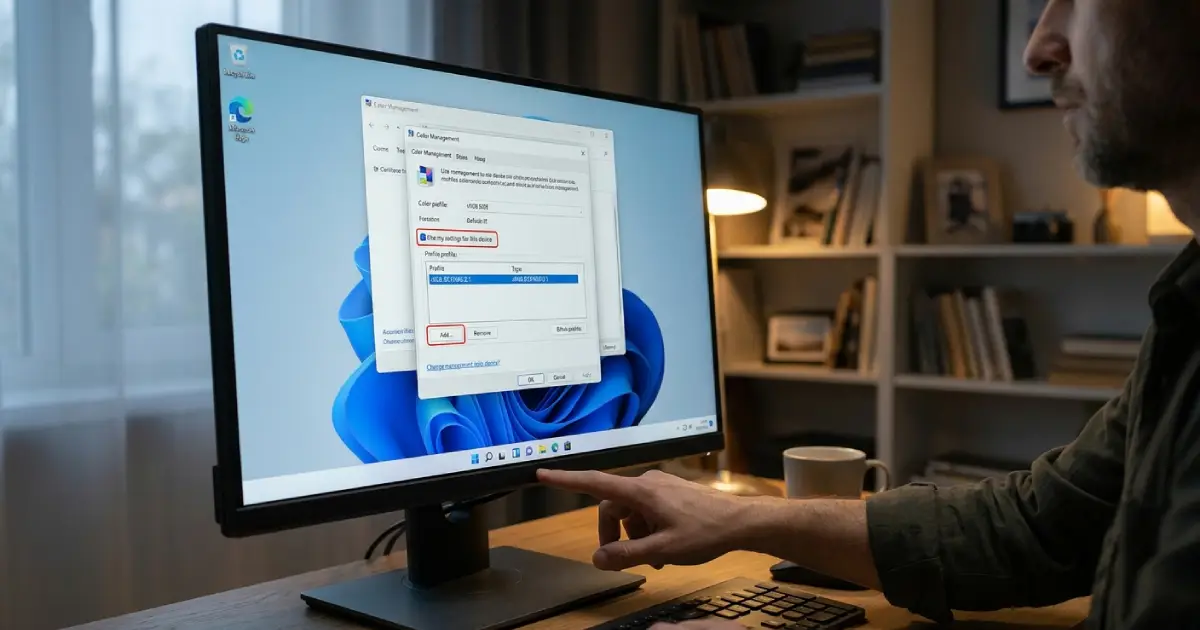
- Step 1: Open the Start menu, type Color Management, and open it. On the Devices tab, use the Device dropdown to select the correct monitor. If several displays are connected, select the Identify monitors option to confirm which number is which.
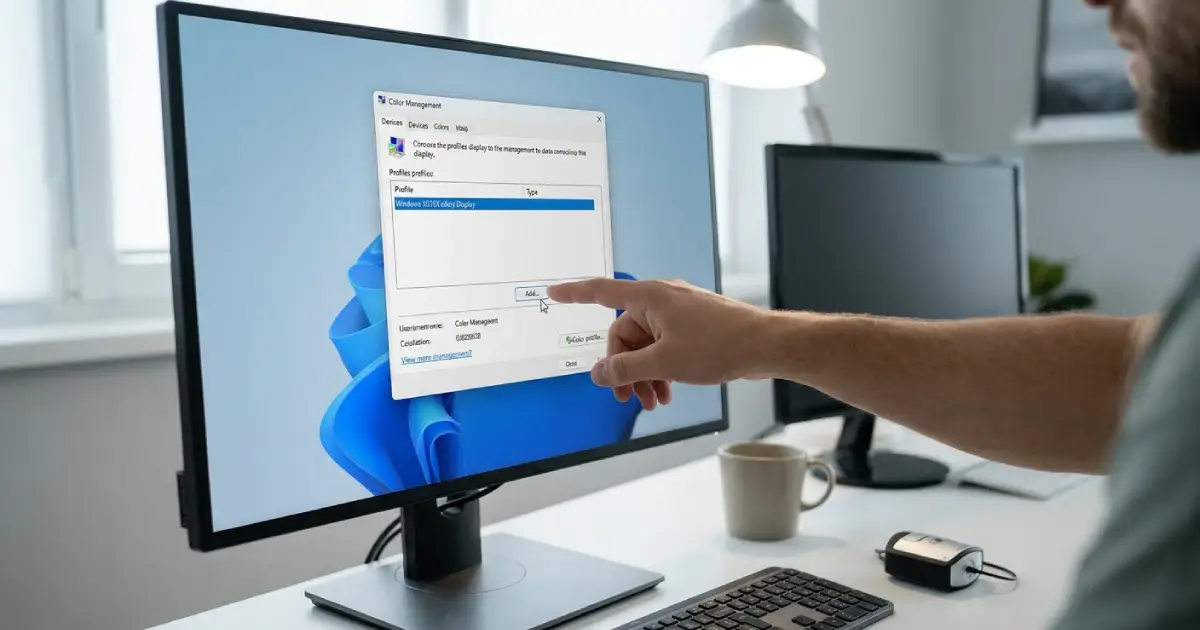
- Step 2: Tick ‘Use my settings for this device’. Select Add, pick the correct ICC profile, then select ‘Set as Default Profile’. Without this, the profile can be listed but never applied.
- Step 3: Open the Advanced tab in the same window and look at the Display Calibration section. If the profile was made by calibration software that loads its own curves, make sure that tool and the Windows loader are not both active. Having two loaders running at once is a classic reason colors snap back after wake or sign-in.
- Step 4: Turn off Night Light and any screen-tinting app for the test. In Settings, go to System, then Display, and switch off Night Light. Close any third-party blue light filters completely rather than only pausing them.
- Step 5: Check HDR and automatic color settings. In Settings, under System and Display, turn off HDR for the monitor if the profile was built for standard dynamic range. In recent Windows 11 builds, the Display settings also include an option to automatically manage color for apps. Switching it off can stop the profile from being altered.
- Step 6: Review graphics driver color settings. In the NVIDIA Control Panel, open Adjust desktop color settings and choose ‘Use default color settings’ if a driver override is active. In AMD Software, check the Display color options, and in the Intel Graphics Command Center, check the color section of the display settings. Any adjustment here stacks on top of the profile.
- Step 7: Make sure the loader starts with Windows. If calibration software came with its own profile loader, confirm it is set to launch at sign-in and is allowed in the Startup apps list in Settings. If the Windows calibration loader is the one in use, open Task Scheduler and confirm the Calibration Loader task under Microsoft, Windows, WindowsColorSystem is enabled.
- Step 8: Test the fix by locking the screen, putting the PC to sleep, and waking it. If the colors hold, the cause was one of the settings above.
Tip: Change one setting at a time and run the sleep and wake test after each change. Changing three things at once makes it impossible to tell which one actually fixed the problem.
Reinstall the Graphics Driver Cleanly
If the profile still resets, a corrupted or mismatched driver is a likely culprit. Download the latest driver directly from the graphics card maker, then run the installer and choose the clean installation option when one is offered. Restart the PC, then repeat Steps 1 and 2 because a driver reinstall often clears the profile association.
Recreate or Reinstall the Profile
A damaged or mismatched profile can behave like a reset. In Color Management, remove the current profile from the monitor, restart, and add it again. If the file is missing, new calibration with a colorimeter creates a fresh profile. Installed profiles are stored in the Windows color folder, found at C:\Windows\System32\spool\drivers\color.
Check the Monitor Itself
Open the monitor’s on-screen menu and confirm it is set to a fixed picture mode rather than an automatic or dynamic one. Features such as dynamic contrast or eco modes can change the picture on wake. A factory reset of the monitor, followed by recalibration, gives a clean baseline. Reseating the video cable at both ends also rules out a signal handshake problem.
macOS Quick Note
On a Mac, open System Settings, choose Displays, select the monitor, and check the Color profile dropdown. Turn off True Tone and Night Shift when testing, since both change how colors are displayed.
Tip: After a major Windows update or graphics driver update, recheck Color Management. These updates are the most common moment for the profile association to be lost.
Common Problems and Fixes
The Profile Is Set but Colors Look Wrong Anyway
The profile may be attached to the wrong monitor, or an app may not be color managed. Confirm the right display is selected in Color Management. Many games and basic apps ignore ICC profiles, but the calibration curves loaded into the graphics card still apply system-wide.
Colors Reset Only After Sleep or Lock
This points to the loader not reapplying the curves after wake. Check for two competing loaders, make sure the loader app is running in the background, and confirm the Calibration Loader task is enabled in Task Scheduler.
Colors Reset Only in Full-Screen Games
Many games set their own gamma or color table when they launch in exclusive full-screen mode. Switching the game to borderless windowed mode often keeps the profile active, and the in-game gamma slider should be left at its default.
The Profile Disappears When HDR Is Turned On
SDR calibration profiles are not designed for HDR output. Use HDR only when needed and turn it off for color-critical work, or use a separate profile made for the mode in use.
The Profile Resets After Every Restart
Check that the loader is allowed to start at sign-in, that the profile is set as default for the correct monitor, and that the driver is current. If the problem continues, remove the profile, restart, and add it again.
The Monitor Looks Different After Switching Input or Cable
Each input port can store its own picture settings on the monitor. Recheck the preset on the active input, and keep the same cable and port used during calibration whenever possible.
Frequently Asked Questions
Why does my monitor color profile keep resetting?
A color profile resets when another program or system component overwrites the calibration curves. Common causes include Windows reloading its own settings after sleep or sign-in, a graphics driver color override, Night Light, HDR, and duplicate calibration loaders.
Why does the color profile reset after sleep or waking from lock screen?
Waking the display can clear the calibration curves held in the graphics card. If the profile loader is not running or is blocked by a second loader, nothing reapplies the curves, and the screen returns to its default look.
Is a resetting color profile a sign of a faulty monitor?
Rarely. In most cases the monitor is fine and software settings are responsible. A hardware fault usually shows up as flickering, lines, dead pixels, or colors that stay wrong even after a monitor factory reset.
Should Windows Night Light be turned off to keep a calibrated profile?
Yes, for color-critical work. Night Light shifts the display toward warm tones and conflicts with a calibrated profile. It can be left off or scheduled only for evening use when accurate color is not needed.
Can a graphics driver update reset the color profile?
Yes. A driver update or reinstall can clear the profile association or restore default color settings. After any driver change, open Color Management and confirm the profile is still set as the default for the correct monitor.
Does HDR affect an ICC color profile?
It can. A profile made for standard dynamic range does not apply properly in HDR mode. Turning HDR off for the monitor usually brings the calibrated look back during SDR work.
Where are ICC color profiles stored on Windows?
Installed profiles are kept in the Windows color folder at C:\Windows\System32\spool\drivers\color. A profile can also be installed by right-clicking the file and choosing the install option, or by adding it through Color Management.
Do games ignore the monitor color profile?
Many games are not color managed and ignore the ICC profile itself. The calibration curves loaded into the graphics card still apply, but some games in exclusive full-screen mode set their own gamma and override them.
Do I need to recalibrate the monitor if the profile keeps resetting?
Not always. If the profile file is intact, fixing the loader, driver, and default profile settings is enough. Recalibration is needed when the monitor settings changed after calibration or when the profile file is damaged or missing.
