
Learning how to fix USB headset not recognized in Windows usually takes only a few minutes, because the cause is most often a setting, a driver, or a port rather than a dead headset. The fixes below run from the quickest checks to the deeper ones, so the problem can be solved without guesswork or unnecessary reinstalls.
Key Takeaways
- Most cases come down to a bad port or cable, a disabled audio device, a stuck driver, or blocked microphone permissions.
- Testing the headset on another USB port and another computer quickly shows whether the fault is the headset or Windows.
- Sound settings, Device Manager, and the Windows Audio service fix the majority of recognition problems without extra software.
- Disabling USB selective suspend stops Windows from cutting power to the headset and making it vanish at random.
- If the headset fails on every port and every PC, the headset itself is faulty.
Common Causes of a USB Headset Not Being Recognized
A USB headset is really a tiny sound card on a cable. Windows has to detect it, load a driver, and then list it as an input and output device. A failure at any of those points makes the headset look invisible. Knowing the usual culprits makes the fixes below easier to follow.
Hardware and Connection Causes
- A dirty, loose, or failing USB port, or a worn headset cable and connector.
- An unpowered or overloaded USB hub that cannot supply enough power to the headset.
- A front-panel desktop port with a poor internal connection to the motherboard.
Software and Settings Causes
- The headset is disabled or hidden in the Sound settings.
- A corrupted or outdated USB audio driver, or a stale driver left over from a previous headset.
- Microphone access is blocked under Windows privacy settings, so the headset speakers work but the mic does not.
- Windows power management is suspending the USB port to save energy.
- The Windows Audio service is stuck and has stopped listing devices correctly.
How to Fix USB Headset Not Recognized in Windows Step by Step
Work through these in order. Test the headset after each step, and stop as soon as it appears and works.
- Step 1: Unplug the headset, wait about ten seconds, and plug it back in firmly. Windows should play a connection sound and show a notification. A quick restart of the PC with the headset unplugged, then plugged in after the desktop loads, also clears many one-off glitches.
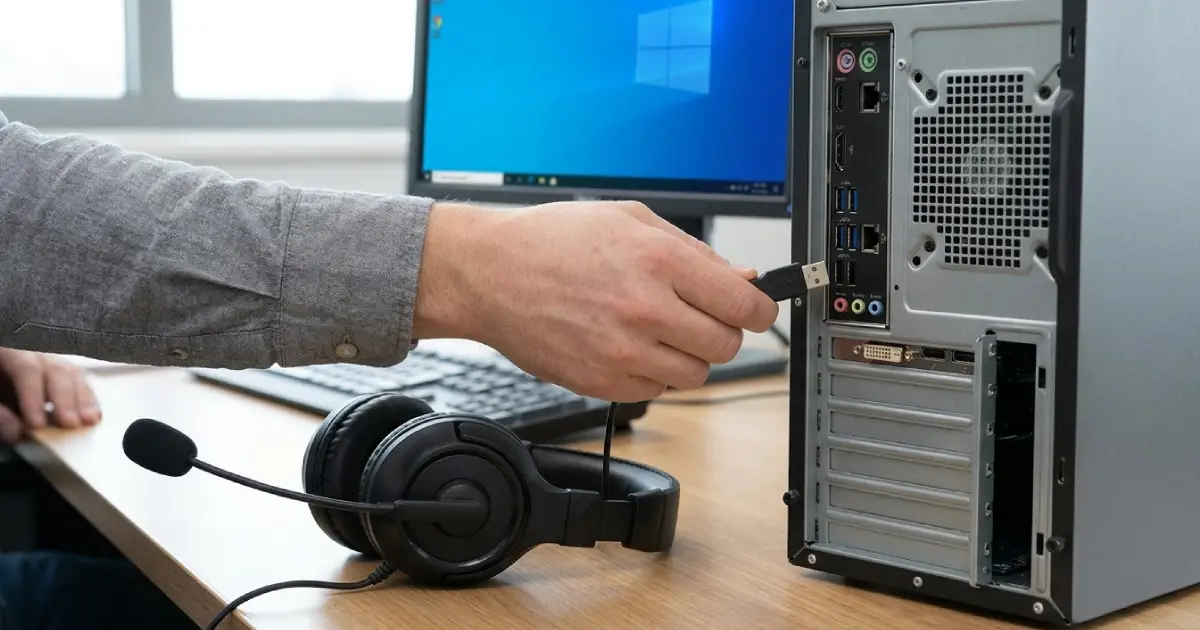
- Step 2: Try a different USB port. On a desktop, use a port on the back of the case, which connects directly to the motherboard. Avoid USB hubs and extension cables during testing. If the headset works in one port but not another, the first port is the problem.
- Step 3: Test the headset on another computer. If it is not recognized there either, the headset, its cable, or its connector is most likely faulty, and the remaining steps will not help. If it works elsewhere, the issue is in Windows and the steps below apply.
- Step 4: Check the Sound settings. Right-click the speaker icon in the taskbar and open Sound settings. In Windows 11, scroll to the Advanced section and open More sound settings, or press the Windows key plus R, type mmsys.cpl, and press Enter. In the Playback and Recording tabs, right-click any empty space and tick Show Disabled Devices and Show Disconnected Devices. If the headset appears, right-click it and choose Enable, then Set as Default Device.
- Step 5: Run the built-in audio troubleshooter. In Windows 11, open Settings, go to System, then Sound, and choose the troubleshoot option for the output or input device. In Windows 10, open Settings, go to Update and Security, then Troubleshoot, and run Playing Audio or Recording Audio. Follow the prompts and apply any suggested fix.
- Step 6: Check Device Manager. Right-click the Start button, open Device Manager, and expand Audio inputs and outputs, Sound, video and game controllers, and Universal Serial Bus controllers. Look for the headset, often listed as USB Audio Device or under the manufacturer name. A yellow warning triangle means a driver problem. A device marked Unknown Device points to a connection or driver fault.
- Step 7: Reinstall the headset driver. In Device Manager, right-click the headset entry and choose Uninstall device. If a checkbox offers to delete the driver software for this device, tick it. Unplug the headset, restart the PC, and plug the headset back in. Windows will reinstall a fresh generic USB audio driver automatically, and most headsets work with it.
- Step 8: Scan for hardware changes. With the headset plugged in, click the Action menu in Device Manager and choose Scan for hardware changes. This forces Windows to look again for devices it may have skipped.
- Step 9: Allow microphone access. Open Settings, go to Privacy and Security, then Microphone. Turn on Microphone access and make sure apps are allowed to use the microphone. This step matters when the headset plays sound but the microphone is not detected in apps such as Teams, Zoom, or Discord.
- Step 10: Restart the Windows Audio services. Press the Windows key plus R, type services.msc, and press Enter. Find Windows Audio, right-click it, and choose Restart. Do the same for Windows Audio Endpoint Builder. This clears a stuck audio stack without a full reboot.
- Step 11: Turn off USB selective suspend. Open Control Panel, go to Power Options, choose Change plan settings for the active plan, then Change advanced power settings. Expand USB settings, then USB selective suspend setting, and set it to Disabled. This stops Windows from powering down the port and dropping the headset.
- Step 12: Install Windows updates and chipset drivers. Open Settings, go to Windows Update, and install pending updates, including optional driver updates if the headset is listed. On a desktop or laptop that has trouble with several USB devices, the chipset driver from the PC or motherboard maker’s support page can also fix USB detection.
Tip: When Windows lists the headset but no sound plays, the headset is recognized and the output device is simply not selected. Right-click the speaker icon, open the output list, and pick the headset by name instead of the speakers.
Fixing Recognition Problems With Specific Headset Types
Gaming Headsets With Software
Many gaming headsets rely on a manufacturer app that creates virtual audio devices. If that software is corrupted, the headset can disappear from the Sound list. Close the app, unplug the headset, reinstall the latest version from the manufacturer’s official site, and then reconnect.
Headsets With USB Dongles
Wireless headsets use a small USB receiver that Windows sees as the actual device. Plug the dongle directly into the PC, not into a hub, and make sure the headset is powered on and paired to it. If the dongle is not recognized in any port, it often needs to be re-paired using the manufacturer’s tool.
Common Problems and Fixes
Headset Shows Up but Has No Sound
The headset is probably not set as the default playback device, or the volume is muted. Set it as the default in the Playback tab of the Sound control panel, then check the volume mixer for the app that is silent.
Speakers Work but the Microphone Is Not Detected
Check Privacy and Security for microphone access, then open the Recording tab in the Sound control panel and confirm the headset microphone is enabled and set as default. Also check that the app itself is using the headset microphone rather than another input.
Headset Disconnects Randomly
Random drops usually come from USB selective suspend, a loose port, or an unpowered hub. Disable selective suspend, plug straight into a rear port, and check the cable for kinks near the connector.
Windows Shows USB Device Not Recognized
This message points to a connection or power fault. Try another port and another cable if the cable is detachable. If the same message appears on every port and a second computer, the headset has an internal fault.
Headset Works Only After Restarting the PC
A driver or audio service that does not initialize correctly is the usual cause. Reinstall the driver as described above, restart the Windows Audio services, and install pending Windows and chipset updates.
Headset Appears Under Unknown Device in Device Manager
Windows detected the connection but could not identify the device. Try a different port, remove the device in Device Manager, and reconnect. If it still shows as unknown after a driver reinstall, the headset’s USB controller may be failing, and replacement or a warranty claim is the practical next step.
If the headset fails on multiple computers, avoid opening it or resoldering the cable, since that can void the warranty and rarely pays off on a low-cost device. Contact the manufacturer or replace it instead.
Frequently Asked Questions
Why is my USB headset not showing up in Windows?
The most common reasons are a faulty port or cable, a disabled device in Sound settings, a corrupted driver, or power management turning off the USB port. Testing another port and another computer quickly narrows down the cause.
How do I make Windows detect my USB headset?
Unplug and replug the headset, try a rear USB port, check Sound settings for disabled devices, and use Scan for hardware changes in Device Manager. If it still does not appear, uninstall the device in Device Manager and reconnect it so Windows reinstalls the driver.
Does a USB headset need a driver in Windows?
Most USB headsets use the generic USB audio driver built into Windows, so no separate download is needed. Some gaming headsets add extra features through a manufacturer app, but basic sound and microphone function usually works without it.
Why does my USB headset work for sound but not for the microphone?
Microphone access may be blocked in Privacy and Security settings, or the headset microphone may be disabled or not set as the default recording device. Check both, and confirm the app in use is selecting the headset microphone.
Can a USB hub stop a headset from being recognized?
Yes. Unpowered or overloaded hubs can fail to supply enough power or bandwidth. Plugging the headset directly into a port on the PC is the best way to rule the hub out.
What is USB selective suspend and should it be turned off?
USB selective suspend is a power-saving feature that lets Windows turn off power to idle USB ports. If a headset drops out or disappears at random, disabling it in the advanced power plan settings often solves the problem.
How do I know if the headset or Windows is the problem?
Plug the headset into another computer. If it works there, the issue is in the original Windows installation or USB port. If it fails on every computer, the headset or its cable is faulty.
Will reinstalling the headset driver delete anything important?
No. Uninstalling the device in Device Manager only removes the driver for that headset. Windows reinstalls a generic driver automatically when the headset is plugged back in, and no personal files are affected.
Should a USB headset be replaced if nothing works?
If it is not recognized on any port or any computer after the steps above, the headset is almost certainly faulty. Check the warranty first, and replace it if the warranty has expired.
