
Plugging in a second screen and seeing nothing happen is frustrating, but it is usually quick to sort out. To fix a second monitor not being detected in Windows 11, start with the cable and power, then use the Detect button in Settings, and finish with a driver refresh if needed. These steps work on every Windows 11 edition, and only the driver method needs administrator rights.
Key Takeaways
- Check the cable, the monitor’s power, and its input source before changing anything in Windows.
- Go to Settings > System > Display > Multiple displays and select Detect to make Windows search for the screen again.
- Press Windows + P and choose Extend if the screen is found but stays blank.
- Update or reinstall the graphics driver in Device Manager when the monitor still does not appear.
Step-by-Step Guide to Fix a Second Monitor Not Being Detected in Windows 11
Method 1: Use the Settings App
This is the easiest route for most people. It covers the quick physical checks first, because a loose cable causes more detection problems than any software setting.
- Make sure the second monitor is plugged into a power outlet and switched on.
- Reseat both ends of the video cable (HDMI, DisplayPort, or USB-C) so each is firmly seated in the PC and the monitor.
- Use the monitor’s own menu button to set its Input Source to the port the cable is plugged into, for example HDMI 1.
- Press Windows + I to open Settings.
- Go to Settings > System > Display.
- Select Multiple displays to expand the section.
- Select the Detect button.
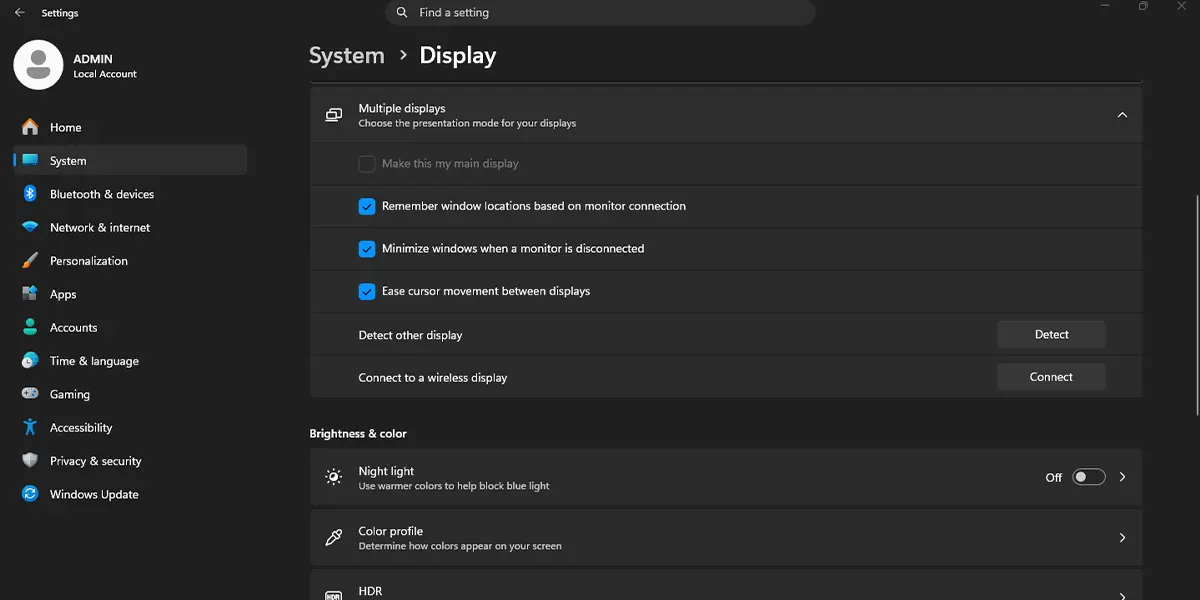
If the monitor was simply being missed, a second screen now appears in the display layout at the top of the page. Select Identify to show a number on each screen and confirm which is which.
Tip: A laptop USB-C port only carries video if it supports display output. Look for a DisplayPort or display symbol next to the port, or use the HDMI port if there is one.
Method 2: Use the Windows + P Shortcut and Restart the Graphics Driver
Sometimes Windows is set to show only one screen, so the second monitor looks undetected. This method also refreshes the graphics driver without a full restart.
- Press Windows + P to open the projection menu.
- Select Extend. The second monitor should light up and show an empty desktop.
- If nothing changes, press Windows + Ctrl + Shift + B to restart the graphics driver.
- Wait a few seconds. The screen flickers or goes dark for a moment, and a short beep may play.
Choose Duplicate instead of Extend if the same picture should appear on both screens, which suits a projector or TV.
Method 3: Update or Reinstall the Graphics Driver
An outdated or damaged graphics driver is a common reason a monitor never shows up, especially after a Windows update. Sign in with an administrator account before starting.
- Right-click the Start button and select Device Manager.
- Expand Display adapters.
- Right-click the graphics adapter and select Update driver.
- Select Search automatically for drivers and let Windows finish.
- Go to Settings > Windows Update and select Check for updates to pick up any pending display fixes.
- Restart the computer, then return to Settings > System > Display and select Detect again.
If the driver is already up to date and the problem started recently, go back to Device Manager, right-click the adapter, select Uninstall device, and restart. Windows reinstalls a basic driver automatically at sign-in.
How to Undo or Reverse This Change
Switching display modes is easy to reverse. Press Windows + P and pick PC screen only to go back to a single screen. If a new driver causes problems, open Device Manager, right-click the display adapter, select Properties, open the Driver tab, and select Roll Back Driver when that button is available.
Common Problems and Fixes
The Detect Button Does Nothing
Try a different cable or port, and connect the monitor directly to the PC instead of through a dock or adapter. Then follow Method 3 to refresh the graphics driver.
The Monitor Shows ‘No Signal’
This points to the wrong input source on the monitor or a loose connection. Open the monitor’s on-screen menu, select the correct port under Input Source, and reseat the cable at both ends.
The Monitor Works Until the PC Wakes From Sleep
Press Windows + Ctrl + Shift + B to restart the graphics driver, then select Detect in Settings > System > Display > Multiple displays. A driver update from Method 3 often stops this from repeating.
The Second Screen Is Detected but Stays Black
Press Windows + P and confirm that Extend or Duplicate is selected rather than PC screen only.
Frequently Asked Questions
Does this fix work on Windows 11 Home?
Yes. The Detect button, the Windows + P shortcut, and Device Manager are available in every Windows 11 edition, including Home and Pro.
Do I need to restart the PC after selecting Detect?
No. Detect and the Windows + P menu take effect immediately. A restart is only needed after a driver update or reinstall.
Why is my second monitor not detected after a Windows update?
An update can replace or disturb the graphics driver. Updating the driver in Device Manager, or rolling it back from the Driver tab, usually restores detection.
Which keyboard shortcuts help when a monitor is not detected?
Press Windows + P to choose how screens are used, and press Windows + Ctrl + Shift + B to restart the graphics driver without restarting the computer.
Can a bad cable or adapter stop Windows 11 from detecting a monitor?
Yes. A worn cable, a loose connector, or a low-quality adapter or dock can block the signal. Testing a different cable, or connecting directly to the PC, quickly rules this out.
Why is the Detect button missing in Display settings?
The button sits inside the Multiple displays section. Go to Settings > System > Display and select Multiple displays to expand it. If it still does not appear, restart the PC and update the graphics driver.
Does my laptop’s USB-C port work for a second monitor?
Only if that port supports video output. Check for a DisplayPort or display symbol beside the port, or use an HDMI port instead.
Will using a second monitor drain a laptop battery faster?
Detecting a monitor has no effect on battery life. Running an extra screen does draw more power, so keep the laptop plugged in during long sessions.
