
Understanding what causes the #SPILL! error in Excel takes about a minute, and clearing it usually takes less. The error appears when a formula tries to return several values but something stops those results from filling the cells they need. Think of it like pouring water into a tray that already has objects sitting in it – the water has nowhere to go.
Key Takeaways
- The #SPILL! error means a formula’s results cannot fill their spill range.
- The warning icon next to the cell names the exact cause.
- Most cases come from cells in the spill range that are not empty, including cells that only look empty.
- Merged cells, Excel tables, oversized ranges, and volatile functions are the other common causes.
- Once the blocker is gone, the formula spills again on its own.
How to Find What Causes the #SPILL! Error in Excel and Clear It
This process works in Microsoft 365, Excel 2021, Excel 2024, and Excel for the web, which are the versions that support dynamic array formulas. Start with the cell that shows the error.
- Step 1: Click the cell that displays #SPILL!. This is the cell holding the formula, and it is the top-left corner of where the results should land.
- Step 2: Click the warning icon (a yellow diamond with an exclamation mark) that appears beside the cell. The first line of the menu names the cause, such as ‘Spill range isn’t blank’ or ‘Spill range has merged cells’.
- Step 3: If the cause is ‘Spill range isn’t blank’, choose Select Obstructing Cells from the menu. Excel highlights every cell in the way, so there is no need to hunt for them manually.
- Step 4: Press Delete to clear the highlighted cells, or cut them and paste them somewhere outside the spill range. Move them only if the data still matters.
- Step 5: Check the result. The formula fills the range automatically, and clicking inside the spilled results shows a thin blue border around the whole range.
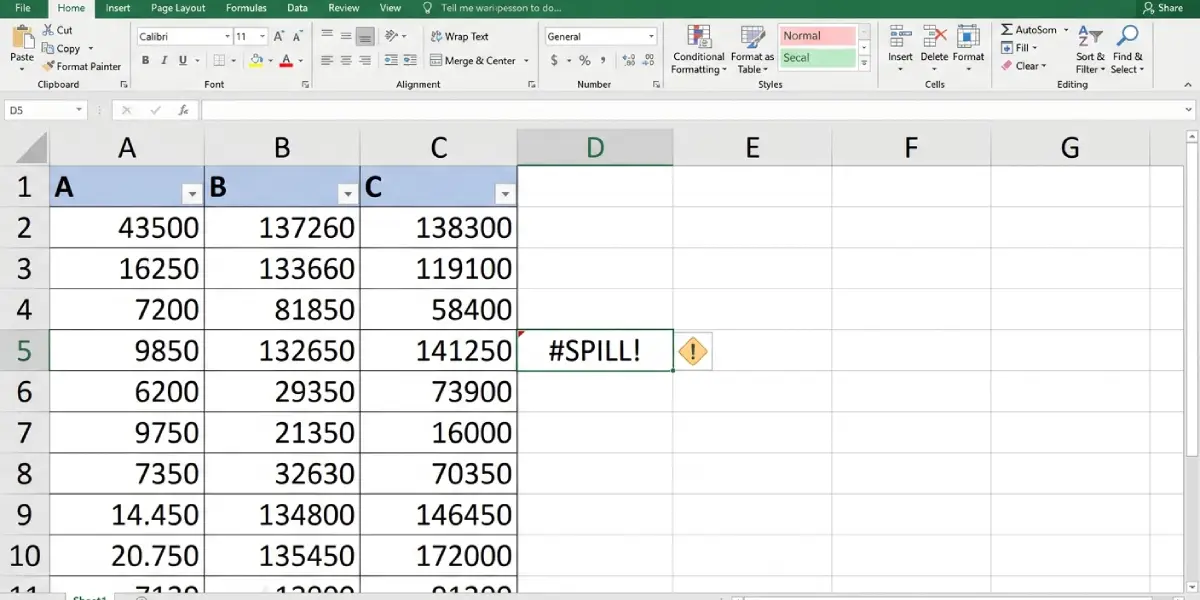
Tip: Cells that contain a single space or a formula returning an empty string look blank but still block a spill. Select Obstructing Cells finds them anyway, which is why it beats scanning by eye.
Fixing Each Type of #SPILL! Cause
The message at the top of the warning menu decides which fix applies. Here is what each one means and how to clear it.
- Spill range isn’t blank: Data, spaces, or other formulas sit in the cells below or to the right of the formula. Clear or move them using Steps 3 and 4 above.
- Spill range has merged cells: Spilled results cannot pass through merged cells. Select the merged cells, go to the Home tab, open the Merge and Center drop-down, and choose Unmerge Cells.
- Table spill: Dynamic array formulas are not supported inside Excel tables. Click inside the table, open the Table Design tab, and choose Convert to Range. Alternatively, move the formula to a cell outside the table.
- Spill range is too big: The results would run past the edge of the worksheet, which often happens when a formula references an entire column such as A:A. Reference a specific range such as A2:A100 instead, or place the formula in a cell near the top of the sheet. To return a single value rather than a spill, put the @ symbol in front of the reference, as in =@A:A.
- Unknown spill size: Excel cannot work out how many cells the results need because a volatile function, such as RANDARRAY, OFFSET, or INDIRECT, changes the size between calculations. Rework the formula so the output size is fixed, for example by replacing the volatile part with a set range.
- Out of memory: The formula tries to return more data than Excel can handle. Reference a smaller range or split the calculation into smaller parts.
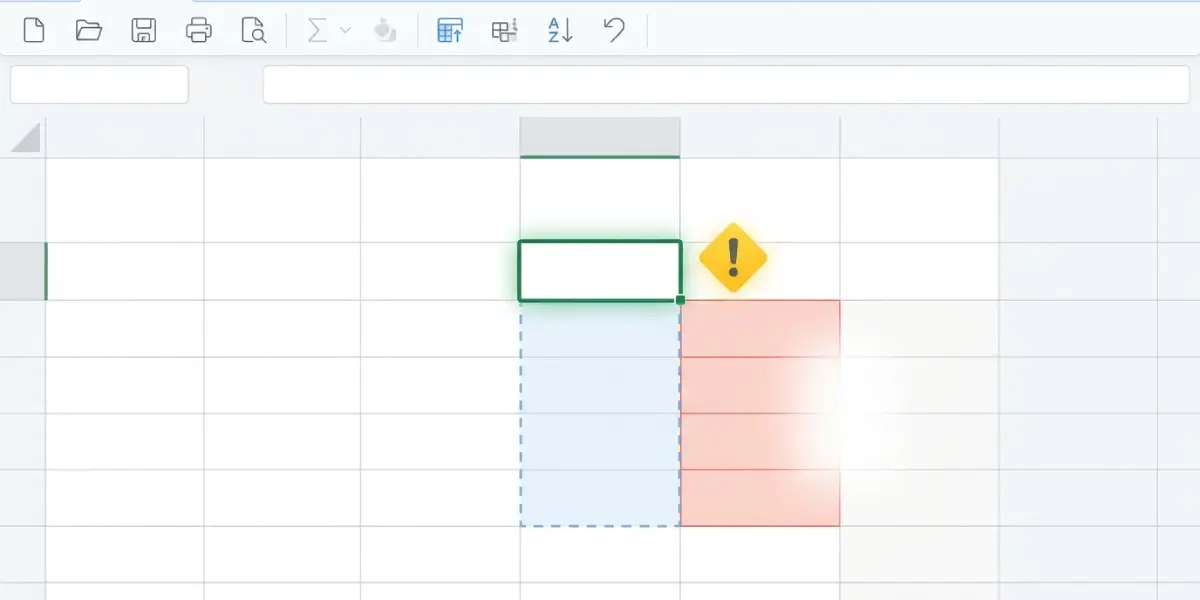
Tip: After fixing a merged-cell or table cause, click the formula cell once to confirm the error has cleared. If a different cause shows up in the warning menu, repeat the matching fix.
Common Problems and Fixes
The Warning Icon Does Not Appear
The icon only shows when the cell with the error is selected. Click the formula cell itself, not a cell in the area where the results should land.
Select Obstructing Cells Highlights Nothing Visible
The blockers are likely spaces, formulas returning empty text, or cells formatted to hide their content. Delete the highlighted cells anyway. The Delete key clears the contents and the spill range opens up.
The Error Returns After It Was Fixed
This usually means new data was typed into the spill range, or the source data grew and the results now need more room. Clear the new entries or move the formula to a spot with more free space below and to the right.
Obstructing Cells Are on Another Part of the Sheet
A spill range can stretch further than expected when the source range is large. Use Select Obstructing Cells so Excel jumps to each blocker, even when it is far from the formula.
A Formula Fails in an Older Version of Excel
Versions before Excel 2021 do not support dynamic arrays. A spilling formula opened there may show an @ symbol or return a single value instead of a spill, so the error cannot be cleared the same way. Open the file in a version that supports dynamic arrays.
Frequently Asked Questions
What does the #SPILL! error mean in Excel?
It means a formula is returning multiple values, but the cells where those values should appear are blocked. Excel cannot fill the spill range, so it shows #SPILL! in the formula cell.
Which Excel versions show the #SPILL! error?
It appears in versions that support dynamic array formulas, which include Microsoft 365, Excel 2021, Excel 2024, and Excel for the web. Older versions do not spill results, so they do not produce this error.
Why do I get #SPILL! when the cells look empty?
Cells that appear empty can still hold spaces, formulas returning empty text, or other hidden content. Any of these blocks the spill range. Select Obstructing Cells shows exactly which cells are in the way.
How do I see what is blocking the spill range?
Click the cell showing #SPILL!, click the warning icon beside it, and choose Select Obstructing Cells. Excel highlights every cell that prevents the results from spilling.
Do merged cells cause the #SPILL! error?
Yes. Spilled results cannot flow through merged cells. Select the merged cells, open the Merge and Center drop-down on the Home tab, and choose Unmerge Cells.
Why does a formula in an Excel table return #SPILL!?
Excel tables do not support dynamic array formulas. Convert the table to a range from the Table Design tab, or move the formula to a cell outside the table.
Can a formula return one value instead of spilling?
Yes. Placing the @ symbol in front of a reference, such as =@A2:A10, tells Excel to return a single value rather than spill. This avoids the error when a spill is not needed.
Does the error clear by itself after the blocker is removed?
Yes. Once the obstructing cells are cleared or moved, the formula recalculates and fills the spill range automatically. No retyping of the formula is needed.
Does a #SPILL! error damage the workbook or its data?
No. The error only means the formula cannot display its results right now. Existing data in the workbook stays unchanged, and the formula works again as soon as the cause is fixed.
