
Learning how to add a keyboard language in Windows 11 takes only a couple of minutes, and it lets anyone type in another language without changing the rest of the PC. The steps work on every edition of Windows 11, including Home and Pro. A standard account may be asked for administrator approval if Windows needs to download a language pack.
Key Takeaways
- The easiest route is Settings > Time & language > Language & region > Add a language.
- Untick Set as my Windows display language to add the keyboard without changing menus and buttons.
- Switch between keyboards at any time by pressing Windows + Space.
- PowerShell offers a quick alternative that adds a language with a short command.
How to Add a Keyboard Language in Windows 11: Step-by-Step Guide
Method 1: Use the Settings App
This method works for every language Windows 11 supports and is the one most people should use.
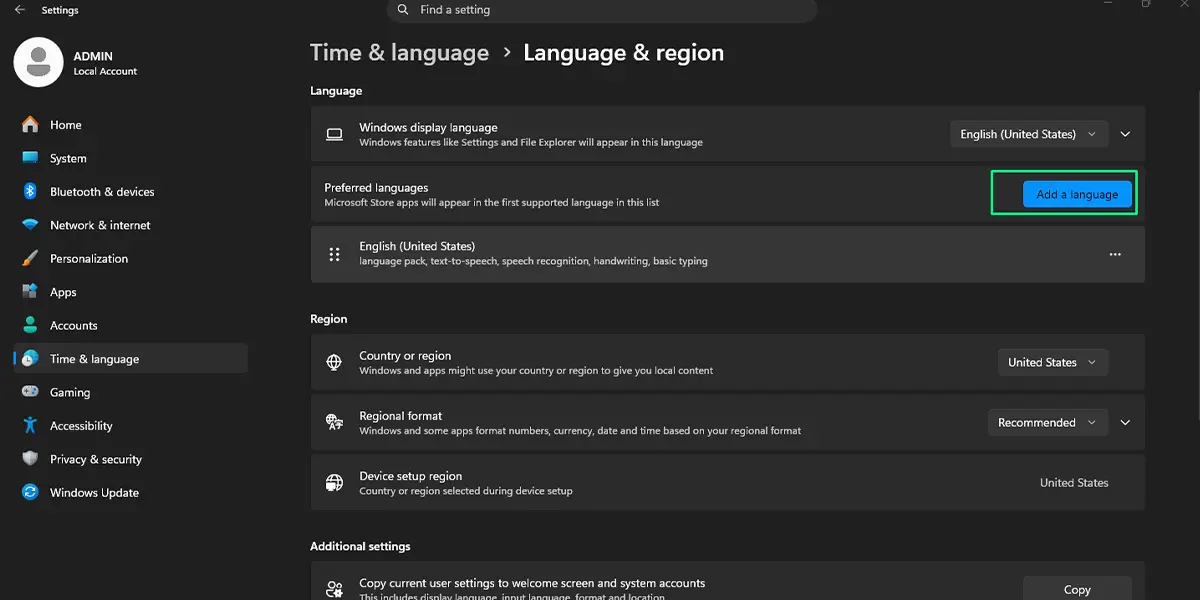
- Press Windows + I to open Settings.
- Select Time & language from the left sidebar.
- Click Language & region.
- Next to Preferred languages, click Add a language.
- Type the name of the language into the search box, select it from the results, and click Next. Some languages appear more than once for different countries, so pick the regional version that matches the keyboard layout needed.
- On the next screen, look at the optional features such as the language pack, text-to-speech, and speech recognition. Leave the ones that are useful ticked.
- Untick Set as my Windows display language if only the keyboard is needed. Leaving it ticked changes menus, buttons, and Settings text to the new language after the next sign-in.
- Click Install.
- Wait while Windows downloads the language. The new language shows up under Preferred languages with a progress indicator, and the status clears once the download finishes.
- Look at the bottom-right corner of the taskbar. A short code such as ENG appears there, and clicking it lists the new keyboard language alongside the old one.
Tip: A faster way into the same page is to click the language code on the taskbar and choose Language preferences.
Method 2: Use PowerShell
This approach suits anyone who prefers typing a command over clicking through pages. It does not need administrator rights, because it only changes the language list for the current user account.
-
- Press Windows + X and select Terminal. A PowerShell tab opens by default.
- Type the first command below and press Enter. It loads the current list of languages.
$list = Get-WinUserLanguageList
-
- Type the second command, replacing fr-FR with the language tag needed (for example de-DE for German or es-ES for Spanish), and press Enter.
$list.Add(‘fr-FR’)
-
- Type the final command and press Enter. This saves the updated list.
Set-WinUserLanguageList $list -Force
- Check the taskbar language code. The new language appears in the list after a moment.
How to Add a Different Keyboard Layout to an Installed Language
Many languages come with more than one layout. English, for instance, can use US, UK, or other layouts. Once a language is installed, an extra layout can be added to it directly.
- Press Windows + I to open Settings.
- Go to Settings > Time & language > Language & region.
- Click the three dots next to the language and select Language options.
- Under Keyboards, click Add a keyboard.
- Pick the layout from the list. It appears under Keyboards right away and is ready to use from the taskbar.
Tip: When typing in two languages throughout the day, Windows + Space cycles through every installed keyboard without opening any menu.
How to Switch Between Keyboard Languages
Switching is quick once a second keyboard exists. Press Windows + Space and a small panel appears near the taskbar showing every keyboard. Keep the Windows key held down and tap Space again to move to the next one. Left Alt + Shift also works on most PCs. Whichever way is used, the taskbar code changes right away to confirm the switch.
How to Undo or Reverse This Change
To remove a keyboard layout only, go to Settings > Time & language > Language & region, click the three dots next to the language, choose Language options, then click the three dots beside the keyboard under Keyboards and select Remove. To remove a whole language, click the three dots next to it under Preferred languages and select Remove. The taskbar code disappears once only one keyboard is left.
Common Problems and Fixes
The Language Fails to Download or Stays Stuck on Installing
This usually points to a weak or interrupted internet connection. Check that the PC is online, close Settings, and try adding the language again. A restart before the second attempt clears most stuck installs.
The Add a Language Button Is Greyed Out
On a work or school PC, the organization may restrict language changes. A standard account on a shared family computer can also be limited. Signing in with an administrator account usually solves it.
The Language Code Is Missing From the Taskbar
Windows only shows the language code when two or more keyboards are installed. With a single keyboard, nothing appears. Add a second language or layout and the code returns.
Keys Type the Wrong Characters
The wrong layout is probably active. Click the language code on the taskbar and pick the correct keyboard, or press Windows + Space to cycle until the characters match.
The Keyboard Shortcut Does Not Switch Languages
Go to Settings > Time & language > Typing > Advanced keyboard settings and click Input language hot keys. From there, the key sequence used for switching can be reviewed and changed.
Frequently Asked Questions
Does adding a keyboard language work on Windows 11 Home?
Yes. Every edition of Windows 11, including Home, Pro, and Enterprise, supports adding keyboard languages through Settings.
Does the PC need a restart after adding a keyboard language?
No restart is needed for a new keyboard. A sign-out and sign-in is only required when the new language is also set as the Windows display language.
Will adding a keyboard language change the language of Windows menus?
Not unless Set as my Windows display language stays ticked during installation. With that box unticked, menus stay in the current language and only typing changes.
What is the keyboard shortcut to switch keyboard languages?
Press Windows + Space to open the keyboard list and cycle through it. Left Alt + Shift also switches languages on many PCs.
Why is the language code not showing on the taskbar?
The code appears only when more than one keyboard is installed. Add a second language or layout and it shows up in the bottom-right corner.
Can a keyboard layout be added without downloading a new language?
Yes, when the language is already installed. Open Language options under Settings > Time & language > Language & region and use Add a keyboard. A brand-new language needs an internet connection for the download.
Can each app window use its own keyboard language?
Yes. Go to Settings > Time & language > Typing > Advanced keyboard settings and turn on Let me use a different input method for each app window. Windows then remembers the keyboard per window.
Does adding a keyboard language slow down the PC or drain the battery?
No noticeable effect is expected. A keyboard layout uses very little storage and runs only while it is in use.
How can a keyboard language be removed later?
Open Settings > Time & language > Language & region, click the three dots next to the language, and select Remove. An individual layout can be removed from the Language options page.
