
Learning how to use Filter Keys to ignore repeated keystrokes in Windows 11 takes only a minute and can end the frustration of typing ‘hhello’ when a key was pressed once. The feature works on every edition of Windows 11, including Home and Pro, and does not need administrator rights. It also works the same on a laptop keyboard, a desktop keyboard, or a USB keyboard plugged into a docking station.
Key Takeaways
- Open Settings > Accessibility > Keyboard and turn on the Filter keys toggle.
- Turn on Ignore repeated keystrokes to stop a key from repeating when it is held down or pressed twice in a row.
- Turn on Ignore unintended keystrokes if a single tap sometimes types a letter twice.
- Press and hold the right Shift key for 8 seconds to switch Filter keys on or off from the keyboard once the shortcut is enabled.
Step-by-Step Guide to Use Filter Keys to Ignore Repeated Keystrokes in Windows 11
Method 1: Use the Settings App
This is the easiest route for most people, and it is the only method that lets you fine-tune how long Windows waits before accepting a repeated key.
- Press Windows + I to open Settings.
- Click Accessibility in the left sidebar.
- Scroll to the Interaction section and click Keyboard.
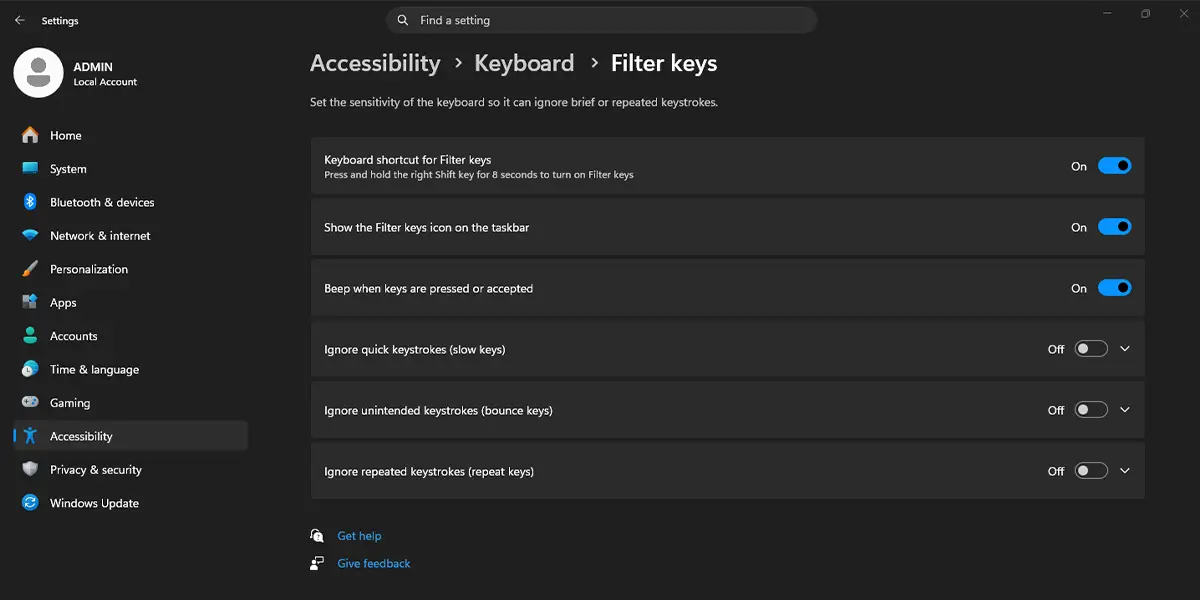
- Turn on the Filter keys toggle. The path is Settings > Accessibility > Keyboard > Filter keys.
- Click the Filter keys row to expand its options.
- Turn on the Ignore repeated keystrokes toggle. Windows now waits briefly before it accepts the same key a second time.
- Click the arrow beside this option and choose a delay from each drop-down list. One list controls the wait before the first repeated keystroke is accepted, and the other controls the wait for later repeats.
- Turn on Ignore unintended keystrokes if a single tap sometimes registers twice, then pick a short delay from its drop-down list.
- Turn off Beep when keys pressed or accepted if the constant sound gets distracting.
- Open Notepad and type a few words at your normal speed. Doubled letters should no longer appear, and a held key should stop flooding the page with characters.
Tip: Press Windows + U to jump straight to the Accessibility page, then choose Keyboard. That saves two clicks every time the settings need a tweak.
Method 2: Use the Keyboard Shortcut
The shortcut is handy on a shared family computer, where one person needs Filter keys and another does not. It only switches the feature on or off, so the timing options from Method 1 should be set first.
- Press Windows + I, then go to Settings > Accessibility > Keyboard.
- Click the Filter keys row to expand it.
- Tick the Keyboard shortcut for Filter keys checkbox.
- Close Settings.
- Press and hold the right Shift key for 8 seconds.
- When the prompt asking whether to turn on Filter keys appears, click Yes.
Filter keys is now active with the options already chosen. Holding right Shift for 8 seconds again turns it back off.
Which Filter Keys Option Fixes Which Typing Problem
Filter keys bundles three related options, and picking the right one avoids a keyboard that feels sluggish. The key is to match the option to the symptom.
Letters That Repeat When a Key Is Held
Use Ignore repeated keystrokes. This suits typing with a slight tremor or resting a finger on a key a moment too long.
One Tap That Types Two Letters
Use Ignore unintended keystrokes. A worn laptop keyboard or a sensitive mechanical switch often causes this, and a short delay is usually enough.
Accidental Light Touches
Use Ignore quick keystrokes. Windows then requires each key to be held a little longer before it counts, which helps when fingers brush neighboring keys.
Tip: Start with one option and a short delay, test it in Notepad, and only lengthen the delay if the problem continues. Most people find that a small delay fixes the issue without slowing normal typing.
How to Undo or Reverse This Change
Go to Settings > Accessibility > Keyboard and turn off the Filter keys toggle. The keyboard returns to normal behavior right away. To keep Filter keys on but loosen one option, expand the row and turn off just Ignore repeated keystrokes or shorten its delay.
Common Problems and Fixes
Typing Feels Slow or Keys Seem to Miss
The delay is probably too long. Open Settings > Accessibility > Keyboard, expand Filter keys, and choose a shorter delay from the drop-down lists. Fast typists often need the shortest setting.
A Held Key Types Only One Character
This is expected. With Ignore repeated keystrokes on, Windows is designed to stop a held key from repeating. Turn that option off if holding a key to repeat, such as Backspace, is needed.
A Prompt Appears When Shift Is Held Down
The keyboard shortcut is enabled. Holding the right Shift key for 8 seconds triggers the Filter keys prompt. To stop it, expand Filter keys in Settings > Accessibility > Keyboard and clear the Keyboard shortcut for Filter keys checkbox.
The Toggles Are Greyed Out or Cannot Be Changed
On a work or school PC, an administrator may manage accessibility settings. In that case, the change has to come from the IT department, because a personal account cannot override it.
Frequently Asked Questions
Does Filter Keys work on Windows 11 Home?
Yes. Filter keys is built into every edition of Windows 11, including Home, Pro, and Enterprise, and no administrator rights are needed to turn it on.
Does Filter Keys need a restart?
No. The change takes effect immediately after the toggle is switched on, so typing can be tested right away.
What is the difference between Ignore repeated keystrokes and Ignore unintended keystrokes?
Ignore repeated keystrokes controls how Windows treats a key that is held down or pressed again and again. Ignore unintended keystrokes handles accidental double taps of the same key within a short time.
How do I turn on Filter Keys with a keyboard shortcut?
Enable the Keyboard shortcut for Filter keys checkbox in Settings > Accessibility > Keyboard, then press and hold the right Shift key for 8 seconds and confirm the prompt.
Why does a prompt about Filter Keys keep appearing?
The right Shift key was most likely held down for about 8 seconds, which triggers the shortcut. Clear the keyboard shortcut checkbox under the Filter keys options to stop it.
Will Filter Keys slow down my typing?
It can if the delays are set too long. Short delays rarely affect normal typing speed, and the settings can be adjusted at any time.
Does Filter Keys affect battery life or performance?
No noticeable effect. The feature only changes how keystrokes are accepted, so a laptop on battery runs the same as before.
Why is the Filter Keys option missing or greyed out?
The most common reason is that the PC is managed by work or school, which can lock accessibility settings. Check Settings > Accessibility > Keyboard to confirm whether the toggle can be changed.
