
Learning how to use the On-Screen Keyboard in Windows 11 takes about a minute, and it works on every edition with a mouse, touch, or pen. It is handy when a physical key stops working, a laptop keyboard is damaged, or a tablet has no keyboard attached. No administrator rights are needed for any of the methods below.
Key Takeaways
- The easiest way to switch it on is Settings > Accessibility > Keyboard > On-screen keyboard.
- Press Windows + Ctrl + O to open or close it instantly from anywhere.
- Typing ‘osk’ in the Run box also opens it.
- Click a key with the mouse or tap it on a touch screen, and the character appears wherever the cursor is.
Step-by-Step: How to Open and Use the On-Screen Keyboard in Windows 11
Method 1: Use the Settings App
- Press Windows + I to open Settings.
- Select Accessibility in the left pane.
- Scroll down and click Keyboard.
- Turn on the On-screen keyboard toggle.
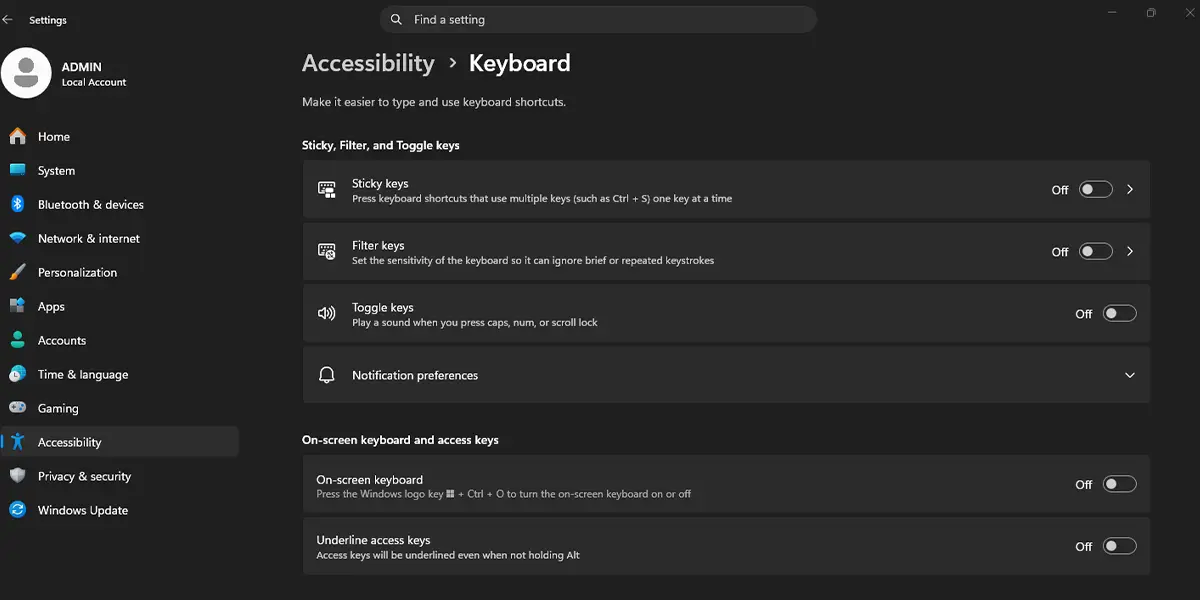
A full keyboard appears on the screen right away, and its icon shows on the taskbar. It floats above other windows, so it stays visible while typing in a browser, Notepad, or a sign-in box.
Tip: The same page has an option for opening the keyboard from the sign-in screen, which is useful on a shared family computer where the physical keyboard is unreliable.
Method 2: Use the Keyboard Shortcut
- Click anywhere on the desktop or inside the app where typing is needed.
- Press Windows + Ctrl + O.
The On-Screen Keyboard opens immediately. Pressing the same shortcut again closes it. This is the fastest route when a laptop key has failed and the shortcut keys still work.
Method 3: Use the Run Box
- Press Windows + R to open the Run dialog.
- Type the following command:
osk
- Press Enter.
The command runs in a normal window, so no elevated prompt is required. The keyboard opens in the same style as the other two methods.
Type With the On-Screen Keyboard
Enter Text and Use Shortcut Keys
- Click into the text field or document where the text should go.
- Click or tap the letters on the On-Screen Keyboard.
Each press types a character at the cursor, just like a physical key. Most people find that it helps to keep the target window selected, since the keyboard never takes over typing focus.
For shortcuts such as Ctrl + C, click Ctrl first. The key stays highlighted until the next key is pressed, so the combination works without holding anything down.
Show the Numeric Keypad
- Click the Options key on the On-Screen Keyboard.
- Tick Turn on numeric key pad.
- Click OK.
A number pad appears on the right side of the keyboard, which makes entering figures in a spreadsheet much quicker.
Change How Keys Are Pressed
The same Options window lets the keys respond in different ways. Choose Click on keys for normal use, Hover over keys to type by resting the pointer on a key, or Scan through keys to move through the keyboard automatically. The hover option suits readers who find clicking difficult.
Tip: Drag the edges of the keyboard to resize it, or drag the title area to move it to a spot that does not cover the text being typed.
How to Undo or Reverse This Change
To close the keyboard, click the X in its top-right corner or press Windows + Ctrl + O. To stop it from being available through the toggle, go to Settings > Accessibility > Keyboard and turn the On-screen keyboard toggle off.
Common Problems and Fixes
The Keyboard Does Not Open With the Shortcut
Click on the desktop first, then press Windows + Ctrl + O again. If nothing happens, use the Settings method or the Run box instead, since both open the keyboard without relying on a key combination.
A Different Keyboard Appears
Windows 11 also has a touch keyboard, which looks different and opens from the taskbar keyboard icon on touch devices. The classic On-Screen Keyboard shows a full layout with keys such as Esc and Options. To get it, use Windows + Ctrl + O or the Run command above.
The Toggle Is Missing or Does Not Respond
This most often happens on a work or school PC, where settings are controlled by an administrator. Try the Run box method with the command osk, which usually still opens the keyboard.
The Keyboard Is Hidden or Off-Screen
Click its icon on the taskbar to bring it back. If it opens partly off the edge of a second monitor, drag it back onto the main screen.
Frequently Asked Questions
Does the On-Screen Keyboard work on Windows 11 Home?
Yes. It is built into every edition of Windows 11, including Home and Pro, so no extra download is needed.
Is a touch screen required to use it?
No. A mouse or trackpad works fine, and the keyboard also works with touch or a pen when the device supports them.
What is the fastest way to open the On-Screen Keyboard in Windows 11?
Press Windows + Ctrl + O. The same shortcut closes it again.
Does turning it on need a restart?
No. The keyboard appears immediately after the toggle is switched on or the shortcut is pressed.
Can it be used on the sign-in screen?
Yes. Select the Accessibility button at the bottom-right of the sign-in screen, then choose On-screen keyboard to type a PIN or password.
What is the difference between the On-Screen Keyboard and the touch keyboard?
The On-Screen Keyboard is the classic full-layout keyboard that floats on the desktop. The touch keyboard is a separate, simpler layout designed for tablets and touch use, opened from the taskbar icon.
How can the numeric keypad be shown?
Click Options on the On-Screen Keyboard, tick Turn on numeric key pad, and click OK. The number pad then appears beside the main keys.
How can it be pinned to the taskbar?
While the keyboard is open, right-click its icon on the taskbar and select Pin to taskbar. It then stays one click away.
Does it slow down the PC or drain the battery?
It is a small built-in tool, so the impact on performance and battery life is negligible in everyday use.
