
Learning how to use the touch keyboard in Windows 11 takes only a few taps, and it works on every edition of the operating system. The on-screen keyboard is most useful on touch screen laptops, tablets, and 2-in-1 devices, but the taskbar icon can also be switched on for a regular PC when a physical keyboard is unavailable. No administrator rights are needed.
Key Takeaways
- The quickest way to switch the touch keyboard on is Settings > Personalization > Taskbar > Taskbar corner icons > Touch keyboard.
- Once the icon is on the taskbar, one tap opens the keyboard on any screen.
- Settings > Time & language > Typing > Touch keyboard controls when the keyboard appears by itself.
- Tapping inside any text box on a touch screen can also bring the keyboard up.
Step-by-Step Guide to Use the Touch Keyboard in Windows 11
Method 1: Use the Settings App
This method puts a touch keyboard icon in the system tray, so the keyboard is always one tap away.
- Press Windows + I to open the Settings app.
- Select Personalization from the left sidebar.
- Click Taskbar.
- Expand the Taskbar corner icons section.
- Open the drop-down next to Touch keyboard.
- Choose Always to keep the icon visible all the time. The other choices are Never and When no keyboard attached.
- Look at the right side of the taskbar. A small keyboard icon now sits near the clock.
- Tap or click the keyboard icon to open the touch keyboard.
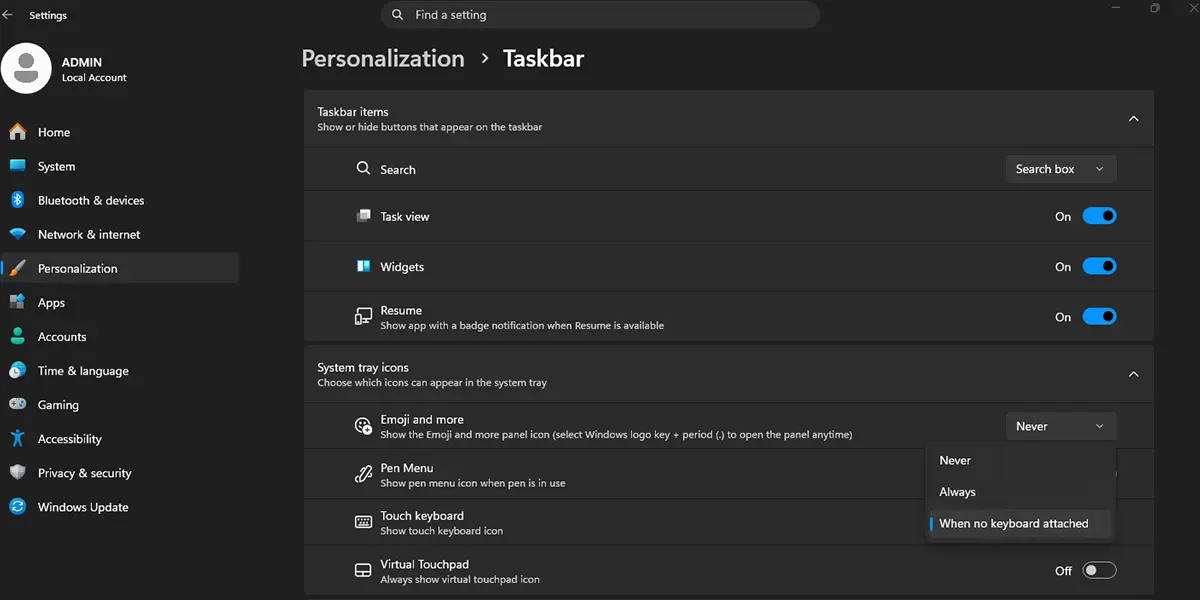
The keyboard slides up from the bottom of the screen right away. Tap any text box first, such as the search bar in Microsoft Edge or a blank Notepad window, and then tap the keys to start typing.
Tip: The Always option is the safest pick on a laptop that gets used both docked and as a tablet, because the icon never disappears when the mode changes.
Method 2: Let the Keyboard Appear Automatically
This method suits tablets and detachable devices, where the keyboard should pop up the moment a text box is tapped.
- Press Windows + I to open the Settings app.
- Select Time & language from the left sidebar.
- Click Typing.
- Open the Touch keyboard section.
- Set Show the touch keyboard to When no keyboard attached so it appears only when no physical keyboard is connected. Choose Always to make it appear whenever a text box is tapped, even with a physical keyboard connected.
- Tap inside a text box in any app.
The touch keyboard opens on its own as soon as the cursor lands in the text field. This works best on a device with a touch screen, since a mouse click does not always trigger the keyboard.
Method 3: Tap a Text Box on a Touch Screen
Once the setting from Method 2 is active, no extra clicks are needed.
- Tap inside any text field, such as a web form, a document, or the Start menu search box.
- Wait a moment for the touch keyboard to rise from the bottom of the screen.
- Type by tapping the keys.
- Tap the X at the top-right corner of the keyboard to close it.
How to Type With the Touch Keyboard
The keyboard behaves much like a phone keyboard, so most people pick it up in a minute or two. The key is to know where the special keys live.
Switch Between Letters, Numbers, and Symbols
- Tap the &123 key at the bottom-left to show numbers and symbols.
- Tap the &123 key again, which now shows letters, to return to the letter layout.
Tap Shift once for a single capital letter. Tap it twice quickly to turn on Caps Lock, and the key stays highlighted until it is tapped again.
Add Emoji and Use Voice Typing
- Tap the smiley face key next to the space bar to open the emoji panel.
- Tap an emoji to insert it into the text box.
- Tap the microphone key to start voice typing, then speak the text.
Tip: Voice typing can also be started from a physical keyboard by pressing Windows + H, which is handy when the touch keyboard is hidden.
Change the Size and Look of the Keyboard
Tap the gear icon at the top-left of the keyboard to open its settings. From there, the keyboard size and theme can be adjusted so the keys are easier to hit, which helps on smaller screens or when typing with large fingers.
How to Undo or Reverse This Change
To remove the keyboard icon from the taskbar, open Settings > Personalization > Taskbar > Taskbar corner icons and set Touch keyboard to Never. To stop the keyboard from appearing on its own, open Settings > Time & language > Typing > Touch keyboard and set Show the touch keyboard to Never.
Common Problems and Fixes
The Touch Keyboard Icon Is Missing From the Taskbar
The icon only shows when the setting allows it. Open Settings > Personalization > Taskbar > Taskbar corner icons and set Touch keyboard to Always. If the icon is still missing, click the small up arrow in the system tray to check the hidden icons area.
The Keyboard Does Not Appear Automatically on a Laptop
When Show the touch keyboard is set to When no keyboard attached, a laptop with a built-in physical keyboard may never trigger it. Open Settings > Time & language > Typing > Touch keyboard and choose Always, or simply use the taskbar icon from Method 1.
The Touch Keyboard Setting Is Greyed Out
On a work or school PC, an organization may control this setting through device management. In that case, the option stays locked until the IT administrator changes the policy.
Frequently Asked Questions
Does the touch keyboard work on Windows 11 Home?
Yes. The touch keyboard is available on Windows 11 Home, Pro, and Enterprise, so no specific edition is required.
Can the touch keyboard be used on a PC without a touch screen?
Yes. After turning on the taskbar icon in Settings > Personalization > Taskbar > Taskbar corner icons > Touch keyboard, the keyboard can be opened and operated with a mouse.
How do I open the touch keyboard quickly?
The fastest way is the keyboard icon in the system tray near the clock. Once the icon is turned on, a single tap or click opens the keyboard.
Why does the touch keyboard not pop up when a text box is tapped?
The setting may be on When no keyboard attached while a physical keyboard is connected. Changing it to Always in Settings > Time & language > Typing > Touch keyboard usually fixes this.
Does the touch keyboard need a restart after changing the settings?
No. The icon and the automatic keyboard behavior take effect right away, without signing out or restarting the PC.
Can the touch keyboard type emoji?
Yes. Tap the smiley face key next to the space bar to open the emoji panel, then tap any emoji to insert it into the text box.
Can the touch keyboard be used for voice typing?
Yes. The microphone key on the touch keyboard starts voice typing, and pressing Windows + H does the same from a physical keyboard.
How do I close the touch keyboard?
Tap the X at the top-right corner of the keyboard. The taskbar icon stays in place, ready for the next time it is needed.
Does the touch keyboard affect battery life or performance?
The effect is negligible. The keyboard uses very few system resources, so it does not noticeably drain a laptop battery or slow down other apps.
