
Need to fix a circular reference warning in Excel? The alert appears when a formula points back to its own cell, directly or through a chain of other cells. The fix is to find the looping cell and rewrite the formula so it no longer depends on its own result.
Key Takeaways
- The warning means a formula refers to its own cell, either directly or through other cells.
- Formulas > Error Checking > Circular References lists the exact cells involved.
- Most cases are fixed by correcting a range, such as a SUM that includes the cell holding the total.
- Trace Precedents and Evaluate Formula help untangle loops that span several cells or sheets.
- Iterative calculation should only be turned on when a loop is intentional.
Step-by-Step Guide to Fix a Circular Reference Warning in Excel
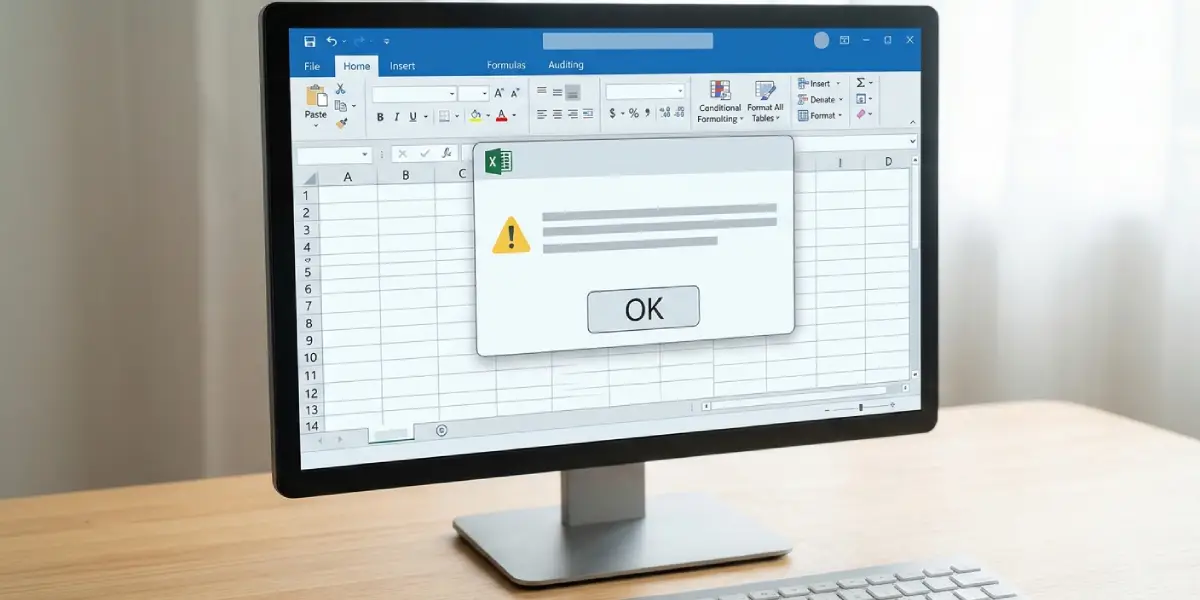
- Step 1: Click OK on the warning message. The alert says that one or more formulas refer to their own cell, and dismissing it keeps the workbook open so the problem can be tracked down.
- Step 2: Look at the status bar at the bottom-left of the Excel window. When a circular reference is active, it shows ‘Circular References’ followed by a cell address, such as B10. That address is the first place to check.
- Step 3: Select the Formulas tab on the ribbon, click the arrow beside Error Checking in the Formula Auditing group, and point to Circular References. Excel lists the cells involved. Click any address in the list to jump straight to that cell.
- Step 4: Check the formula in the selected cell. The most common culprit is a range that includes the formula’s own cell. For example, typing =SUM(B2:B10) into cell B10 creates a loop, because the total is trying to add itself.
- Step 5: Edit the formula so it excludes its own cell. In the example above, change it to =SUM(B2:B9). Press Enter to confirm the change.
- Step 6: Check the status bar again. If the ‘Circular References’ label is gone, the problem is solved. If it now shows a different cell address, the workbook has more than one loop, so repeat Steps 3 to 5 for each cell listed.
- Step 7: Save the workbook so the corrected formulas are kept.
Tip: Think of a circular reference like asking someone to find their own age by adding it to a list that already includes their age. The formula can never settle on an answer, which is why Excel stops and raises the alert.
Trace a Loop That Spans Several Cells
Sometimes the formula in the listed cell looks perfectly fine because the loop runs through other cells. In that case, the Formula Auditing tools show the full chain.
- Step 1: Select the cell shown in the status bar or in the Circular References list.
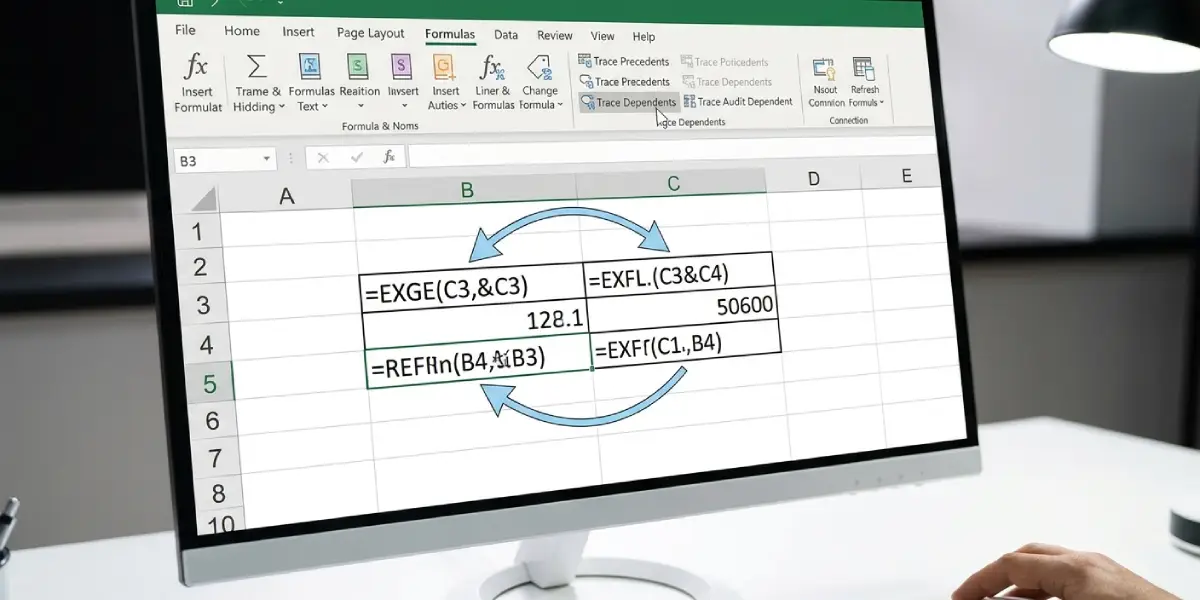
- Step 2: On the Formulas tab, click Trace Precedents. Blue arrows point to every cell that feeds this formula.
- Step 3: Click Trace Dependents to see which cells rely on this one. A loop shows up as arrows that lead back to the starting cell.
- Step 4: Break the chain by changing one formula in the loop so it points to a different cell or a fixed input value.
- Step 5: Click Remove Arrows in the same group once the loop is fixed to clear the display.
Tip: Evaluate Formula, found in the same Formula Auditing group, walks through a formula one part at a time. It is a handy way to spot the exact reference that points back to the original cell.
Common Problems and Fixes
The Warning Keeps Appearing After the Formula Is Fixed
Another loop is probably still hiding somewhere in the workbook. Open Formulas, Error Checking, Circular References again and work through every address listed until the status bar label disappears.
The Status Bar Shows Only a Cell Address and No Obvious Problem
The loop may run through other cells or other worksheets. Use Trace Precedents on that cell and follow the arrows. Dashed arrows with a small sheet icon point to cells on other worksheets, so check those tabs as well.
The Formula Returns Zero Instead of a Result
When Excel cannot resolve a loop, it often displays 0 in the affected cell. Fixing the self-reference and pressing Enter restores the correct calculated value.
The Circular Reference Is Not Listed in the Menu
The Circular References option only lists cells from the active worksheet. If the menu looks empty, switch to the other sheets in the workbook and check the list on each one.
Iterative Calculation Is Switched On and the Warning Is Missing
When iterative calculation is enabled, Excel stops showing the alert, which can hide an accidental loop. Go to File, then Options, then Formulas, and clear the Enable iterative calculation check box. On a Mac, open the Excel menu, choose Preferences, and select Calculation. Then repeat the steps above to find the loop.
Frequently Asked Questions
What does the circular reference warning in Excel mean?
It means a formula refers to its own cell, either directly or through a chain of other cells. Excel cannot calculate the result correctly, so it displays a warning.
How do I find which cell has the circular reference?
Open the Formulas tab, click the arrow beside Error Checking, and point to Circular References. Excel lists the affected cells, and clicking an address jumps to it. The status bar also shows the address of one cell in the loop.
What is the most common cause of a circular reference?
A range that includes the formula’s own cell is the most common cause. A SUM formula in B10 that covers B2:B10 is a typical example.
Why does Excel show 0 in a cell with a circular reference?
Excel cannot resolve the loop, so it often falls back to displaying 0 in the affected cell. Correcting the formula brings back the proper value.
Can a circular reference involve more than one worksheet?
Yes. A formula on one sheet can depend on a cell in another sheet that points back to the first. Trace Precedents shows arrows to other worksheets, which makes these loops easier to follow.
How do I remove a circular reference without deleting the formula?
Edit the formula so it no longer includes its own cell or any cell that depends on it. For a SUM, that usually means shrinking the range so it stops just above the total cell.
Should iterative calculation be turned on to get rid of the warning?
Only when the loop is intentional and the workbook is designed around it. For an accidental loop, turning it on just hides the warning and leaves the formula unreliable, so correcting the formula is the better fix.
Why does the warning appear when a file is opened?
The workbook already contains a formula loop that Excel detects while calculating on open. Use the Circular References list on the Formulas tab to find and correct it, then save the file.
