
Need to split names, join text, or tidy a messy column without writing a formula? You can use Flash Fill with Ctrl+E to do it in a couple of keystrokes. Type one example of the result you want, press the shortcut, and Excel fills the rest of the column by copying your pattern.
Key Takeaways
- Type one or two examples of the result you want in the column right next to your data.
- Select the next empty cell below your example and press Ctrl+E to fill the column.
- Flash Fill is also available on the Data tab and under Home, Fill, Flash Fill.
- The results are static values, so they do not update if the original data changes.
- Give Excel a second example when the first attempt guesses the wrong pattern.
Step-by-Step: Use Flash Fill with Ctrl+E
The example below pulls first names out of a column of full names. The same steps work for last names, initials, phone numbers, email prefixes, and many other text patterns.
Set Up Your Data
- Step 1: Put the source data in a column, for example full names in A2:A20, with a header such as Full Name in A1.
- Step 2: Add a header for the new column in B1, such as First Name. Flash Fill works best when the output column sits directly beside the source data with no blank column between them.
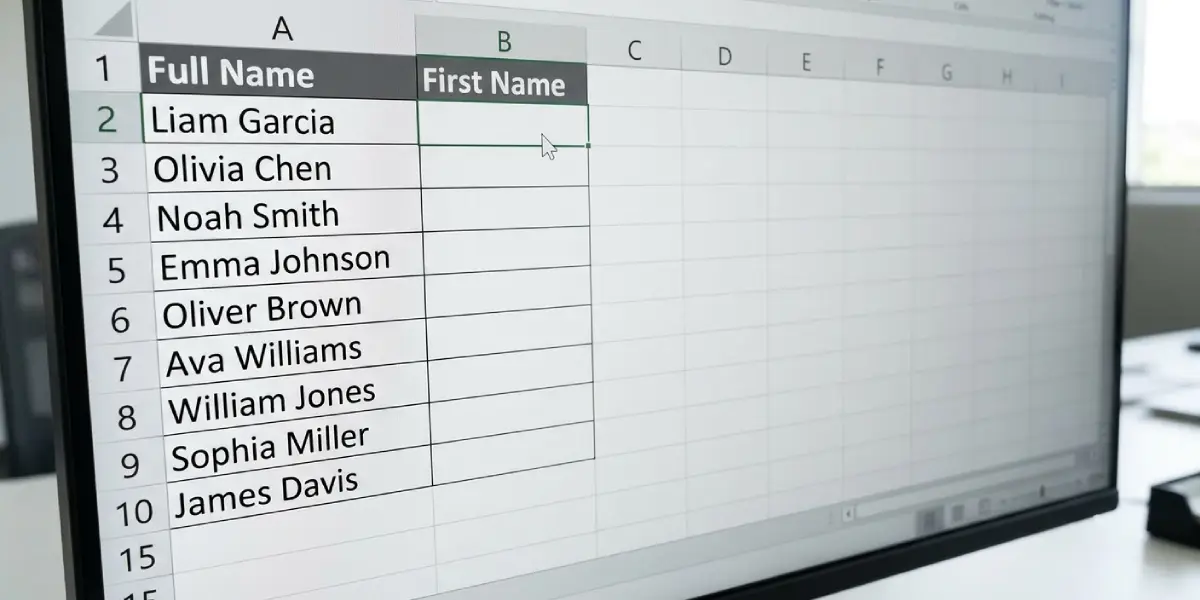
Enter the First Example
- Step 3: Click cell B2 and type the result you want for the first row. If A2 contains Maria Santos, type Maria.
- Step 4: Press Enter. Excel moves the selection to B3.
Trigger Flash Fill
- Step 5: With B3 selected, press Ctrl+E. Excel reads the pattern from your example and fills the cells below with the matching result for every row.
- Step 6: Scan the filled cells and compare a few against the source data. If the pattern is right, nothing else is needed.

Tip: Excel often shows a gray preview of the suggested values as soon as a pattern is recognized. Pressing Enter at that point accepts the preview without the shortcut.
Use the Ribbon Instead of the Shortcut
When the keyboard shortcut is not convenient, the same result is available from the ribbon. Select the cell under the example, then go to the Data tab and click Flash Fill in the Data Tools group. Another route is Home, then Fill in the Editing group, then Flash Fill.
Review or Undo the Result
After Flash Fill runs, a small Flash Fill Options icon appears beside the filled cells. Click it to undo the fill, accept suggestions, select the blank cells, or select the changed cells. Pressing Ctrl+Z right away also reverses the fill.
Common Problems and Fixes
Ctrl+E Does Nothing
This usually means Excel has no pattern to follow. Check that the example sits in the column directly next to the source data, that the source cells are not empty, and that the example was typed by hand rather than pasted from a formula. Flash Fill is available in Excel 2013 and later, so older versions will not respond to the shortcut.
The Filled Values Are Wrong
One example can be ambiguous. A cell like Ana Maria Lopez could be read several ways, for instance. Undo the fill, type the correct result in the first two or three rows so the pattern is unmistakable, and press Ctrl+E again.
The Preview Never Appears Automatically
Automatic suggestions can be switched off. Go to File, Options, Advanced, and under Editing options make sure Automatically Flash Fill is checked. The manual Ctrl+E shortcut still works either way.
Results Do Not Change When the Source Data Changes
Flash Fill writes plain values, not formulas. After editing the original column, clear the old results and run Flash Fill again with a fresh example.
Flash Fill Stops Partway Down the Column
A blank row in the source data can end the fill early. Fill the gap or run Flash Fill again from the first cell below the break.
Frequently Asked Questions
What does Ctrl+E do in Excel?
Ctrl+E runs Flash Fill. Excel studies the example you typed in the adjacent column, finds the pattern, and fills the remaining cells to match.
Which versions of Excel support Flash Fill?
Flash Fill was introduced in Excel 2013 and is included in later versions, including Microsoft 365. Excel 2010 and earlier do not have it.
Do I need to select the whole column before pressing Ctrl+E?
No. Type the first example, then click the cell directly below it and press Ctrl+E. Excel fills down to the end of the neighboring data on its own.
Is there a menu option if I do not want to use the shortcut?
Yes. Click the Data tab and choose Flash Fill, or go to Home, Fill, Flash Fill. Both do the same thing as Ctrl+E.
How many examples does Flash Fill need?
Often one is enough. When the data is inconsistent, entering two or three examples gives Excel a clearer pattern and produces more accurate results.
Why do the Flash Fill results not update when I edit the original data?
Flash Fill produces static values rather than formulas. To refresh the output after changing the source, run Flash Fill again.
How do I undo Flash Fill?
Press Ctrl+Z immediately after the fill, or click the Flash Fill Options icon beside the results and choose Undo Flash Fill.
How do I turn automatic Flash Fill on or off?
Go to File, Options, Advanced, then find Automatically Flash Fill under Editing options. Check the box to turn it on or clear it to turn it off.
