
Those constant chimes and pings can break your focus in seconds, so it helps to know how to turn off notification sounds in Windows 11 without muting the whole PC. The steps below work on Windows 11 Home, Pro, and Enterprise, and no administrator rights are needed. Pick the method that fits the situation, from a quick switch for every app to a single-app mute.
Key Takeaways
- The fastest fix is Settings > System > Notifications, then switching off Allow notifications to play sounds.
- A single noisy app can be silenced on its own, while every other app keeps its sound.
- The system alert sound can also be removed from the classic Sound window.
- Do not disturb gives a quick, temporary way to quiet everything at once.
- No restart is needed, and every change can be reversed in seconds.
How to Turn Off Notification Sounds in Windows 11: Step-by-Step Guide
Method 1: Use the Settings App
This is the easiest route for most people. It stops the chime for all apps at once, while banners still appear on screen.
- Press Windows + I to open Settings.
- Click System in the left sidebar.
- Click Notifications.
- Click the Notifications row at the top to expand its extra options.
- Switch off Allow notifications to play sounds.
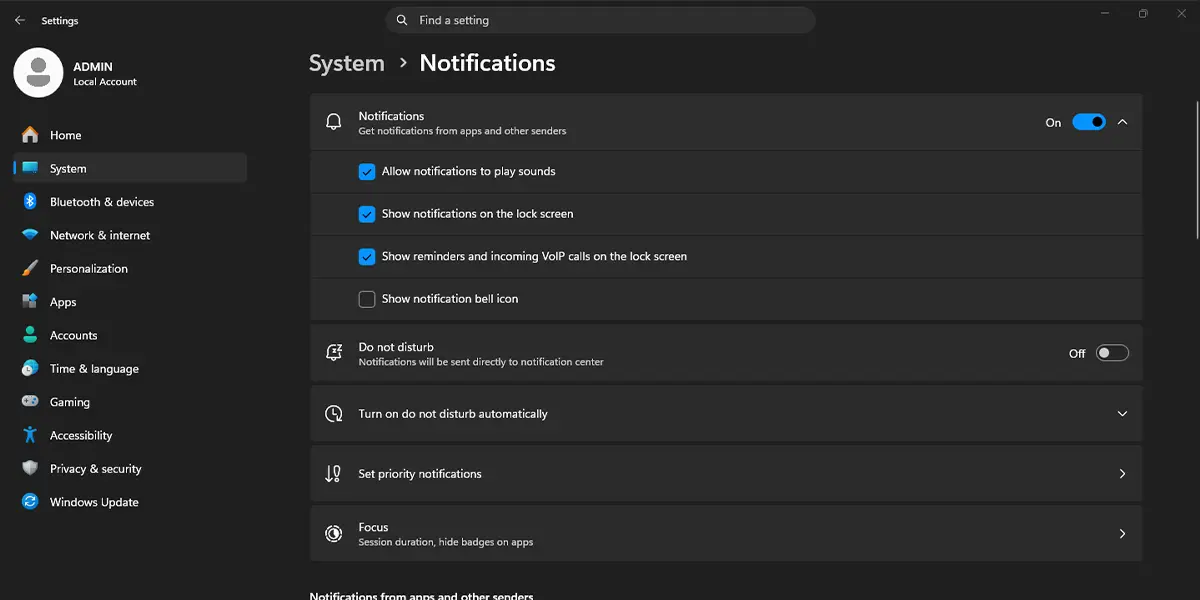
New notifications now appear silently. Send a test message or email to confirm that the chime is gone.
Tip: A busy laptop at a library or open office usually needs only this one switch. Banners still slide in, so nothing gets missed, but the sound stays quiet.
To silence only one app, such as a chat or email program, use the per-app setting instead.
- Open Settings > System > Notifications.
- Scroll down to Notifications from apps and other senders.
- Click the name of the noisy app.
- Switch off Play a sound when a notification arrives.
That app goes quiet right away, and every other app keeps its normal sound.
Method 2: Remove the Notification Sound in the Sound Window
This method targets the actual alert sound Windows plays, which makes it handy when the Settings toggle seems to have no effect.
- Press Windows + I to open Settings.
- Click System, then click Sound.
- Scroll down to the Advanced section and click More sound settings.
- In the Sound window, open the Sounds tab.
- Under Program Events, scroll to the Windows group and click Notification.
- Open the Sounds drop-down menu near the bottom and choose (None).
- Click Apply, then click OK.
The Windows notification chime is gone, but music, videos, and calls keep playing as normal.
Method 3: Turn On Do Not Disturb
Do not disturb works well for meetings, presentations, or a late-night session on a shared family computer. It quiets sounds and hides pop-up banners at the same time.
- Press Windows + N to open the notification center.
- Click the bell icon at the top of the panel to switch on Do not disturb.
The bell icon changes to show that Do not disturb is active, and incoming notifications collect quietly in the notification center. The same toggle also sits at the top of Settings > System > Notifications.
Tip: Do not disturb hides banners as well as sounds. If the goal is only to stop the chime while keeping banners visible, Method 1 is the better choice.
How to Undo or Reverse This Change
To bring the sounds back, repeat the same path and switch the option on again. For Method 1, go to Settings > System > Notifications and turn on Allow notifications to play sounds. For a single app, open that app’s entry and turn on Play a sound when a notification arrives. For Method 2, return to the Notification event in the Sound window, pick a sound from the Sounds drop-down menu, and click Test to preview it before clicking OK. For Method 3, click the bell icon in the notification center again.
Common Problems and Fixes
The Sound Toggle Is Greyed Out or Missing
This usually means the master Notifications switch at the top of the page is off, or the PC is managed by a work or school account that controls notification settings. Turn the main switch on first, then look for the sound option again. On a managed PC, the change has to come from the organization’s administrator.
Sounds Still Play After Turning Them Off
Some chat, email, and calendar apps have their own sound settings inside the app. Open the app’s own settings or preferences and switch off its alert sound there. If the chime is the Windows default, also use Method 2 to set the Notification event to (None).
The Notification Sound Comes Back After a Theme Change
Applying a new theme can swap the sound scheme and restore the old chime. Repeat Method 2 after changing themes to set the Notification event to (None) again.
Frequently Asked Questions
Does turning off notification sounds work on Windows 11 Home?
Yes. All three methods are available on Windows 11 Home, Pro, and Enterprise, and none of them needs administrator rights.
Do I need to restart the PC after changing the setting?
No. The change takes effect immediately, so the next notification arrives silently without a restart or sign-out.
Can notification sounds be turned off for just one app?
Yes. Open Settings > System > Notifications, click the app under Notifications from apps and other senders, and switch off Play a sound when a notification arrives.
Will notification banners still appear after the sound is off?
Yes. Turning off the sound does not hide banners or remove notifications from the notification center. Only Do not disturb hides the banners as well.
Does this mute music, videos, or calls?
No. These settings affect only notification alerts. Media players, video calls, and the overall system volume are not changed.
Is there a keyboard shortcut for this?
Press Windows + I to jump straight to Settings, or press Windows + N to open the notification center and reach the Do not disturb bell icon quickly.
Why does an app still make noise after the sound option is off?
Many chat and email apps use their own alert sounds that Windows does not control. Look in the app’s own settings for a sound or alert option and switch it off there.
Will turning off notification sounds affect battery life or performance?
No noticeable difference. The change only stops a short alert sound from playing, so it has no meaningful effect on speed or battery use.
