
Want to turn off the startup sound in Windows 11 so the PC boots quietly? The chime is controlled by a single checkbox in the Sound settings, and clearing it takes less than a minute. The steps below work on Windows 11 Home, Pro, and Enterprise, on both laptops and desktops.
Key Takeaways
- The startup chime is controlled by one checkbox named Play Windows Startup sound.
- The fastest route is Settings > Personalization > Themes > Sounds.
- Control Panel offers the same checkbox through Hardware and Sound > Sound.
- The change applies from the next startup, and no restart is needed to save it.
- Turning the checkbox back on restores the chime at any time.
Step-by-Step Guide to Turn Off the Startup Sound in Windows 11
Method 1: Use the Settings App
- Press Windows + I to open Settings.
- Click Personalization in the left sidebar.
- Click Themes.
- Click the Sounds tile in the Customize your current theme section. The Sound window opens.
- Make sure the Sounds tab is selected.
- Clear the checkbox next to Play Windows Startup sound near the bottom of the window.
- Click Apply, then click OK.
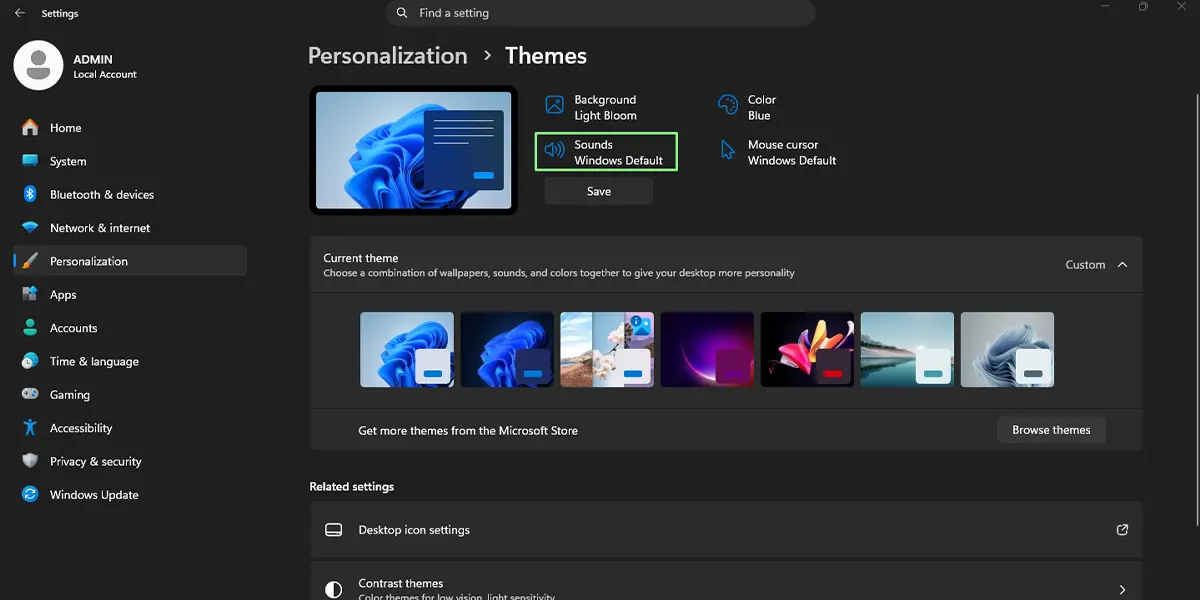
The checkbox stays empty when the Sound window is opened again, which confirms the change was saved. The next time the PC starts, it boots without the chime. This is especially handy for a laptop used in a library, a meeting room, or a quiet house late at night.
Tip: While the Sound window is open, the same tab lists the other system sounds, such as notifications. Those can stay as they are, because only the startup chime is controlled by the checkbox.
Method 2: Use Control Panel
- Click the Search box on the taskbar, type Control Panel, and open it.
- Click Hardware and Sound.
- Under Sound, click Change system sounds. The Sound window opens on the Sounds tab.
- Clear the checkbox next to Play Windows Startup sound.
- Click Apply, then click OK.
Tip: To jump straight to the Sound window, press Windows + R, type the command below, and press Enter. It does not need an elevated window.
mmsys.cpl
How to Undo or Reverse This Change
To bring the chime back, open the Sound window again using either method above, go to the Sounds tab, tick the box next to Play Windows Startup sound, then click Apply and OK. The sound returns at the next startup.
Common Problems and Fixes
The Startup Sound Checkbox Is Greyed Out
A greyed-out checkbox most often means the PC is managed by a work or school organization that controls this setting. In that case, the change has to be made by the IT administrator. On a personal computer, close the Sound window completely and reopen it, then try again.
The Checkbox Is Missing From the Sounds Tab
Confirm that the Sounds tab is selected, since the other tabs in the Sound window do not show this option. The checkbox sits near the bottom of the tab, below the list of program events.
The Chime Still Plays After Unchecking the Box
Make sure Apply or OK was clicked after clearing the checkbox, because closing the window with the X discards the change. Reopen the Sound window to check that the box is still empty, then restart the PC once to test.
Frequently Asked Questions
Does this work on Windows 11 Home?
Yes. The Settings app and Control Panel methods are available on Windows 11 Home, Pro, and Enterprise.
Do I need to restart the PC after turning off the startup sound?
No restart is needed to save the change. It simply takes effect the next time the computer starts, so that startup is silent.
Is there a keyboard shortcut to reach this setting?
There is no single shortcut that toggles the chime. Press Windows + R, type mmsys.cpl, and press Enter to open the Sound window quickly, or press Windows + I to open Settings.
Will turning off the startup sound mute other Windows sounds?
No. Notification sounds and other system sounds are not affected, because the checkbox controls only the startup chime.
Why is the Play Windows Startup sound option greyed out?
The most common reason is that the computer is managed by work or school and the setting is locked. Contact the organization’s IT administrator if the PC is a managed device.
Does turning off the startup sound affect battery life or boot speed?
No noticeable difference is expected. The change only stops a short audio clip from playing during startup.
Can the startup sound be turned back on later?
Yes. Open the Sound window, tick Play Windows Startup sound on the Sounds tab, and click Apply and OK.
