
Knowing how to update audio drivers in Windows 11 takes only a few minutes, and it often clears up crackling speakers, a silent headset, or an output device that suddenly disappears. The steps work on every edition, including Home and Pro, but an administrator account is needed to install a driver. A work or school PC managed by an organization may block driver changes.
Key Takeaways
- The easiest route is Settings > Windows Update > Advanced options > Optional updates > Driver updates.
- Device Manager offers a second built-in route through Sound, video and game controllers.
- A restart after the update helps the new driver load properly.
- If the sound gets worse afterward, the Roll Back Driver button restores the previous version.
Step-by-Step Guide to Update Audio Drivers in Windows 11
Both methods below reach the same result: a newer audio driver installed on the computer. Start with Method 1, since it needs no digging through technical menus. Sign in with an administrator account first, because standard accounts cannot install drivers.
Method 1: Use the Settings App
- Press Windows + I to open Settings.
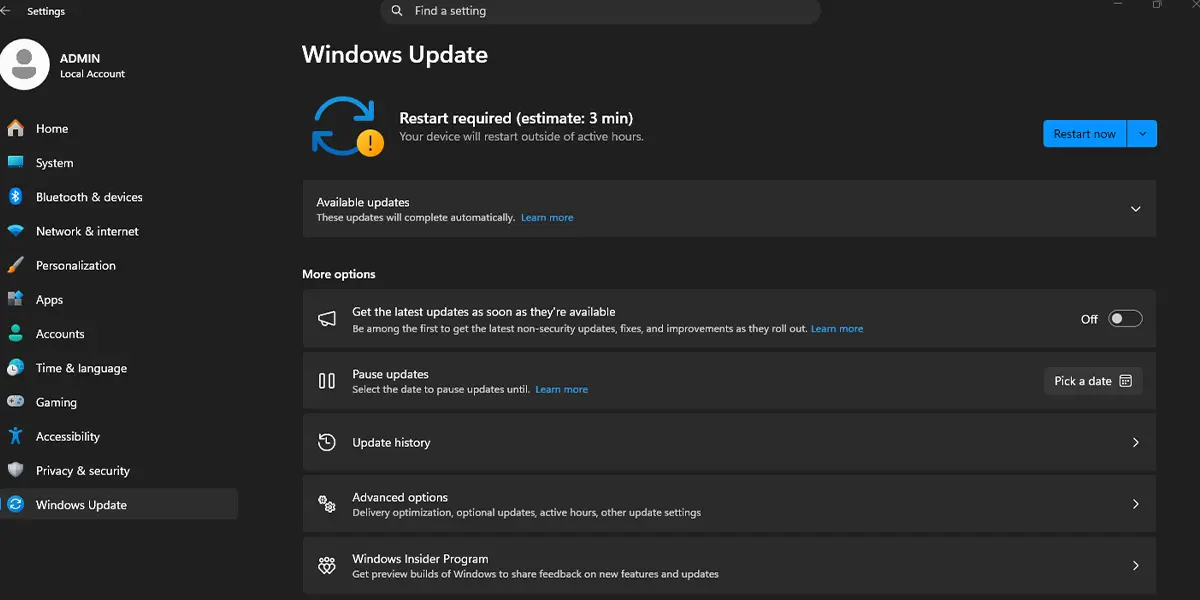
- Select Windows Update in the left sidebar.
- Click Check for updates and let the scan finish. This pulls in any pending updates so nothing conflicts with the driver.
- Click Advanced options.
- Click Optional updates. If this page lists nothing, no extra updates are waiting for this PC.
- Click Driver updates to expand the list.
- Tick the checkbox next to the audio driver. Look for names that mention audio, sound, Realtek, or High Definition Audio.
- Click Download & install. A progress bar appears next to the driver.
- Restart the computer when Windows asks, or when the status shows that a restart is needed.
Tip: Picking only the audio driver keeps the update small and quick. A laptop on battery should be plugged in first, since a driver install that stops halfway can leave the sound broken until it is repeated.
Method 2: Use Device Manager
This method is handy when the Optional updates page shows no driver for the audio device, or when one specific speaker or headset needs attention. Windows asks for administrator approval along the way.
- Press Windows + X, then press M to open Device Manager.
- Double-click Sound, video and game controllers to expand it.
- Right-click the audio device, such as Realtek(R) Audio or High Definition Audio Device.
- Select Update driver.
- Click Search automatically for drivers.
- Wait while Windows searches. When a newer driver is found, it installs on its own, and the screen briefly flickers or the sound cuts out for a second.
- Click Close when the window reports that the driver was updated.
- Restart the computer to finish the update.
Tip: A desktop PC with a graphics card often lists extra entries here, such as HDMI or DisplayPort audio. The entry for the main speakers or headphone jack is the one to update first.
How to Undo or Reverse This Change
A new driver occasionally behaves worse than the old one, for example with a headset that stops working or sound that cuts out. The previous driver can be brought back in a few steps.
- Press Windows + X, then press M to open Device Manager.
- Expand Sound, video and game controllers.
- Double-click the audio device that was updated.
- Open the Driver tab.
- Click Roll Back Driver, choose a reason, and click Yes.
- Restart the computer.
Common Problems and Fixes
The Driver Updates Section Is Missing in Optional Updates
This usually means Windows Update has no newer driver for the PC at the moment. Switch to Method 2 and check Device Manager instead. On a work or school computer, the organization may also control which driver updates appear.
Device Manager Says the Best Drivers Are Already Installed
Windows could not find anything newer in its own catalog. The driver on the PC is current as far as Windows is concerned, so no further action is needed unless the sound problem continues.
The Audio Device Is Not Listed Under Sound, Video and Game Controllers
Look for a device with a yellow warning icon under Other devices. Right-click it, select Update driver, and follow the same steps as Method 2. Restarting the PC first can also make a hidden audio device appear.
Sound Stops Working After the Update
Restart the computer once, since the new driver may not have fully loaded. If the sound is still missing or distorted, use the Roll Back Driver steps above to return to the earlier version.
The Update Does Not Finish or Keeps Asking for a Restart
Save any open work, restart the PC, and then repeat Method 1 or Method 2. A pending restart from an earlier Windows update can hold up a new driver install until the computer restarts.
Frequently Asked Questions
Does updating audio drivers in Windows 11 need an internet connection?
Yes. Both Windows Update and Device Manager search online for newer drivers, so the PC must be connected to the internet while the search runs.
Is a restart needed after updating the audio driver?
A restart is recommended. Some drivers work right away, but a restart makes sure the old driver is fully replaced and the sound settings load correctly.
Does this work on Windows 11 Home?
Yes. Both methods are available on Windows 11 Home, Pro, and Enterprise. Only the administrator permission and any work or school restrictions can limit the process.
What is the quickest way to open Device Manager?
Press Windows + X, then press M. The Device Manager window opens immediately, with no need to search through Settings or Control Panel.
Which audio device should be updated when several are listed?
Start with the entry that controls the built-in speakers or the headphone jack, often named Realtek(R) Audio or High Definition Audio Device. Entries for HDMI or DisplayPort audio only matter when sound plays through a monitor or TV.
Can a driver update fix crackling or missing sound?
It can help when an outdated or damaged driver is the cause. Sound problems also come from muted volume, a wrong output device, or a faulty cable, so a driver update does not solve every case.
Why does the Driver updates option not appear on the Optional updates page?
The option shows up only when Windows Update has a driver waiting for the PC. If nothing is offered, Device Manager is the next place to check.
How often should audio drivers be updated?
There is no fixed schedule. A driver update makes sense when sound problems appear, when a new audio device stops working, or when Windows Update offers a newer audio driver.
What should be done if the sound gets worse after the update?
Open Device Manager, double-click the audio device, switch to the Driver tab, and click Roll Back Driver. This restores the previous driver, provided Windows kept a copy of it.
