
Learning how to enable tap to click on your touchpad on Windows 11 takes less than a minute, and it saves a lot of physical button pressing. The setting works on laptops with a built-in touchpad and on external touchpads that Windows detects. No administrator rights are needed, and the change applies instantly.
Key Takeaways
- Tap to click is controlled from Settings > Bluetooth & devices > Touchpad.
- Expand the Taps section and tick Tap with a single finger to single-click.
- The setting works on every Windows 11 edition and needs no restart.
- The Touchpad page can also be opened with a Run command if the physical buttons are not convenient.
How to Enable Tap to Click on Your Touchpad on Windows 11
Method 1: Use the Settings App
- Press Windows + I to open Settings.
- Click Bluetooth & devices in the left sidebar.
- Click Touchpad in the list on the right.
- Make sure the Touchpad toggle at the top of the page is switched to On.
- Click Taps to expand the section.
- Tick the checkbox next to Tap with a single finger to single-click.
- Optionally, tick Tap with two fingers to right-click so a two-finger tap opens the right-click menu.
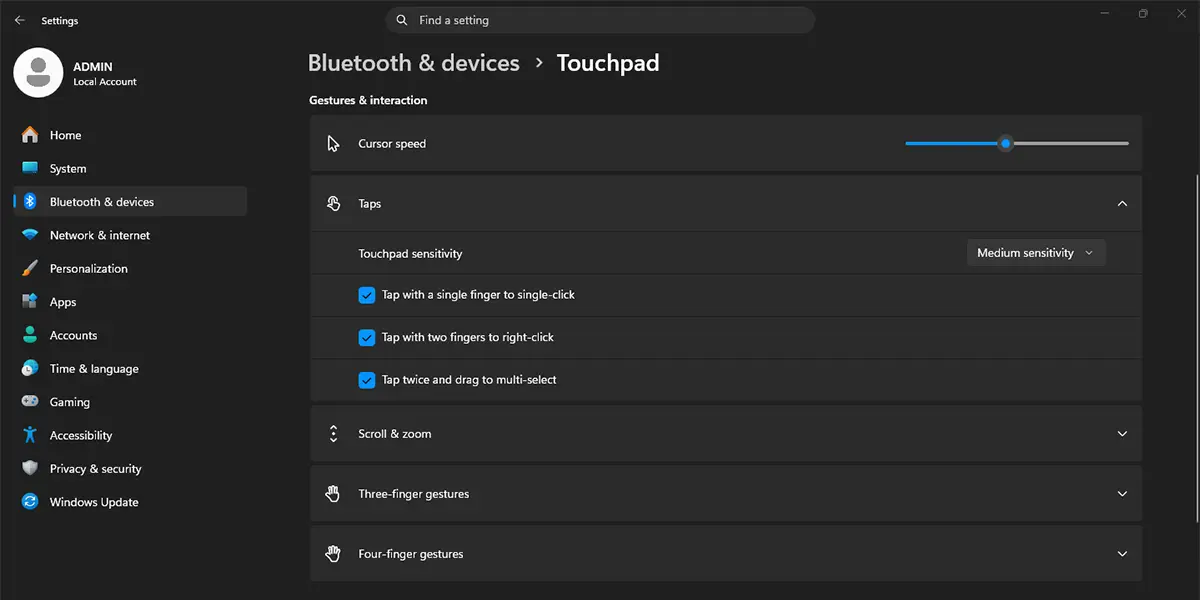
Once the box is ticked, a light tap on the touchpad registers as a left click straight away. A quick test on the desktop or a folder icon confirms it worked.
Tip: The same Touchpad page has a Touchpad sensitivity drop-down. Most people find that the default level feels right, but a higher level helps when light taps are being missed.
Method 2: Open the Touchpad Page With a Run Command
This route skips the menu clicking and lands directly on the right page. It is handy on a laptop where the touchpad feels awkward to navigate, because the whole sequence can be typed on the keyboard.
- Press Windows + R to open the Run dialog.
- Type the command below and press Enter. It runs in a normal window and does not need to be elevated.
ms-settings:devices-touchpad
- When the Touchpad page opens, click Taps to expand it.
- Tick Tap with a single finger to single-click.
The result is identical to Method 1, with the added benefit of speed.
What Each Tap Option Changes
The Taps section holds a few related options, and each one does something slightly different. Knowing the difference makes it easier to decide what to keep.
- Tap with a single finger to single-click: a quick tap acts as a left click, which is the main tap to click behavior.
- Tap with two fingers to right-click: a two-finger tap opens the right-click menu, so the touchpad corner is no longer needed.
- Tap twice and drag to multi-select: a double tap followed by a drag selects several files or a block of text without holding a button.
Tip: Taps work best on a clean, dry touchpad. A greasy surface or damp fingers can cause missed taps, which is easy to mistake for a settings problem.
How to Undo or Reverse This Change
Open Settings > Bluetooth & devices > Touchpad, expand Taps, and untick Tap with a single finger to single-click. The touchpad keeps moving the pointer, but clicks then need a physical press again. This is useful on a shared family laptop where accidental taps while typing are a nuisance.
Common Problems and Fixes
The Taps Section Is Missing
The Touchpad page and its Taps section appear only when Windows detects a touchpad. A desktop PC without one will not show the options. On a laptop, a missing driver is the usual cause. Open Settings > Windows Update > Advanced options > Optional updates, install any listed touchpad or pointing device driver, and then restart the PC.
The Touchpad Toggle Is Off or the Touchpad Does Not Respond
If the Touchpad toggle at the top of the page is off, none of the tap options will work. Switch it to On. Some laptops also have a function key that disables the touchpad, so a tap setting that looks correct but does nothing may simply mean the touchpad was switched off with that key.
The Setting Does Not Stay After a Restart
On a work or school PC, an organization policy can lock or reset touchpad settings. On a personal laptop, a manufacturer touchpad utility sometimes applies its own configuration at sign-in. Checking that utility for a tap option usually brings the two back in line.
Taps Register by Accident While Typing
Palms brushing the touchpad can trigger stray clicks. Open the Touchpad sensitivity drop-down on the same page and choose a lower level. That keeps tap to click available without every graze counting as a click.
Frequently Asked Questions
Does tap to click work on Windows 11 Home?
Yes. The touchpad tap settings are part of every Windows 11 edition, including Home, Pro, and Enterprise. The only requirement is a touchpad that Windows detects.
Does enabling tap to click need a restart?
No. The change applies the moment the checkbox is ticked, so the next tap on the touchpad registers as a click.
How can the touchpad settings be opened with the keyboard?
Press Windows + I to open Settings, then go to Bluetooth & devices > Touchpad. Another route is to press Windows + R, type ms-settings:devices-touchpad, and press Enter.
Why is the Taps option missing in Settings?
The Taps section appears only when Windows detects a touchpad. A desktop PC without one, a disabled touchpad, or a missing driver can hide it. Installing optional driver updates from Windows Update is the usual fix.
Does tap to click drain the laptop battery faster?
Battery life is not noticeably affected. Tap detection is a basic touchpad function, and it uses very little power compared with the screen or Wi-Fi.
Can tap to click be enabled on an external touchpad?
Yes, as long as Windows lists it on the Touchpad page. Most precision touchpads show the same Taps options as a built-in one.
Is it possible to keep the touchpad on but turn off tapping?
Yes. Untick Tap with a single finger to single-click in the Taps section, and the touchpad keeps working through physical presses only.
How can the tap sensitivity be changed?
On the same Touchpad page, open the Touchpad sensitivity drop-down and pick a level. A lower sensitivity helps when accidental taps happen while typing.
