
Learning how to calculate a weighted average in Excel takes only one short formula. A regular average treats every value equally, but a weighted average lets some values count more than others, which is exactly what grades, survey scores, and project ratings need. The steps below use the SUMPRODUCT and SUM functions, which work in every modern version of Excel.
Key Takeaways
- A weighted average multiplies each value by its weight, adds the results, and divides by the total of the weights.
- The core formula is =SUMPRODUCT(values, weights)/SUM(weights).
- The values range and the weights range must be the same size.
- Dividing by SUM(weights) keeps the result correct even if the weights do not add up to 100%.
- Format the result cell as a number to avoid odd displays such as dates or percentages.
Step-by-Step Guide to Calculate a Weighted Average in Excel
The example below is a course grade, a scenario most people run into. Each assessment has a score and a weight, and the goal is one final grade.
Set Up the Data
- Step 1: Open a worksheet and type the headings Item in A1, Score in B1, and Weight in C1.
- Step 2: Enter the items in A2:A6 (Homework, Quiz, Midterm, Project, Final).
- Step 3: Enter the scores in B2:B6 as 90, 85, 78, 92, and 88.
- Step 4: Enter the weights in C2:C6 as 20%, 15%, 25%, 15%, and 25%. Typing the percent sign makes Excel store each weight as a decimal, such as 0.2.

Tip: Keep the scores and weights in neighboring columns with the same number of rows. This makes it easy to spot a missing weight at a glance and prevents range mismatches later.
Enter the Weighted Average Formula
- Step 5: Click an empty cell for the answer, such as B8, and type a label like Weighted Average in A8.
- Step 6: In B8, type =SUMPRODUCT(B2:B6,C2:C6)/SUM(C2:C6).
- Step 7: Press Enter. Excel returns 86.05 for this example.
Here is what the formula does. SUMPRODUCT multiplies each score by its weight (90 x 0.20, 85 x 0.15, and so on) and adds all the products. SUM(C2:C6) adds the weights, and dividing by that total scales the answer back to the original score range. Think of it like a recipe where each ingredient counts by its proportion rather than by its count.
Format and Check the Result
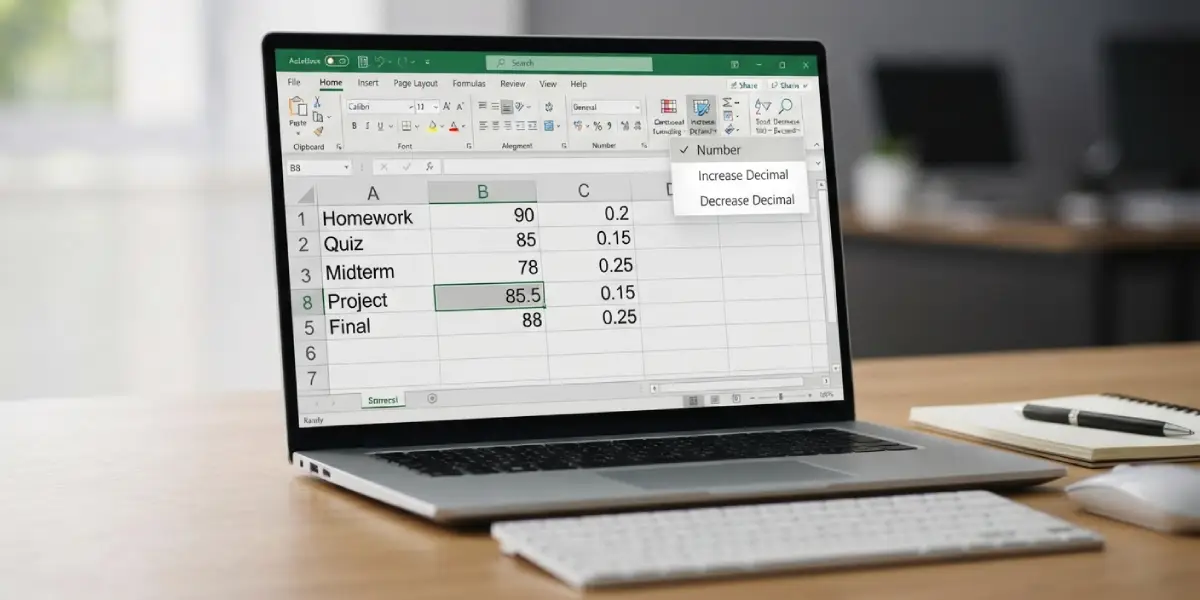
- Step 8: Select B8, open the Home tab, and choose Number in the Number Format drop-down.
- Step 9: Use Increase Decimal or Decrease Decimal to show the number of decimal places needed.
- Step 10: Confirm the result is sensible. A weighted average must land between the lowest and highest values in the data.
Tip: Press F4 while typing a range, such as C2:C6, to lock it with dollar signs ($C$2:$C$6). Locked ranges stay put if the formula is copied to other cells.
Common Problems and Fixes
The Formula Returns a #VALUE! Error
This happens when the two ranges in SUMPRODUCT have different sizes, such as B2:B6 paired with C2:C5. Edit the formula so both ranges cover the same number of rows.
The Formula Returns a #DIV/0! Error
The sum of the weights is zero, usually because the weight cells are empty or contain text. Enter the weights as numbers or percentages and the error clears.
The Result Looks Too Low
Scores or weights stored as text are treated as zero by SUMPRODUCT. Look for a small green triangle in the corner of the cell, select the cell, click the warning icon, and choose Convert to Number.
The Result Appears as a Percentage or a Date
The answer cell inherited a different format. Select it, go to the Home tab, and set the Number Format to Number or General.
The Answer Is Off When the Weights Do Not Total 100%
Without the division by SUM, a weight total below or above 100% skews the result. Make sure the formula ends with /SUM(C2:C6), as shown in Step 6.
Frequently Asked Questions
What is the formula for a weighted average in Excel?
The formula is =SUMPRODUCT(values, weights)/SUM(weights). For values in B2:B6 and weights in C2:C6, type =SUMPRODUCT(B2:B6,C2:C6)/SUM(C2:C6).
Do the weights need to add up to 100%?
No. Dividing by SUM(weights) normalizes the result, so the weights can total any number and the weighted average stays accurate.
Can weights be entered as whole numbers instead of percentages?
Yes. Weights such as 20, 15, and 25 work just as well as 20%, 15%, and 25%, because the division by the weight total cancels out the scale.
Why does SUMPRODUCT return a #VALUE! error?
The ranges inside SUMPRODUCT are different sizes. Both ranges must have the same number of rows and columns.
Does the weighted average formula work in all versions of Excel?
Yes. SUMPRODUCT and SUM are available in Microsoft 365, Excel 2021, 2019, 2016, and Excel for Mac, so the same formula works everywhere.
What happens if a score cell is blank?
SUMPRODUCT treats a blank score as zero, which pulls the average down while its weight still counts in SUM. If the item should be excluded, delete its weight as well.
How can the weighted average be rounded?
Wrap the formula in ROUND, for example =ROUND(SUMPRODUCT(B2:B6,C2:C6)/SUM(C2:C6),2), to return two decimal places.
Why is the result cell showing text instead of a number?
The cell is probably formatted as Text, or the formula was typed with a leading apostrophe. Change the format to General or Number, then re-enter the formula.
