
Knowing how to rotate your screen in Windows 11 is handy for vertical monitors, tablets, and tall documents. The change takes less than a minute in the Settings app and works on every edition. The only real requirement is a display and graphics driver that support rotation.
Key Takeaways
- Open Settings > System > Display and find the Display orientation drop-down under Scale & layout.
- Choose Landscape, Portrait, Landscape (flipped), or Portrait (flipped).
- Click Keep changes when prompted, or Windows reverts the screen.
- With several monitors, select the right display first so the wrong one is not rotated.
Step-by-Step Guide to Rotate Your Screen in Windows 11
- Press Windows + I to open Settings. Right-clicking an empty spot on the desktop and choosing Display settings leads to the same page.
- Select System in the left sidebar, then click Display. The full path is Settings > System > Display.
- If more than one monitor is connected, click the display to rotate at the top of the page. The Identify button shows a number on each screen so the right one is easy to pick.
- Scroll down to Scale & layout and find the Display orientation drop-down.
- Open the drop-down and choose an option. The screen rotates right away.
- Click Keep changes in the confirmation box that appears.
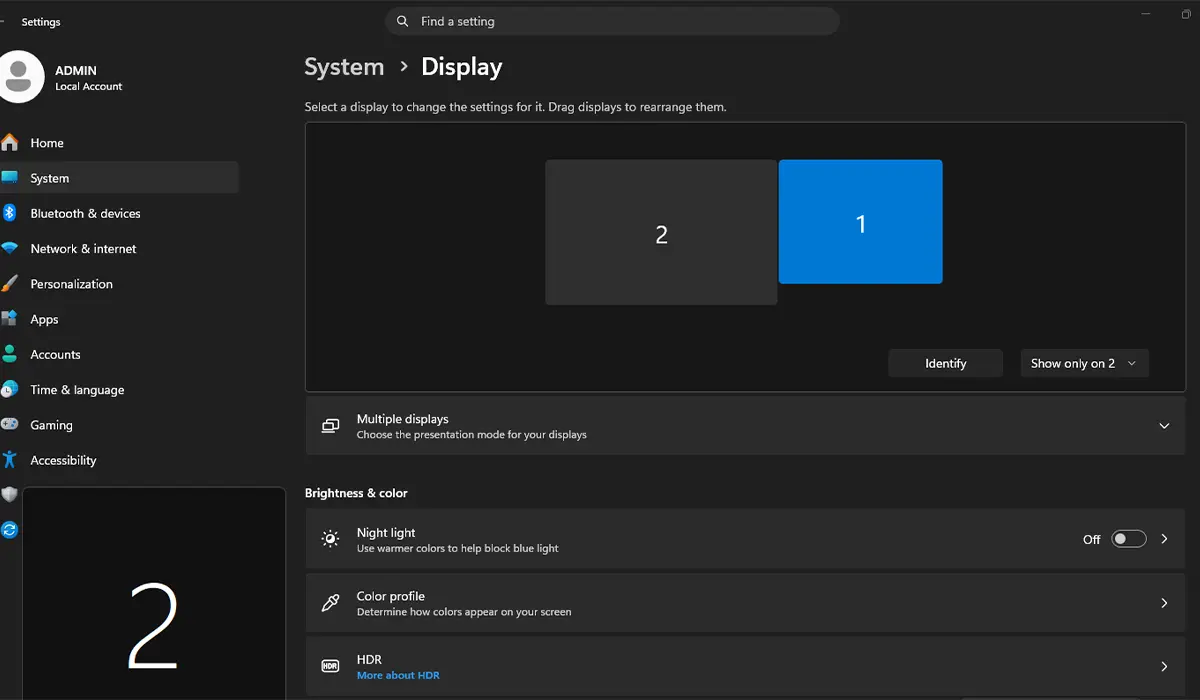
Here is what each option does. Landscape is the normal wide layout. Portrait turns the screen to a tall layout, which works well for reading long documents or code. The two flipped choices turn the picture the opposite way, so Landscape (flipped) shows it upside down.
Tip: A physical monitor stand that pivots makes portrait mode far more comfortable. Rotate the monitor first, then pick the matching orientation in Settings so the picture and the screen line up.
Tip: On a 2-in-1 laptop or tablet, the Rotation lock tile in Quick Settings decides whether the screen turns automatically when the device is tilted. Turn it on before changing the orientation manually.
How to Undo or Reverse This Change
Return to Settings > System > Display, open the Display orientation drop-down, and select Landscape. Then click Keep changes. The screen returns to its normal wide layout.
Common Problems and Fixes
The Display Orientation Option Is Missing or Greyed Out
This usually points to a missing or generic display driver. Open Settings > Windows Update > Advanced options > Optional updates, check for driver updates, install any listed for the graphics adapter, and restart the PC. If the option is still missing, the display or its connection may not support rotation.
The Wrong Monitor Rotated
Each display has its own orientation setting. Go back to Settings > System > Display, click Identify, select the correct display at the top of the page, and set the orientation again. Then switch the other monitor back to Landscape.
The Screen Went Back to Its Old Orientation
Windows reverts the change if the confirmation box is ignored. Rotate the screen again and click Keep changes before the countdown ends.
Frequently Asked Questions
Does rotating the screen work on Windows 11 Home?
Yes. The Display orientation setting is available on Home, Pro, and Enterprise editions.
Does the PC need a restart after rotating the screen?
No. The change applies immediately after selecting an orientation and clicking Keep changes.
Is there a keyboard shortcut to rotate the screen in Windows 11?
Windows 11 has no built-in shortcut for this. Some graphics drivers add their own hotkeys, but availability depends on the driver, so the Settings method is the reliable one.
Can only one monitor be rotated?
Yes. Select the display at the top of Settings > System > Display, and the orientation change applies to that monitor only.
What is the difference between Portrait and Portrait (flipped)?
Both give a tall layout. The flipped version turns the picture the opposite way, which suits a monitor mounted with the other side up.
Why is the Display orientation option missing?
The most common cause is a missing or generic graphics driver. Installing driver updates from Optional updates in Windows Update usually brings the option back.
Why did the screen change back by itself?
Windows asks for confirmation after the change. If Keep changes is not clicked in time, the previous orientation returns automatically.
How can the screen be returned to normal?
Open Settings > System > Display, set Display orientation to Landscape, and click Keep changes.
