
Learning how to schedule Night Light to turn on automatically in Windows 11 saves a trip into Settings every evening. Windows can warm the screen at sunset or at hours picked by the user. The feature works on every edition, but it needs a display driver that supports Night light, and the sunset option also needs Location services.
Key Takeaways
- Open Settings > System > Display > Night light and switch on Schedule night light.
- Choose Sunset to sunrise to follow the local daylight, or Set hours to pick exact start and stop times.
- Sunset to sunrise needs Location services turned on.
- No restart is needed, and the schedule repeats every day.
Step-by-Step: Schedule Night Light to Turn On Automatically
- Press Windows + I to open Settings.
- Click System in the left sidebar, then click Display.
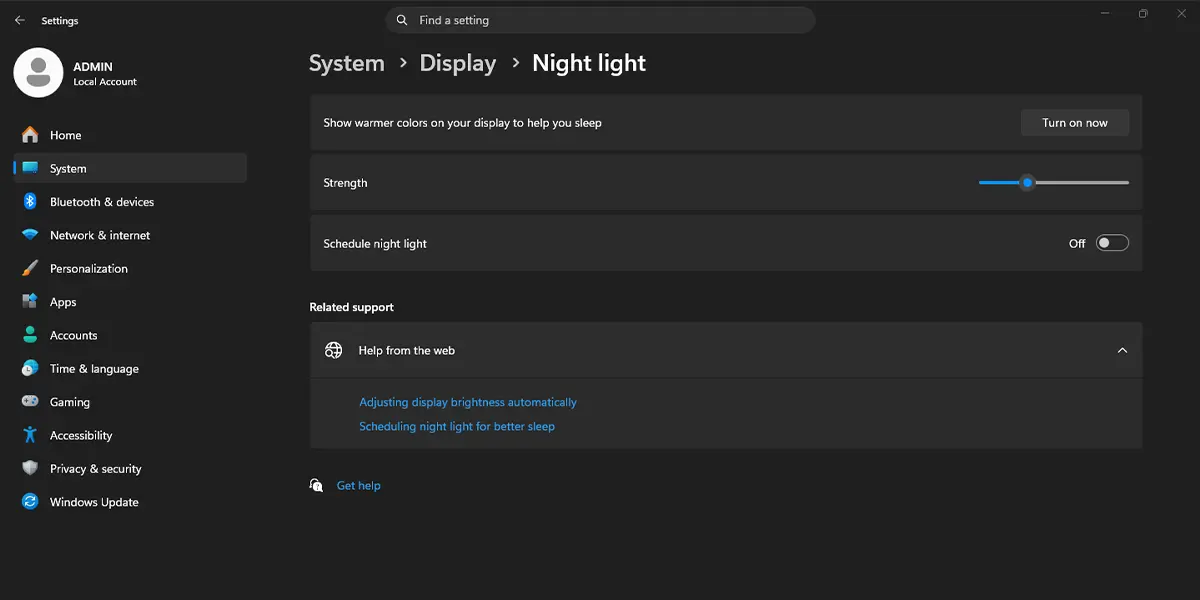
- Under Brightness & color, click the Night light row itself, not just the toggle, to open its settings. The full path is Settings > System > Display > Night light.
- Turn on the Schedule night light toggle. Two schedule options appear below it.
Option 1: Use Sunset to Sunrise
- Select Sunset to sunrise.
- If Windows cannot work out the local times, open Settings > Privacy & security > Location and turn on Location services.
- Go back to Settings > System > Display > Night light and confirm that Sunset to sunrise is still selected.
From this point on, the screen turns warmer around sunset and returns to normal at sunrise. This works best for laptops that travel, because the times follow the current location.
Option 2: Use Set Hours
- Select Set hours.
- Click the time under Turn on and pick the hour and minute, for example 9:00 PM.
- Click the time under Turn off and pick the hour and minute, for example 7:00 AM.
Most people find that this option suits a fixed routine, such as a desktop PC used at the same desk every night. The schedule can cross midnight without any extra settings.
Tip: The Strength slider on the same page controls how warm the screen looks. Click Turn on now to preview the effect, adjust the slider until it feels comfortable, and the schedule will use that strength.
How to Undo or Reverse This Change
Open Settings > System > Display > Night light and switch Schedule night light off. If the screen is still warm, click Turn off now to return it to normal colors straight away.
Common Problems and Fixes
Night Light Is Missing or Greyed Out
A missing or generic display driver is the most common cause. Open Settings > Windows Update > Advanced options > Optional updates, install any graphics driver update listed there, and restart the PC.
Sunset to Sunrise Is Unavailable or Uses the Wrong Time
This option relies on location. Turn on Location services in Settings > Privacy & security > Location. Also check Settings > Time & language > Date & time, because a wrong time zone shifts the sunset time.
Night Light Turns On at an Unexpected Hour
The Set hours times may have the wrong AM or PM value. Reopen the Night light page and check both the Turn on and Turn off times.
Frequently Asked Questions
Does scheduling Night Light work on Windows 11 Home?
Yes. The Night light schedule is available on Home, Pro, and Enterprise editions.
Does the PC need a restart after setting the schedule?
No. The schedule applies as soon as it is turned on.
Does Night Light need Location services?
Only the Sunset to sunrise option needs Location services. The Set hours option works without them.
Is there a keyboard shortcut for Night Light?
Windows 11 has no dedicated shortcut. Pressing Windows + A opens Quick Settings, where the Night light tile can switch it on or off by hand.
Can the schedule run past midnight?
Yes. A schedule such as 9:00 PM to 7:00 AM works without extra steps.
Can the warmth of the screen be changed?
Yes. Use the Strength slider on the Night light page to make the screen warmer or cooler.
How can the automatic schedule be stopped?
Open Settings > System > Display > Night light and switch off Schedule night light.
Why is the Night light option missing?
A missing or generic graphics driver is the usual reason. Installing driver updates from Optional updates in Windows Update normally brings the option back.
