
Looking for the easy way to add a delegate mailbox in Outlook? The process takes about two minutes once permission has been granted. This guide covers the exact clicks in classic Outlook for Windows, plus a quicker route in the new Outlook, so the other person’s mailbox shows up right beside your own.
Key Takeaways
- The mailbox owner or an admin must grant permission before the mailbox can be added.
- In classic Outlook, the mailbox is added from File, Account Settings, then the Advanced tab.
- In the new Outlook, a right-click on the account name does the job in a few seconds.
- If the mailbox does not appear, restarting Outlook and waiting for permissions to sync fixes most cases.
Add a Delegate Mailbox in Outlook: Step-by-Step
Before starting, confirm that the mailbox owner (or the organization’s admin) has given the account Full Access or delegate access. Without that permission, Outlook cannot open the mailbox, no matter which method is used. Think of it like a house key: the lock must be set up for the key before the door will open.
Method 1: Classic Outlook for Windows
- Step 1: Open Outlook and select File in the top-left corner.
- Step 2: Select Account Settings, then choose Account Settings again from the drop-down menu.
- Step 3: On the Email tab, select the email account, then choose Change.
- Step 4: Select More Settings at the bottom right of the window.
- Step 5: Open the Advanced tab.
- Step 6: Under Open these additional mailboxes, select Add.
- Step 7: Type the name or full email address of the delegate mailbox, then select OK.
- Step 8: Select OK to close the settings window, then choose Next and Finish.
- Step 9: Restart Outlook if prompted. The delegate mailbox now appears in the folder pane under the main mailbox.
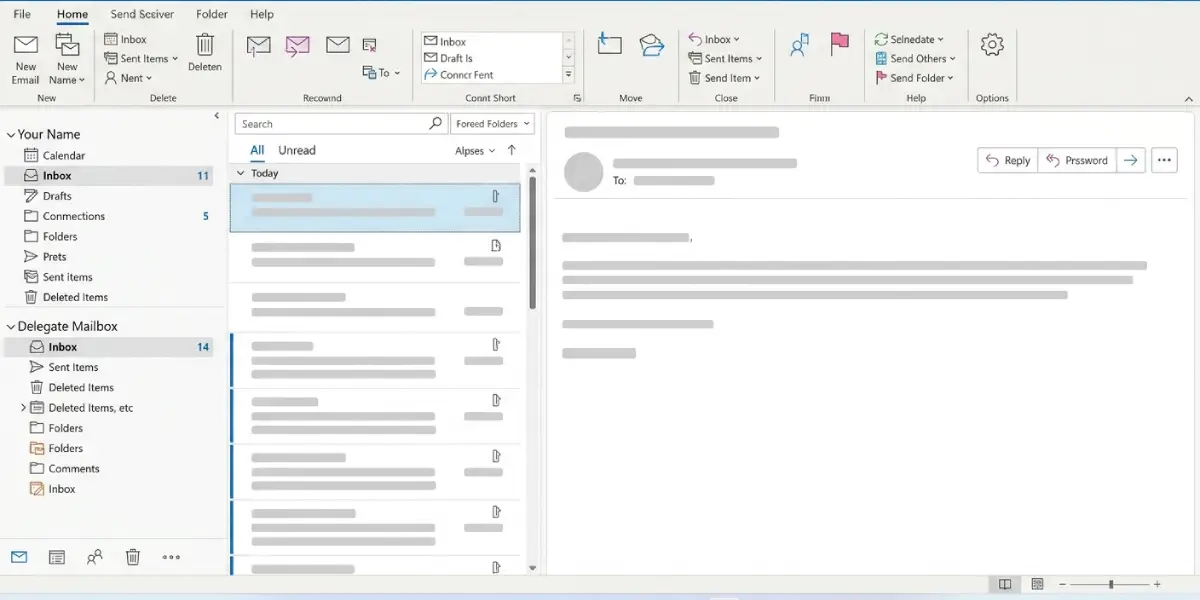
Tip: Typing the full email address instead of a display name avoids mix-ups when several people share a similar name.
Method 2: New Outlook for Windows
- Step 1: In the folder pane on the left, right-click the email address of the main account.
- Step 2: Select Add shared folder or mailbox.
- Step 3: Type the name or email address of the delegate mailbox.
- Step 4: Select the matching result, then choose Add. The mailbox appears in the folder pane within moments.
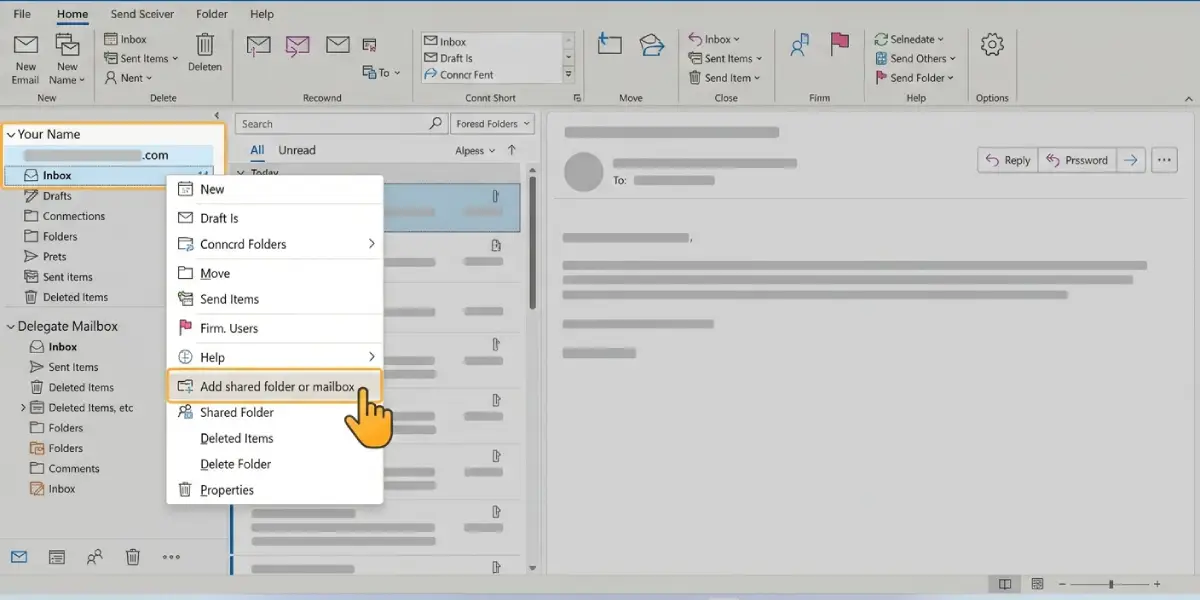
Tip: When Full Access has been granted by an admin, the mailbox often appears on its own through auto-mapping. Check the folder pane first, since the manual steps may not be needed at all.
Common Problems and Fixes
The mailbox name cannot be found
This usually means the name was typed with a spelling slip or the permission has not been granted yet. Try the full email address, and confirm with the mailbox owner or admin that access was actually assigned to the correct account.
The mailbox was added but does not show in the folder pane
Close Outlook completely and reopen it. Newly granted permissions can take up to an hour to take effect in Microsoft 365, so a short wait followed by a restart clears this up in most cases.
The mailbox appears but cannot be opened
An access denied message points to missing rights on the mailbox itself. Ask the owner or admin to confirm that Full Access (or the correct delegate permission) is assigned to the signed-in account.
The Advanced tab is missing in classic Outlook
The Advanced tab appears only after selecting Change and then More Settings for an Exchange or Microsoft 365 account. Accounts connected another way may not show it, so confirm the correct account is selected on the Email tab.
Frequently Asked Questions
What is the easiest way to add a delegate mailbox in Outlook?
In the new Outlook, right-click the account name in the folder pane, choose Add shared folder or mailbox, enter the name or email address, and select Add. In classic Outlook, the same result comes from File, Account Settings, Change, More Settings, then the Advanced tab.
Does permission need to be granted before the mailbox can be added?
Yes. The mailbox owner or an admin must assign Full Access or delegate access first. Outlook cannot open a mailbox without that permission.
How long does a delegate mailbox take to appear in Outlook?
When added manually, the mailbox appears within moments after the final step. When permission was just granted, it can take up to an hour to sync, and restarting Outlook helps it show up sooner.
Can more than one delegate mailbox be added to the same Outlook profile?
Yes. Repeat the Add step for each additional mailbox, and each one appears in the folder pane.
How can a delegate mailbox be removed from Outlook?
In classic Outlook, return to File, Account Settings, Change, More Settings, then the Advanced tab. Select the mailbox under Open these additional mailboxes and choose Remove.
Can a delegate mailbox be added in Outlook on the web?
Yes. Right-click Folders in the left pane, select Add shared folder or mailbox, enter the name or email address, and choose Add.
Who gives permission to open a delegate mailbox?
The mailbox owner can grant delegate access from File, Account Settings, then Delegate Access in classic Outlook. An admin can also assign Full Access to the mailbox in the Microsoft 365 admin settings.
