
When Outlook only syncs the last 12 months of mail, older messages are still sitting safely on the mail server – they just aren’t downloaded to the local device yet. This happens because of a setting called the Mail to keep offline slider, and adjusting it brings those older emails right back into view.
Key Takeaways
- The 12-month limit comes from the Mail to keep offline slider in Account Settings, not from deleted or missing mail.
- Older messages remain stored on the Exchange or Microsoft 365 server the entire time.
- Widening the slider (or choosing All) forces Outlook to re-download the missing months into the local .ost file.
- A full resync can take anywhere from a few minutes to several hours depending on mailbox size.
- A stable internet connection during the resync helps avoid incomplete downloads.
How to Fix Outlook Only Syncing the Last 12 Months of Mail
Step-by-Step Guide
- Step 1: Open Outlook on the desktop and click File in the top-left corner.
- Step 2: Select Account Settings, then click Account Settings again from the drop-down menu.
- Step 3: On the E-mail tab, find the Exchange or Microsoft 365 account that’s only showing 12 months of mail, click to highlight it, then select Change.
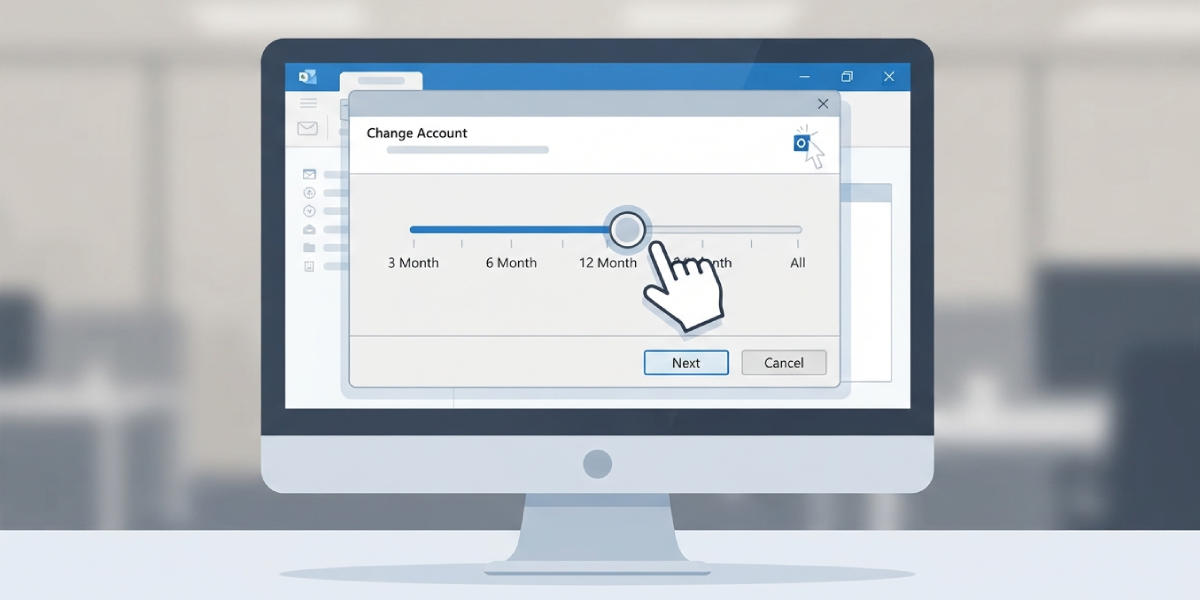
- Step 4: In the Change Account window, look for the section labeled Offline Settings and locate the slider called Mail to keep offline.
- Step 5: Drag the slider past 12 months to a longer window, such as 24 months, 36 months, or All, depending on how far back the mail needs to reach.
- Step 6: Click Next, then click OK when prompted that Outlook needs to be restarted to apply the change.
- Step 7: Select Finish, then close the Account Settings window.
- Step 8: Close Outlook completely and reopen it so the new sync window takes effect.
Tip: Moving the slider all the way to All means every message ever sent or received on that account gets downloaded, which can take a while on a large mailbox. Choosing a specific number of months instead, like 24 or 36, is usually enough to recover the missing mail without ballooning the local file size.
Checking That the Resync Is Working
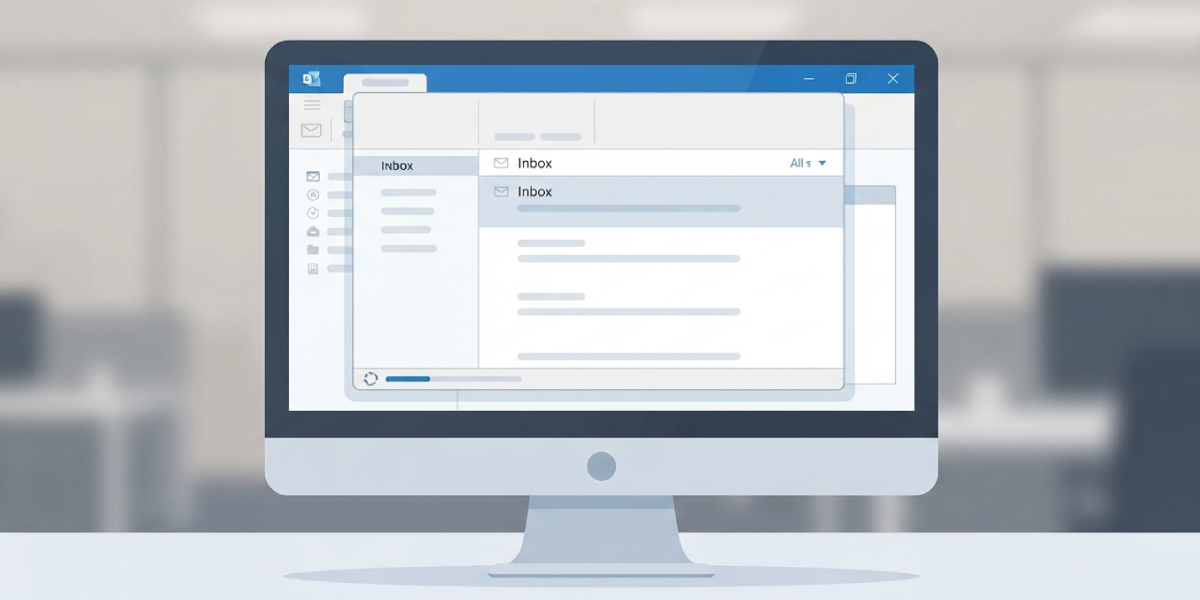
After Outlook reopens, watch the status bar at the bottom of the window. It typically shows a message like ‘Updating Inbox’ or a percentage-based progress indicator while older items download in the background. Mail keeps working normally during this process, so there’s no need to sit and wait for it to finish before checking email.
Common Problems and Fixes
The slider only goes up to 12 months and no further
Some organizations cap this setting through an IT policy applied to the Microsoft 365 account. If the slider stops at 12 months and won’t move past it, the account administrator has likely restricted the maximum sync window, and only that administrator can raise the limit.
Older mail still isn’t showing after widening the slider
Give Outlook time to finish downloading, since a large mailbox with years of history can take several hours the first time. If nothing appears after an extended wait, close Outlook, reopen it, and confirm the account still shows a Connected status in the bottom status bar rather than Disconnected or Working Offline.
Outlook feels slow right after changing the setting
A sudden jump from 12 months to All causes a large download and temporary indexing load. Performance typically returns to normal once the initial sync finishes; leaving the computer connected to power and a stable network speeds that process along.
The Change option is greyed out
This usually means Outlook is set to Work Offline. Check the Send/Receive tab and make sure Work Offline is not toggled on before returning to Account Settings.
The setting reverts back to 12 months on its own
This points to a Group Policy or admin-managed profile setting that resets the sync window on sign-in. In that case, the change needs to happen at the organization’s policy level rather than on the individual device.
Frequently Asked Questions
Why does Outlook only sync the last 12 months of mail by default?
Outlook uses Cached Exchange Mode to store a portion of the mailbox locally, and 12 months is a common default chosen to balance offline access with the size of the local .ost file.
Is the older mail deleted from the account?
No. Mail outside the sync window stays on the Exchange or Microsoft 365 server; it simply isn’t downloaded to the device until the slider is widened.
How long does it take to sync mail older than 12 months?
It depends on mailbox size and connection speed, ranging from a few minutes for smaller accounts to several hours for mailboxes with years of accumulated mail.
Can the sync window be set to more than 12 months?
Yes. The slider supports options like 18 months, 24 months, 36 months, 60 months, and All, provided the account isn’t restricted by an organizational policy.
Does widening the slider affect Outlook on the web or mobile?
No. The Mail to keep offline setting only controls what’s cached locally in desktop Outlook; webmail and mobile apps continue to show the full mailbox regardless of this setting.
Will this setting use up a lot of storage space?
Choosing All can significantly increase the size of the .ost file, especially on accounts with several years of mail, so it’s worth checking available disk space first on smaller drives.
Why is the slider capped and can’t be moved past 12 months?
An administrator may have applied a policy limiting the maximum offline sync window for the organization, which overrides individual attempts to extend it.
Does this setting also apply to shared mailboxes?
In Outlook 2016 and later, yes – the same Mail to keep offline slider limits how much history syncs for shared and delegated mailboxes as well, unless an admin has disabled that behavior.
